Online train ticket booking on Railway e-PASS: IRCTC
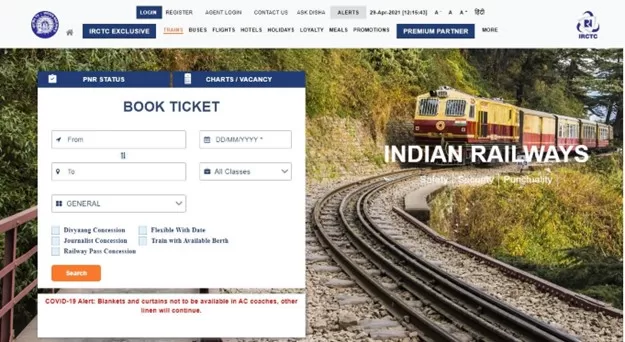
Here’s a user-friendly User Guide for E-PASS Booking on IRCTC:
User Guide: for online train ticket booking on Railway e-PASS on IRCTC
This guide will walk you through the process of online booking railway tickets using an e-PASS on the IRCTC platform (website or mobile app).
- Also read here for Step by Step guide for e-Pass on HRMS for Railway Employees
Step-by-Step Instructions
1. Access the IRCTC Portal
- Go to the IRCTC website: www.irctc.co.in
- Click on the “LOGIN” button at the top.
- Enter your registered User ID and Password to sign in.
2. Begin Booking Your Journey
- On the Book Ticket page, fill in:
- From Station
- To Station
- Date of Journey
- Quota
- Class of Travel
- Check the “Railway Pass Concession” checkbox.
3. Confirm Concession Booking
- A message will appear:
“You are booking ticket in Railway Pass Concession. Do you want to continue?” - Click “OK” to proceed.
4. Search Trains
- Optionally, check “Flexible with Date” if your journey date is not fixed.
- Click “Search” to view train options.
- On the next screen, you’ll see a list of available trains with class-wise seat availability.
- Select the desired class and click “Book Now”.
5. Enter Passenger Details
- On the Passenger Reservation Page:
- At least one passenger must be a Pass holder.
- Enter:
- Passenger Name
- Age
- Gender
- For Pass holders:
Select “Pass Booking” and enter:- Pass Number
- Pass PIN Code
- For non-pass holders, choose “General Booking”.
- Add additional passengers using the “Add Passenger” option.
- Enter Destination Address.
- Modify Boarding Station if needed using the dropdown menu.
- Provide Mobile Number and select Payment Mode.
- Click “Continue” to proceed.
6. Review Booking
- On the Booking Review Page, you will see:
- Ticket details
- Total fare
- Berth availability
- Pass information
- Use the “Back” button if changes are needed.
- Note:
- No IRCTC convenience fee for tickets with only Pass/PTO passengers.
- Fee applies for mixed bookings:
- ₹15 + GST for SL and 2S
- ₹30 + GST for other classes
- Travel insurance is not available for pass bookings.
- Enter the captcha and click “Continue”.
7. Payment and Confirmation
- If the fare > ₹0:
- Proceed to payment.
- On success, PNR Number is generated.
- If fare = ₹0:
- Click “Continue”.
- Booking is confirmed and PNR is generated.
8. Post-Booking
- You will receive:
- SMS (VRM) on your registered mobile number.
- Booking Confirmation Email.
- You can:
- Print Electronic Reservation Slip (ERS) by clicking on the “Print Ticket” button next to PNR.
- Use “Book Return/Onward Ticket” to reuse current passenger details.
- Click “Book Another Ticket” for a fresh booking.
User guide in detail: Online train ticket on Railway e-pass
- Open IRCTC website (www.irctc.co.in)
- Login to the IRCTC website by clicking on “LOGIN” option provided at the top and enter your registered User ID and Password.
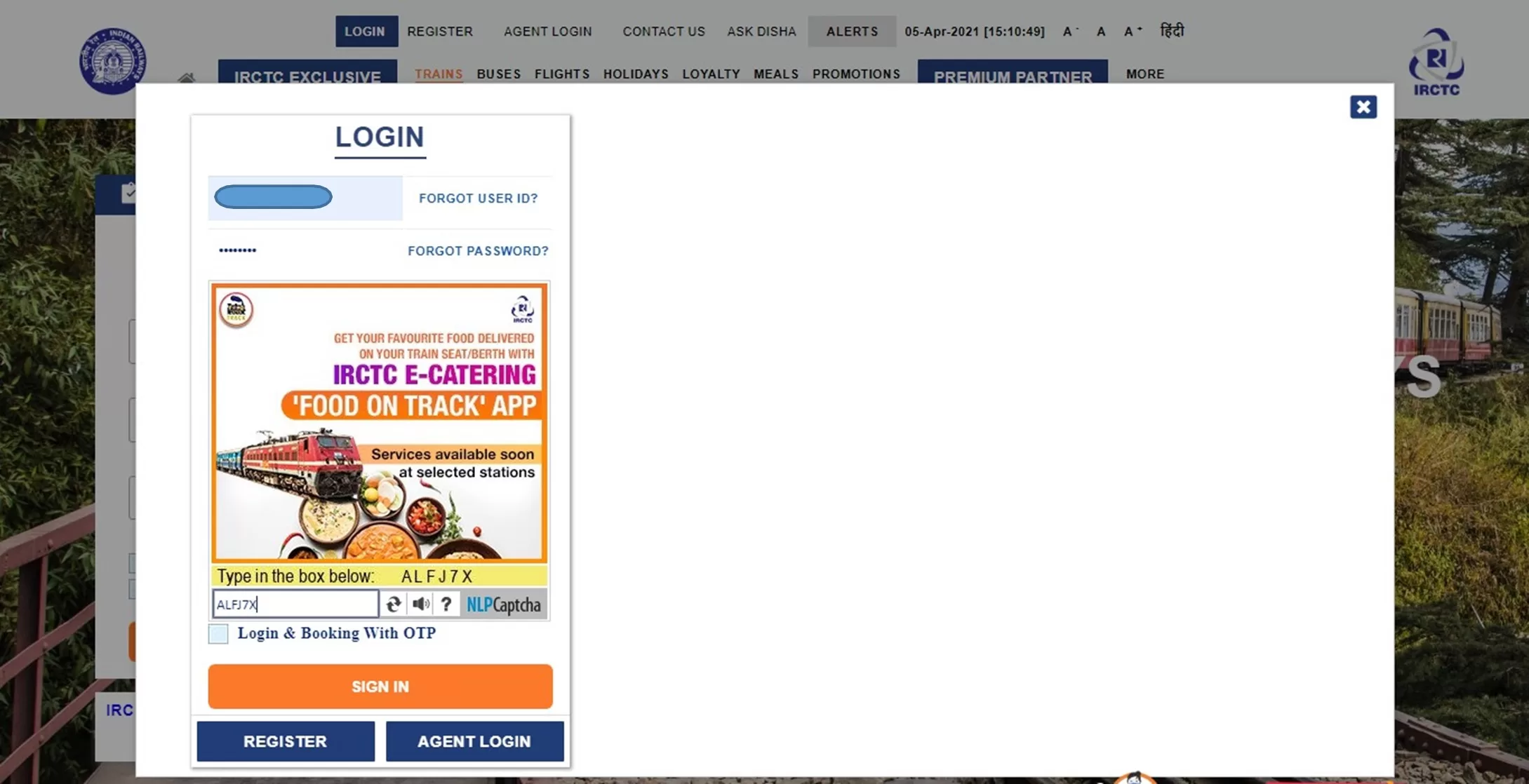
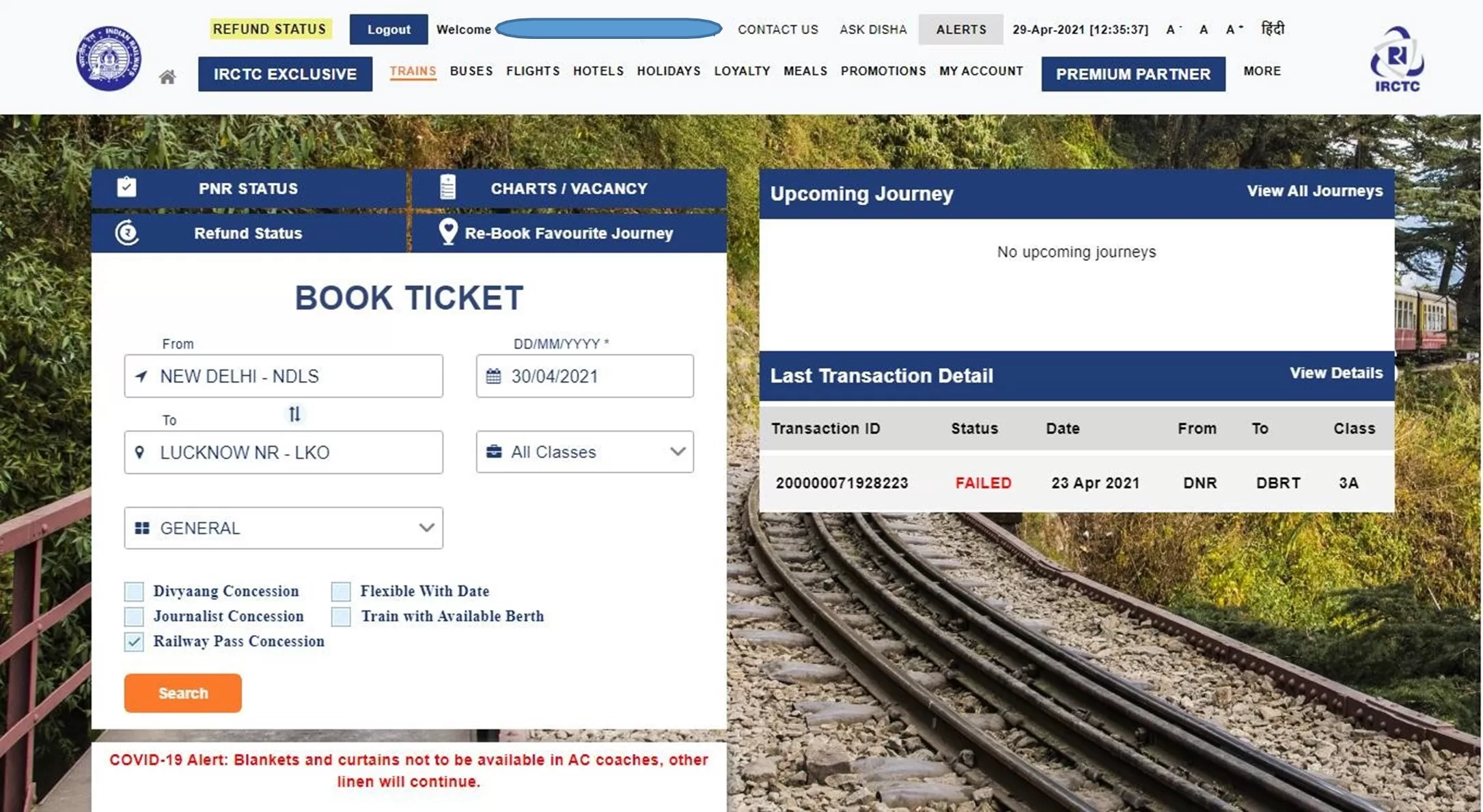
- On Book Ticket Page, enter your desired “From station”, “To station”, “Date of Journey”, “Quota” and “Class” of travel.
- Select the “Railway Pass Concession” checkbox.
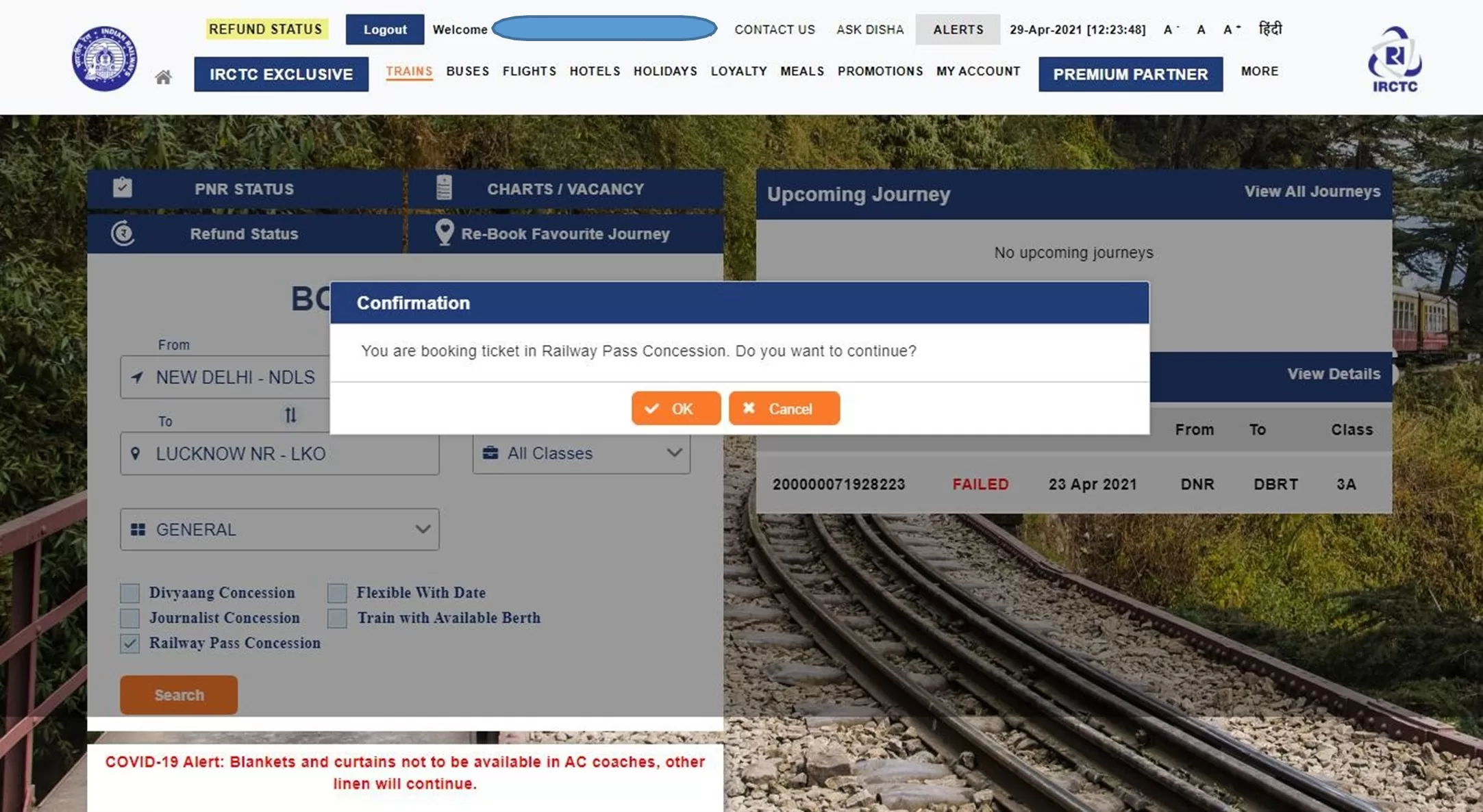
A confirmation message will be displayed – “You are booking ticket in Railway Pass Concession. Do you want to continue?” Press “OK” to continue.
- In case, you do not have any fixed date of journey, select “Flexible with Date” option.
To find train list, click on “Search” button.
- The “List of Trains” will be displayed in next page with class wise availability and fare.
- To select the train from the train list, select desired class of travel and click on “Book Now” button.
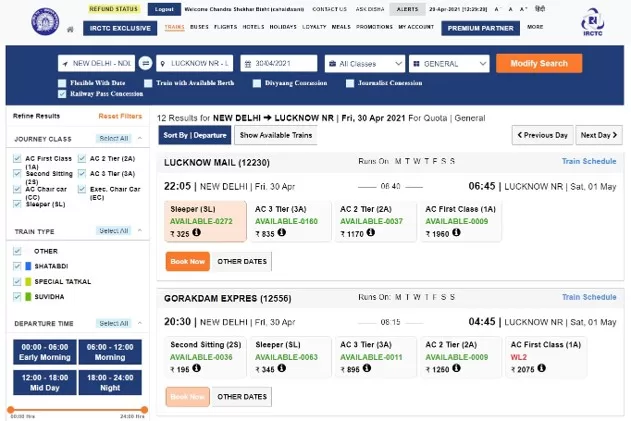
- “Passenger Reservation Page” will be displayed in the next page.
- For booking a Pass Booking ticket, at least one of the travelling passenger must be pass holder.
- Enter “Passenger Name”, “Age”, “Gender” and select concession option as “Pass Booking” for pass holder and provide “Pass Number” and “Pass PIN Code” as per the details available in pass issued.
- Additional passenger can be added here by clicking on “Add Passenger” option.
- Concession option for general passenger to be selected as “General Booking”.
- Destination passenger address will be required to be provided under “Your Destination Address”.
- Boarding Station for the journey can be changed by clicking the down arrow button on “Boarding Station” option provided on the Passenger Reservation Page by selecting the desired boarding station name from the drop down list.
- After providing Passenger’s Mobile Number and selecting Payment Mode, click on “Continue” button to proceed next and to make any change in journey details “Back” button may be used.
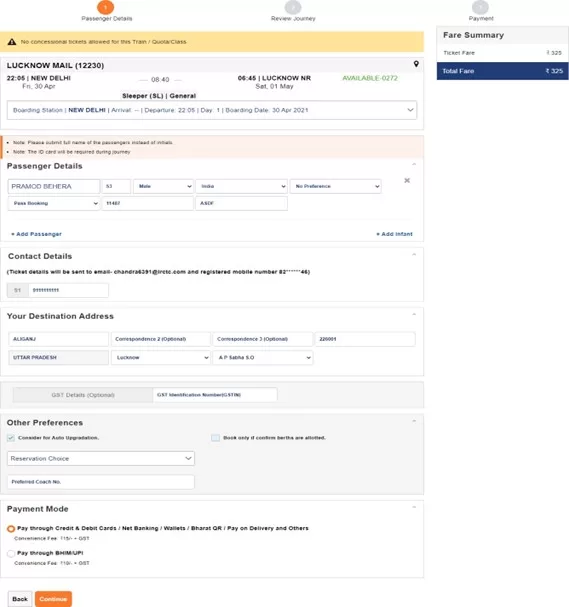
- Once the passenger details entered get verified with the details in pass issued, next page will be displayed as “Booking Review Page”.
- The ticket details, Total fare, Availability of berths and Pass details will be displayed on the screen.
- To make change in journey details, “Back” button may be used.
- IRCTC convenience fee will not be levied on tickets booked for only Pass/PTO passengers.
- IRCTC Convenience Fee (Rs. 15+GST for SL and 2S and Rs. 30+GST for all other classes) will be charged on tickets accompanying General passengers with PASS/PTO holders.
- Travel insurance premium will not be charged for the time being on PASS booking tickets.
- After checking all details, enter the captcha and click on “Continue” button.
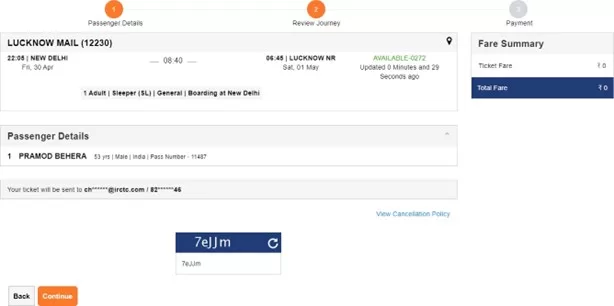
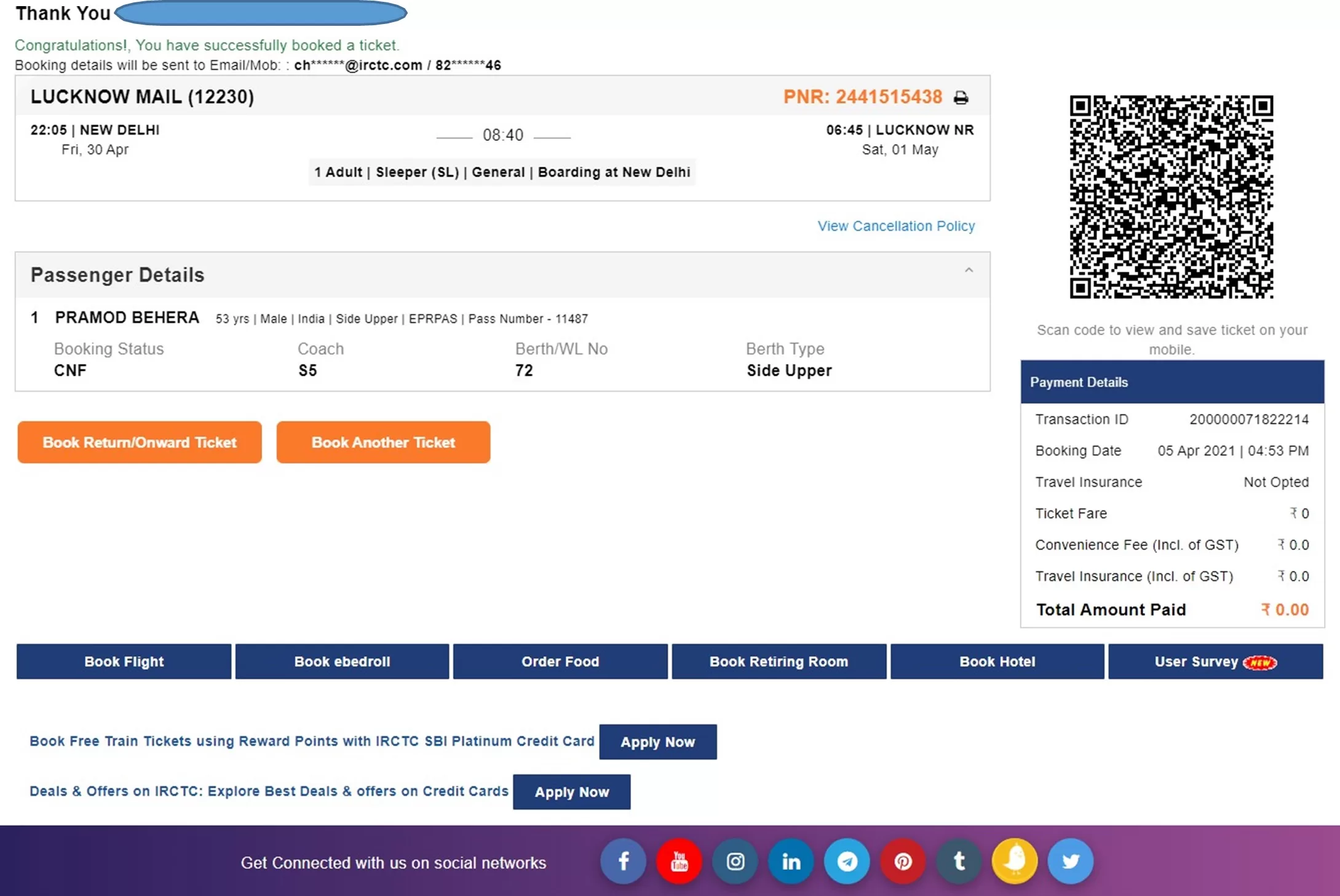
- If total fare to be paid is greater than zero, then payment option page will be displayed to make payment and “PNR number” will be generated after successful payment and successful response from PRS system.
- If total fare to be paid is displayed as zero, then on clicking continue button Booking Confirmation Page will be displayed after successful response from the PRS system “PNR number” will be displayed.
- “Virtual reservation message” (VRM) in the form of “SMS” will be sent on Registered Mobile Number.
- “Booking confirmation mail” will be sent on Registered Email ID.
- Electronic Reservation Slip (ERS) can be printed by clicking on “Print Ticket” image button provided at next of PNR Number.
- To book ticket for Return/Onward Journey, “Book Return/Onward Ticket” button may be used. Using this option will retain the details of Passengers as provided in the current ticket.
- To book another ticket, “Book Another Ticket” button may be used.
- Pass booking related FAQs are provided in HRMS Dashboard. Please refer below screen.
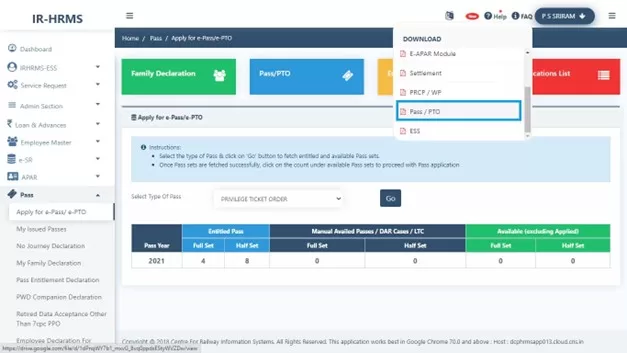
I hope this guide for online train ticket booking on Railway e-PASS is helpful to you. For such content also read below links…
Also Read

2 Comments
david hoffmeister wikipedia · April 14, 2026 at 1:43 pm
Magnificent site. A lot of useful information here.
I’m sending it to several pals ans also sharing in delicious.
And obviously, thank you to your effort!
gorenje_xaSi · April 15, 2026 at 6:40 pm
В нашем интернет-магазине вы можете быстро и выгодно приобрести магазин запчастей горенье с доставкой по всей России.
Большинство пользователей рано или поздно нуждаются в обновлении комплектующих после продолжительного активного использования. | Правильный выбор комплектующих позволяет продлить срок службы приборов и сохранить их оригинальные характеристики. | Профессионалы настаивают на сотрудничестве лишь с подтвержденными поставщиками, дабы исключить подделки и расхождения. | Они проходят строгий контроль качества на заводе производителя. | Благодаря этому техника работает стабильно и без неожиданных сбоев в будущем. | Доступны нагреватели, демпферы, платы управления и детали корпуса. | Каждый компонент разработан с учетом особенностей словенской техники. | Профессиональные сервисные центры всегда предпочитают именно такие детали. | Уровень деталей Горенье отвечает строгим европейским нормам изготовления. | Бренд более 75 лет выпускает надежную технику, которая служит в десятках стран мира. | Фирменные детали сохраняют все технологические преимущества оригинального оборудования. | Поставщики предлагают быструю доставку по России и странам СНГ. | Многие пользователи подчеркивают, что оригинальные запчасти Gorenje служат значительно дольше аналогов. | Они минимизируют риск повреждения других элементов техники. | Постоянный технический уход с заводскими комплектующими удлиняет эксплуатацию аппаратов на несколько лет. | Данные детали идеально соответствуют габаритам и фиксаторам. | Спрос на детали Горенье увеличивается за счет превосходного баланса стоимости и качества. | Пользователи могут выбрать детали для стиральных машин, холодильников, духовых шкафов и другой техники. | Перечни предлагают тысячи артикулов с точными спецификациями. | Период гарантийного обслуживания деталей доходит до одного-двух лет в зависимости от типа. | Грамотный выбор деталей Горенье предполагает учет модели и заводского номера оборудования. | Специализированные сайты позволяют быстро найти нужный артикул по параметрам устройства. | Эксплуатация заводских элементов способствует экологичности ремонта, поскольку удлиняет жизненный цикл техники и сокращает объем отходов. | Бренд заботится о устойчивом развитии и качестве на всех этапах. | Найти и заказать запчасти Gorenje сейчас не вызывает затруднений. | Многочисленные онлайн-магазины и сервисные центры предлагают полный ассортимент с оперативной доставкой. | Сервисные организации, работающие с официальными дилерами, обладают прямыми поставками непосредственно с фабрики. | Это обеспечивает наличие редких деталей и минимальные сроки ожидания. | Инженеры задействуют специализированное оснащение для диагностирования и монтажа. | Расход энергии сохраняется на первоначальном показателе. | Отбор комплектующих Gorenje является инвестицией в уверенность и долгосрочность эксплуатации бытовых приборов. | Словенский бренд завоевал доверие миллионов пользователей благодаря строгому контролю качества. | Заводские детали всегда полностью соответствуют указанным спецификациям. | Приобретение по надежным каналам устраняет опасности и доставляет исключительно позитивные впечатления от использования.