Notice: Function WP_Scripts::localize was called incorrectly. The $l10n parameter must be an array. To pass arbitrary data to scripts, use the wp_add_inline_script() function instead. Please see Debugging in WordPress for more information. (This message was added in version 5.7.0.) in /home4/railmu7v/public_html/wp-includes/functions.php on line 6170
Notice: Function WP_Scripts::localize was called incorrectly. The $l10n parameter must be an array. To pass arbitrary data to scripts, use the wp_add_inline_script() function instead. Please see Debugging in WordPress for more information. (This message was added in version 5.7.0.) in /home4/railmu7v/public_html/wp-includes/functions.php on line 6170
Notice: Function WP_Scripts::localize was called incorrectly. The $l10n parameter must be an array. To pass arbitrary data to scripts, use the wp_add_inline_script() function instead. Please see Debugging in WordPress for more information. (This message was added in version 5.7.0.) in /home4/railmu7v/public_html/wp-includes/functions.php on line 6170
Notice: Function WP_Scripts::localize was called incorrectly. The $l10n parameter must be an array. To pass arbitrary data to scripts, use the wp_add_inline_script() function instead. Please see Debugging in WordPress for more information. (This message was added in version 5.7.0.) in /home4/railmu7v/public_html/wp-includes/functions.php on line 6170
Skip to content
Employee Self Service module of HRMS was launched for use across all offices of Indian railways. Online training for operation of the Employee Self Service Module was also provided by CRIS to all the employees.
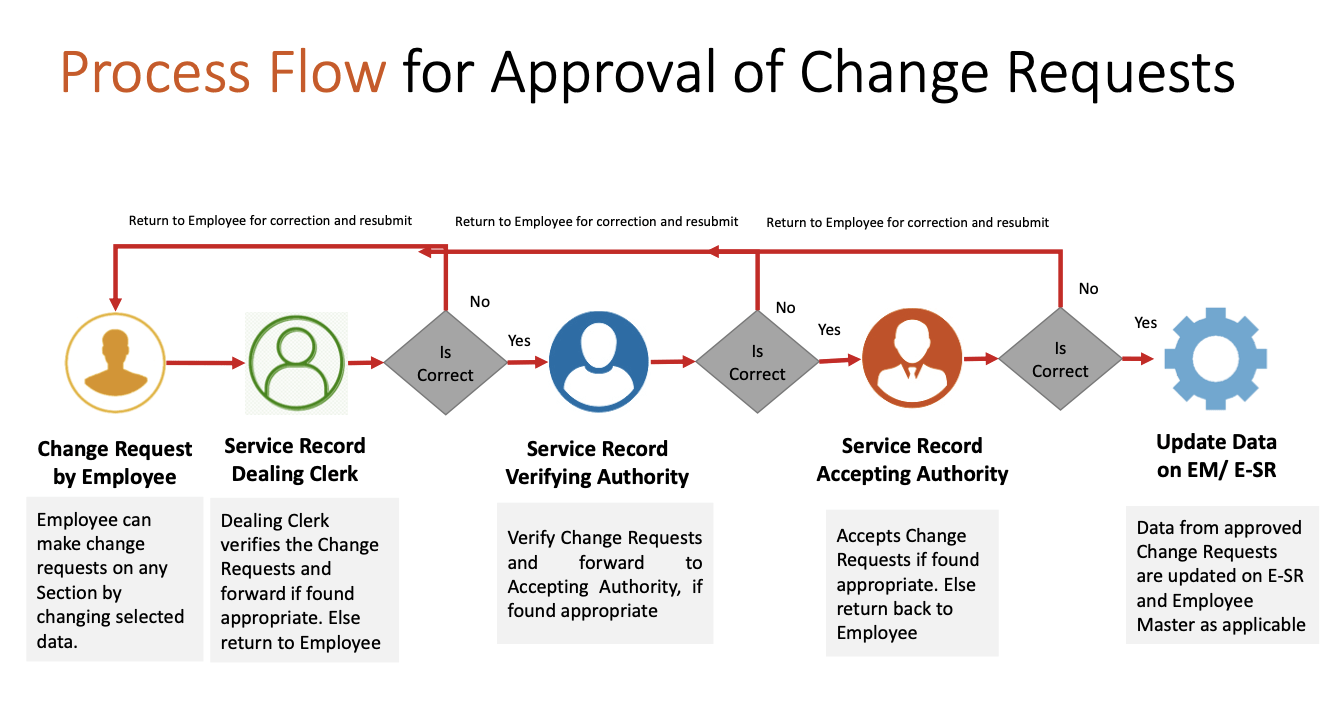
Employee Self Service (ESS) module enables railway employees to interact with various modules of HRMS including communication regarding change of data.
In order to serve as a guide and ready reckoner, a Summary Flow and a detailed User Manual is explained below.
ESS Flow Summary
ESS: Raising a Change Request by Employee
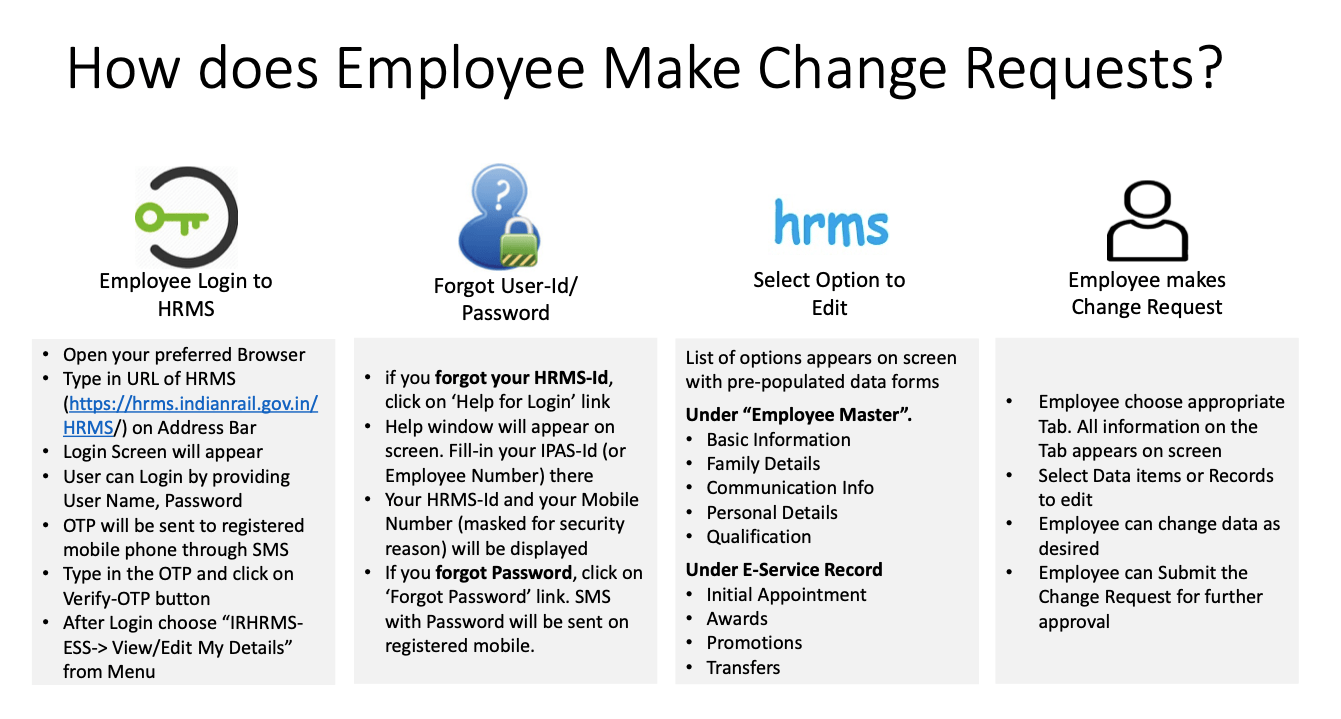
Employee logins to HRMS Application. https://hrms.indianrail.gov.in/HRMS
In the left side panel Right click on the ESS menu and then click on the submenu with name View/Edit My Details.
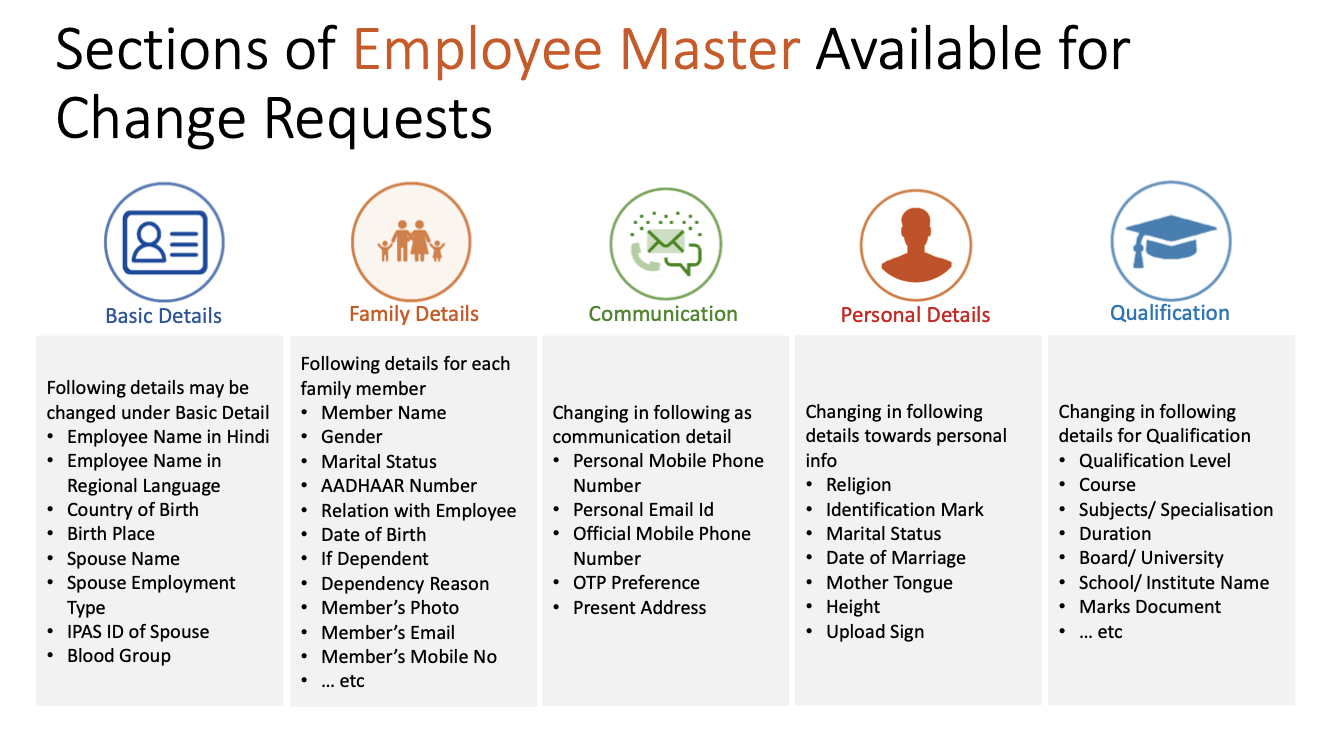
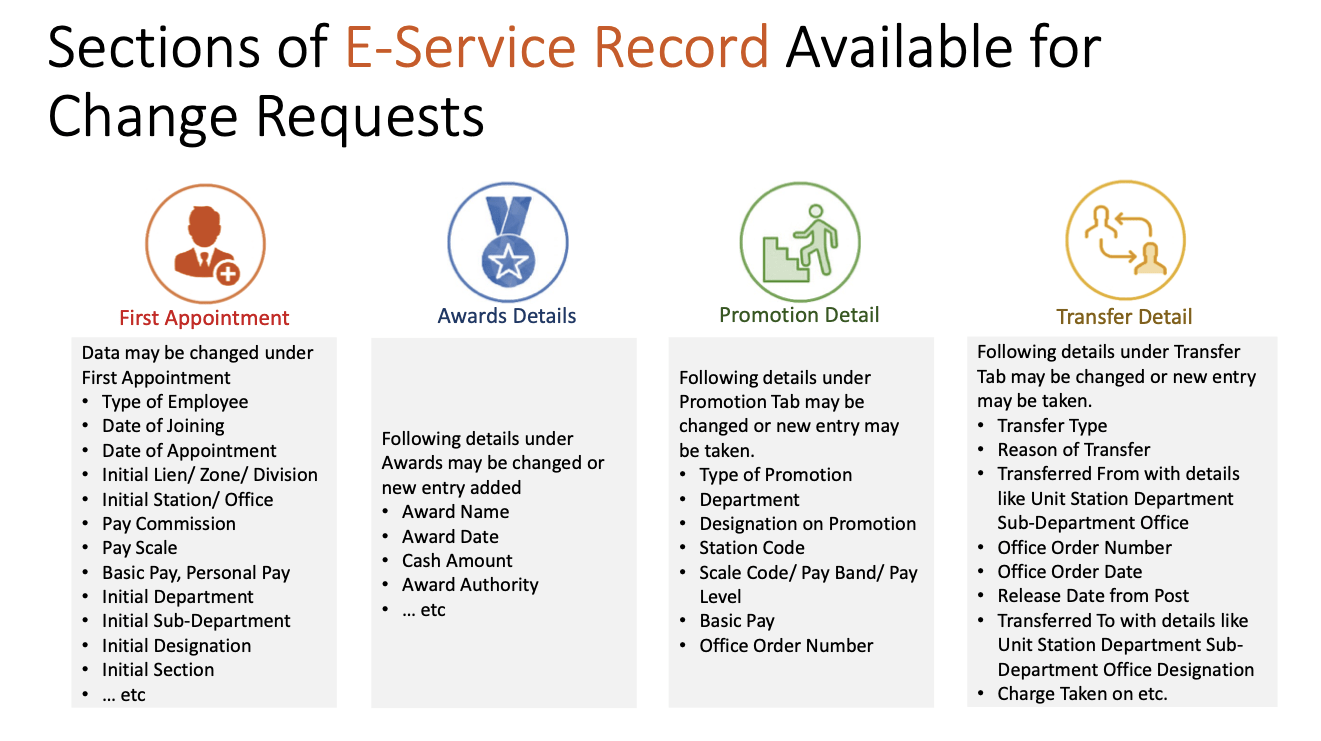
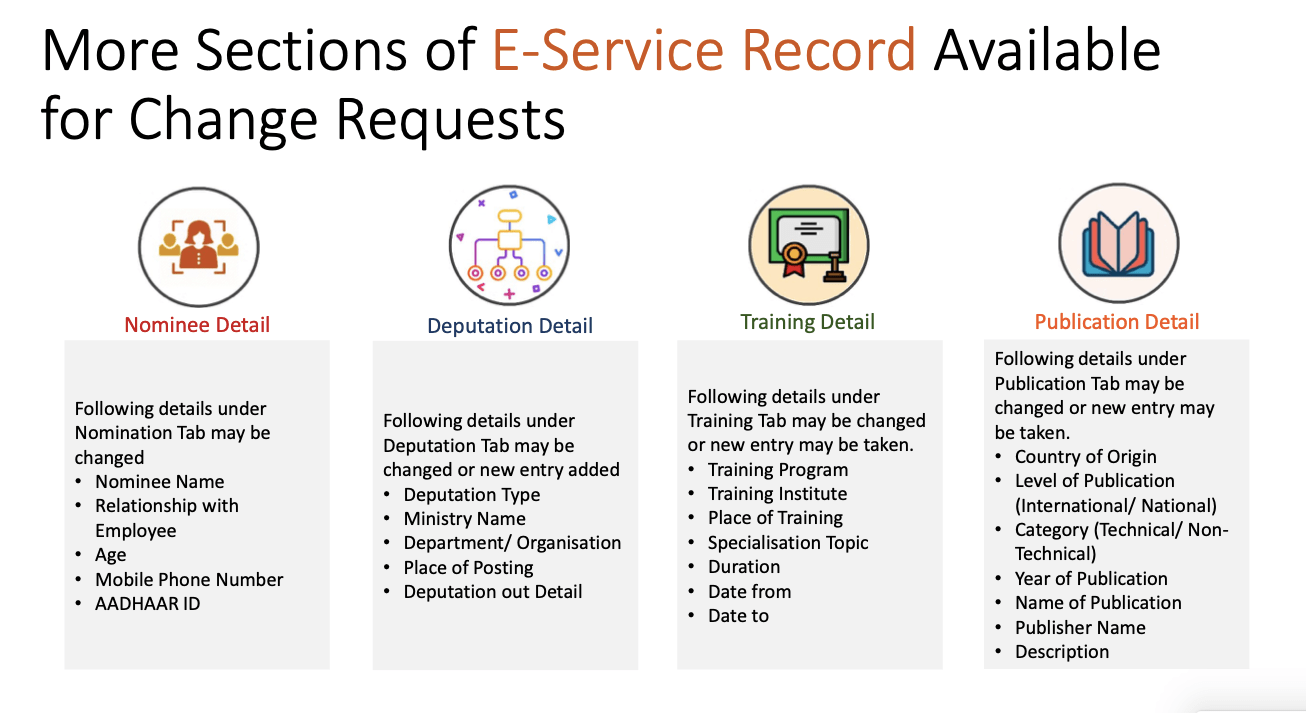
On next screen employee select respective tab name from drop down that contain list of all allowed tabs for change request.
All information available for that tab will be displayed in read only mode.
To create a change request, employee click on Raise a change request, system ask for reason to edit the data.
There will be an edit button (check box) for each fields in UI, by clicking the button that particular field will editable and user can put his changes.
User need to upload necessary supporting documents for changes they are requesting.
Once all details are done user need to submit thing information to DC by entering Transaction OTP.
Once request is submitted a unique Change Request Id is generated by system for future reference.
Employee can track status of their Change Request Summary Reportunder ESS menu.
ESS: Verification of Change Request by DC/VA/AA
DC / VA / AA login to HRMS application. https://hrms.indianrail.gov.in/HRMS
In the left side panel Right click on the ESS menu and then click on the submenu as per their role forward change request forDC, Very Change Request forVA and Accept Change Request forAA
A consolidated Change Request Summary report for pending case with DC/VA/AA is shown.
User click on Process button shown in right most side of each request in report
As user clicks the Process button, details entered by employee are displayed in pop-up window.
Data that are changed by employee are highlighted for ease of identification of users.
User can provide remarks and return change request to employee if change requested is not found OK.
If change request is found OK user can forward/ verify / accept the change request based on their role, with help of Transaction OTP.
Once change request is accepted, original data in Employee Master / eSr will be updated with new data.
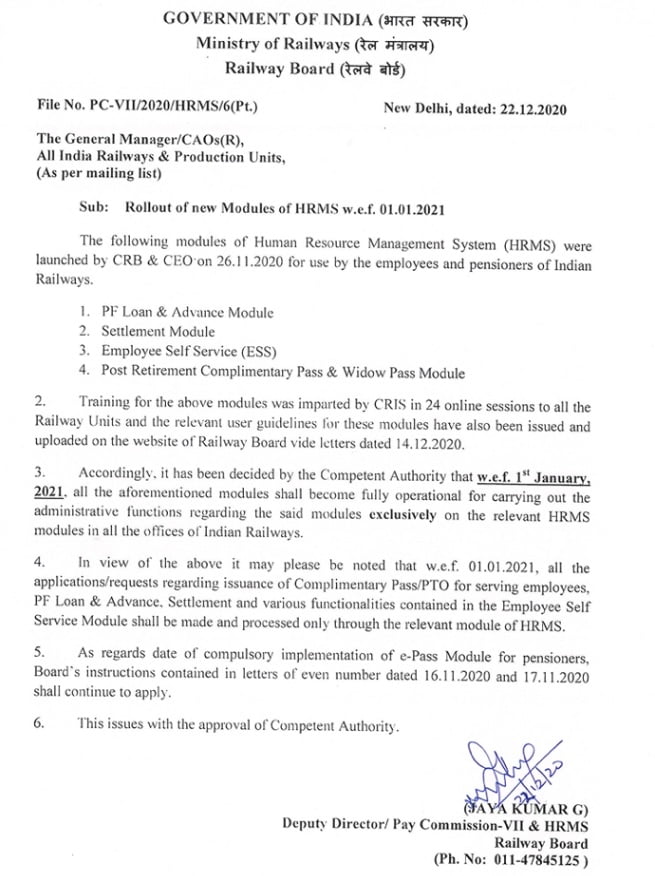
The following modules of Human Resource Management System (HRMS) were launched by CRB & CEO Railway Board on 26.11.2020 for use by the employees and pensioners of Indian Railways.
2.Training for the above modules was imparted by CRIS in 24 online sessions to all the Railway Units and the relevant user guidelines these modules have also been issued and uploaded on the website of Railway Board vide letters dated 14.12.2020.
3. Accordingly, it has been decided by the Competent Authority that w.e.f. 1st January, 2021, all the aforementioned modules shall become fully operational for carrying out the administrative functions regarding the said modules exclusively on the relevant HRMS modules in all the offices of Indian Railways.
4. In view of the above it may please be noted that w.e.f. 01.01.2021, all the applications/requests regarding issuance of Complimentary Pass/PTO for serving employees, PF Loan & Advance, Settlement and various functionalities contained in the Employee Self Service Module shall be made and processed only through the relevant module of HRMS.
5. As regards date of compulsory implementation of e-Pass Module for pensioners, Board’s instructions contained in letters of even number dated 16.11.2020 and 17.11.2020 shall continue to apply.
6. This issues with the approval of Competent Authority.
PF Loan & Advance module of HRMS was launched by CRB & CEO for use across all offices of Indian railways. Online training for operation of the PF Loan & Advance Module was also provided by CRIS to all the employees.
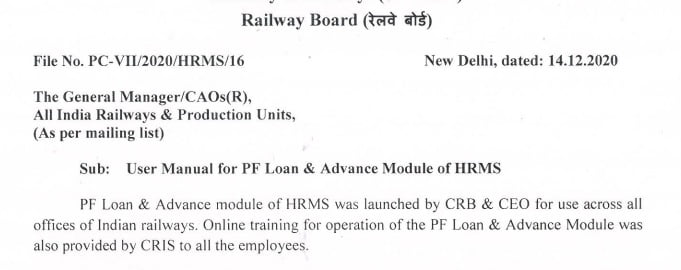
Vide Railway Board’s letter No. PC-VII/2020/HRMS/16, dated: 14.12.2020, a User Guide and a detailed User Manual for PF Loan & Advance Module of HRMS was circulated.
Click on Loan and Advances ->PF Loan Applications menu
List of Applications are shown.
Click on Application number.
PF loan application details are shown.
Enter remarks and press forward/Reject button.
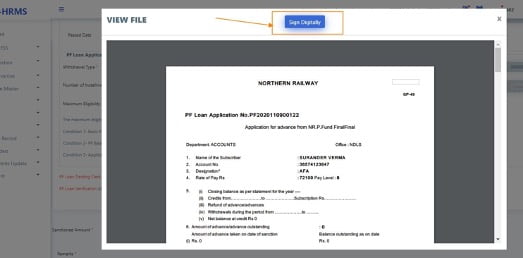
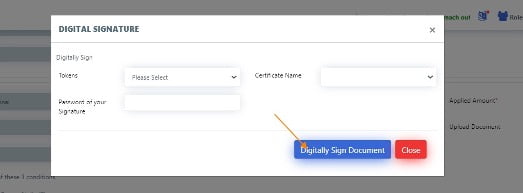
Accepting Authority digital sign application and accept. On accepting a PDF file is generated and digitally signed. Same Signed PDF file along with application data is sent to account dept through IPAS system.
On every change of status of PF Loan application, a SMS is sent on employee mobile number.
IPAS system process
• Whenever application’s status is changes in IPAS system, same is reflected in HRMS application in application list in Loan and Advances -> My PF Loan Applications menu.
A. PF Loan Dealing Clerk, PF Loan Verifying and PF Loan Accepting Authority creation
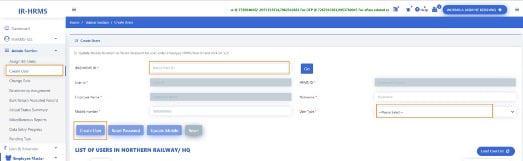
If the user is not already created for HRMS application, go to Admin Section>Create User.
Enter the IPAS ID/ HRMS ID of the user and click on ‘Go’ button
Enter the mobile number of the employee and select user type as ‘LDC’/’LVA’/’LAA’ for PF Loan Dealing Clerk, PF Loan Verifying Authority, PF Loan Accepting Authority respectively from the dropdown and click on ‘Create User’.
If user already exists in HRMS application, Go to Admin Section >Change Role.
Add role of ‘LDC’/’LVA’/’LAA’ for PF Loan Dealing Clerk, PF Loan Verifying Authority, PF Loan Accepting Authority respectively to user.
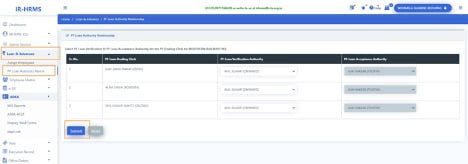
B. LDC, LVA, LAA mapping
1. Login to HRMS application with Unit Admin’s ID.
3. Select Loan Dealing Authority, Loan Verification Authority and Loan Acceptance Authority from the list for the respective unit and click on ‘Submit’ button.
C. Employee assignment to LDC
1. Login To HRMS application with Unit Admin’s ID
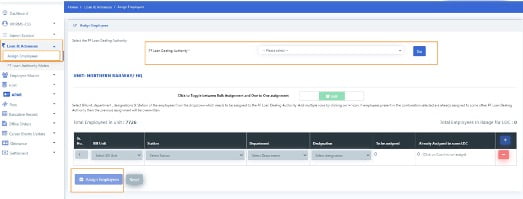
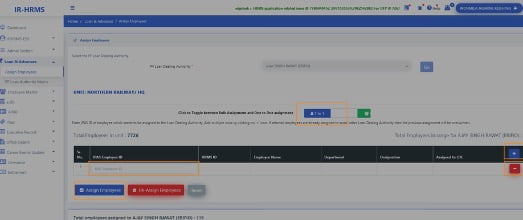
2. Click on Loan & Advances >Assign Employees
Select PF Loan Dealing Authority from the list to whom Employees needs to be assigned and click on ‘Go’ button.
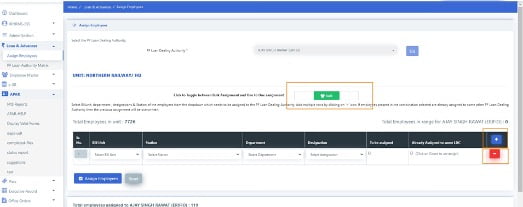
For bulk assignment, select the bill unit, station, department & designation combination. The count of to be assigned employees and those employees which are already assigned to some LDC will be shown. Add more rows by clicking on ‘+’ and remove rows by clicking on ‘-’ icon
Click on ‘Assign Employees’ button to assign selected employees to the LDC.
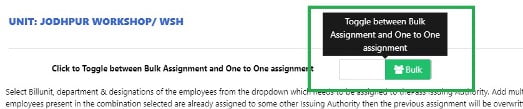
For Assignment based on employee ID, click on the icon shown in below image
Enter the HRMS ID/IPAS Employee ID of the employee and press ‘Tab’ key
Add more rows by clicking on ‘+’ and remove rows by clicking on ‘-’ icon.
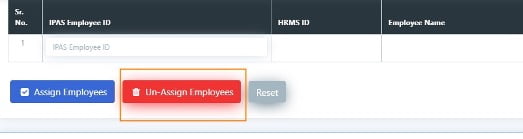
Click on ‘Assign Employees’ button to assign the employees to the selected LDC and ‘Unassign Employees’ button to unassign employees from the LDC( if any assigned to them).
Note: If employee who is being assigned to a LDC is already assigned to some other LDC, then the previous assignment will be overwritten automatically. There is no need to first unassign the employee from the current LDC and then assign to new LDC.
To see the list of all employees assigned to LDC, click on ‘Load List’ button. List of all assigned employees will be fetched.
To unassign all employees from LDC, click on ‘Unassign All’. All the employees will be removed from selected LDC.
For PF Applying Employee
1. Login To HRMS application with Employee’s ID
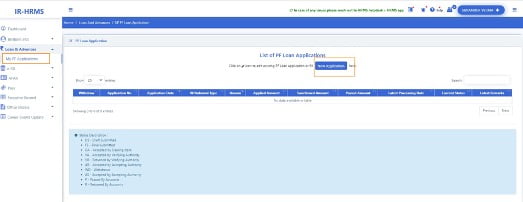
2. Click on Loan & Advances > My PF Applications
3. Click on New Application Button to apply for PF Loan or Click on Status button to update the in Draft or rejected application if any.
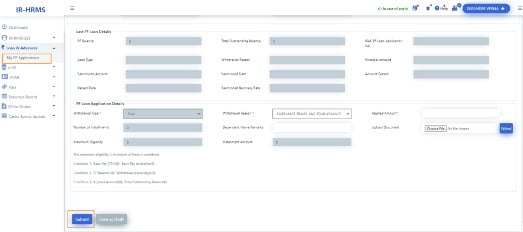
Fill all the mandatory fields and upload the document justifying the PF Loan Withdrawal Reason.
Click on submit Button.
Enter the OTP as 20131.
Click ok.
After successful submission the Application Number gets generated.
For PF Loan Dealing Clerk
Login To HRMS application with PF Loan Dealing Clerk’s ID
Switch user role to LDC, if having multiple roles. 3. Click on Loan & Advances > PF Loan Applications
Click on the application number to open the applied application details.
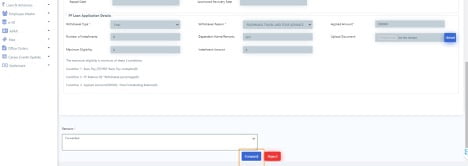
Check for the details filled, accordingly put remarks and forward or reject the application by clicking on the Forward or Reject button respectively.
For PF Loan Verification Authority
Login to HRMS application with PF Loan Verifying Authority’s ID.
Switch user role to LVA , if having multiple roles.
Click on Loan & Advances > PF Loan Applications
Click on the application number to open the applied application details.
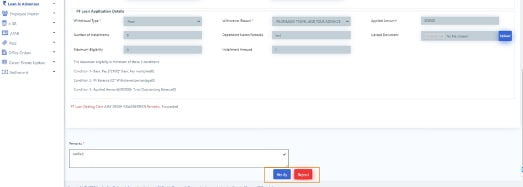
Check for the details filled, accordingly put remarks and verify or reject the application by clicking on the Verify or Reject button respectively.
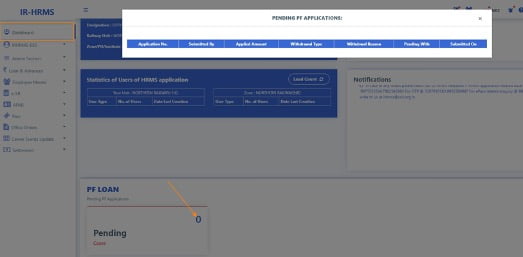
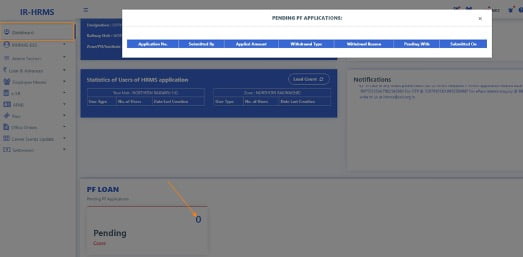
Note: PF Loan Verifying Authority may check the pending applications with assigned PF Loan Dealing Clerks , which have missed processing time by clicking on the pending cases in PF Loan Section on LVA’s Dashboard.
For PF Loan Accepting Authority
Login To HRMS application with Loan Accepting Authority’s ID.
Switch user role to LAA , if having multiple roles.
Click on Loan & Advances > PF Loan Applications
Click on the application number to open the applied application details.
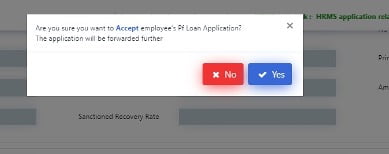
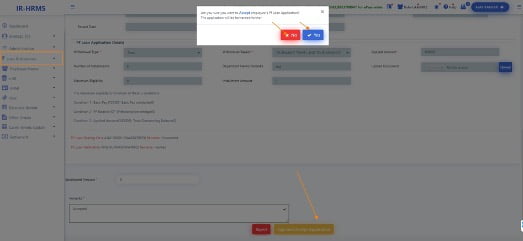
Check for the details filled, accordingly put remarks, sanctioned amount and accept or reject the application by clicking on the Sign and Accept Application or Reject button respectively.
After successful digital signing by PF loan Accepting authority the application moves to accounts.
Note: PF Loan Accepting Authority may check the pending applications with assigned PF Loan Dealing Verifying authority , which have missed processing time by clicking on the pending cases in PF Loan Section on LAA’s Dashboard.
HRMS Helpdesk:
In case of any issues please reach out to HRMS helpdesk…
HRMS application related issue @ 7786940452 ,9971535534,7982542883
For OTP @ 7267910583,9953780947
For ePass related enquiry @ 9891643886,9069161539,9971168228 or
Post Retirement Complimentary Pass & Widow Pass (PRCP & WP) module of HRMS was launched by CRB & CEO for use across all offices of Indian railways. Online training for operation of the PRCP & WP Module was also provided by CRIS to all the employees.
Vide Railway Board’s Letter No. PC-VII/2020/HRMS/6, dated 14.12.2020, A User Guide for Post Retirement Complimentary Pass & Widow Pass Module of HRMS was circulated.
User Guide for PRCP/Widow Pass for Railway Employees
1. Mobile Change by Retired Railway Employee
Retired Railway Employee should follow below steps to change/register mobile number on HRMS.
With a view to promote digital/paperless ticketing, E-Privilege Pass/PTO Module of HRMS has been launched on 10.08.2020 and the same has been operationalised across all Indian Railways. In order to facilitate the same, data entry in two modules of HRMS. Employee Master and E-SR has almost been completed across all Zonal Railways.
Implementation process for e-Pass on HRMS
Unit Admin ( Sr.DPO in Division and Dy.CPO/ SPO in other units) has to assign roles of Pass Admin (Branch Officers).
Pass Admin has to assign access role of Pass Issuing Authority (PIA) and Pass Clerk to concerned staff. Pass Clerks are then tagged to PIA.
Pass Admin has to assign Employees to PIA . Both group and one to one assignment provisions are available.
Pass Clerk has to enter already availed Manual Pass data of employee.
Availed manual pass data is available to Employee for confirmation Employee can accept/return Manual Pass data to pass clerk for rectification. It needs final acceptance of employee.
Declaration in Family tab of Employee master is available to employee. Taking help of this Employee will submit family declaration for pass.
Pass Clerk may accept/reject family declaration for Pass submitted by employee. It has to be finally accepted by Pass clerk.
Employee can submit his e-Pass application. SMS will be sent to Employee and his/her PIA on submission of application.
Any Pass Clerk under employee’s PIA can process employee’s pass application. If found correct it is forwarded to PIA.
PIA issues the e- Pass. SMS will be sent to employee on pass generation.
Employee gets the generated e-pass and can use it for ticket booking at counter or online. Employee has to generate an OTP which is to be given as input /provided to ticket issuing authority while booking ticket.
For both Reserved/Unreserved journey tickets are to be booked.
At the time of booking ticket by employee, details of pass / earlier bookings are verified from HRMS system and ticket is booked.
Employee can also apply for cancellation of pass/ split pass online.
Other Important things to know by Railway Pass Users
Those employees who have once switched to E-Privilege Pass/PTO module shall not be able to avail physical passes.
Rules pertaining to booking of ticket. revalidation, usage. charging etc regarding privilege pass/PTOs in case of physical passes/PTOs shall remain same n e-privilege passes/PTO. with minor operational amendments. where ever required.
No convenience fee shall be levied by IRCTC in case of online booking of tickets using E-Privilege Pass/PTO.
Retired Railway Employees can register on HRMS portal of Indian Railway and can take advantage of online modules of HRMS. For registration on HRMS, retired Railway Employees to know their HRMS ID first.
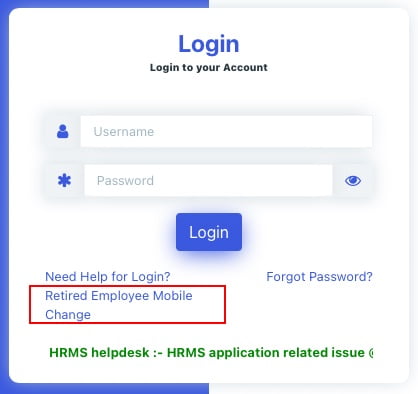
Step:1- Open the HRMS webpage in any web browser and then Click on the link “Retired Employee Mobile Change”.
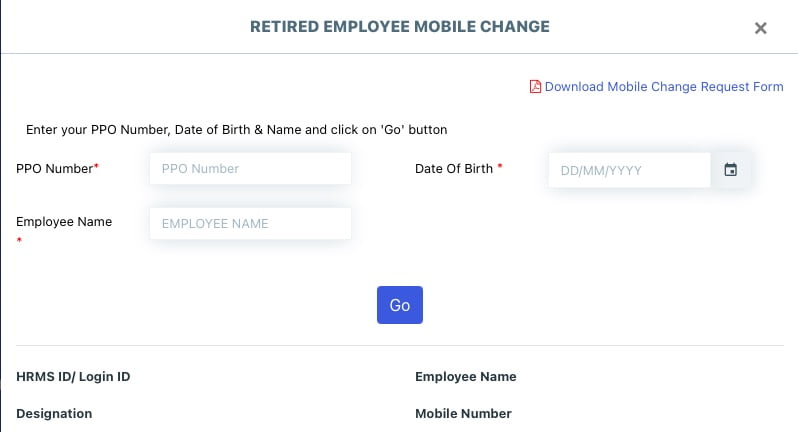
Step:2-Enter your PPO Number, Date of Birth & Name and click on ‘Go’ button to check your details
Step:3- If mobile number is not correct, click on ‘Change Mobile’.
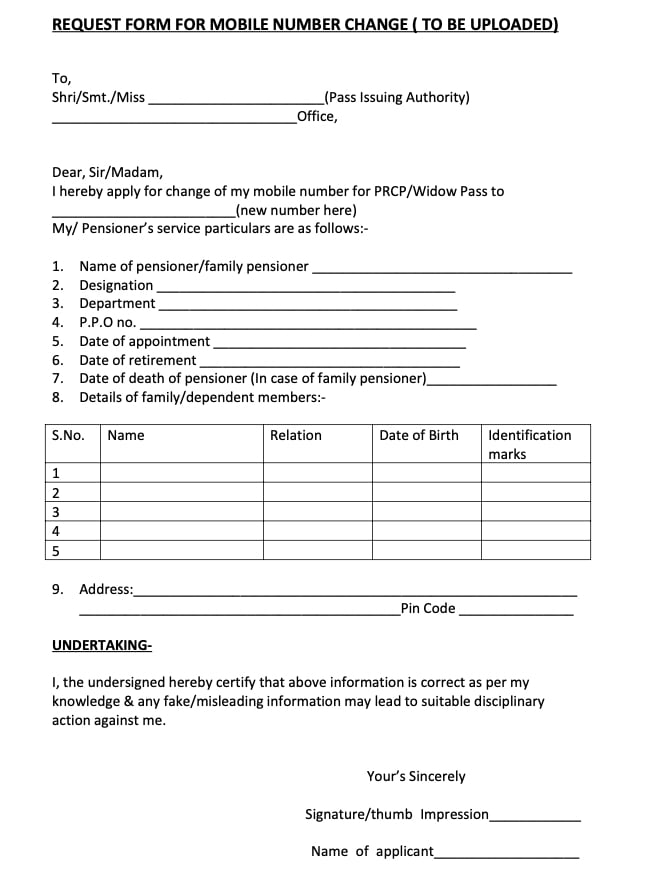
Step:4- Download the Mobile Change Request from below link, fill it and upload its image to submit your request
Note: Any one of these photo identity cards may be uploaded: Pensioner photo ID card, Aadhar card, Driving license, Voter ID card, Passport, Umid card, PAN card.
Once your mobile number is updated on HRMS portal, and you know your HRMS ID, you will be able to take advantages of HRMS portal.
HRMS application will be single window communication system between Railway employees and Administration.
From ‘January 1st, 2021’ retired railway employees will also be able to use e-Pass module.
Why HRMS for Retired Railway Employees?
Human Resource Management System (HRMS) will allow Railway employees to view their details related to their Increments, Promotions, Awards, Transfers, Postings, Leave, Training, and composition of Family as per records and Nominations for retirement benefits. This information is not readily available to employee at present. It brings transparency to administration.
HRMS Manuals and Guidelines are very helpful in understanding the use of HRMS portal.
This is the Tutorial for Pass Admin on how to create user for Pass clerks and Pass Issuing Authorities and tagging them with the employees in ePass Module of HRMS. In this video Sh. Swapnil, OS, Personnel Department, Asansol Division has explained all the steps for creating user for Pass clerks and Pass Issuing Authorities (PIA).
Tutorial for Pass Clerk & Employee in ePass on HRMS
This tutorial covers how the Pass Clerk will feed the manual pass & PTO availed by an employee and how the Employee will confirm the details and submit pass declaration. website:- hrms.indianrail.gov.in/HRMS.
1. How to apply for ePass on HRMS? 2. How to book eTicket on IRCTC using ePass.
In this video, it has been demonstrated how an employee will apply for ePass, how the Pass Clerk will process the application before the PIA issues the pass and how to book a eTicket in IRCTC using the ePass. This video has been prepared jointly by the PC, PIA and the employee all of whom has been inspired by the Unit Admin or DPO(IC)/ASN.
Indian Railway launches digitised online Human Resource Management System (HRMS)
HRMS will impact over 27 lakh families of serving as well as retired employees.
HRMS will increase accountability and transparency in the working of Railways
Move to improve efficiency and productivity of Railway system.
HRMS is a step towards realizing the vision of Hon’ble Prime Minister to transform India into a digitally empowered society and knowledge economy.
HRMS will have a big impact on the functioning of all the employees and will make them more tech savvy.
Indian Railway Launches ESS, PF & Settlement Modules under HRMS
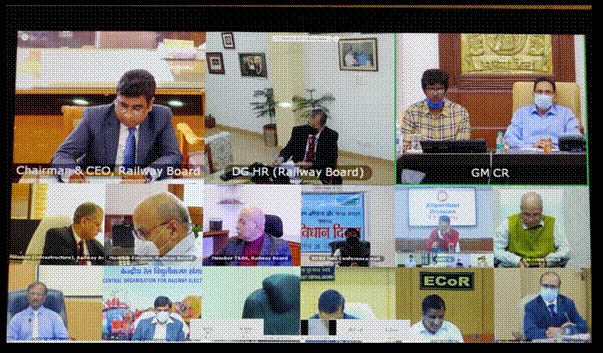
Shri Vinod Kumar Yadav, Chairman & CEO, Railway Board launched following modules of HRMS, useful for railway employees and pensioners on 26.11.2020 via video conferencing.
Employee Self Service (ESS) module enables railway employees to interact with various modules of HRMS including communication regarding change of data.
Provident Fund (PF) Advance Module
Provident Fund (PF) Advance module enables Railway employees to check their PF balance and apply for PF advance online.
Advance processing will be online and employees will also be able to see the status of their PF application online.
Settlement Module
Settlement module digitizes the entire settlement process of retiring employees. Employees can fill their settlement / pension booklet online. Service details are fetched online and pension is processed online completely.
This will eliminate use of paper and it also facilitates monitoring for timely processing of settlement dues of retiring employees.
Earlier Launched HRMS Modules
Prior to these modules, Indian Railways has already launched other modules of HRMS like…
Employee Master module which stores all basic information details of Railway employee,
Electronic Service Record module replacing physical Service Records storing service records of employees in digital format,
Annual Performance Appraisal Report (APAR) module digitizing the complete process of writing annual performance Appraisal of all 12 lakh non gazetted Railway employees,
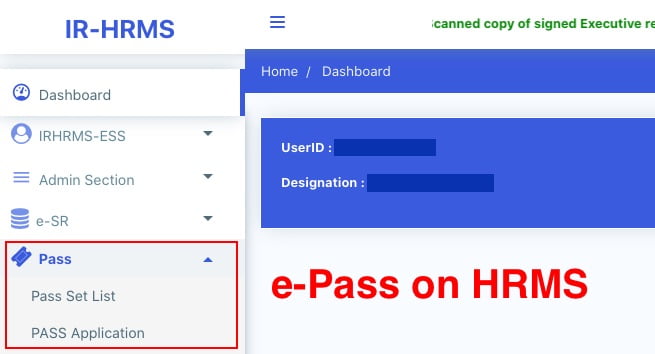
Electronic Pass module replacing the physical paper pass,
Office Order module meant both for the issue of office Orders and updation of data on joining of new employees, promotion, transfer of employees and retirement of employees in HRMS database. Source: PIB
Human Resource Management System (HRMS) for Railway Employees
Indian Railway has launched completely digitized online Human Resource Management System (HRMS).
Human Resource Management System (HRMS) is a high thrust project for Indian Railways to leverage improved productivity & employee satisfaction.
It is a move to improve efficiency and productivity of Railway system and a step towards realizing the vision of Hon’ble Prime Minister to transform India into a digitally empowered society and knowledge economy.
Human Resource Management System is expected to create a big impact on the functioning of all the employees and will make them more tech savvy.
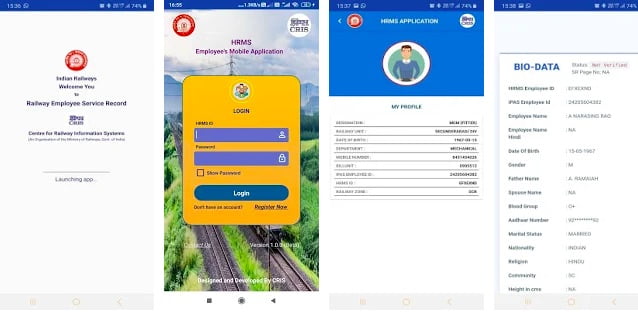
HRMS Employee Mobile Application and HRMS Web portal is Developed by CRIS for Employees of Indian Railways.
Indian Railway has launched completely digitized online Human Resource Management System (HRMS). Human Resource Management System (HRMS) is a high thrust project for Indian Railways to leverage improved productivity & employee satisfaction. It is a move to improve efficiency and productivity of Railway system and a step towards realizing the vision of Hon’ble Prime Minister to transform India into a digitally empowered society and knowledge economy. HRMS is expected to create a big impact on the functioning of all the employees and will make them more tech savvy.
This application will be a single-window communication system between Railway employees and Administration. Employees of Indian Railways can now see data related to their service and communicate with the administration for any changes if required.
This information was not readily available to the employee before implementation of HRMS. It brings transparency to the administration. It is an important milestone in computerization of HR-related functions in Indian Railways.
This HRMS Application allows the employee to view their historical data since their date of joining in Railways including details like-
HRMS module can be accessed through HRMS Mobile App or HRMS Web portal. For using HRMS app, first registration is required on HRMS by dealing clerk. By now, the HRMS ID has been created for most of the Railway Employees.
=> To access HRMS, employees need to register by entering IPAS No / PF No. => An OTP will be sent to their Mobile No (As available with us). Employee must enter to complete registration process. => If Mobile number is not available, Please contact your establishment clerk to furnish to access this application. => In case user is already register and forgot their HRMS/ Login ID then they can use Registration page to find out Login id.
Apart from their profile and scanned copy of their Service Record, Railway Employees can also see e-Service Record which is compiled based on an entry made in HRMS Application. Scanned copies of their Physical Service Record are also available.
Two modules for data capturing I.e. Employee Master and e-SR has been developed by CRIS and rolled out in IR in Jul/2019. Entry in these two modules is being done by all units of IR. This Application is interface to view the data entered by clerks of Indian Railways. Every Employee will be provided their HRMS Ids to login and access the data.
HRMS Modules: Manuals & Guidelines
HRMS Modules
IRHRMS-ESS Module
Employee Self Service (ESS) module enables railway employees to interact with various modules of HRMS including communication regarding change of data. Launched on 26.11.2020.
Provident Fund (PF) Advance module enables Railway employees to check their PF balance and apply for PF advance online. Advance processing will be online and employees will also be able to see the status of their PF application online. Launched on 26.11.2020.
Settlement module digitizes the entire settlement process of retiring employees. Employees can fill their settlement / pension booklet online. Service details are fetched online and pension is processed online completely. This will eliminate use of paper and it also facilitates monitoring for timely processing of settlement dues of retiring employees. Launched on 26.11.2020.
Human Resource Management System (HRMS) project is a comprehensive plan for digitization of complete HR process of Indian Railway. Total 21 modules has been planned in HRMS.
Basic data entry of around 97% railway employees has been completed in Employee master and E-Service record modules of HRMS which had been launched last year.
Why HRMS for Railway Employees?
Human Resource Management System (HRMS) will allow Railway employees to view their details related to their Increments, Promotions, Awards, Transfers, Postings, Leave, Training, and composition of Family as per records and Nominations for retirement benefits. This information is not readily available to employee at present. It brings transparency to administration.
HRMS Manuals and Guidelines are very helpful in understanding the use of HRMS portal.
HRMS Manuals and Guidelines
Guidelines for updating Executive SR
Executive Record sheet is initiative to capture and display data related to service history of officers of Indian Railways. It has information about Basic details of Officers along with their educational qualification, experience, trainings, awards and publication.
On an average, approximately 30 thousand employees superannuate from different Units of Indian Railways every year. The processes followed to finalise settlement claim of an employee is cumbersome.
This web-based Settlement System under HRMS enables the authorities to finalise the settlement of superannuating employee with ease and convenience.
The Settlement System under HRMS displays notification alert to the concerned Service Record Dealing Clerk (SR-DC) to initiate Settlement Process for the employee due to superannuate in next 6 months.
The Settlement System partly pre-populates the Service Record Summary form and presents it before the SR-DC. SR-DC fills in the required information and submits it to the Service Record Verifying Authority (SR-VA) for verification.
SR-VA verifies the service record summary form and forwards it to Service Record Accepting Authority for approval. If found incorrect, SR-VA returns the form with remark to the SR-DC, for necessary correction. SR-VA accepts the Service Record Summary Form if found correct or else returns to the SR-DC for necessary correction. The approved Service Record Summary Form is sent to Settlement Section for necessary action.
Office order module captures all career events of an employee from Entry in IR to Exit. It generates all office orders and simultaneously updates all data in HRMS /IPAS with trigger of joining / relieving date entry. Transparency in terms of instant availability of office order to all stake holders including employee concerned through SMS and reflection on the dashboard of all concerned. Use of QR code which contains information of Office Order attributes and a link to view the actual office Order. It makes the system tamper proof. Option to use Voice-to-text feature. Using this a user will be able to enter details in Pre-text and Post-text Option to create Customized templates for use with different kinds of Office Orders. Auto-fetching of existing details (Name, deptt, designation, pay level etc) of employee involved in the Office Order. Bilingual format (Office Order are available in English and Hindi) Security with use of DSC by the Accepting Authority while issuing Office Order. Can be made available to general public, if desired.
Guidelines for APAR Module
APAR module on HRMS portal is applicable for only Non-Gazetted employees of Indian Railways. Gazetted officers including Group-‘B’ officers have to fill their APAR on SPARROW website.
It has all the features of SPARROW and has provided facility beyond that for ease of use of all stake holders in terms of writing APAR for non-gazetted employees of all departments of IR. Bilingual format (Office Order are available in English and Hindi) Option to create Customized templates for use with different kinds of rating of an APAR. (e.g. for Very Good, Outstanding etc). Option to use Voice-to-text feature. Using this, user will be able to enter details against any attribute of APAR. Predictive text feature for input. User will get a list of possible texts based on part of text typed to make the experience of writing APAR smooth. Auto mapping of APAR format to employee based on Pay Level, Designation and Department. Auto-fetching of existing details (Name, deptt, designation, pay level etc) as Part-I, Personal Data of APAR Security – Comments and grading by Reporting, Reviewing and Accepting Officer is stored in encrypted format with their respective DSC. Final APAR in PDF format is digitally signed by the Accepting Authority. Transparency – Concerned employee will get instant message as soon as APAR is accepted. Employee will be able to view the final Accepted copy in his /her HRMS account. Multiple MIS can be generated based on available data for monitoring the progress of APAR.
How to Login on HRMS Railway Employee application?
If you are a Railway Employee and a registered user on HRMS portal of Indian Railways and suppose you have forgotten the password for it, then you no need to worry. HRMS Password can be easily reset by following simple steps.