
Getting Started: User Manual for User Depot Module
Here is the complete User Manual (Guide) for Getting Started with the User Depot Module of Indian Railways.

2.1 Login –> NEW IMMS (UDM):
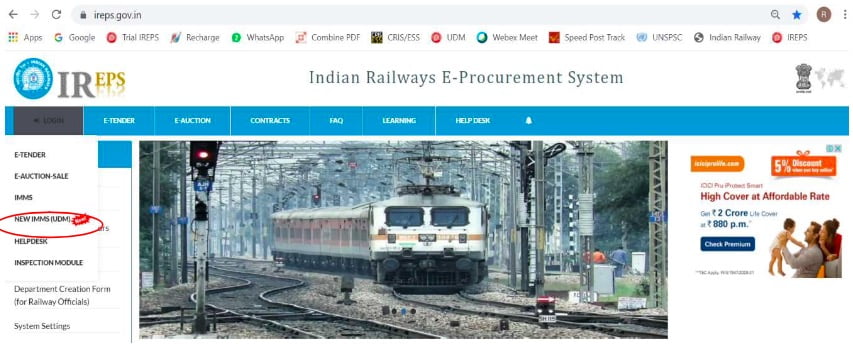
For using “User Depot Module”(UDM) in actual Production environment, on Home Page of IREPS Portal https://ireps.gov.in, user is required to select Login –> NEW IMMS (UDM):

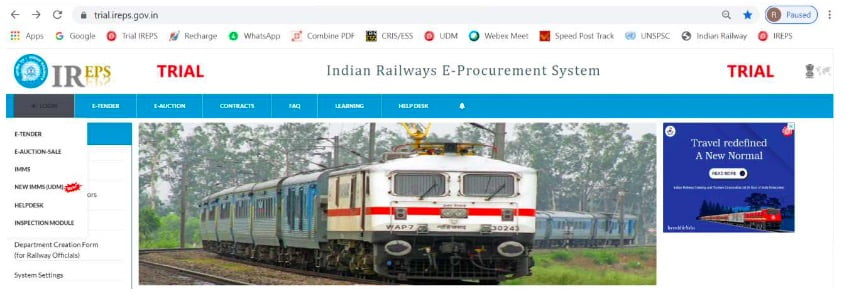
For Trials / Testing, user is required to select Login –> NEW IMMS (UDM) on Home Page of IREPS Portal https://trial.ireps.gov.in which explicitly mentions TRIAL on top portion as under:

2.2 Click –> Login:
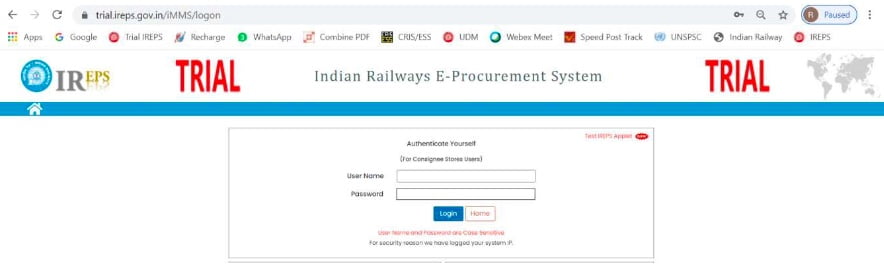
On the screen shown below, User is required to enter his User Name & Password and Click –> Login:

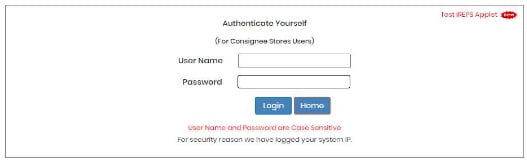
For Production site of UDM available on Portal https://ireps.gov.in, all officers of the Railways wherein UDM has been made live, have been given access using their existing User-Name / Password on IREPS (as used by them for Works/Stores Tenders). Such Officers having Admin rights can create new posts / users for using UDM, following the standard procedure of creating Posts / Users in IREPS. After Posts/Users are created, further action for mapping of Consignee Code, IMMS ID & Sub-Consignee is to be done as per Para 19 of this User Manual. It is clarified that UserID/Password currently being used on IMMS cannot be used for this UDM. For Trial site of UDM available on Portal https://trial.ireps.qov.in, users will be created by CRIS after getting user details.
Login Screen on https://trial.ireps.qov.in explicitly mentions TRIAL on top portion as under:

2.3 Attach Digital Signature Certificate and Login
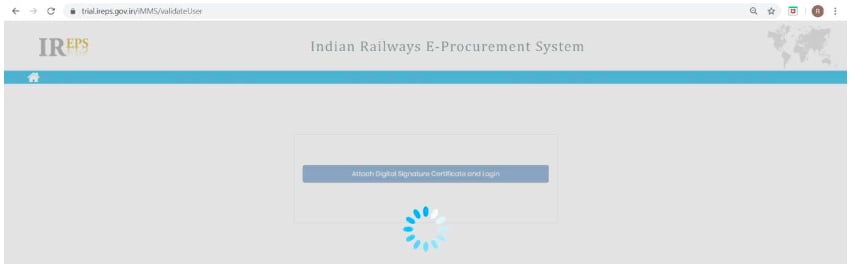
Now click Tab –>Attach Digital Signature Certificate and Login. The following Screen will appear:

2.4 Click –> Select
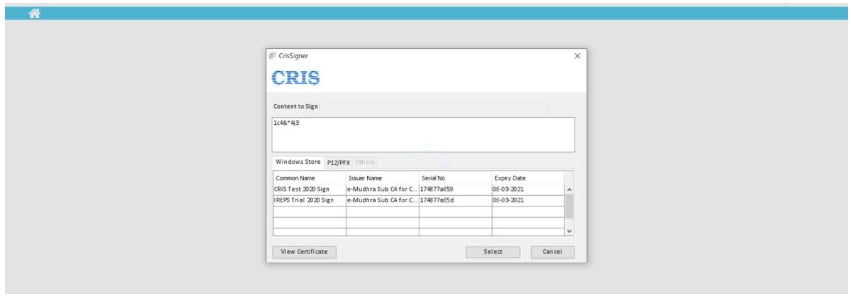
After waiting for few moments, screen shown below will be available on which User is required to select his DSC and Click –> Select… System may ask for User Name / Password of Digital Token of the User, please provide the same. For Test DSC, User Name / Password of User’s Digital Token will not be asked.

2.5 Home Page
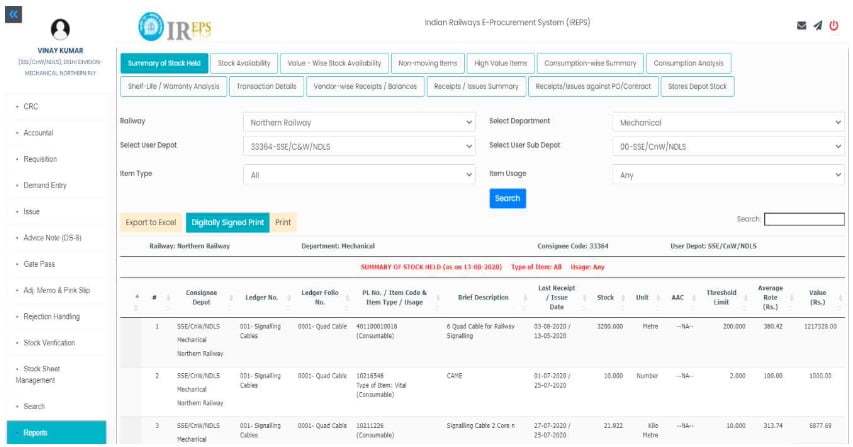
Now, User is ready to use “User Depot Module” (UDM) and following Home Page will appear for the Transaction Users who have Consignee Codes mapped against their login:

2.6
Every User who wishes to make transaction on User Depot Module has to be mapped to a Consignee Code. Each Consignee Code can have as many Transaction Users, as one wishes. One will be the Main Depot User while other Users will be created by Main Depot User (with the approval of Officer) as a Sub-Depot/Sub-Consignee User as per Para 19.2 to 19.8 below. Mapping of Main Depot User to a Consignee Code will be done by the Administrator/Officer concerned as per Para 19.13 below.
2.7
Further, in order to be enable receipt & accountal of material from Stores Depot, Users(Main Depot User as well as Sub-Depot/Sub-Consignee User) will have to be a registered user on existing IMMS Application. Mapping of Users (Main Depot User as well as Sub-Depot/Sub-Consignee User) with IMMS User ID will be done by the concerned User himself as per Para 19.9 to 19.11 below.
2.8
For other Users who are not Transaction Users i.e. Officers etc., who do not have Consignee Code mapped with them, will see following Home screen:

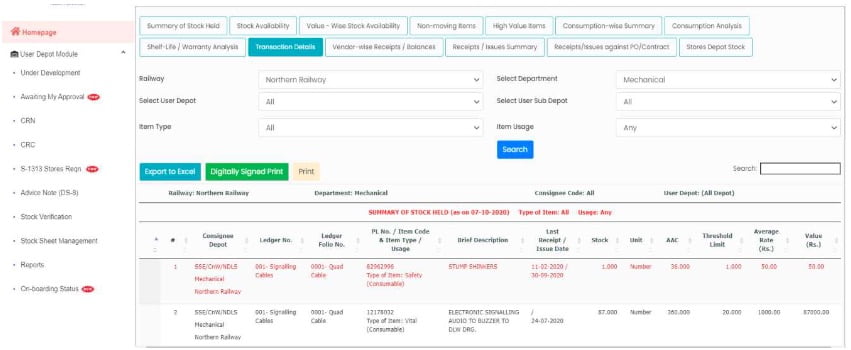
Also Read…
RESPECTED SIR
I WANT TO BE FULL MANUAL FROM A TO Z ABOUT UDM. HOW CAN I ACHIEVE IT.
Sir, Unable to open UDM as shows we signer failed /PKI client not available ,,please give solution
Download crissigner and pki server
I have suffering a problem in observation of entry done whose photo is taken that says Your PKI component is not installed.. Kindly eleborate and solve and oblige.
My dsc is not opening in another pc although aplate testing, signing and data encryption successful . please tell me what is the problem ?
Stock adjustment kaise kare or bar ko kaise correct kare
Ireps program se book average rate,stock variaton,stock adjustment railway ke stores account ke digital se kaise correct kya jata hai
sir my station name changed. PBH changed to MBDP
how to correction in UDM depot name