RESS Portal FAQs: Answers to the Most Common Questions [2025 Edition]
The Railway Employee Self Service (RESS) Portal is a powerful tool provided by the Indian Railways to help employees manage their personal and professional details online. From viewing salary slips to checking PF balances, the RESS portal offers everything in one place. However, many users still have common doubts about using it effectively.
In this post, we’ve compiled and answered the most frequently asked questions (FAQs) about the RESS portal and app.
1. What is the RESS Portal?
Answer: RESS stands for Railway Employee Self Service. It’s a web and mobile platform launched by CRIS (Centre for Railway Information Systems) that allows railway employees to:
Answer: All serving employees of Indian Railways with a valid 11-digit Employee Number/PF Number and registered mobile number in AIMS can use the RESS platform.
4. How do I register for the RESS portal?
Answer:
Visit the RESS section on the AIMS website or use the app.
Enter your Employee Number, Date of Birth, and Mobile Number.
Answer: You must visit your Divisional Personnel Department and request them to update your mobile number in the AIMS database.
6. I forgot my RESS password. What should I do?
Answer: Click on “Forgot Password” on the RESS login page or app. Enter your Employee Number and registered mobile number, then reset your password using the OTP sent to you. ? Full guide here →
7. Can I use RESS on an iPhone?
Answer: Yes, iPhone users can access the RESS services on an iPhone.
Answer: Login to the RESS portal or app > Go to “Payslip” section > Choose the month and year > Tap on “Download” or “View”.
9. Can I view my Provident Fund (PF) statement on RESS?
Answer: Yes, under the “PF Ledger” section in the app or website, you can view year-wise and month-wise PF contributions.
10. Is RESS the same as the AIMS portal?
Answer: Not exactly. The AIMS portal is the broader system for Indian Railways accounts and personnel data. RESS is a service under AIMS that is designed specifically for employees to access personal services.
11. I’m retired. Can I use RESS?
Answer: No. The RESS portal is only for currently serving employees. Retired employees must use pension-specific portals.
12. What should I do if the RESS app is not working?
Answer:
Clear cache or reinstall the app
Check for the latest updates
If the problem persists, contact your IT department or CRIS helpdesk
13. How secure is the RESS Portal?
Answer: RESS uses OTP-based login, secure encryption, and session timeouts to protect your data. However, users should never share passwords or OTPs with anyone.
The RESS portal is a game-changer for Indian Railways employees. It saves time, simplifies HR processes, and puts all essential employee data at your fingertips. If you’re not using it yet, now’s the time to get started.
Hey! If you’re trying to access RESS (which typically refers to the Railway Employee Self Service portal used by Indian Railways staff), here’s how you can do it on an iPhone (iOS):
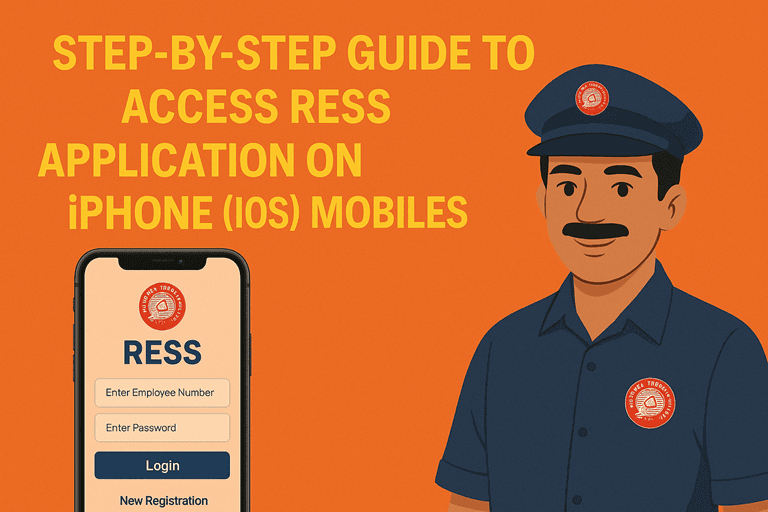
✅ Step-by-Step Guide to Access RESS on iPhone (iOS) users
RESS app is not listed on the Apple App Store for iOS devices. Though, the Railway Employee Self Service (RESS) application developed by the Centre for Railway Information Systems (CRIS) is available for Android devices on the Google Play Store.
However, iPhone users can also access RESS services through the mobile version. Here’s how:
How to use Railway Employee Self Service (RESS) application on iPhone mobiles?
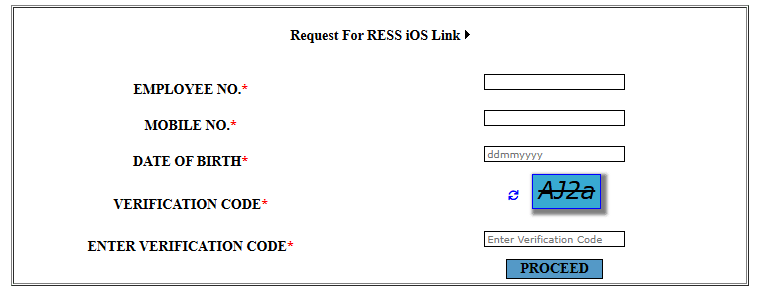
All the fields are mandatory. Please ensure that Mobile number is registered. OTP will be sent on to registered mobile number only. After filling all the details click to PROCEED.
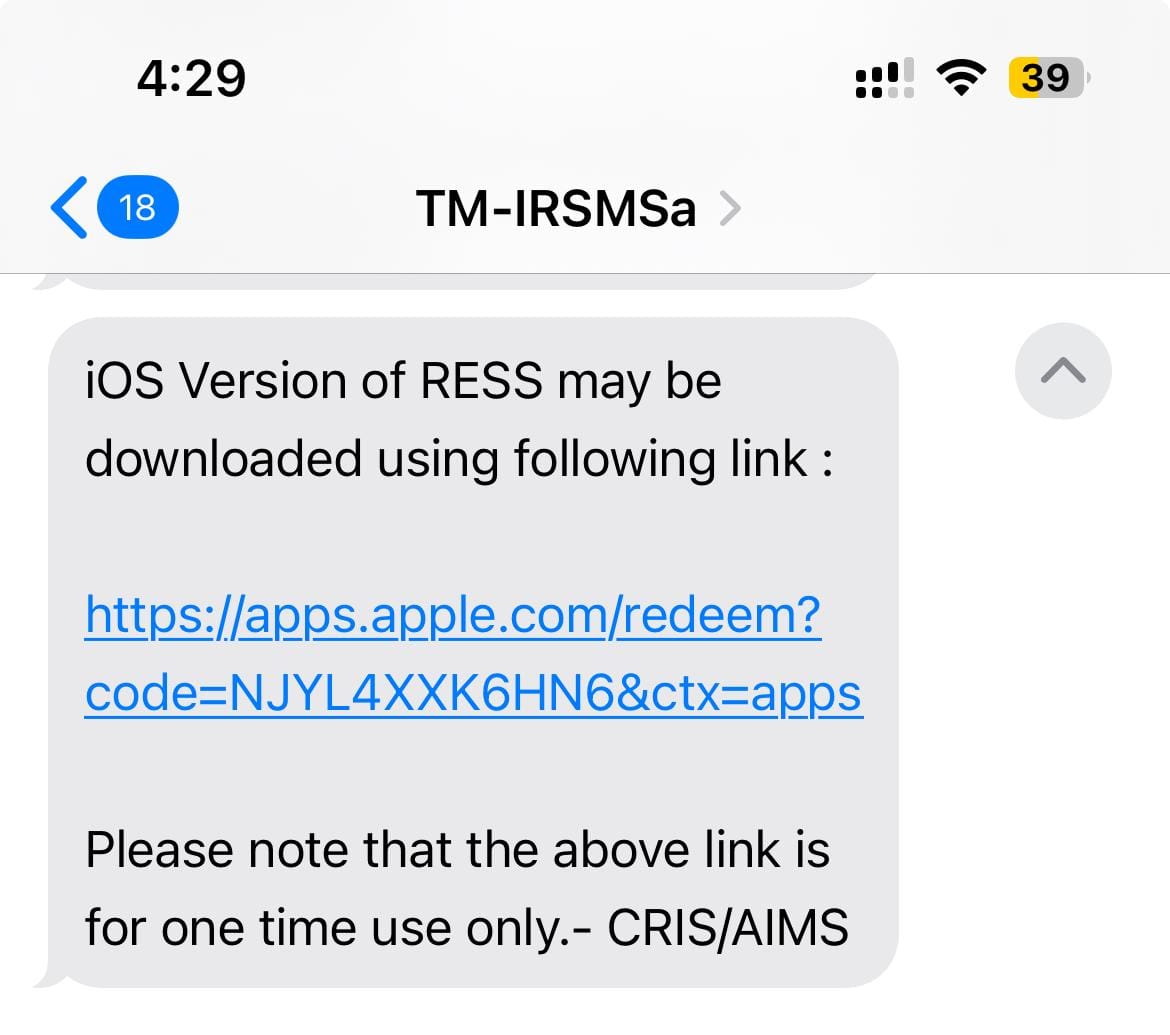
SMS on registered mobile number will be sent with the link to download...
On click of link received through SMS, iOS version app will be installed on your iPhone. Please note that the above link is for one time use only.
Enjoy the RESS app on your iPhone mobiles.
? Tips for Smooth Access
Make sure your mobile number is registered in the HRMS/AIMS database.
Railway Employee Self Service (RESS) typically refers to an online platform or system that allows railway employees to access and manage their personal information, salary details, and Income tax details through a self-service portal.
As on date RESS is operated mainly for salary purpose. An Employee gets access to his/her financial and personal data through this portal. Employee must register into this site to view their Personal details, Salary, PF, Loans and Income Tax Projections and to download Pay Slips.
In this post, guide is provided on following points…
To use this application, an employee has to register first with the application.
How to register on Railway Employee Self Service (RESS) application:-
1. For Registering with Railway Employee Self Service, an employee should ensure the following 2 Points:-
1.1 Aadhaar Number, Mobile number, Date of Birth is updated in IPAS. Permission to update Aadhaar Number and Mobile No is available with Pay Bill Clerks. Aadhaar Number and Date of Birth are being printed in Pay slip. The same can be verified by the employee.
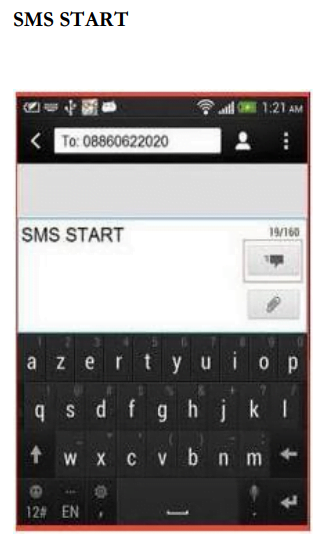
1.2 Since initial password is sent on employee’s mobile, consent is required to be sent to SMS Server by sending an SMS to a designated Number. This is mandatory as per TRAI guidelines. This is one time exercise and subscriber has to send an SMS with content as below to 08860622020.
Please note that without subscribing SMS alert as above, it will not be possible to get initial password on your mobile and mobile application cannot be used.
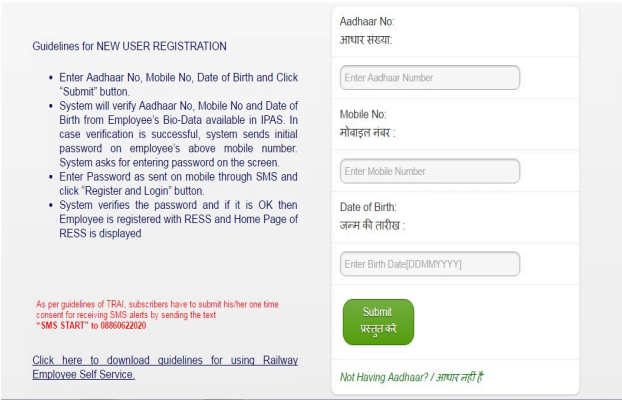
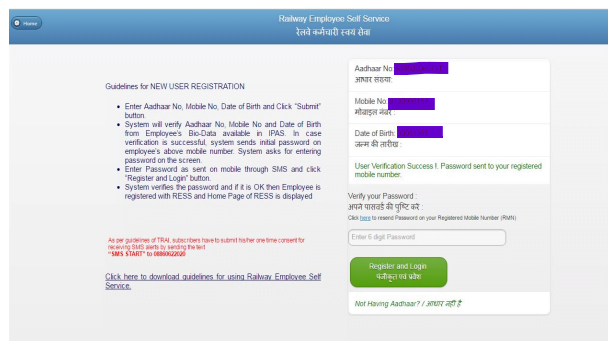
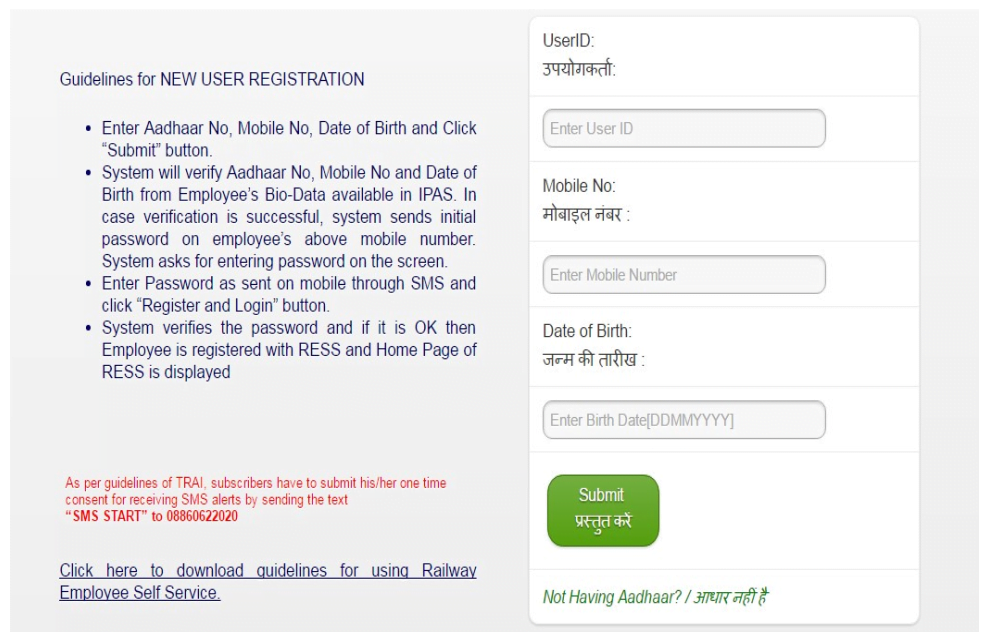
5. Click on “New User Registration”. A screen (as below) asking for Aadhaar No, Mobile No and Date of Birth will appear.
Here, enter your 12 digits Aadhar Number, valid Mobile Number (valid Aadhaar number & mobile number present with your bio-data) and Birth date, and then Click on Submit button. System will verify Aadhaar no., mobile no., date of birth from Employee’s bio-data available in IPAS. In case verification is successful, following screen will come
Now system sends initial password on employee’s above mobile number. System will ask for entering password on the screen.
Enter password as sent on mobile number through SMS and click “Register and Login” Button.
System verifies the password and if it is OK then Employee is registered with RESS and Home page of RESS will be displayed.
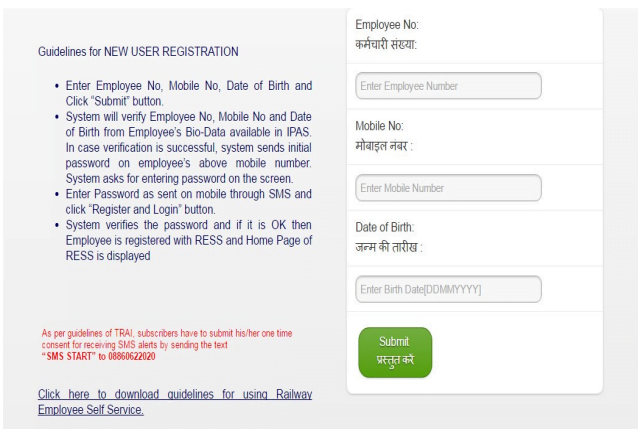
6. If Aadhaar is not available:- If an employee does not have Aadhaar No updated in Bio-data then Registration will be done based on his/her Employee Number. Click on “Not Having Aadhaar”. A screen will appear like below
Here, enter your 11 digit Employee Number, valid Mobile Number (valid mobile number present in your bio-data) and Birth date, and then Click on Submit button. System will verify Employee Number., mobile no., date of birth from Employee’s biodata available in IPAS.
In case verification is successful, system sends initial password on employee’s above mobile number. System will ask for entering password on the screen. Enter password as sent on mobile number through SMS and click “Register and Login” Button. System verifies the password and if it is OK then Employee is registered with RESS and Home page of RESS will be displayed.
Already Registered with Railway Employee Self Service (RESS):-
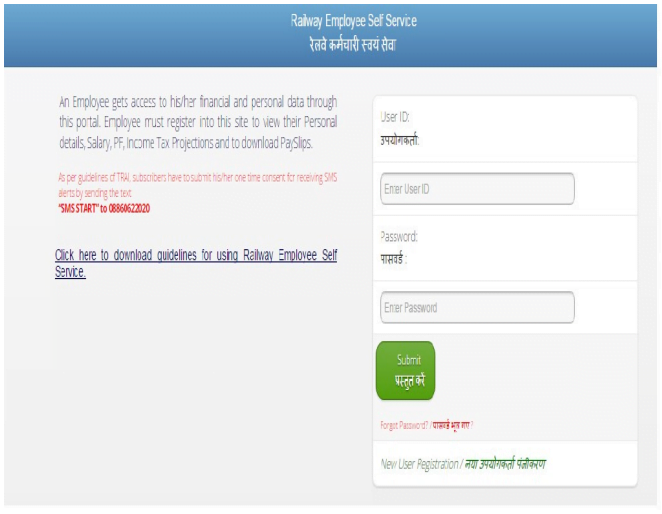
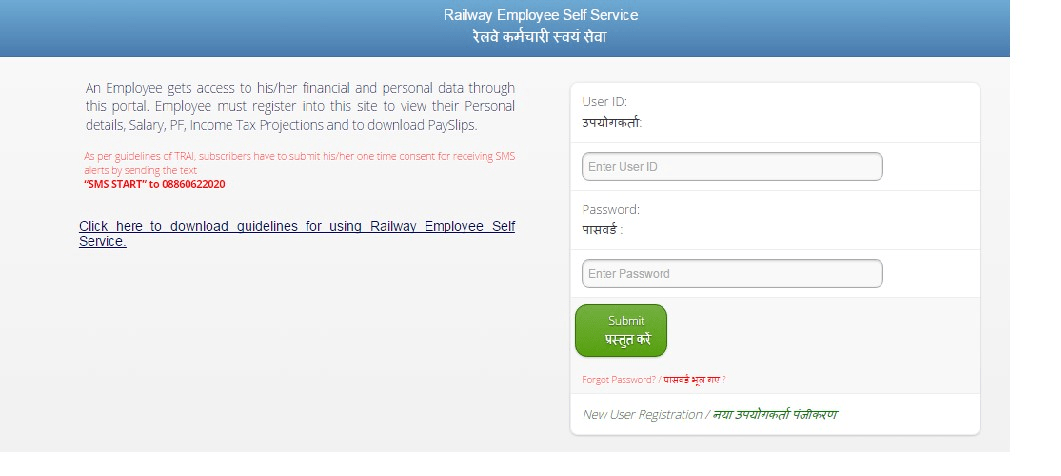
1. Open RESS by clicking https://aims.indianrailways.gov.in/mAIMS. An Employee can add this link in Bookmark or make it Shortcut so that the same is accessed easily.
2. System will ask for User ID and Password as below.
Enter User-ID, Password and click “Submit” button. System will open Home Page.
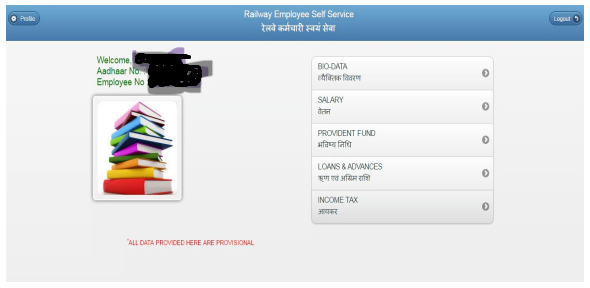
Home Page will show the data of the Employee:-
i. Bio-Data
ii. Salary
iii. Provident Fund,
iv. Loans &Advances
v. Income Tax
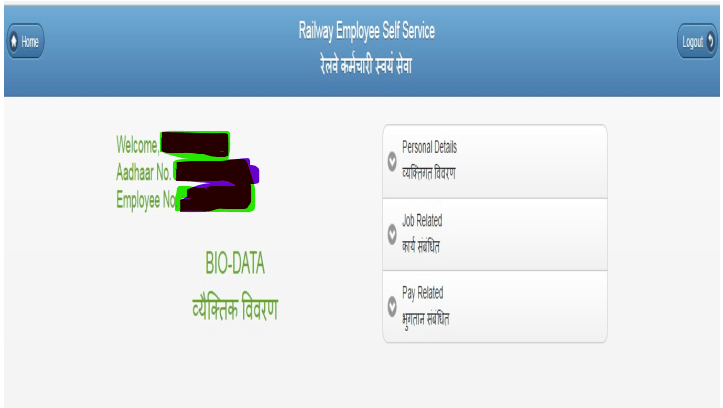
3.1 Bio-Data:- Click on the Bio Data then showing the page will open as below:-
1. Personal Details
2. Job Related
3. Pay Related
These are the 3 points of showing after the click on the Bio-Data
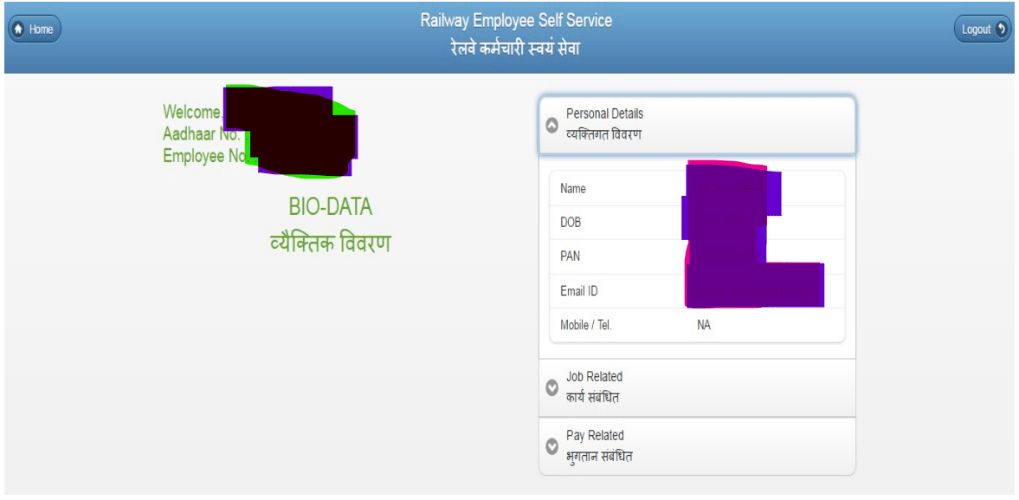
i. Personal Details:-Click on the Personal Details , which will show personal data of the Employee like Name, Date of Birth, Pan No., Email id, Mobile/Tel.
A Page will open as below:-
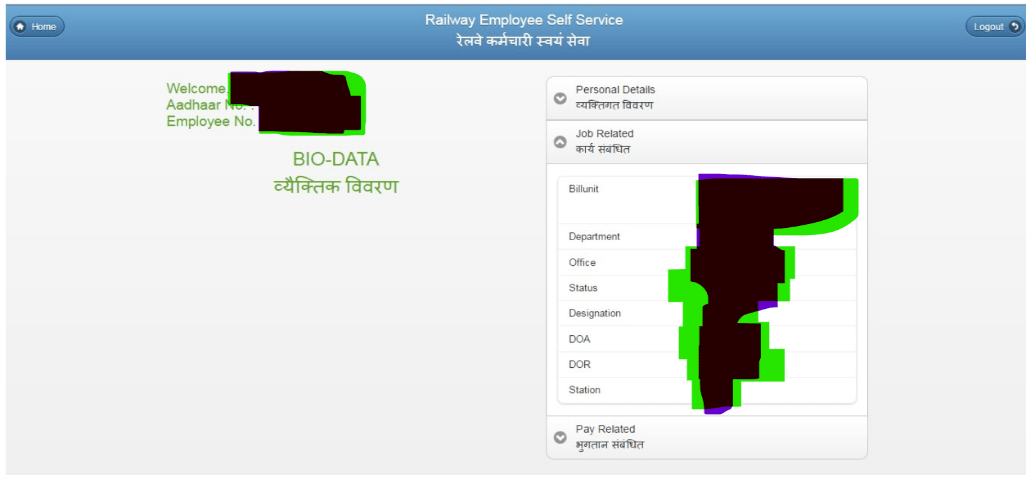
ii. Job Related:-Click on the Job Related and Job related have the Job related data of the employee like Bill unit, Department, office, Status, Designation, Date of Appointment (DOA), Date of Retirement (DOR), Station.
A page will open as below:-
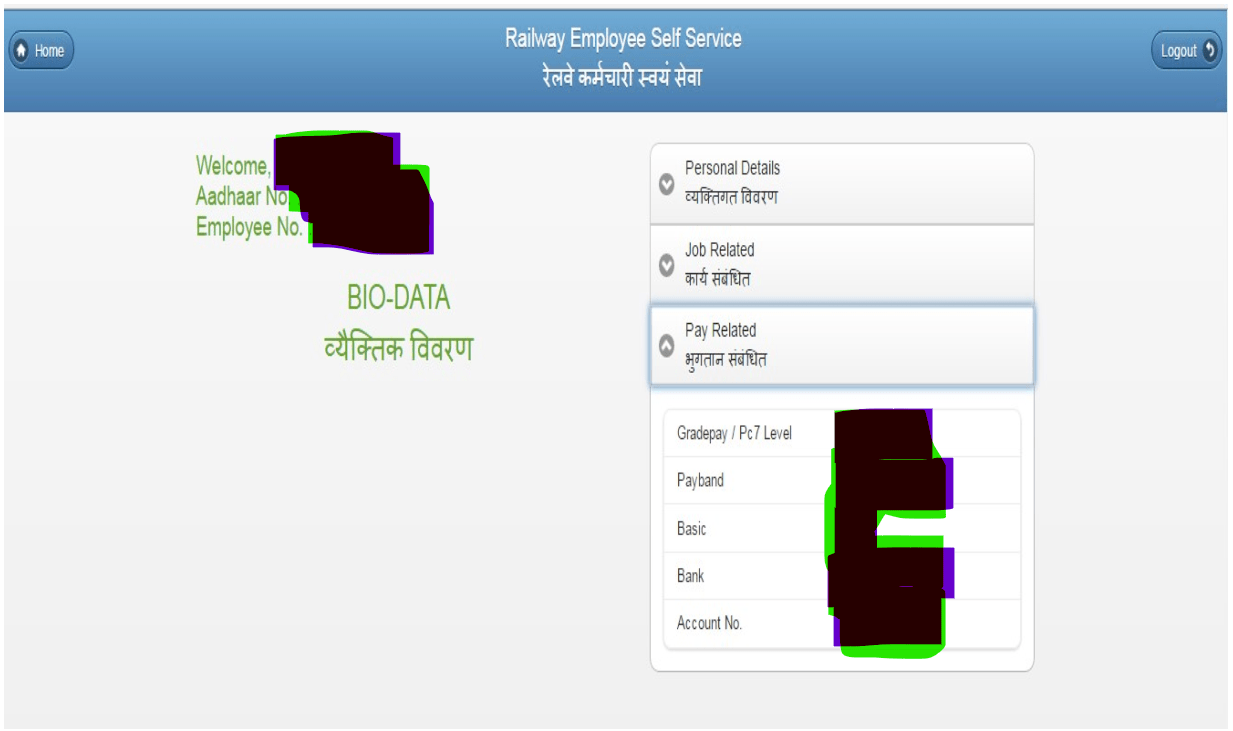
iii. Pay Related:-Click on the Pay Related and Pay related have the Pay related data of the employee like Grade pay/Pc 7Level , Pay band, Basic, Bank, Account No.
A Page will open as below:-
How to check Railway Salary Slip
Railway employees can check their salaries in two ways : –
i. Monthly Salary
ii. Yearly Summary
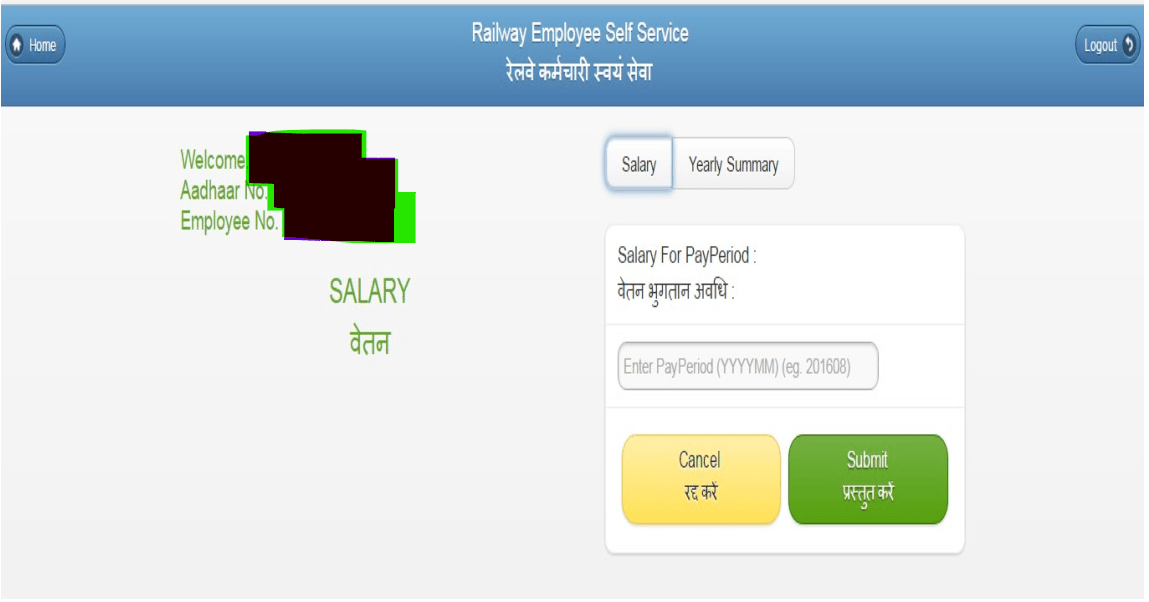
i. Salary:- Click on the Salary and enter the salary for pay period.
A Page will open as below:-
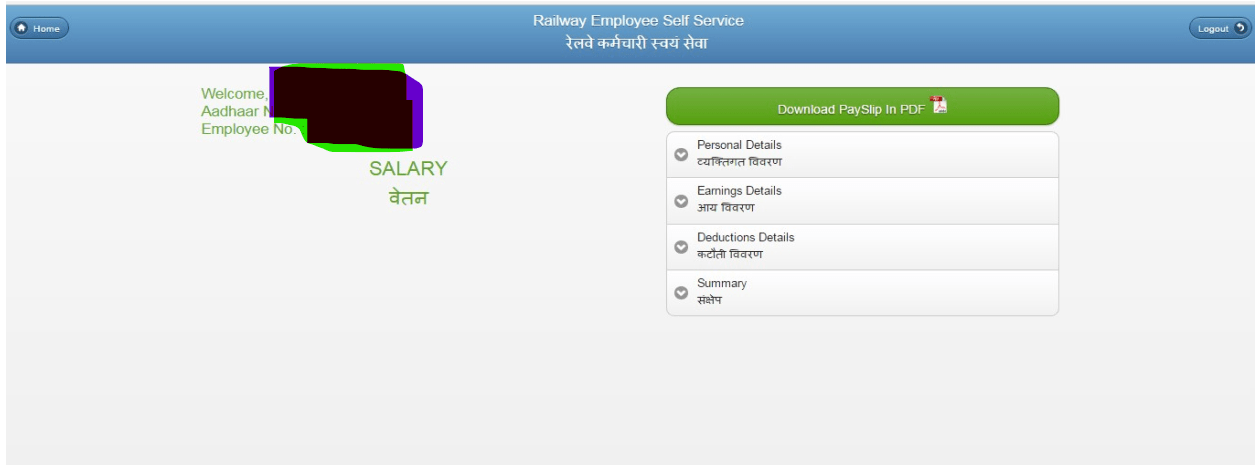
Enter the Salary for Pay Period after that click on Submit button and click on the option of download Pay slip in PDF.
User can download their own Pay Slip (Monthly and Yearly) in PDF Format.
A Page will open as below:-
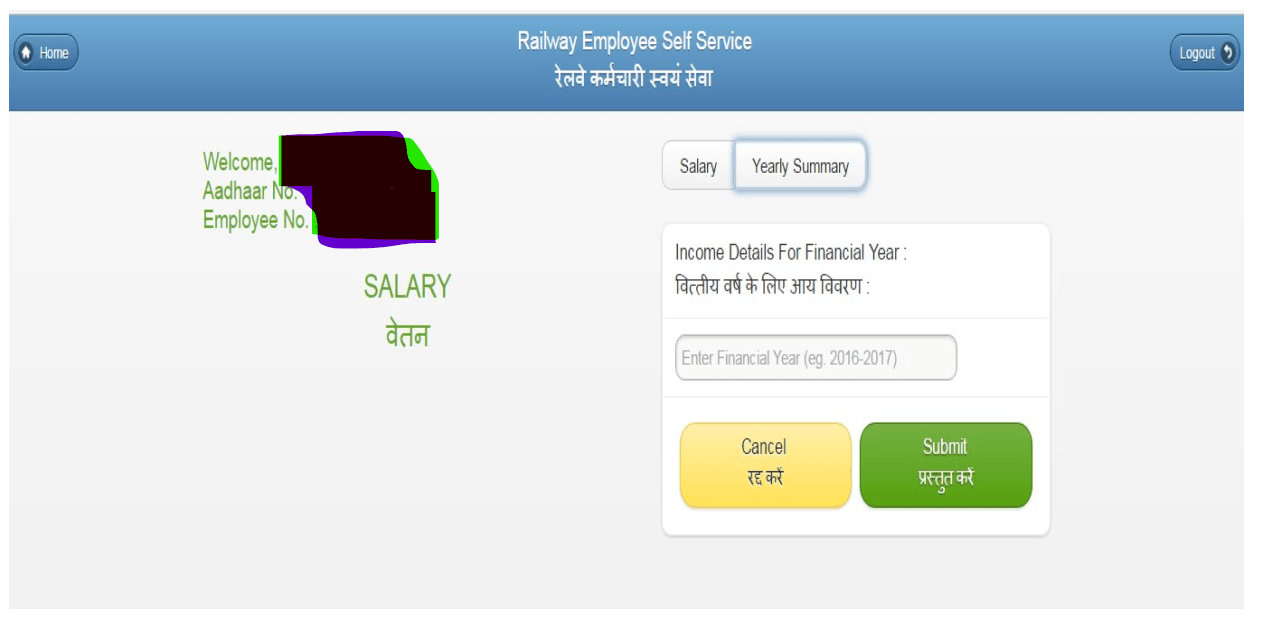
ii. Yearly Summary:- Click on the Yearly Summary. A Page will open as below:-
Enter financial year and click Submit button . System will show Yearly Summary.
How to check NPS / PF
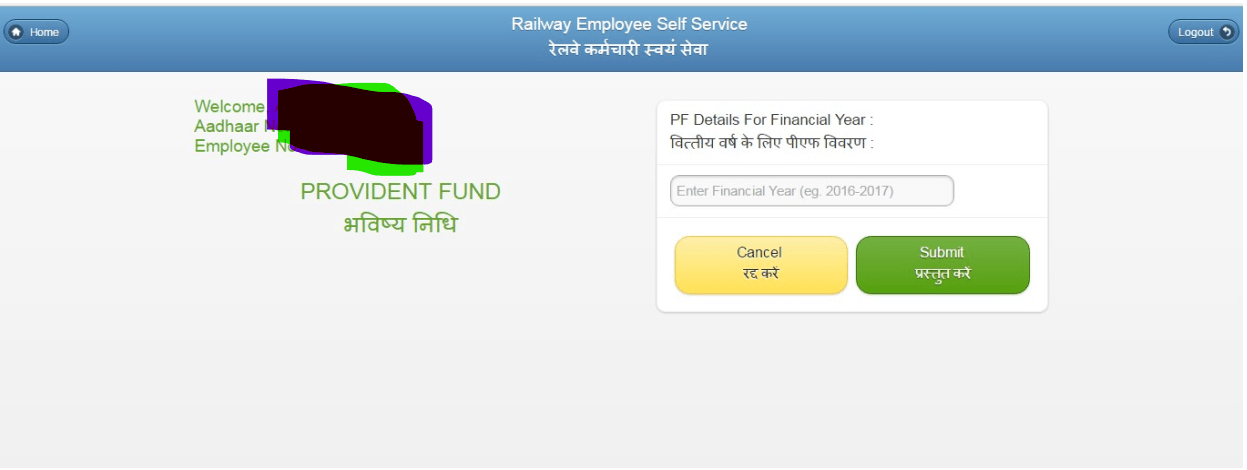
At home page Click on the Provident Fund. For employee having joining date after 2004 or who opt for NPS during joining or having PRAN number instead of PF number NPS option will be shown at the home page of application/website. A Page will open as below:-
Enter financial year and click Submit button. System will show PF Details/ NPS contribution as per their need.
How to check LOAN & Advances details of the Employee:-
A Page will open as below:-
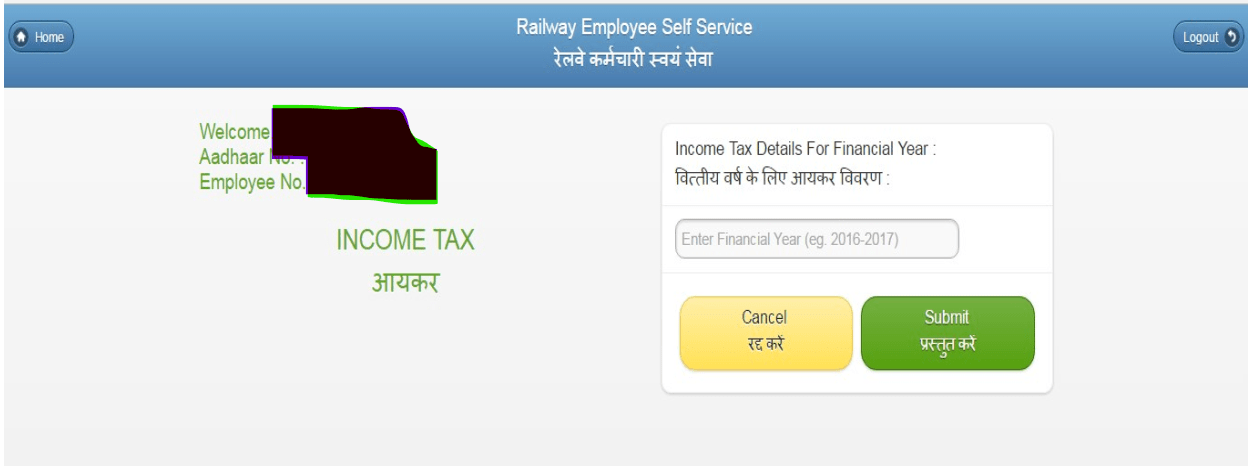
How to check Income Tax Details for Financial Year
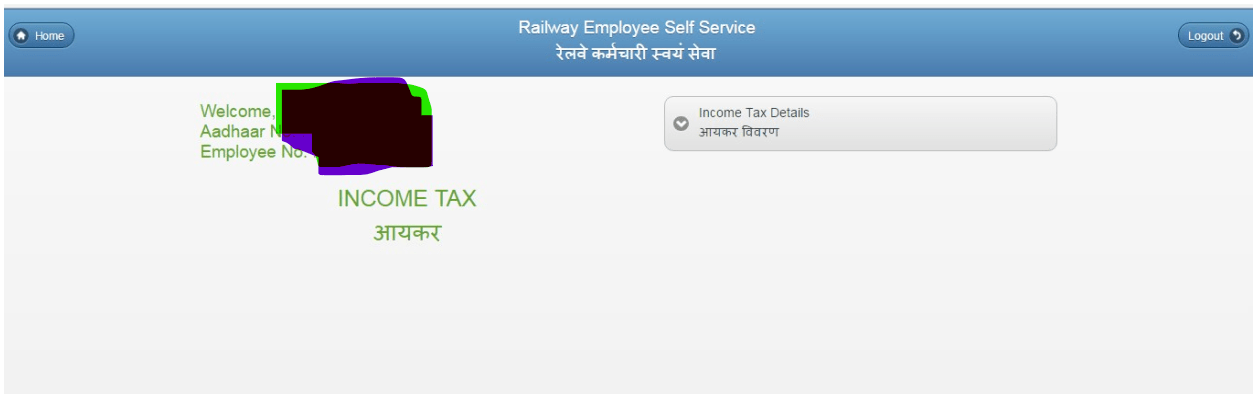
Enter Financial Year and click on submit button. A Page will Open as below:-
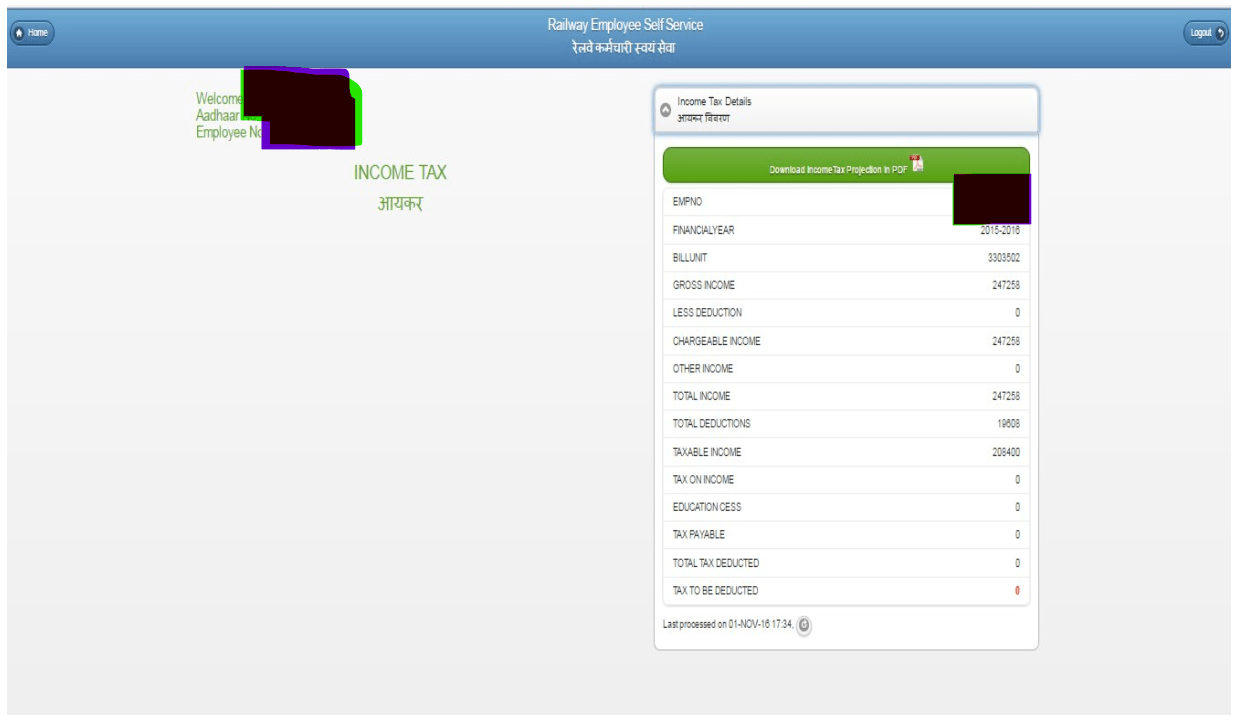
A page will open as below:-
After that click on the option of download Income Tax Projection in PDF.
How to Update Personal details/Profile
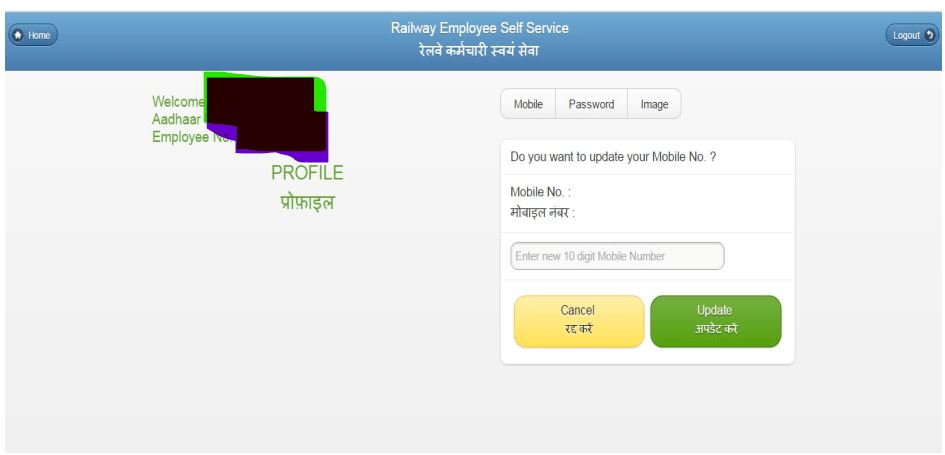
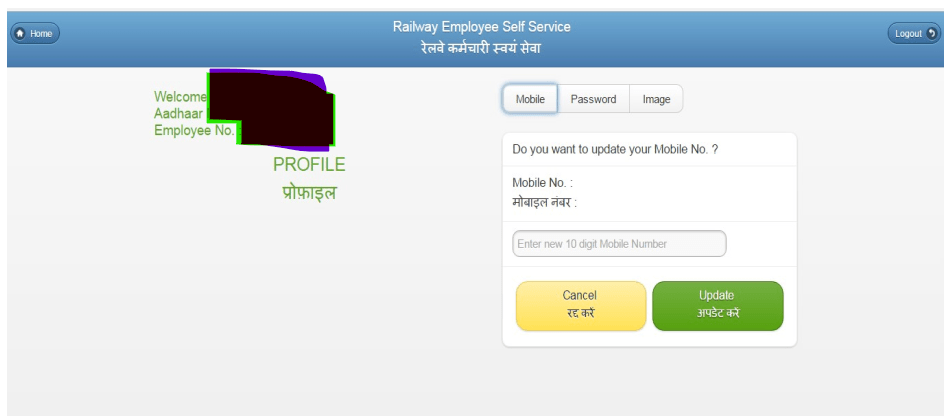
At Home page of RESS website/App Application displays Profile Button on the left side. Railway employees need to Click on the button, following which the screen will appear: –
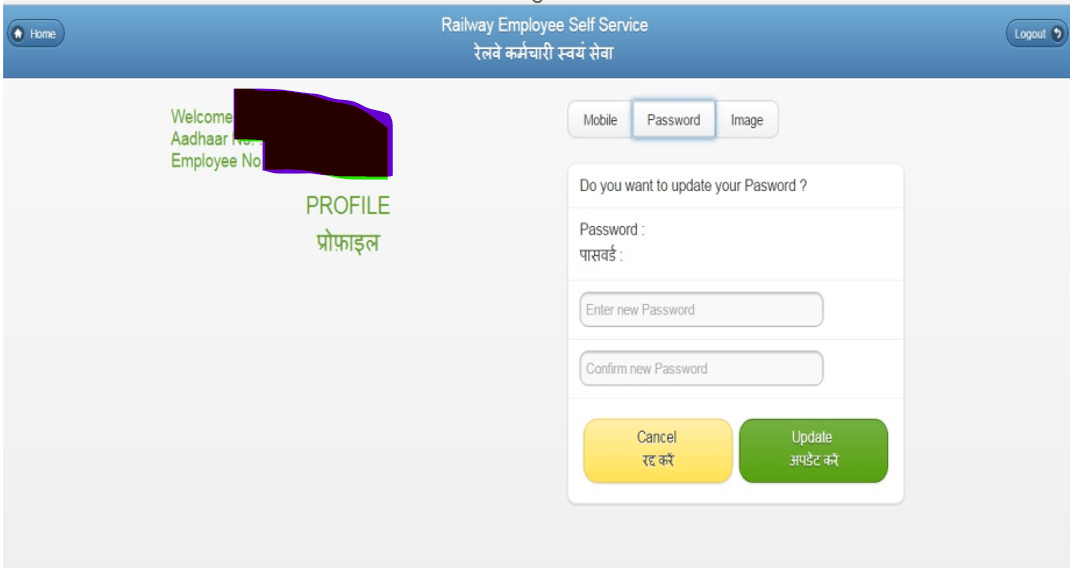
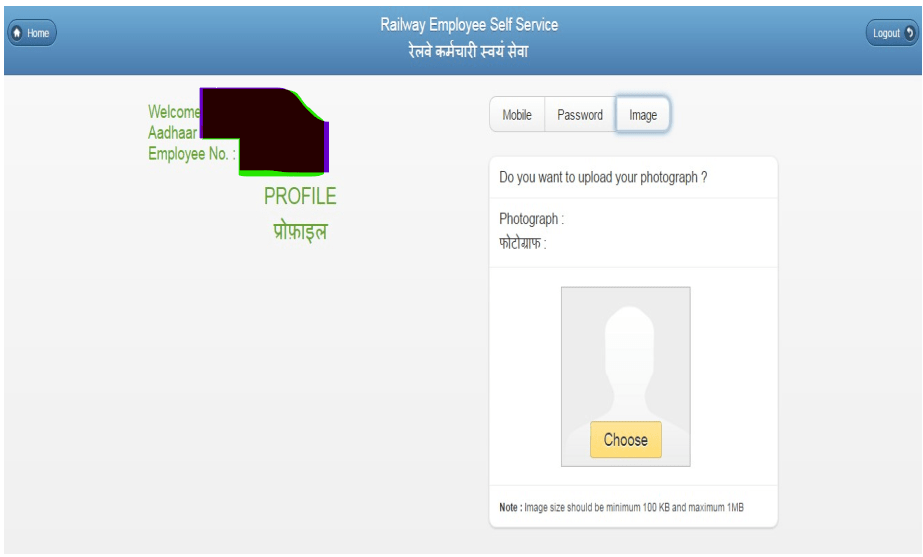
Railway employee has three Options to update which will be shown on the Profile Page:-
i. Mobile
ii. Password
iii. Image
Mobile:- If you want to update your mobile number then click on the mobile option and enter the new 10 digit mobile number and click on the update button.
A page will open as below:-
Password:- If you want to update your password then click on the password option and enter the new password & confirm new password (Minimum 6 character) and click on the update button.
A page will open as below:-
Image:- If you want to upload your photograph then click on the image and choose the photograph from the System.
A page will open as below:-
How to Reset Password/what to do in case of forgotten Password
1. Click on “Forgot Password?” link on Login Page.
2. System will ask for User ID, Mobile No and Date of Birth.
3. Enter above and click “Submit” button.
4. System will verify detail with Already Registered Data, regenerate Password and send to Registered Mobile No.
5. User will be asked to enter password as sent on Mobile No.
6. After verification, it will set New Password and Welcome Page of the application will appear.