Category Archives: Railway-HRMS

IR-HRMS is an integrated digital platform developed by CRIS (Centre for Railway Information Systems) to manage the full lifecycle of an employee in Indian Railways—from appointment to retirement.

Key Modules:

E-Pass & PTO
Leave Management
Service Record
Transfers
Family Details
PF & Salary Information
e-APAR & e-SR
E-Office & Grievance Redressal

HRMS E-Pass Module- Role Wise User Manual

HRMS E-Pass Module- Role Wise User Manual

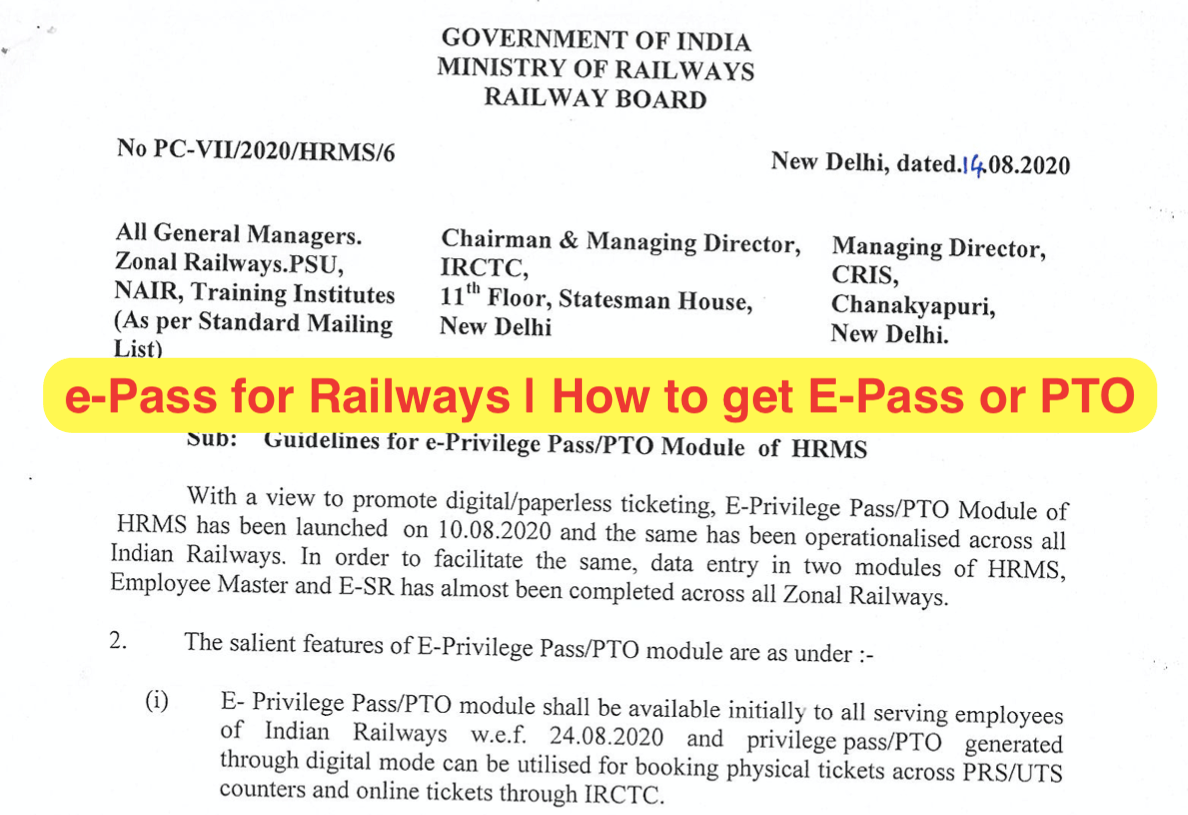
Indian Railways has launched e-Pass Module on HRMS on the 24th of August 2020 through Human Resource Management System (HRMS) Portal, which has been rolled out all over Indian Railways on 01/10/2020.

Now, the Privilege Passes and PTOs have to be applied and availed online by railway employees. With this facility Railway employee is neither supposed to come to office for applying for Pass nor has to wait for pass being issued.

Retired Employees of Railway will get this facility from January, 2021.

Here is the complete guide to issue e-Pass by Railway Employee, Clerks, and Pass issuing authority.

  1. e-PASS Guidelines for Railway Employee
    • Declaration of Manual Passes & Pass Family
    • Application for New E-Pass
    • Application for Split Pass
    • e-Pass Cancellation Request
    • Send OTP for ticket Booking
  2. e-PASS Guidelines for Pass Clerk
    • Manual Pass Entry
    • Acceptance of Family Declaration
    • Accept e-PASS Application
    • Accept Split Pass Application
    • Accept Pass Cancellation Request
  3. e-PASS Guidelines for Pass Issuing Authority (PIA)
    • Issue Pass
    • Issue Split Pass
    • Pass Cancellation Request

e-PASS Guidelines for Railway Employee

After login on HRMS website, please follow below step to issue e-Pass online on HRMS.

Declaration of Manual Passes & Pass Family:

  1. Contact your Pass Clerk for entry of manual passes
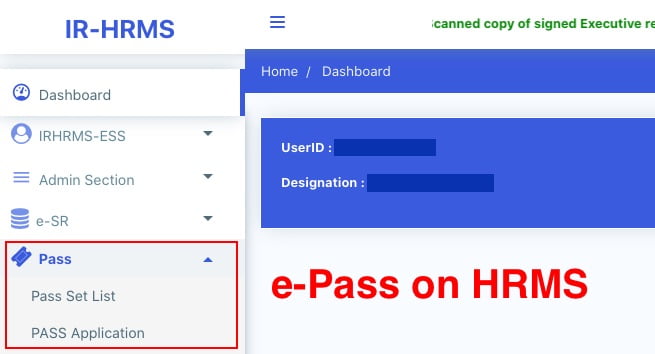
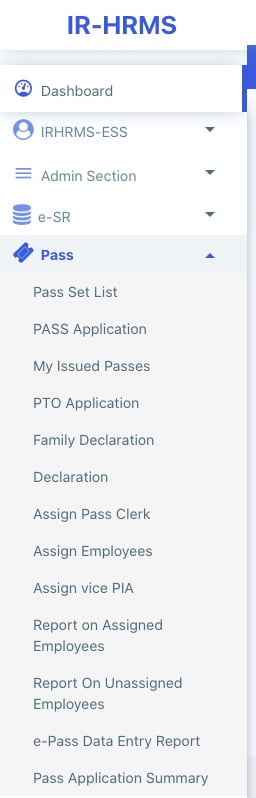
  2. Once entered by Pass Clerk, click on Pass > Pass Set List menu
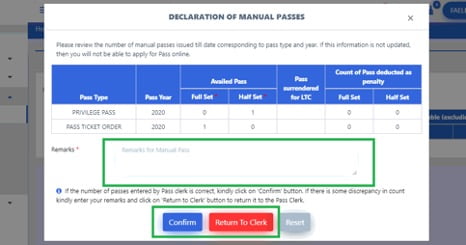
  • Click on ‘Confirm’ button if the entered information is correct. If there is some discrepancy, click on ‘Return to Clerk’ button to return it for modification to Pass Clerk.
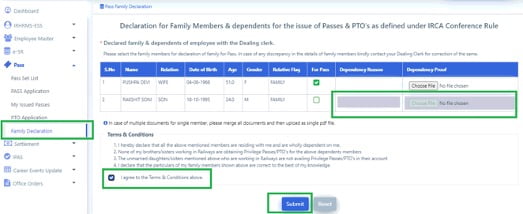
  • Once Confirmed, now Family Declaration needs to be completed. Click on Pass > Family Declaration menu.
  • Select the members for Pass Family Declaration and provide dependency reason&proof (if required) and click on ‘Submitbutton. This declaration will now be forwarded to the Pass Clerk for further action. Once Accepted by Pass Clerk, employee can now apply for e-Pass.

e-Pass Application on HRMS:

  1. Click on Pass > Pass Set List menu.
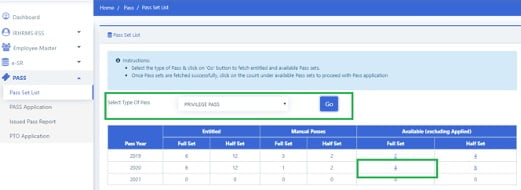
  2. Select Pass Type: Privilege Pass and click on ‘Go’ button. The entitled & available, full/half Pass sets will be shown.
  • Click on ‘Available full set count . You will be redirected to Pass Application Page
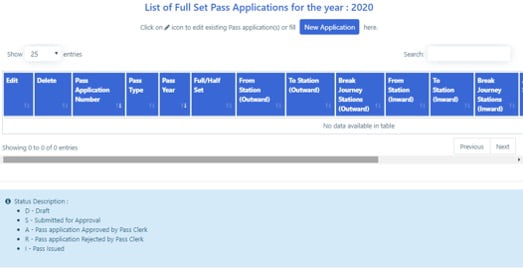
  • If there are any previous existing applications(not submitted yet) for this year, then they will appear in the list. They can be edited by clicking on edit icon shown beside the application. To create a fresh application, click on ‘New Application’ button.
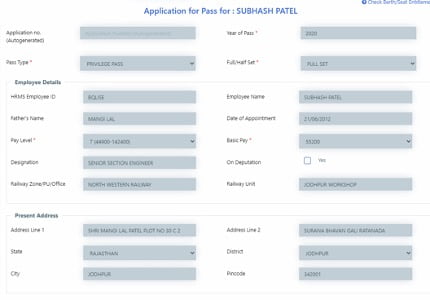
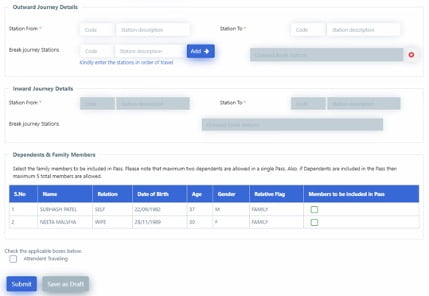
  • Page for new application will open. Details of employee and list of members will be shown to employee. Fill in the travelling details and select the family members to be included in Pass.
  • Click on ‘Save as Draft’ to save details and on ‘Submit’ to forward the application to Pass clerk for further approval.
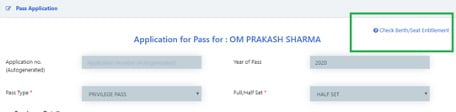
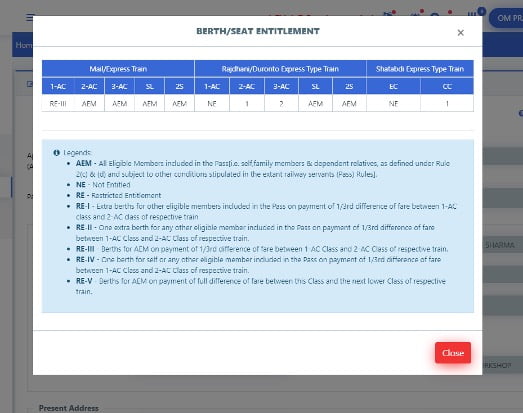
  • To Check Berth Entitlement, click on ‘Check Berth/Seat Entitlement’ shown beside application

Information of berth entitlement will be shown as shown below:

Application for Split Pass:

  1. Login to HRMS application.
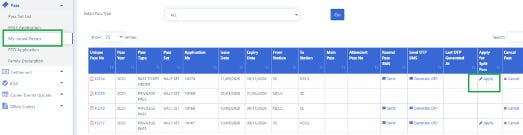
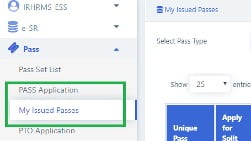
  2. Go to Pass > My Issued Passes menu. List of all issued passes will be shown.
  • Click on ‘Apply’ button beside the pass number against which split pass needs to be applied
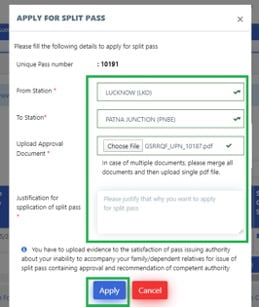
  • Select From & to stations of travel and upload the necessary documents(approval from competent authority). Also enter the reason for applying split pass and click on ‘Apply’ button. The application will be forwarded to Pass Clerk for further action.
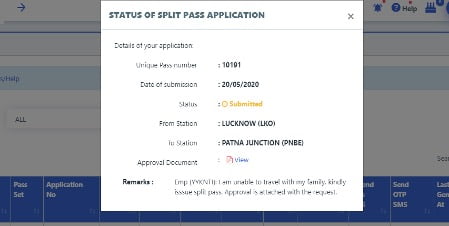
  • To view status of your request, click on ’Applied’ and details of your application will be shown

HRMS e-Pass Cancellation Request

  1. Login to HRMS application
  2. Go to Pass > My Issued Passes menu. List of all issued passes will be shown
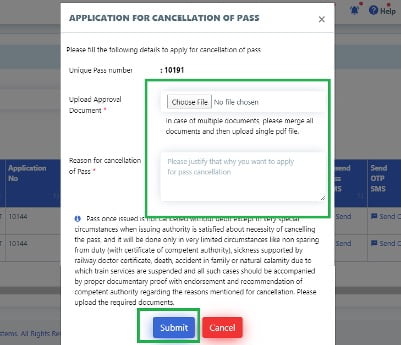
  • Click on ‘Cancel’ against the UPN which needs to be canceled. Enter reason for cancellation, upload the approval document form competent authority and click on ‘Submit’ button. The request will be forwarded to Pass clerk for further action.
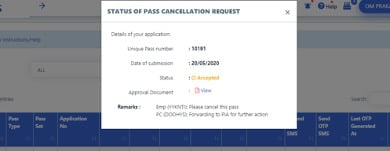
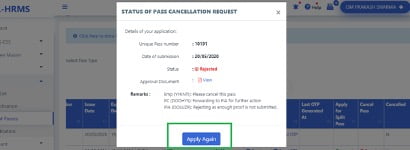
  • To view status of your request, click on ‘Applied’ against the pass for which cancellation request was submitted. A pop up will appear with request details
  • If your request was Rejected, you can apply again by clicking on ‘Apply Again’ button on the same pop-up screen

Send OTP for ticket Booking

  1. Go to ‘Pass’ > ‘My issued Passes’
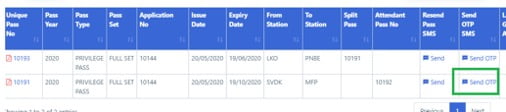
  2. Click on ‘Send OTP’ against the pass for which ticket needs to be booked
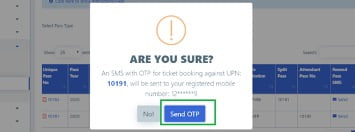
  • Click on Send OTP and an OTP will be sent to your registered mobile number


e-PASS Guidelines for Pass Clerk

Manual Pass Entry

  1. Login To HRMS application
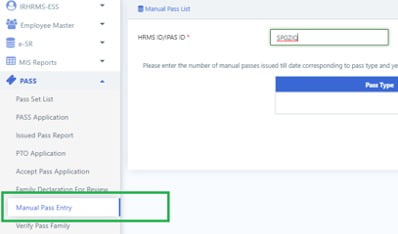
  2. Go to Pass > Manual Pass Entry menu
  • Enter HRMS ID of the employee and click on ‘Go’ button.
  • Enter the count of Full Set & Half Set Passes for the employee. If passes were surrendered for LTC, the check the checkbox against that year. Enter the count of passes deducted as penalty(if any) ,Remarks and click on ‘Submit’ button.

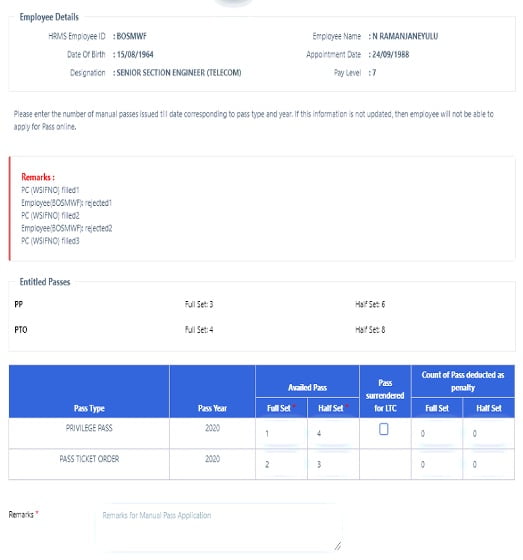
Acceptance of Family Declaration

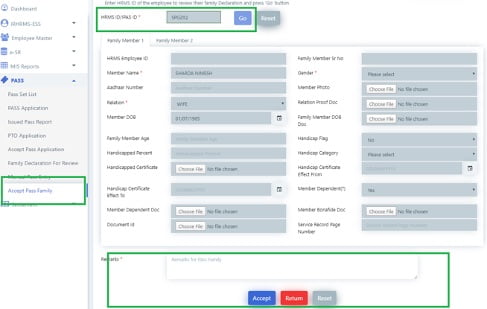
  1. Click on Pass > Accept Pass Family menu
  2. Enter HRMS ID of the employee and Click on ‘Go’ button. Details of family members declared by employee will be shown.
  • Click on Tabs to review all family members of the employee.
  • Enter your remarks and click on ‘Accept’ button if declaration is correct, click on ‘Return’ if there is some discrepancy.

Accept Pass Application

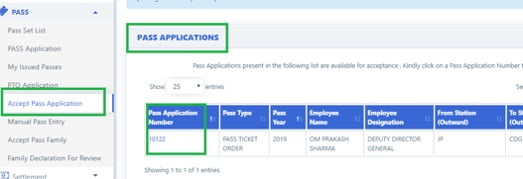
  1. Click on Pass > Accept Pass Application menu. List of Pass applications & Split Pass Applications will be shown to the clerk. Under Pass Applications click on pass application number to review it.
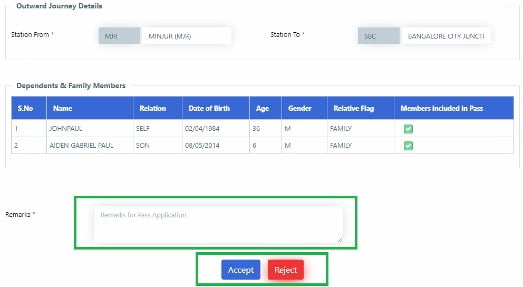
  • Review the application for journey & family details. Enter your remarks & click on ‘Accept’ if pass can be forwarded to issuing authority. If there is discrepancy, click on Reject and the application will be rejected.
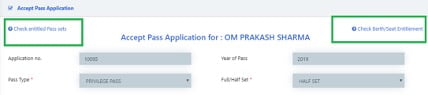
  • To check for available passes of employee, click on ‘Check entitled Pass sets

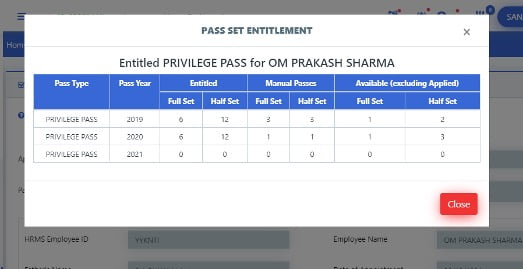
List of available and entitled pass sets of employee will be shown

Accept Split Pass Application

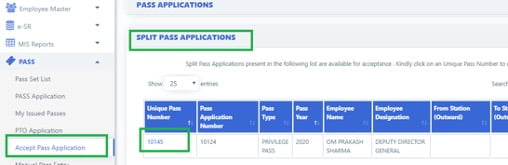
  1. Click on Pass > Accept Pass Applicationmenu. List of pass applications & Split Pass Applications will be shown to the clerk. Under ‘Split Pass Application’ click on unique pass number to review it.
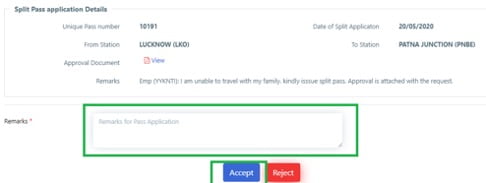
  • Split pass application details along with original pass application will be shown
  • Enter your remarks and click on ‘Accept’ icon to forward it to Issuing Authority, or on ‘Reject’ button to reject the application

Accept HRMS e-Pass Cancellation Request

  1. Login to HRMS application
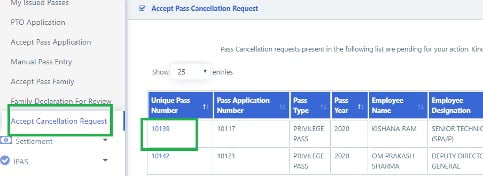
  2. Go to Pass> Accept Cancellation Request menu.
  3. List of Pass cancellation Requests will be shown. Click on UPN to show details of the cancellation request
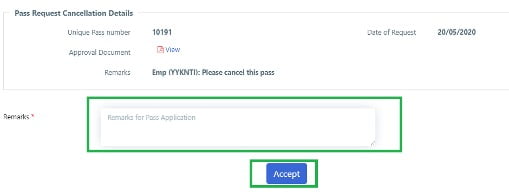
  • Enter your remarks and click on ‘Acceptbutton to forward request to Pass Issuing Authority


e-PASS Guidelines for Pass Issuing Authority (PIA)

Issue Pass

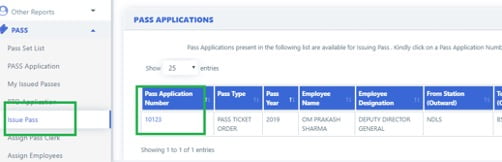
  1. Click on Pass > Issue Pass menu
  2. List of Pass applications & Split Pass Applications will be shown to the Issuing authority. Under Pass Applications click on ‘pass application number to issue Pass.
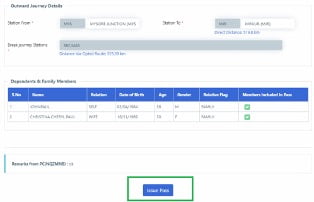
  • Application will open showing all the details. Click on ‘Issue Pass’ button to issue pass.

Once successfully issued, a SMS will be sent to the employee with the Pass details.

Issue Split Pass

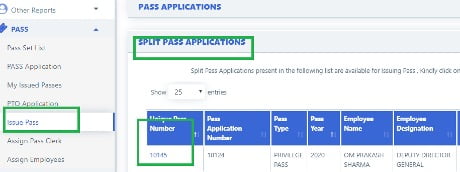
  1. Click on Pass > Issue Pass menu
  2. List of Pass applications & Split Pass Applications will be shown to the Issuing authority. Under Split Pass Applications click on ‘Unique Pass number to issue Split Pass.
  • Split pass application details along with original pass application will be shown. Tick the check box for declaration and then click on ‘Issue Pass’ button to issue Split Pass

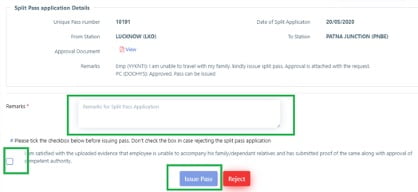
Once successfully issued, a SMS will be sent to the employee with the issued Split Pass details.

Pass Cancellation Request

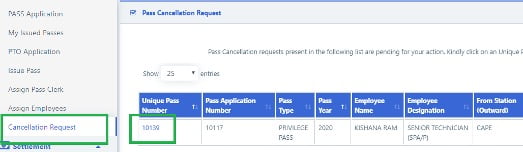
  1. Login to HRMS application
  2. Go to Pass > Cancellation Request menu.
  3. List of requests for Pass Cancellation will be shown. Click on ‘unique Pass number’ to show details of the request.
  • Check the checkbox for declaration (if canceling pass, not required if rejecting the request). Enter your remarks and click on ‘Cancel Pass’ to cancel the Pass or on ’Reject’ to reject the cancellation request

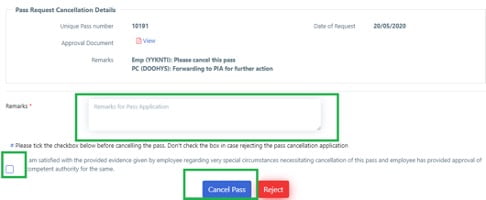
Source:

HRMS e-PASS Module

Settlement Module

Office Order Module

APAR Module

How to Change HRMS Password? Indian Railway Employee application

Default Password is “Test@123”

If you are a first time user on HRMS portal of Indian Railways, then log in with the Default password “Test@123“. On first time login, You will be prompted to change your password, change your Password.

If you have changed your password on first time login, and have forgotten the password, then recovery/resetting of HRMS password is very easy. For resetting of HRMS password, read How to Reset HRMS Password for Indian Railway Employees?

Change of Password on HRMS Railway Employee portal is possible in two ways…

  1. Reset HRMS password:- By following “Forgot Password” option (This option requires OTP verification through Registered Mobile Number)
  2. Change Password on HRMS application:- Here is the simple guide to Change Password on HRMS Railway Employee app. (This option requires you to remember your current Password.)
How to Change HRMS Password?

1. Access HRMS Website:

HRMS web portal provides easy option for changing of HRMS password. First, access the Webpage of Human Resource Management System (HRMS) of Indian Railways by clicking on link https://hrms.indianrail.gov.in/HRMS/

Then, login on the HRMS portal with HRMS ID and Password.

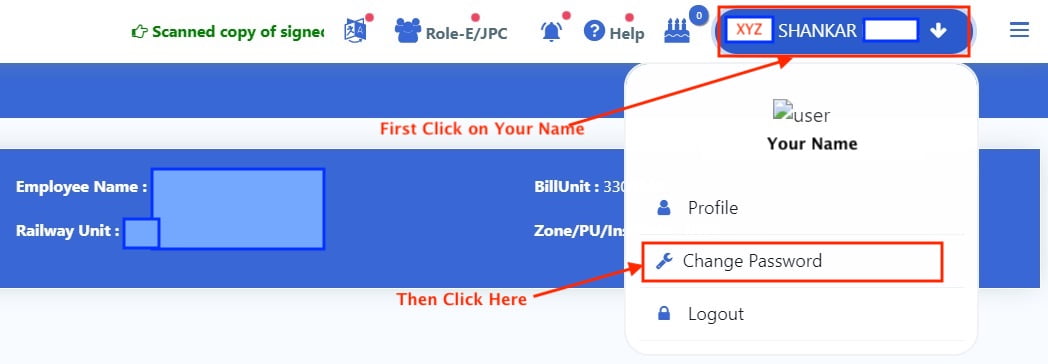
2. Click Change Password:

Your name is shown on the very top of the page in the right side. Click on your Name. Under your Name, option is available to Change Password. Then Click on the link “Change Password”.

This option is not available on Mobile application, this is available only on website version of the HRMS portal.

3. Set New Password

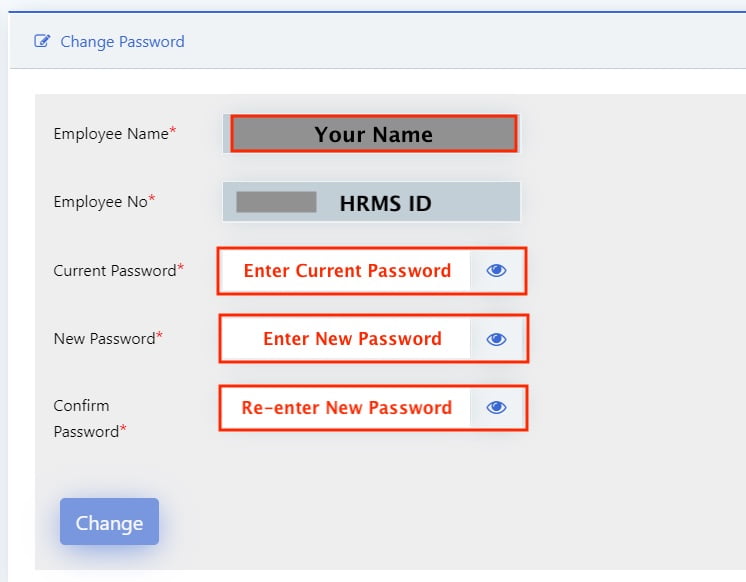
Enter your Current Password in the given box. and then set new HRMS Password as per Password Policy. Re-enter new Password for confirmation and then click on the button “Change”.

4. Congratulations, Your Password has been changed Successfully.

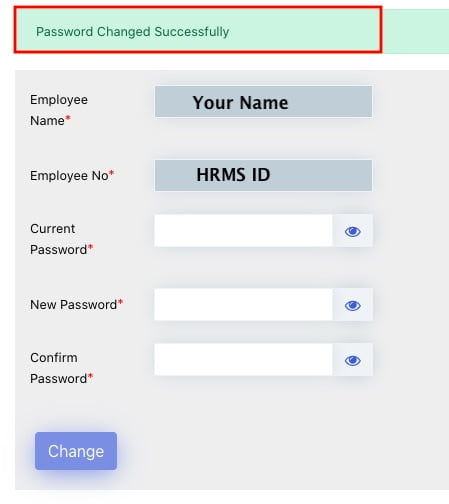
After setting new password as per password policy, and clicking button “Change”, Your HRMS password will be changed. A message will be displayed like below image.

The message ” Password Changed Successfully” is shown.

Please note that, this doesn’t require OTP verification.

Password Policy for HRMS Password.

HRMS Password should be carefully chosen and It must follow the password policy. HRMS Password must contain Upper Case, Lower Case, Digits and Special Characters.

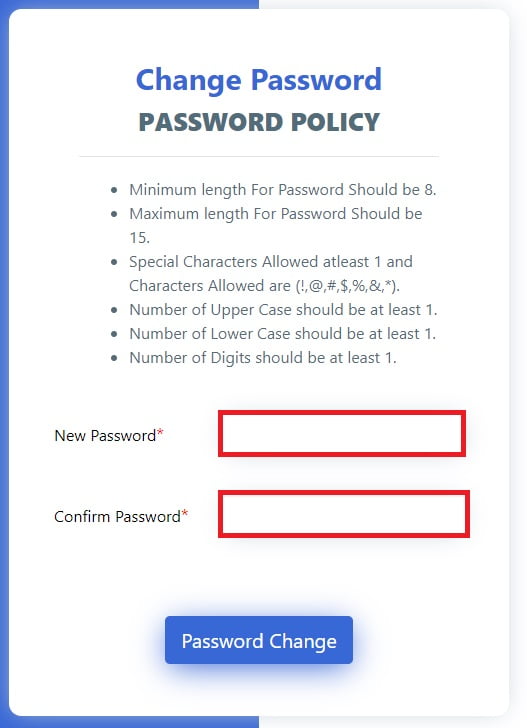
PASSWORD POLICY
  • Minimum length For Password Should be 8.
  • Maximum length For Password Should be 15.
  • Special Characters Allowed atleast 1 and
  • Characters Allowed are (!,@,#,$,%,&,*).
  • Upper Case letter should be at least 1.
  • Lower Case letter should be at least 1.
  • Number of Digits should be at least 1.
How to Reset HRMS password?

If you are a Railway Employee and a registered user on HRMS portal of Indian Railways and suppose you have forgotten the password for it, then you no need to worry.  HRMS Password can be easily reset by following simple steps

How to Login on HRMS Railway Employee application?

If you are a first time User on HRMS Railway Employee portal, and don’t know how to login on HRMS? then there is a simple step by step guide to Login on HRMS Railway Employee application.

How to issue E-Pass & E-PTO online for Railway Employees?

Indian Railways has launched e-Pass on HRMS Module on the 24th of August 2020 through Human Resource Management System (HRMS) Portal, which has been rolled out all over Indian Railways on 01/10/2020.

E-Pass Module Detailed Guidelines for-

  1. e-PASS Guidelines for Railway Employee
    • Declaration of Manual Passes & Pass Family
    • Application for New E-Pass
    • Application for Split Pass
    • e-Pass Cancellation Request
    • Send OTP for ticket Booking
  2. e-PASS Guidelines for Pass Clerk
    • Manual Pass Entry
    • Acceptance of Family Declaration
    • Accept e-PASS Application
    • Accept Split Pass Application
    • Accept Pass Cancellation Request
  3. e-PASS Guidelines for Pass Issuing Authority (PIA)
    • Issue Pass
    • Issue Split Pass
    • Pass Cancellation Request

Now, the Privilege Passes and PTOs have to be applied and availed online by railway employees. With this facility Railway employee is neither supposed to come to office for applying for Pass nor has to wait for pass being issued.

HRMS Helpdesk:

In case of any issues please reach out to HRMS helpdesk…

  • HRMS application related issue @ 7786940452 ,9971535534,7982542883
  • For OTP @ 7267910583,9953780947
  • For ePass related enquiry @ 9891643886,9069161539,9971168228 or
  • Write to us at irhrms@cris.org.in  
User Manuals for other modules of HRMS

How to Reset HRMS Password for Indian Railway Employees?

First-Time Login With Default Password

If you are a first time user on HRMS portal of Indian Railways, then log in with the Default password “Test@123“. Username will be your HRMS ID. You will be prompted to change your password when you first log in successfully.

HRMS application will be single window communication system between Railway employees and Administration.

Resetting of HRMS Password for Indian Railway Employees

If you are a Railway Employee and a registered user on HRMS portal of Indian Railways and suppose you have forgotten the password for it, then you no need to worry.  HRMS Password can be easily reset by following simple steps. 

1. Visit the Railway HRMS Website or HRMS Railway Employee App to reset the HRMS password.

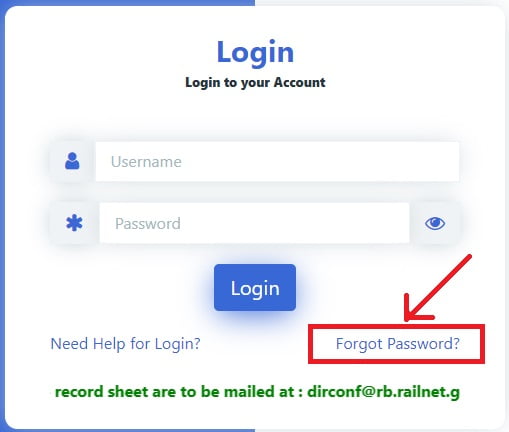
Then you will see the forgot password option below the login option out there and click there for resetting the password.

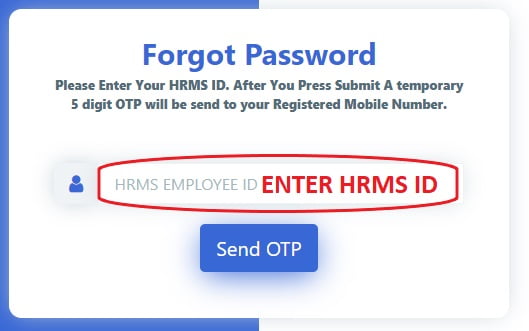
2. After that, Please enter your HRMS ID given by Railway. Then click the button “Send OTP”.

If you don’t know your HRMS ID or have forgotten HRMS ID too, then read How to know HRMS ID and Login on HRMS Railway Employee App.

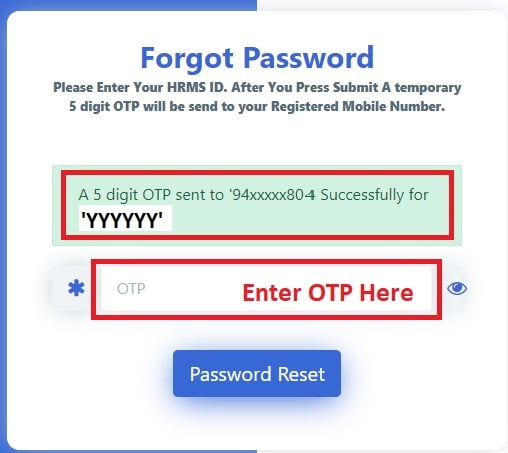
3. This will generate a temporary 5 digit OTP and that will be send on your Registered Mobile Number.

A message like below will be displayed- “A 5 digit OTP sent to ‘9XxxxxxXXX’ Successfully for ‘YYYYYY’. Here ‘9XxxxxxXXX’ will be your Registered Mobile Number, and ‘YYYYYY’ will be HRMS ID of Railway Employee”.

Enter OTP and click the button “Password Reset”.

After successfully verifying the OTP, HRMS will allow to change the password. Now, you can change your password.

4. Set new Password

New Password should be carefully chosen and It must follow the password policy. New Password must contain Upper Case, Lower Case, Digits and Special Characters.

PASSWORD POLICY
  • Minimum length For Password Should be 8.
  • Maximum length For Password Should be 15.
  • Special Characters Allowed atleast 1 and
  • Characters Allowed are (!,@,#,$,%,&,*).
  • Upper Case letter should be at least 1.
  • Lower Case letter should be at least 1.
  • Number of Digits should be at least 1.

After entering new password, press button “Password Change”.

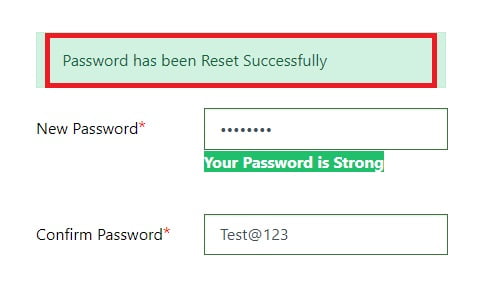
5. Congratulations, you have done it. Your HRMS password has been reset.

A message will appear like below, “Password has been Reset Successfully“.

That’s it for change/reset of password HRMS Railway Employee portal.

>>Step by Step guide for issue of e-Pass on HRMS for Railway Employees

E-Pass Module Guidelines for Railway Employee, Pass Clerk, PIA
  1. e-PASS Guidelines for Railway Employee
    • Declaration of Manual Passes & Pass Family
    • Application for New E-Pass
    • Application for Split Pass
    • e-Pass Cancellation Request
    • Send OTP for ticket Booking
  2. e-PASS Guidelines for Pass Clerk
    • Manual Pass Entry
    • Acceptance of Family Declaration
    • Accept e-PASS Application
    • Accept Split Pass Application
    • Accept Pass Cancellation Request
  3. e-PASS Guidelines for Pass Issuing Authority (PIA)
    • Issue Pass
    • Issue Split Pass
    • Pass Cancellation Request
In case of any issues please reach out to HRMS helpdesk
  • HRMS application related issue @ 7786940452 ,9971535534,7982542883
  • For OTP @ 7267910583,9953780947
  • For ePass related enquiry @ 9891643886,9069161539,9971168228 or
  • Write to us at irhrms@cris.org.in  
User Manuals for other modules of HRMS

Source: HRMS Indian Railways

How to Login on HRMS Railway Employee Mobile App and Website guide

HRMS: One Stop Single Window System for Indian Railway Employees

HRMS application will be single window communication system between Railway employees and Administration.

This Human Resource Management System (HRMS) will allow Railway employees to view their details related to their Increments, Promotions, Awards, Transfers, Postings, Leave, Training, and composition of Family as per records and Nominations for retirement benefits. This information is not readily available to employee at present. It brings transparency to administration.

Scanned copies of their Physical Service Record are also available on HRMS. It is an important milestone in computerization of HR related functionalities in Indian Railways.

Want to Login on HRMS? Here is the complete Step by Step Guide to Login on HRMS module.

Step by Step Guide for first time Login on HRMS module
1. Access the HRMS website or Mobile app with below link
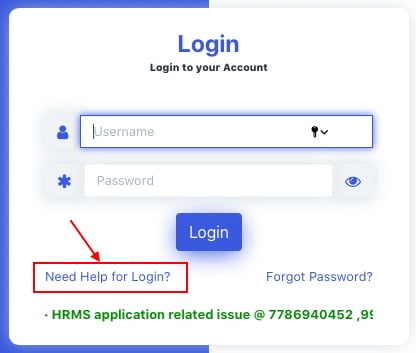
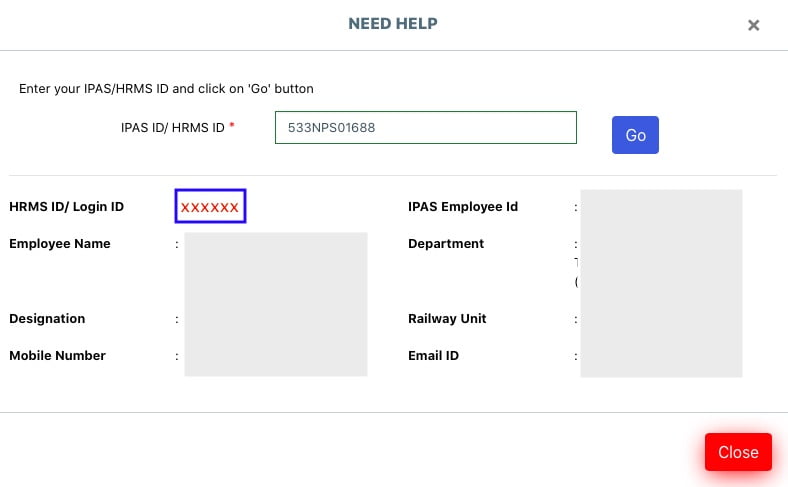
2. For first time login on HRMS, Click on ‘Need Help for Login?’.

3. Enter 11 digit PF/Employee number as IPAS ID and click ‘Go’.

IPAS ID is your PF number or Employee number, which is available on salary slip. Same can be asked from Account section also.

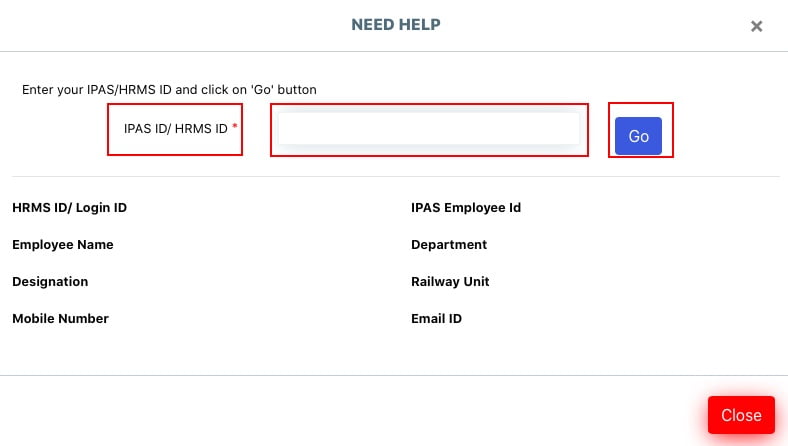
Enter your IPAS ID in the box, and click on the button “Go“.

4. Know your HRMS ID and Registered Mobile Number.

After clicking button “Go“, details like HRMS ID, Employee Name, Designation, Registered Mobile Number, Department, Railway Unit and Email ID will be displayed as shown in below image.

Copy or remember the HRMS ID/Login ID, for further use of login as Username.

If your details are not available on HRMS portal, then Contact Personnel Branch Dealing Clerk (DC of Bill Section).

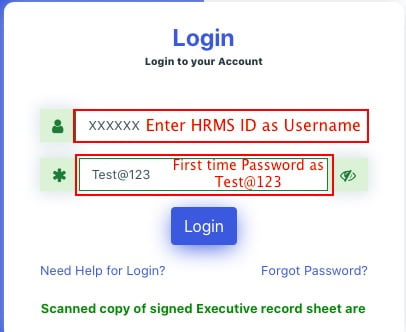
5. Login with HRMS ID as user ID and default password “Test@123”.

Enter HRMS ID as Username, and first time user will have default password as “Test@123“. Enter Username and Password, and click the button “Login“.

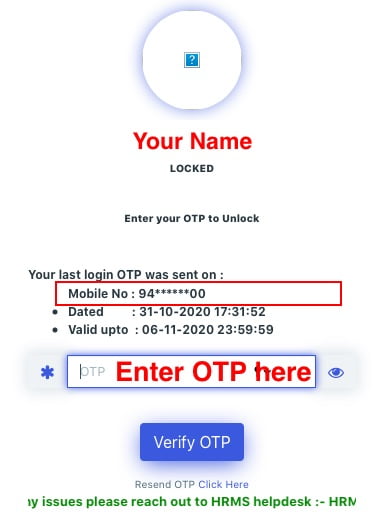
On clicking “Login” button, an OTP will be send on Registered mobile number. Received OTP on the registered mobile number will have validity for one week.

6. Enter the OTP.

If OTP is not received on your mobile number, check the registered mobile number again. If mobile number is correct, then click on the link “Resend OTP Click Here”, below the button ” Verify OTP”.

Hey God, this is also not working for me, please help me, then call HRMS help desk numbers 7267910583, 9953780947 for OTP.

7. After successful verification of OTP, Employees can login to HRMS portal.

Congratulations, You have logged on HRMS portal.

If you know your HRMS ID, and have forgotten HRMS Password, then read…
How to reset HRMS Password for Indian Railway Employees?

Employees will be directed to change the password after first login. Change your password and remember for future use.

In case of any issues please reach out to HRMS helpdesk
  • HRMS application related issue @ 7786940452 ,9971535534,7982542883
  • For OTP @ 7267910583,9953780947
  • For ePass related enquiry @ 9891643886,9069161539,9971168228 or
  • Write to us at irhrms@cris.org.in  
User Manuals for other modules of HRMS

Also read- Online E-Pass & PTO for Railway Employees under HRMS project

Source: HRMS Indian Railways

Step by Step guide for e-Pass on HRMS for Railway Employees

Guidelines for availing e-Passes/PTOs on HRMS

Content:

Indian Railways has launched e-Pass on HRMS Module on the 24th of August 2020 through Human Resource Management System (HRMS) Portal, which has been rolled out all over Indian Railways on 01/10/2020.

Now, the Privilege Passes and PTOs have to be applied and availed online by railway employees. With this facility Railway employee is neither supposed to come to office for applying for Pass nor has to wait for pass being issued.

The guidelines for availing e-Passes/PTOs on HRMS module are as follows:-

1.0 Step-wise instructions Login to the HRMS portal

Login to HRMS module is possible through webpage or mobile app.

>> Jump to next step if you already know how to login on HRMS.

How to use HRMS Employee Mobile Application for Indian Railway?

a) Steps for HRMS ID and login:-

  • Access the following website https://hrms.indianrail.gov.in/HRMS/ Click on ‘Need Help for Login’. Enter 11 digit PF/Employee number as IPAS ID and click ‘Go’. Details will be displayed including HRMS ID and Registered Mobile No.
  • Click on ‘Register Now’ on HRMS Mobile app, then enter 11 digit PF/Employee Number as IPAS ID.
  • Contact Personnel Branch Dealing Clerk (DC of Bill Section).

b) On availability of HRMS ID as user ID and default password “Test@123”, employees can login to HRMS portal. Employees will be directed to change the password after first login.

Congratulations, You have logged on HRMS portal.

If you know your HRMS ID, and have forgotten HRMS Password, then read…
How to reset HRMS Password for Indian Railway Employees?

c) An OTP will be received on the registered mobile number with validity for one week.

d) Enter the OTP.

e) Click ‘e-SR’. Then click on ‘My e-SR’ on the drop down menu. Details may be checked regarding designation, family particulars. If there is any discrepancy, click on ‘Remarks Tab’ and submit the same mentioning correct particulars. On verification of the same, concerned Approving Authority will update the same.

f) If all particulars are correct, following steps may be followed to process e-Pass Application.

Process for online application for e-Pass

g) Click on the “Pass” tab on the left drop down menu.

h) Select “Pass Set List”. Availed manual passes and PTOs for the years 2020-21 will be displayed.

i) If the pass account details are correct, type OK in the “Remarks” tab and press “Confirm”.

j) If there is any error, type the nature of error in the remarks tab and press “Return to Clerk” tab.

k) Press “Yes” in the pop-up menu.

l) Next check the “Family Declaration” tab on the left drop down menu.

m) The screen containing the list of family members and the dependents will be displayed.

n) If all particulars regarding family and dependents of the employee are correct, tick the declaration and click ‘Submit’.

o) If there are any changes/updation, relevant documents e.g. Bonafide certificate etc.may be uploaded.

p) For uploading a document, click on the “Choose” tab displayed on the screen against the dependents and the upload the same. This will be sent to Dealing clerk/Pass clerk for modification.

q) On verification/approval by the Pass Issuing Authority, the employee will once again verify and submit.

r) On completion of the above steps, it will be construed that the family details and Pass/PTO details have been verified by the employee.

2.0 How to apply for a Digital e-Pass?

1. Click on the Pass Tab, then on “Pass Set List” tab of the drop down menu.

2. Select the ‘Type of Pass’ from drop down menu (privilege pass or PTO) and Click“Go”.

3. Year and entitlement of Passes will be displayed.

4. Click on the number displayed in the Available column for full set (PP) or half set Passes(PP/PTO), as required. You will be redirected to pass application page. If there are any previous existing applications (not submitted yet) for this year, they will appear in the list. They can be edited, clicking edit icon.

5. To create fresh application, Click on the “New Application” tab.

6.Enter STATION FROM and STATION TO. If you are not aware of the station code, mention name of the station in the “Station Description”.

7. Menu containing Family Details will be available on the screen, members may be clicked as and when needed to be included in the Pass.

8. Enter the break journey details(PP), if required.

9. If eligible for an Attendant and intend to take an attendant, then click the Tick box available in the screen for attendants.

10. Click “Submit”. On successful submission, the Pass application shall be forwarded to Pass Clerk. The applicant will receive following message on the registered mobile i.e. ‘Your Application No. xxxx has been forwarded to Pass Clerk.’

11. Open the “Pass Application”or “PTO Application” as applied to know the status of Application.

12. The list of Passes applied and their unique numbers with status will be displayed on approval of the same by Pass Issuing Authority.

13. Click on ‘My Issued Pass’ and click on “Generate OTP”as required.

14. An OTP will be generated.

15. Once the OTP is generated,A Unique Pass number will be received on the registered mobile.

16. Reservations for train travel can be made on online IRCTC portal as well as PRS counters at the Railway Stations using this unique Pass Number or Pass and Employee Identity Card.

3.0 How to cancel e-pass on HRMS?

1. Click on the “My Issued Pass Application” inside Pass tab.

2. List of Passes applied and generated will be displayed.

3. If the Pass has not been yet booked/reserved for journeys, the same can be cancelled.

4. Click on “Cancel the Pass”of the pass required to be cancelled.

5. An OTP is generated.

6. Once the OTP is entered, the Pass cancellation request is submitted.
E-Pass on HRMS application will save time, paper, money and lots of energy of Railway Employees and Railways itself.

In case of any issues please reach out to HRMS helpdesk
  • HRMS application related issue @ 7786940452 ,9971535534,7982542883
  • For OTP @ 7267910583,9953780947
  • For ePass related enquiry @ 9891643886,9069161539,9971168228 or
  • Write to us at irhrms@cris.org.in  
User Manuals for other modules of HRMS

Also read- Online E-Pass & PTO for Railway Employees under HRMS project

Source: HRMS Indian Railways

Online E-Pass & PTO for Railway Employees under HRMS project

Employees will be able to apply for pass online from anywhere and get the E-Pass generated online

Chairman Railway Board has launched E-pass module of Human Resource Management System (HRMS) developed by CRIS through video conferencing which was also attended by FC/Railways, all Board Members, CMD/IRCTC, MD/CRIS, all GMs, PCPOS, PCCMS, PFAs and DRMs.

Human Resource Management System (HRMS) for Indian Railway’ Employees

This Human Resource Management System (HRMS) will allow Railway employees to view their details related to their Increments, Promotions, Awards, Transfers, Postings, Leave, Training, and composition of Family as per records and Nominations for retirement benefits. This information is not readily available to employee at present. It brings transparency to administration.

DG/HR briefed about the various aspects of the e-Pass module and its phased implementation strategy.

Process for issuance of pass have been largely manual in IR. Also there was no facility for booking of ticket online on Pass for Railway employee.

Download User Manual For Employee, Pass Clerk & PIA

The E-Pass module has been developed by CRIS under HRMS project and will be rolled out over Indian Railways in phased manner. With this facility Railway employee is neither supposed to come to office for applying for Pass nor has to wait for pass being issued. Employee will be able to apply for pass online from anywhere and get the E-Pass generated  online. Complete process of application and generation of Pass is mobile friendly. .

Ticket booking on pass may also be done online on IRCTC site apart from earlier facility of counter booking from PRS/UTS counter.

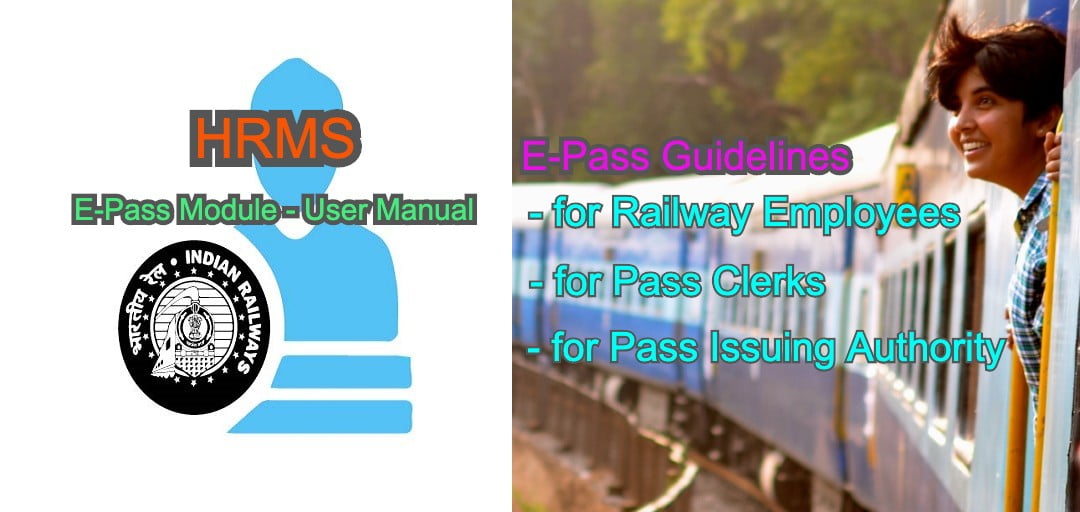
HRMS E-Pass Module- User Manual for Railway Employee, Clerk, PIA

Click below on the image for detailed guidelines for issue of e-Pass, Cancellation of e-Pass etc…

E-PASS module Guidelines for Railway Employee, Clerk, PIA

This facility will help Railway employee in using their pass hassle free and simultaneously make working of all officials involve in issuance of Pass smooth.

HRMS project is a comprehensive plan for digitization of complete HR process of Indian Railway. Total 21 modules has been planned in HRMS. Basic data entry of around 97% railway employees has been completed in Employee master and E-Service record modules of HRMS which had been launched last year.

[poll id=”3″]

CRIS is also going to launch Office order module and settlement modules of HRMS very shortly .

e-Pass for Railways | How to get E-Pass or PTO | How to register for Railway Epass
Online E-Pass for Railway Employees
In case of any issues please reach out to HRMS helpdesk
  • HRMS application related issue @ 7786940452 ,9971535534,7982542883
  • For OTP @ 7267910583,9953780947
  • For ePass related enquiry @ 9891643886,9069161539,9971168228 or
  • Write to us at irhrms@cris.org.in  
User Manuals for other modules of HRMS

HRMS Tutorials in Hindi

HRMS application is single window communication system between Railway employees and Administration. Here are the tutorials for various modules of HRMS.

ePASS Ticketing (Hindi) –
ePass Management for Employees, PC & PIA(Hindi) –
ePass Role Management for Pass Admin (Hindi) –
Miscellaneous & Leave Office Order (Hindi) –
Transfer posting & Promotion Posting Office Order (Hindi) –
New Joinee & Exit Order (Hindi) –
APAR Module (Hindi) –
Settlement Module (Hindi) –
PF & Advance module (Hindi) –

Also Read more about HRMS tutorials…

Access the HRMS website or Mobile app with below link 
? IR-HRMS Helpdesk Numbers

If you face issues that can’t be resolved using manuals or videos, reach out to the official helpdesk.

? Email Support:

☎️ Phone Support (CRIS HQ):

In case of any issues please reach out to HRMS helpdesk:-

Please Note :

There are changes in HRMS Helpdesk Mobile no. Zone wise Helpdesk Mobile No is as follows –

  • 1) Mobile no. 9718972731 for SER + ECoR + NFR + RCT
  • 2) Mobile no. 8287998772 for SECR + CR + RDSO + RWF
  • 3) Mobile no. 7838961987 for SR + CORE + CTI + NR
  • 4) Mobile no. 9971535534 for NCR + NER + ER + NFRC
  • 5) Mobile no. 7011532241 for NWR + RWP + SWR + RCF
  • 6) Mobile no. 8375846067 for DMW + SCR + CLW + MCF
  • 7) Mobile no. 7982542883 for METRO + COFMOW + WR + ECR
  • 8) Mobile no. 9971168228 for RB + ICF + WCR + BLW