Category Archives: Railway-HRMS

IR-HRMS is an integrated digital platform developed by CRIS (Centre for Railway Information Systems) to manage the full lifecycle of an employee in Indian Railways—from appointment to retirement.

Key Modules:

E-Pass & PTO
Leave Management
Service Record
Transfers
Family Details
PF & Salary Information
e-APAR & e-SR
E-Office & Grievance Redressal

IR-HRMS User Manuals & Helpdesk for Railway Employees

Indian Railways has digitized its entire HR ecosystem through the IR-HRMS (Human Resource Management System) platform, streamlining services like e-pass, leave, service records, salary slips, transfers, and family details. But many railway employees still face confusion when trying to use these online services.

This blog is your go-to guide for all IR-HRMS User Manuals & official Helpdesk Contacts Numbers for the IR-HRMS platform.

? What is IR-HRMS?

IR-HRMS is an integrated digital platform developed by CRIS (Centre for Railway Information Systems) to manage the full lifecycle of an employee in Indian Railways—from appointment to retirement.

Key Modules:

  • E-Pass & PTO
  • Leave Management
  • Service Record
  • Transfers
  • Family Details
  • PF & Salary Information
  • e-APAR & e-SR
  • E-Office & Grievance Redressal
?‍? Official HRMS User Manuals – Where to Find?

The HRMS portal hosts official user guides for all major modules.

SNUser ManualLink
1Training Module User ManualView
2Leave Management User ManualView
3Leave Encashment User ManualView
4Periodic Auto Credit of LeavesView
5ManPower Planning User ManualView
6Cadre Management User ManualView
7Cadre Management HandoutView
8Cadre Management StepsView
9Organizational HierarchyView
10On BoardingView
11Employee Master & e-SR User ManualView
12ESS User ManualView
13Office Order User ManualView
14Office Order PresentationView
15DSC User ManualView
16Settlement User ManualView
17Finger print Device InstallationView
18PF Loan User ManualView
19Pass User ManualView
20PRCP/WP User ManualView
21Pass User Manual for Unit/Pass AdminView
22PWD Companion DeclarationView
23APAR User ManualView
24Retired Other than 7CPC PPO CasesView
25Pre-Retirement PRCP DeclarationView
26Grievance RedressalView
27Transfer ModuleView
28Industrial RelationsView

? Access Here:

? https://hrms.indianrail.gov.in/HRMS/

Once logged in, go to:

  • “Help Section” in the menu bar
  • Choose your module (e.g., E-Pass, Leave)
  • Click User Manual or FAQs
? IR-HRMS Helpdesk Numbers

If you face issues that can’t be resolved using manuals or videos, reach out to the official helpdesk.

? Email Support:

☎️ Phone Support (CRIS HQ):

In case of any issues please reach out to HRMS helpdesk:-

Please Note :

There are changes in HRMS Helpdesk Mobile no. Zone wise Helpdesk Mobile No is as follows –

  • 1) Mobile no. 9718972731 for SER + ECoR + NFR + RCT
  • 2) Mobile no. 8287998772 for SECR + CR + RDSO + RWF
  • 3) Mobile no. 7838961987 for SR + CORE + CTI + NR
  • 4) Mobile no. 9971535534 for NCR + NER + ER + NFRC
  • 5) Mobile no. 7011532241 for NWR + RWP + SWR + RCF
  • 6) Mobile no. 8375846067 for DMW + SCR + CLW + MCF
  • 7) Mobile no. 7982542883 for METRO + COFMOW + WR + ECR
  • 8) Mobile no. 9971168228 for RB + ICF + WCR + BLW
Frequently Asked Questions on HRMS Manuals
SNFAQ on HRMS Manual
1Employee Master & e-SR
2Office Order Module
3PF & Loan Module
4E-APAR Module
5Settlement
6PRCP / WP
7Pass / PTO
8ESS

? HRMS YouTube Video Tutorials

A dedicated YouTube channel by the HRMS team explains every module in simple Hindi and English.

? Official YouTube Channel:

? https://www.youtube.com/@hrmsteam

Popular Videos:

  • How to apply for E-Pass
  • Updating family details
  • Applying for leave in HRMS
  • Viewing and downloading salary slip
  • Using ESS (Employee Self Service)

? When to Contact the Helpdesk?

? IssueContact HRMS Helpdesk If
Unable to log inPassword reset not working or mobile not registered
E-Pass errorsData mismatch or entitlement issues
Family member updateESS update not reflecting / stuck in approval
Transfer/Promotion not updatedChanges not reflecting after office order
Leave/Salary/APAR errorsWrong records or data missing in modules

? Divisional HRMS Coordinators

Each Railway Zone & Division has designated HRMS Coordinators or Bill Clerks.
For faster resolution:

  • ✅ First contact your division/unit coordinator
  • ✅ Escalate unresolved issues to the CRIS Helpdesk

Tip: HRMS Coordinator list is often pinned on local notice boards or official WhatsApp groups.

? What to Include in Your Email/Call?

When contacting support, mention:

  • ? Employee ID
  • ? Registered Mobile Number
  • ? Module Affected (e.g., E-Pass, Leave)
  • ? Screenshot of the issue (if possible)
  • ? Browser/device used (for tech issues)

IR-HRMS User Manuals & Helpdesk

The IR-HRMS system is built to simplify your railway work life—but it can be overwhelming at first. Whether you’re applying for an e-pass or checking your promotion status, the manuals, helpdesk, and video guides can make your journey smoother.

Bookmark this blog and share it with your colleagues who may need it!

Also Read
FAQs on Privilege Pass and PTO for Railway Employees (2025)

Stay updated with the latest rules and procedures for Railway E-Pass and Privilege Ticket Orders (PTO) via Indian Railways’ HRMS platform. Here are the frequently asked questions (FAQs) and answers on Privilege Pass and PTO module of HRMS…

Q1: What is the objective of the Railway Privilege Pass and PTO module?

✅ The goal is to let serving railway employees apply for and use E-Pass or E-PTO online via the HRMS portal and book tickets either through counters or online platforms like IRCTC.

Q2: What are the benefits of E-Pass/E-PTO?

  • Apply from anywhere — no need to visit the pass clerk.
  • Book tickets online (IRCTC) or at counters.
  • Family details auto-verified via HRMS.
  • Supports digital convenience and paperless travel.

Q3: My name/family member’s name is longer than 16 characters. What should I do?

✅ Enter only the first 16 characters, exactly as per HRMS records (including spaces).
❌ Do not use initials or punctuation unless shown in HRMS.
✔️ Example: Amaresh Kumar SrivastavaAmaresh Kumar Sr

Q4: How long is the OTP valid for pass booking?

✅ OTP is valid for 60 minutes (1 hour).

Q5: My OTP expired due to a long queue. What should I do?

✅ You can regenerate OTP via HRMS, even from your smartphone browser.

Q6: Why is OTP needed if I already have the pass number?

✅ OTP adds an extra layer of security — only you have access to your registered mobile.

Q7: I’m getting errors during ticket booking. What’s the solution?

✅ Check the error message carefully. Common issues include:

  • ? Name/Age/Gender mismatch – Match HRMS exactly.
  • ? Expired OTP
  • ? Entitlement issues – Booking class/train not allowed.
  • ? Return journey already completed
  • ? Break station not on train route
  • ? More passengers or berths than entitled
  • ? Journey dates not valid

If unresolved, contact your HRMS coordinator.

Q8: Why must family be updated in HRMS and not just told to the pass clerk?

✅ HRMS family data is used for:

  • Pass issuance
  • SBF scholarships
  • CGA
  • Child Education Allowance (CEA)

That’s why data must be correct and approved in HRMS first.

Q9: A child was born / a family member passed away. What to do?

✅ Update the HRMS family section via ESS module, then resubmit family declaration.

Q10: I’ve been medically decategorized or transferred and need 1st Class Pass. How to update it?

✅ In Pass Declaration Menu, upload supporting documents (transfer/medical) and send to Pass Clerk → PIA → Approval.

Q11: I opted out of widow pass before 30.06.1987. Can I get 6 PTO sets?

✅ Yes, upload your written option document in the Pass Declaration Menu for verification and approval.

Q12: Why can’t I apply for break journey on a PTO?

❌ PRS currently does not support group or break journey on PTOs.

Q13: I want to cancel and rebook a PTO ticket. How?

❌ Rebooking on PTO is not allowed.
✔️ Modification only possible at booking counters.

Q14: Can I cancel a Privilege Pass?

✅ Only in exceptional cases (e.g., natural disaster, leave not sanctioned).
? Submit documentary proof for cancellation.

Q15: I’m in Pay Level 1–4. How to apply for an upgraded pass?

✅ While applying, select the checkbox for “Upgraded Pass” during application.

Q16: How to add an attendant to the pass?

✅ Tick the “Attendant” checkbox during ticket booking.

Q17: Where can I learn the full working of the pass module?

✅ Visit:

Q18: Why can’t I book Chair Car (CC) on Mail/Express trains?

❌ Mail/Express trains do not have CC class entitlement.
✔️ CC class is only valid on Shatabdi or special trains (see RBE 16/19, 120/19).

If you still face issues, contact your department’s HRMS helpdesk or coordinator for assistance.

IR-HRMS Helpdesk

In case of any issues please reach out to HRMS helpdesk:-

Please Note : There are changes in HRMS Helpdesk Mobile no. Zone wise Helpdesk Mobile No is as follows –

  • 1) Mobile no. 9718972731 for SER + ECoR + NFR + RCT
  • 2) Mobile no. 8287998772 for SECR + CR + RDSO + RWF
  • 3) Mobile no. 7838961987 for SR + CORE + CTI + NR
  • 4) Mobile no. 9971535534 for NCR + NER + ER + NFRC
  • 5) Mobile no. 7011532241 for NWR + RWP + SWR + RCF
  • 6) Mobile no. 8375846067 for DMW + SCR + CLW + MCF
  • 7) Mobile no. 7982542883 for METRO + COFMOW + WR + ECR
  • 8) Mobile no. 9971168228 for RB + ICF + WCR + BLW
  • or Raise a service request

Also Read

User Manual for Employee Self Service Module of HRMS – Indian Railway

Employee Self Service module of HRMS was launched for use across all offices of Indian railways. Online training for operation of the Employee Self Service Module was also provided by CRIS to all the employees.

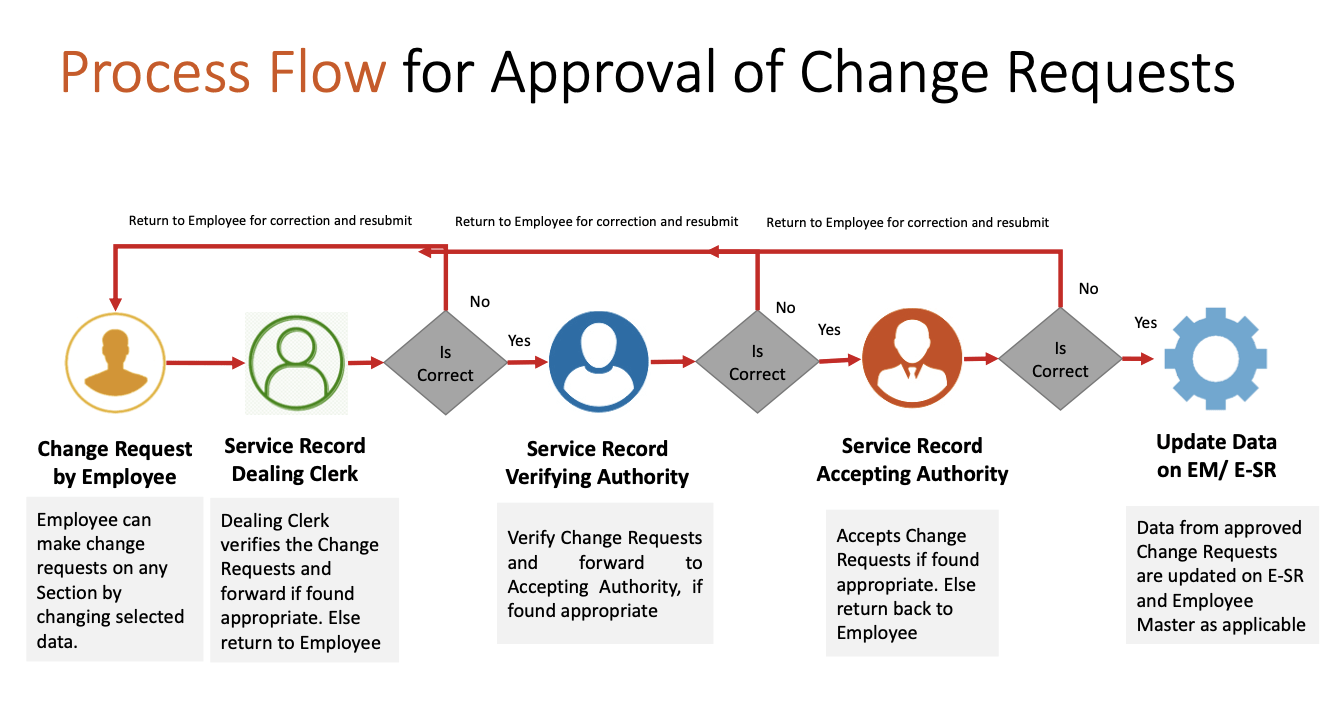
Employee Self Service (ESS) module enables railway employees to interact with various modules of HRMS including communication regarding change of data.

Vide Railway Board’s File No. PC-VII/2020/HRMS/25, dated: 14.12.2020, a detailed User Manual for Employee Self Service (ESS) Module of HRMS was circulated.

HRMS: ESS Tutorial in Hindi
https://youtu.be/-LSjHHFftN4

In order to serve as a guide and ready reckoner, a Summary Flow and a detailed User Manual is explained below.

ESS Flow Summary

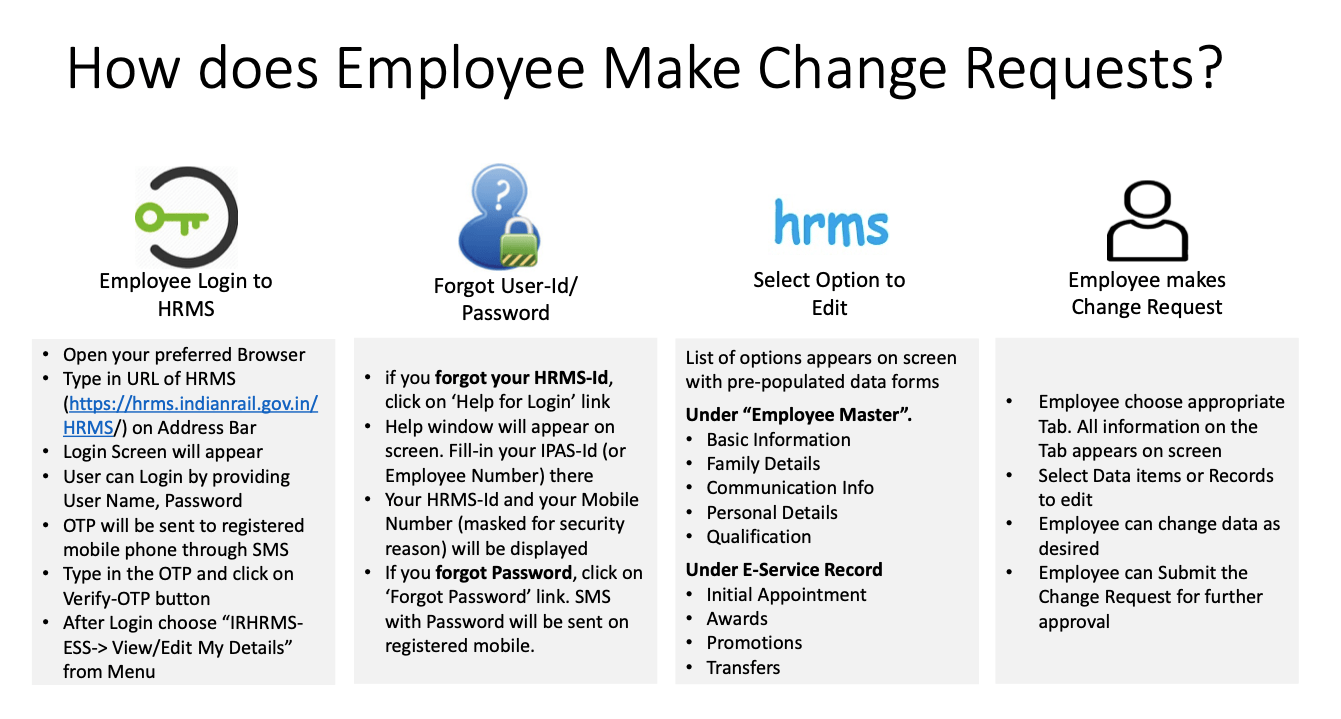
ESS: Raising a Change Request by Employee
  1. Employee logins to HRMS Application. https://hrms.indianrail.gov.in/HRMS
  2. In the left side panel Right click on the ESS menu and then click on the submenu with name View/Edit My Details.
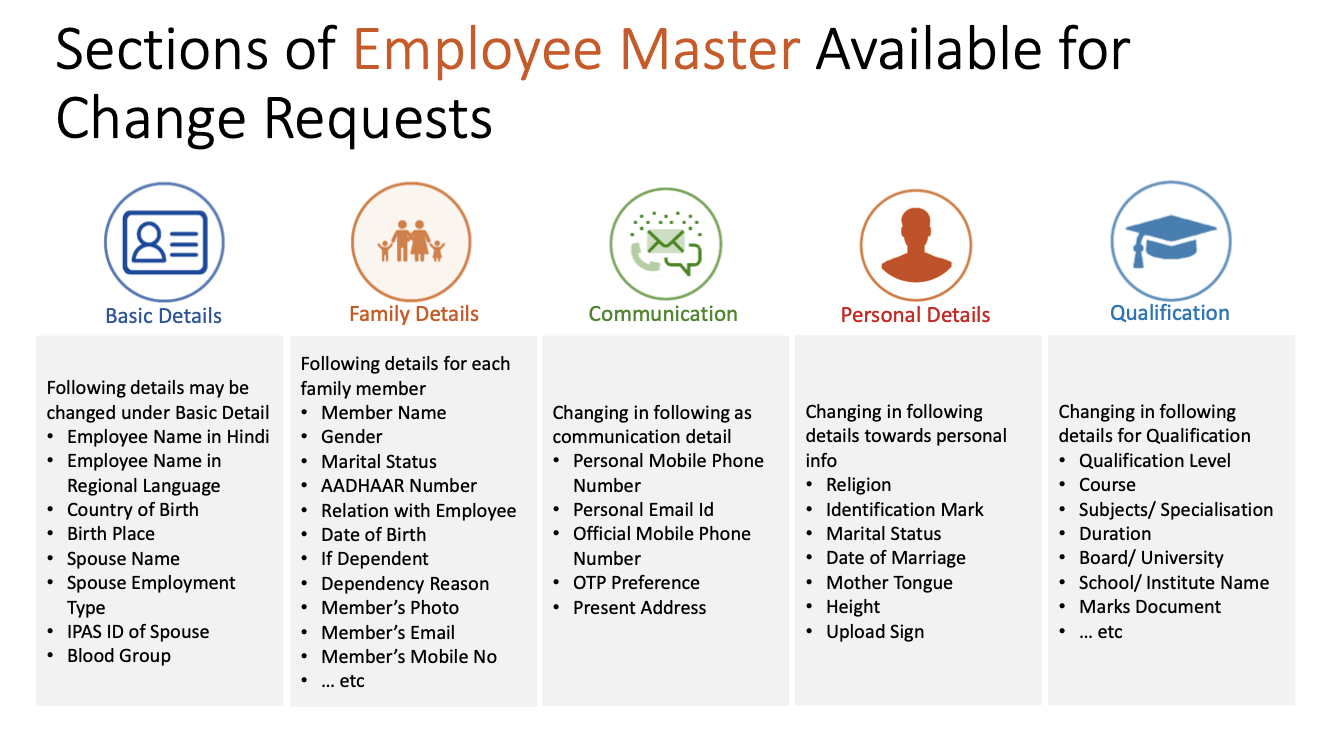
  3. On next screen employee select respective tab name from drop down that contain list of all allowed tabs for change request.
  4. All information available for that tab will be displayed in read only mode.
  5. To create a change request, employee click on Raise a change request, system ask for reason to edit the data.
  6. There will be an edit button (check box) for each fields in UI, by clicking the button that particular field will editable and user can put his changes.
  7. User need to upload necessary supporting documents for changes they are requesting.
  8. Once all details are done user need to submit thing information to DC by entering Transaction OTP.
  9. Once request is submitted a unique Change Request Id is generated by system for future reference.
  10. Employee can track status of their Change Request Summary Reportunder ESS menu.
ESS: Verification of Change Request by DC/VA/AA
  1. DC / VA / AA login to HRMS application. https://hrms.indianrail.gov.in/HRMS
  2. In the left side panel Right click on the ESS menu and then click on the submenu as per their role forward change request forDC, Very Change Request forVA and Accept Change Request forAA 
  3. A consolidated Change Request Summary report for pending case with DC/VA/AA is shown.
  4. User click on Process button shown in right most side of each request in report
  5. As user clicks the Process button, details entered by employee are displayed in pop-up window.
  6. Data that are changed by employee are highlighted for ease of identification of users.
  7. User can provide remarks and return change request to employee if change requested is not found OK.
  8. If change request is found OK user can forward/ verify / accept the change request based on their role, with help of Transaction OTP.
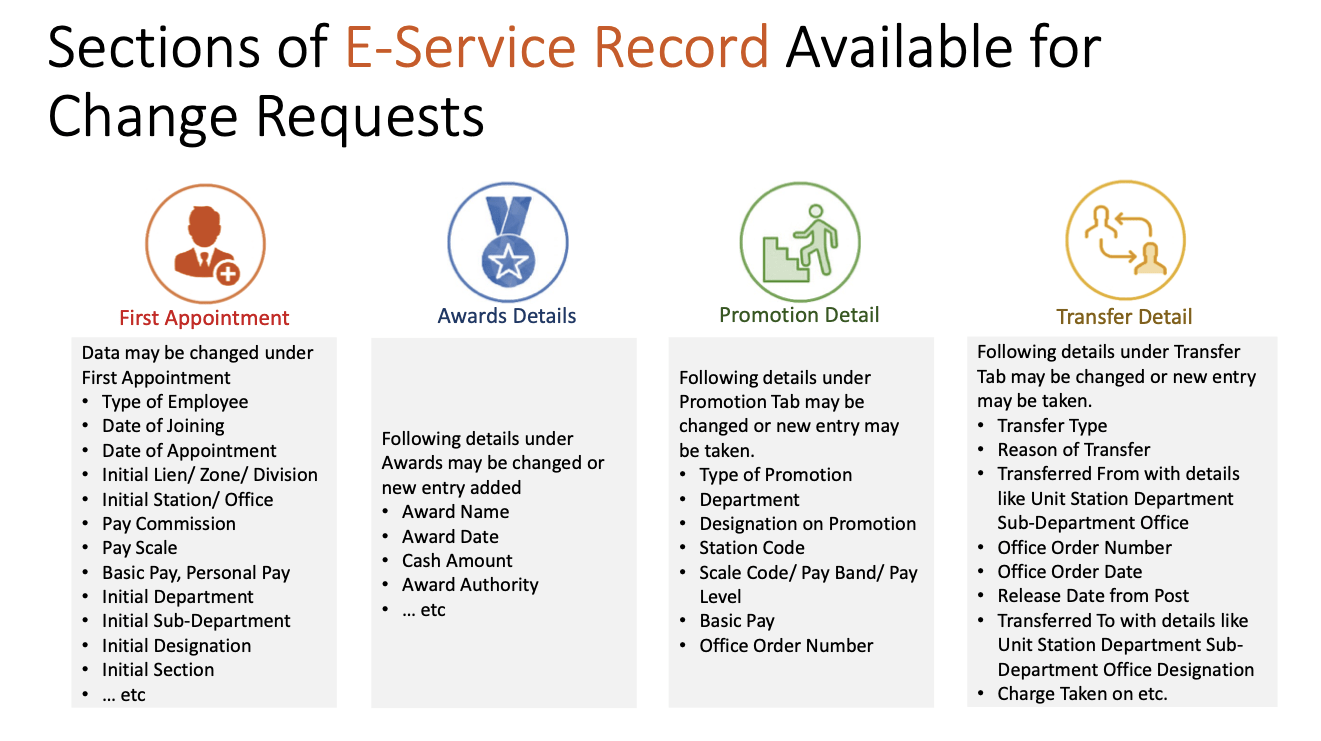
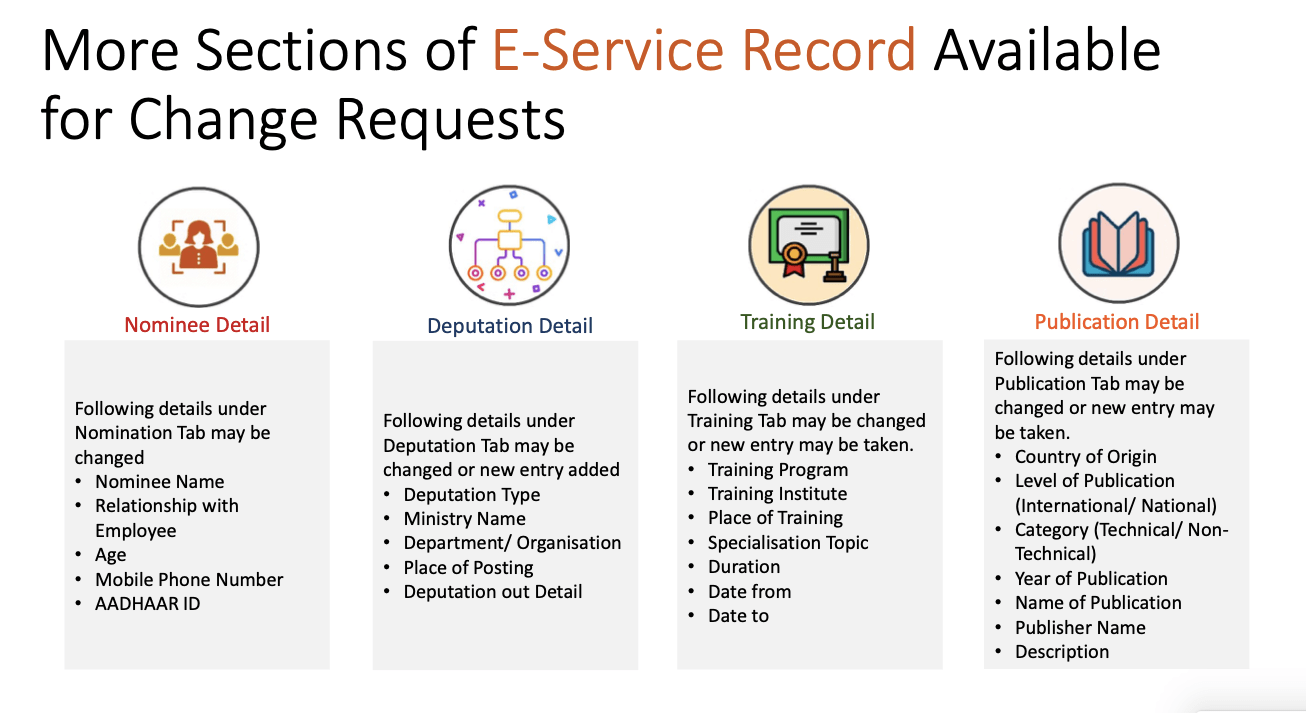
  9. Once change request is accepted, original data in Employee Master / eSr will be updated with new data.

Click image for in-large view…

Also read

User Manual for PF Loan & Advance Module of HRMS Indian Railways

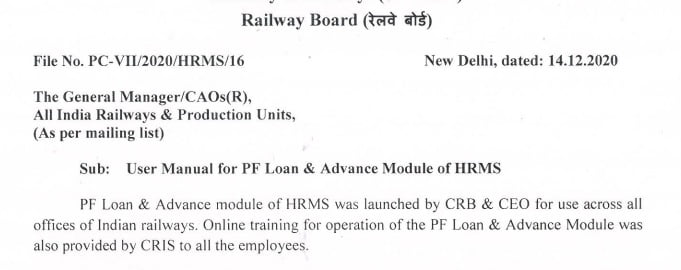
PF Loan & Advance module of HRMS was launched by CRB & CEO for use across all offices of Indian railways. Online training for operation of the PF Loan & Advance Module was also provided by CRIS to all the employees.

Vide Railway Board’s letter No. PC-VII/2020/HRMS/16, dated: 14.12.2020, a User Guide and a detailed User Manual for PF Loan & Advance Module of HRMS was circulated.

PF Loan Application: User Guide

Employee
  • Go to https://hrms.indianrail.gov.in/HRMS
  • Enter User Id, Password and OTP.
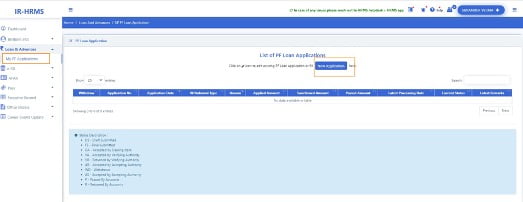
  • Go to Loan and Advances -> My PF Loan Applications menu.
  • Click on “New Application” Button.
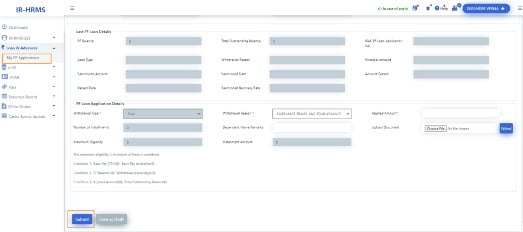
  • Employee’s basic, bank details, last PF loan details and PF balance are shown.
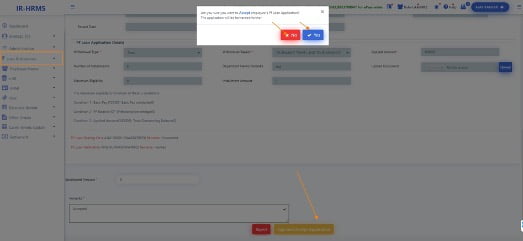
  • Employee selects PF loan type, withdrawal reason, enter amount, remarks and submit.
PF Loan Dealing Clerk/Verifying Authority/Accepting Authority
  • Click on Loan and Advances ->PF Loan Applications menu
  • List of Applications are shown.
  • Click on Application number.
  • PF loan application details are shown.
  • Enter remarks and press forward/Reject button.
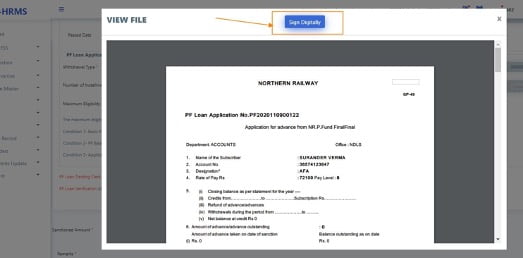
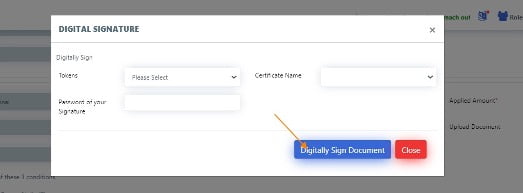
  • Accepting Authority digital sign application and accept. On accepting a PDF file is generated and digitally signed. Same Signed PDF file along with application data is sent to account dept through IPAS system.
  • On every change of status of PF Loan application, a SMS is sent on employee mobile number.
IPAS system process

• Whenever application’s status is changes in IPAS system, same is reflected in HRMS application in application list in Loan and Advances -> My PF Loan Applications menu.


PF Loan and Advances- User Manual 

 For Unit Admin
  1. Go to HRMS application http://10.77.48.16:8080/HRMSDEV/  and login using HRMS ID & Password
  2. Enter OTP as 31120.

A. PF Loan Dealing Clerk, PF  Loan Verifying and PF Loan Accepting Authority creation

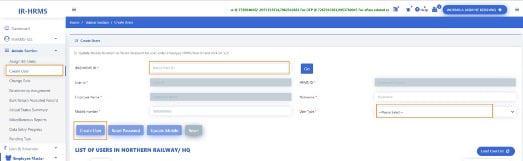
  1. If the user is not already created for HRMS application, go to Admin Section>Create User.
  2. Enter the IPAS ID/ HRMS ID of the user and click on ‘Go’ button
  3. Enter the mobile number of the employee and select user type as ‘LDC’/’LVA’/’LAA’ for PF Loan Dealing Clerk, PF Loan Verifying Authority, PF Loan Accepting Authority respectively  from the dropdown and click on ‘Create User’.
  1. If user already exists in HRMS application, Go to Admin Section >Change Role.
  2. Add role of  ‘LDC’/’LVA’/’LAA’ for PF Loan Dealing Clerk, PF Loan Verifying Authority, PF Loan Accepting Authority respectively  to user.

B. LDC, LVA, LAA mapping 

1. Login to HRMS application with Unit Admin’s ID.

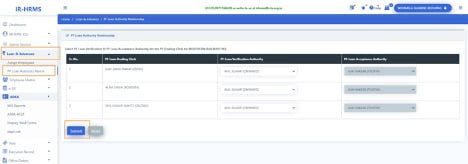
2. Click on Loan & Advances > PF Loan Authority Matrix

3. Select Loan Dealing Authority, Loan Verification Authority and Loan Acceptance Authority from the list for the respective unit and click on ‘Submit’ button.

C. Employee assignment to LDC

1. Login To HRMS application with Unit Admin’s ID

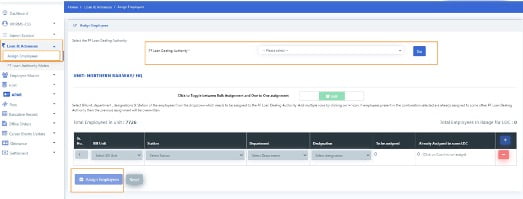
2. Click on Loan & Advances >Assign Employees

  1. Select PF Loan Dealing Authority from the list to whom Employees needs to be assigned and click on ‘Go’ button.
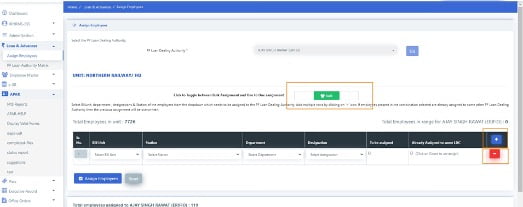
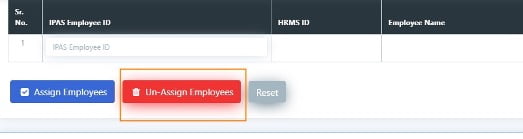
  1. For bulk assignment, select the bill unit, station, department & designation combination. The count of to be assigned employees and those employees which are already assigned to some LDC will be shown. Add more rows by clicking on ‘+’ and remove rows by clicking on ‘-’ icon
  1. Click on ‘Assign Employees’ button to assign selected employees to the LDC.
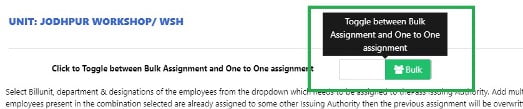
  2. For Assignment based on employee ID, click on the icon shown in below image
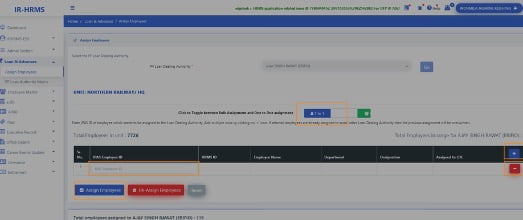
  1. Enter the HRMS ID/IPAS Employee ID of the employee and press ‘Tab’ key
  1. Add more rows by clicking on ‘+’ and remove rows by clicking on ‘-’ icon.
  2. Click on ‘Assign Employees’ button to assign the employees to the selected LDC and ‘Unassign Employees’ button to unassign employees from the LDC( if any assigned to them).

Note: If employee who is being assigned to a LDC is already assigned to some other LDC, then the previous assignment will be overwritten automatically. There is no need to first unassign the employee from the current LDC and then assign to new LDC.

  1. To see the list of all employees assigned to LDC, click on ‘Load List’ button. List of all assigned employees will be fetched.
  1. To unassign all employees from LDC, click on ‘Unassign All’. All the employees will be removed from selected LDC.
         For PF Applying Employee

1.         Login To HRMS application with Employee’s ID

2.         Click on Loan & Advances > My PF Applications

3.         Click on New Application Button to apply for PF Loan or Click on Status button to update the in Draft or rejected application if any.  

  1. Fill all the mandatory fields and upload the document justifying the PF Loan Withdrawal Reason.
  1. Click on submit Button.  
  2. Enter the OTP as 20131.
  3. Click ok.

After successful submission the Application Number gets generated.

         For PF Loan Dealing Clerk
  1. Login To HRMS application with PF Loan Dealing Clerk’s ID
  2. Switch user role to LDC, if having multiple roles. 3.          Click on Loan & Advances > PF Loan Applications
  3. Click on the application number to open the applied application details.
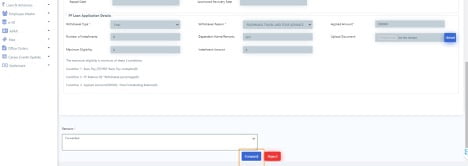
  1. Check for the details filled, accordingly put remarks and forward or reject the application by clicking on the Forward or Reject button respectively.
         For PF Loan Verification Authority
  1. Login to HRMS application with PF Loan Verifying Authority’s ID.
  2. Switch user role to LVA , if having multiple roles.
  3. Click on Loan & Advances > PF Loan Applications
  1. Click on the application number to open the applied application details.
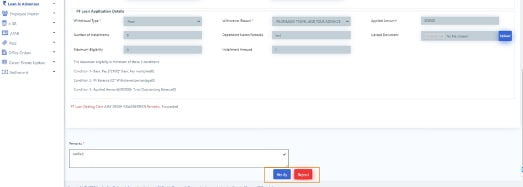
  1. Check for the details filled, accordingly put remarks and verify or reject the application by clicking on the Verify or Reject button respectively.

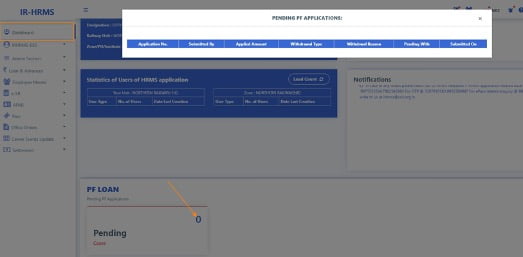
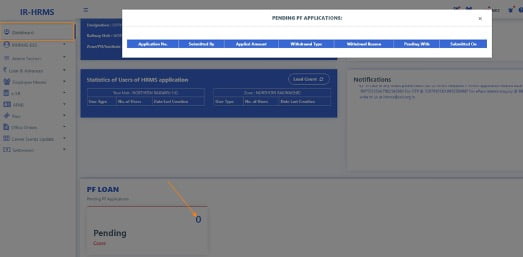
Note: PF Loan Verifying Authority may check the pending applications with assigned PF Loan Dealing Clerks ,  which have missed processing time by clicking on the pending cases in PF Loan Section on LVA’s Dashboard.

         For PF Loan Accepting Authority
  1. Login To HRMS application with Loan Accepting Authority’s ID.
  2. Switch user role to LAA , if having multiple roles.
  3. Click on Loan & Advances > PF Loan Applications
  1. Click on the application number to open the applied application details.
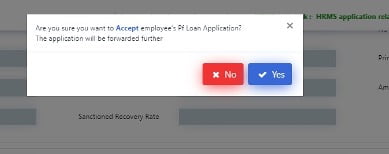
  2. Check for the details filled, accordingly put remarks, sanctioned amount and accept or reject the application by clicking on the Sign and Accept Application or Reject button respectively.
  3. After successful digital signing by PF loan Accepting authority the application moves to accounts.

Note: PF Loan Accepting Authority may check the pending applications with assigned PF Loan Dealing Verifying  authority , which have missed processing time by clicking on the pending cases in PF Loan Section on LAA’s Dashboard.

HRMS Helpdesk:

In case of any issues please reach out to HRMS helpdesk…

  • HRMS application related issue @ 7786940452 ,9971535534,7982542883
  • For OTP @ 7267910583,9953780947
  • For ePass related enquiry @ 9891643886,9069161539,9971168228 or
  • Write to us at irhrms@cris.org.in  

Also Read…

User Guide for Post Retirement Complimentary Pass & Widow Pass Module on HRMS

Post Retirement Complimentary Pass & Widow Pass (PRCP & WP) module of HRMS was launched by CRB & CEO for use across all offices of Indian railways. Online training for operation of the PRCP & WP Module was also provided by CRIS to all the employees.

Vide Railway Board’s Letter No. PC-VII/2020/HRMS/6, dated 14.12.2020, A User Guide for Post Retirement Complimentary Pass & Widow Pass Module of HRMS was circulated.

User Guide for PRCP/Widow Pass for Railway Employees

1. Mobile Change by Retired Railway Employee 

Retired Railway Employee should follow below steps to change/register mobile number on HRMS.

  • Go to https://hrms.indianrail.gov.in/HRMS
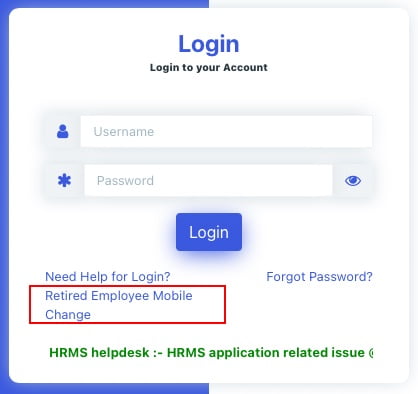
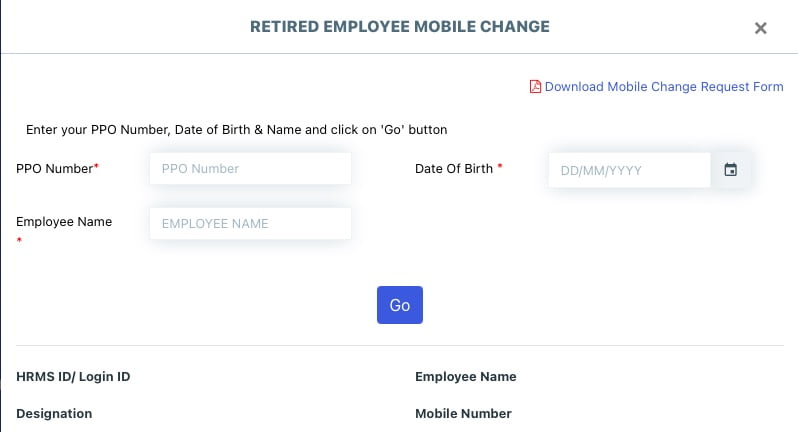
  • Click on link “Retired Employee Mobile Change.
  • Fill PPO number, date of birth and name.
  • Assigned HRMS Id and mobile number in the system shall be displayed.
  • Click on “Change mobile number” link to enter new mobile, select pass issuing railway and upload document and submit.

For detailed guide Read
How to Change Mobile Number on HRMS- Retired Railway Employees?

Pass Clerk should accept the mobile number after verifying the PPO Number

  • Select PPO number
  • Check details and accept mobile number.
2. Entering Retiree data

Pass Clerk should enter below information for retired railway employees.

  • Enter PPO number or search employee based on railway, division/workshop, date of birth or name.
  • Enter mandatory information and upload document
  • Submit it.

Retired Employee should confirm, details submitted by the Pass Clerk.

  • Confirm or return data.

Pass Issuing Authority (PIA) can accept or reject data submitted by the Pass clerk.

  • Accept or Reject data.
3. Pass Application

Also Read….
1. e-Pass Implementation Process on HRMS: First step to know?
2. How to apply for Railway Pass online?

4. Issue Pass
  • Pass Clerk and PIA will check application and issue pass.
  • Pass Details shall be to user’s mobile number as SMS.
5. Ticket Booking
  • Generate OTP for ticket booking in HRMS we application.
  • Go to PRS ticket count and IRCTC web site.
  • Enter Pass and OTP details for each passenger.

Also Read… How to book e-Ticket on IRCTC with ePass?

HRMS Helpdesk:

In case of any issues please reach out to HRMS helpdesk…

  • HRMS application related issue @ 7786940452 ,9971535534,7982542883
  • For OTP @ 7267910583,9953780947
  • For ePass related enquiry @ 9891643886,9069161539,9971168228 or
  • Write to us at irhrms@cris.org.in  

e-Pass Implementation Process on HRMS: First step to know

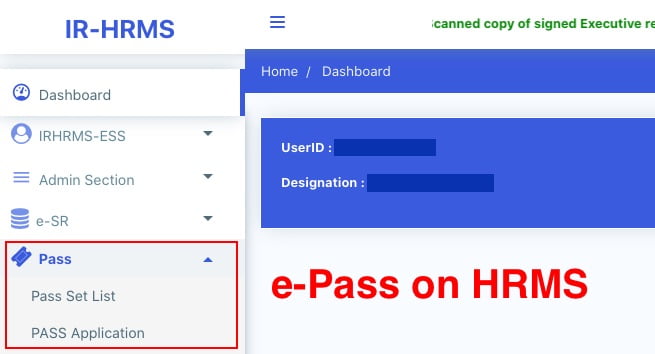
e-Pass on HRMS

With a view to promote digital/paperless ticketing, E-Privilege Pass/PTO Module of HRMS has been launched on 10.08.2020 and the same has been operationalised across all Indian Railways. In order to facilitate the same, data entry in two modules of HRMS. Employee Master and E-SR has almost been completed across all Zonal Railways.

Implementation process for e-Pass on HRMS
  1. Unit Admin ( Sr.DPO in Division and Dy.CPO/ SPO in other units) has to assign roles of Pass Admin (Branch Officers).
  2. Pass Admin has to assign access role of Pass Issuing Authority (PIA) and Pass Clerk to concerned staff. Pass Clerks are then tagged to PIA.
  3. Pass Admin has to assign Employees to PIA . Both group and one to one assignment provisions are available.
  4. Pass Clerk has to enter already availed Manual Pass data of employee.
  5. Availed manual pass data is available to Employee for confirmation Employee can accept/return Manual Pass data to pass clerk for rectification. It needs final acceptance of employee.
  6. Declaration in Family tab of Employee master is available to employee. Taking help of this Employee will submit family declaration for pass.
  7. Pass Clerk may accept/reject family declaration for Pass submitted by employee. It has to be finally accepted by Pass clerk.
  8. Employee can submit his e-Pass application. SMS will be sent to Employee and his/her PIA on submission of application.
  9. Any Pass Clerk under employee’s PIA can process employee’s pass application. If found correct it is forwarded to PIA.
  10. PIA issues the e- Pass. SMS will be sent to employee on pass generation.
  11. Employee gets the generated e-pass and can use it for ticket booking at counter or online. Employee has to generate an OTP which is to be given as input /provided to ticket issuing authority while booking ticket.
  12. For both Reserved/Unreserved journey tickets are to be booked.
  13. At the time of booking ticket by employee, details of pass / earlier bookings are verified from HRMS system and ticket is booked.
  14. Employee can also apply for cancellation of pass/ split pass online.

Source: Indian Railway

Also Read:

Other Important things to know by Railway Pass Users
  • Those employees who have once switched to E-Privilege Pass/PTO module shall not be able to avail physical passes.
  • Rules pertaining to booking of ticket. revalidation, usage. charging etc regarding privilege pass/PTOs in case of physical passes/PTOs shall remain same n e-privilege passes/PTO. with minor operational amendments. where ever required.
  • No convenience fee shall be levied by IRCTC in case of online booking of tickets using E-Privilege Pass/PTO.

How to Change Mobile Number on HRMS- Retired Railway Employees?

HRMS for Retired Railway Employees

Retired Railway Employees can register on HRMS portal of Indian Railway and can take advantage of online modules of HRMS. For registration on HRMS, retired Railway Employees to know their HRMS ID first.

Step:1- Open the HRMS webpage in any web browser and then Click on the link “Retired Employee Mobile Change”.

Step:2- Enter your PPO Number, Date of Birth & Name and click on ‘Go’ button to check your details

Step:3- If mobile number is not correct, click on ‘Change Mobile’.

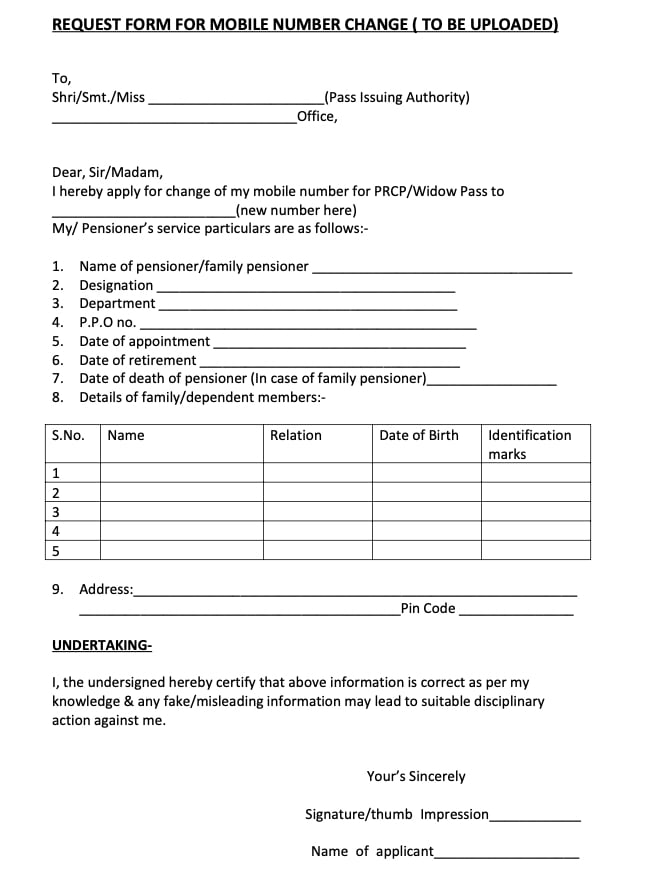
Step:4- Download the Mobile Change Request from below link, fill it and upload its image to submit your request

Note: Any one of these photo identity cards may be uploaded: Pensioner photo ID card, Aadhar card, Driving license, Voter ID card, Passport, Umid card, PAN card.

Once your mobile number is updated on HRMS portal, and you know your HRMS ID, you will be able to take advantages of HRMS portal.

HRMS application will be single window communication system between Railway employees and Administration.

From ‘January 1st, 2021’ retired railway employees will also be able to use e-Pass module.

Why HRMS for Retired Railway Employees?

Human Resource Management System (HRMS) will allow Railway employees to view their details related to their Increments, Promotions, Awards, Transfers, Postings, Leave, Training, and composition of Family as per records and Nominations for retirement benefits. This information is not readily available to employee at present. It brings transparency to administration.

HRMS Manuals and Guidelines are very helpful in understanding the use of HRMS portal.

What is HRMS? Human Resource Management System of Indian Railway

What is IR-HRMS?

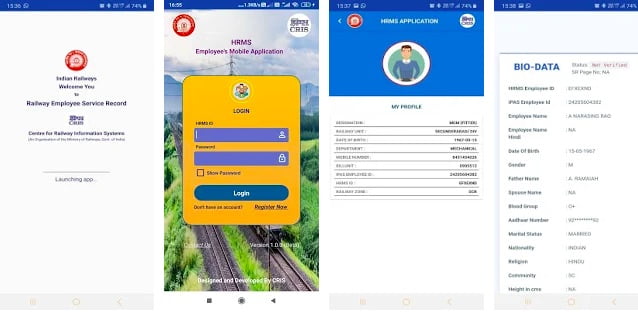
HRMS Employee Mobile Application and HRMS Web portal is Developed by CRIS for Employees of Indian Railways.

Indian Railway has launched completely digitized online Human Resource Management System (HRMS). Human Resource Management System (HRMS) is a high thrust project for Indian Railways to leverage improved productivity & employee satisfaction. It is a move to improve efficiency and productivity of Railway system and a step towards realizing the vision of Hon’ble Prime Minister to transform India into a digitally empowered society and knowledge economy. HRMS is expected to create a big impact on the functioning of all the employees and will make them more tech savvy.

This application will be a single-window communication system between Railway employees and Administration. Employees of Indian Railways can now see data related to their service and communicate with the administration for any changes if required.

This information was not readily available to the employee before implementation of HRMS. It brings transparency to the administration. It is an important milestone in computerization of HR-related functions in Indian Railways.

This HRMS Application allows the employee to view their historical data since their date of joining in Railways including details like-

  • Bio-data,
  • Service Record
  • Increments,
  • Promotions,
  • Awards,
  • Transfers,
  • Postings,
  • Leave,
  • Pass, PTO
  • Training, and
  • composition of Family
  • Nominations for retirement benefits.

Webpage link: https://hrms.indianrail.gov.in/HRMS/
Mobile App link: HRMS Employee Mobile App for Indian Railways

How to Use HRMS?

HRMS module can be accessed through HRMS Mobile App or HRMS Web portal. For using HRMS app, first registration is required on HRMS by dealing clerk. By now, the HRMS ID has been created for most of the Railway Employees.

=> To access HRMS, employees need to register by entering IPAS No / PF No.
=> An OTP will be sent to their Mobile No (As available with us). Employee must enter to complete registration process.
=> If Mobile number is not available, Please contact your establishment clerk to furnish to access this application.
=> In case user is already register and forgot their HRMS/ Login ID then they can use Registration page to find out Login id.

=> For more information, please read How to Login on HRMS Railway Employee Mobile App and Website guide.

Apart from their profile and scanned copy of their Service Record, Railway Employees can also see e-Service Record which is compiled based on an entry made in HRMS Application. Scanned copies of their Physical Service Record are also available.

Two modules for data capturing I.e. Employee Master and e-SR has been developed by CRIS and rolled out in IR in Jul/2019. Entry in these two modules is being done by all units of IR. This Application is interface to view the data entered by clerks of Indian Railways. Every Employee will be provided their HRMS Ids to login and access the data.

HRMS Modules: Manuals & Guidelines

HRMS Modules

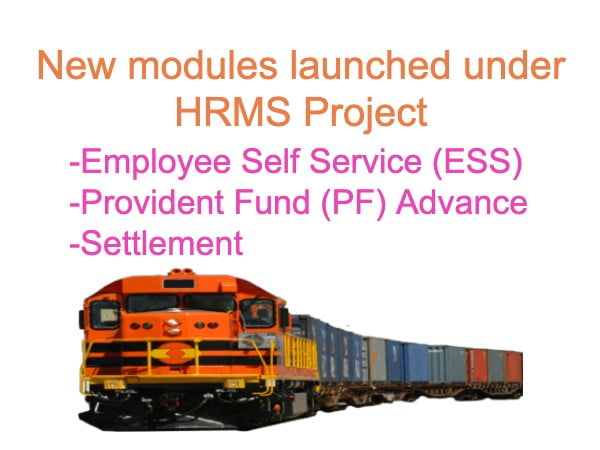
IRHRMS-ESS Module

Employee Self Service (ESS) module enables railway employees to interact with various modules of HRMS including communication regarding change of data. Launched on 26.11.2020.

Provident Fund (PF) Advance Module

Provident Fund (PF) Advance module enables Railway employees to check their PF balance and apply for PF advance online. Advance processing will be online and employees will also be able to see the status of their PF application online. Launched on 26.11.2020.

Settlement Module

Settlement module digitizes the entire settlement process of retiring employees. Employees can fill their settlement / pension booklet online. Service details are fetched online and pension is processed online completely. This will eliminate use of paper and it also facilitates monitoring for timely processing of settlement dues of retiring employees. Launched on 26.11.2020.

HRMS Manuals & Guidelines

Step by Step Guide for Use of HRMS