Why Authentication of User Profile with Aadhaar is must on IRCTC?
Authenticating the User profile with Aadhaar on IRCTC allows users to:
- Book Tatkal and Premium Tatkal Tickets.
- Book up to 24 Tickets in a month.
- Register for IRCTC e-Wallet.
Please refer following for further details on:
- How to Authenticate your IRCTC User Profile with Aadhaar.
- How to Authenticate passenger with Aadhaar.
- How to book more than 12 tickets in a month.
- How to update Name, Date of Birth and Gender.
How to Authenticate your IRCTC User Profile with Aadhaar
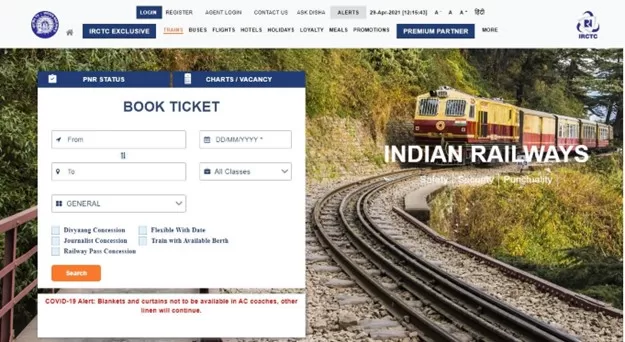
- Open www.irctc.co.in in your web browser.

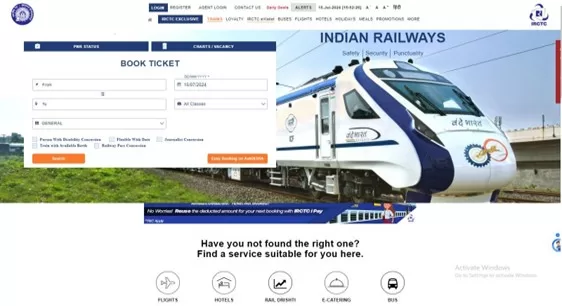
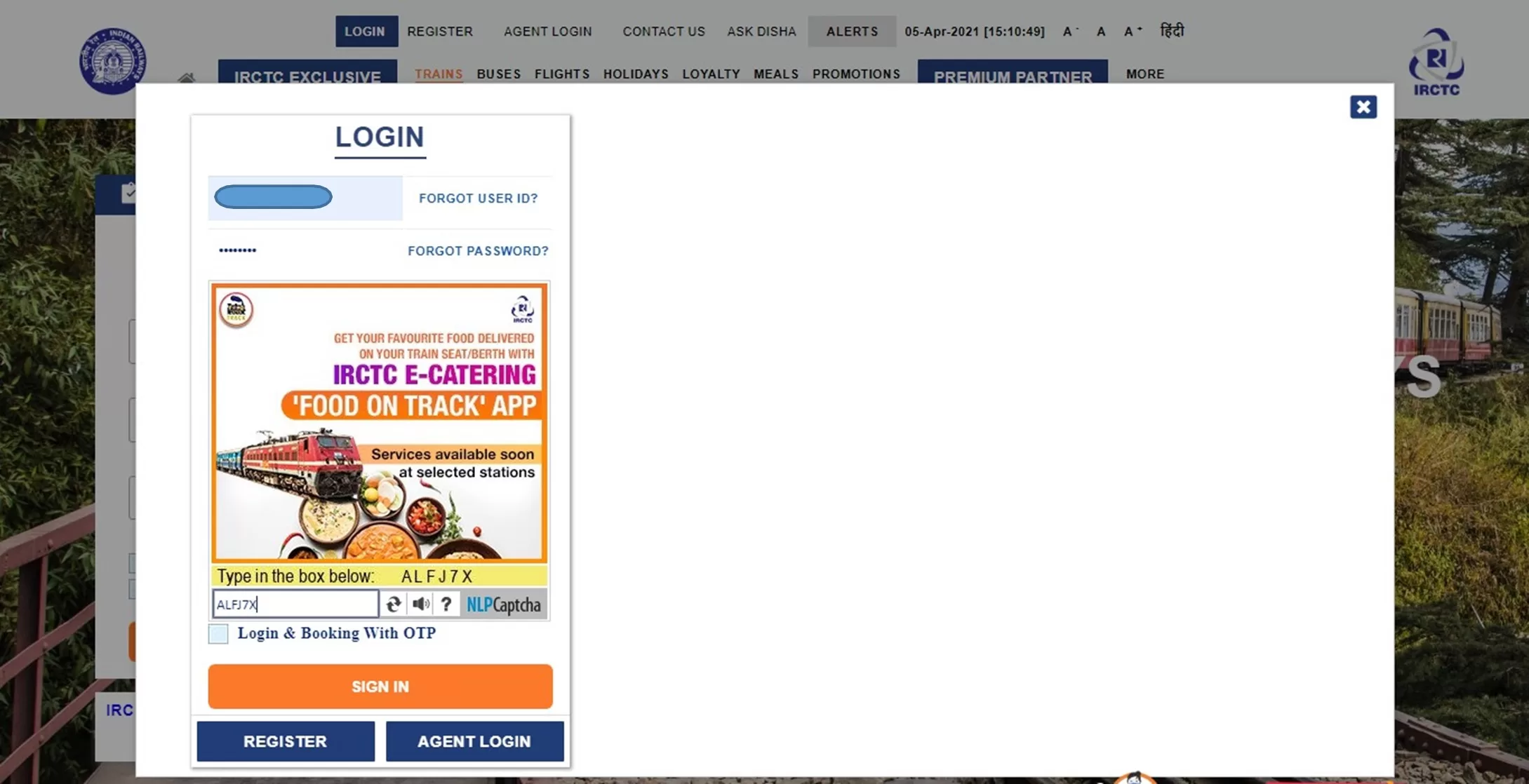
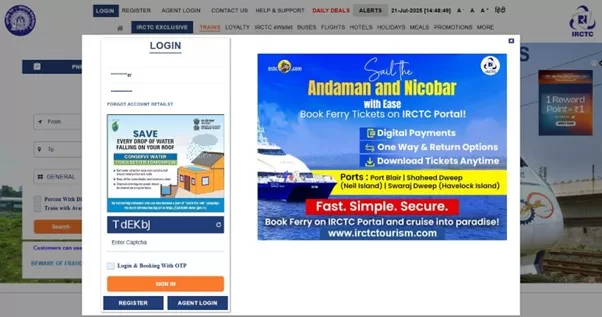
- Submit your login credentials and Sign In.

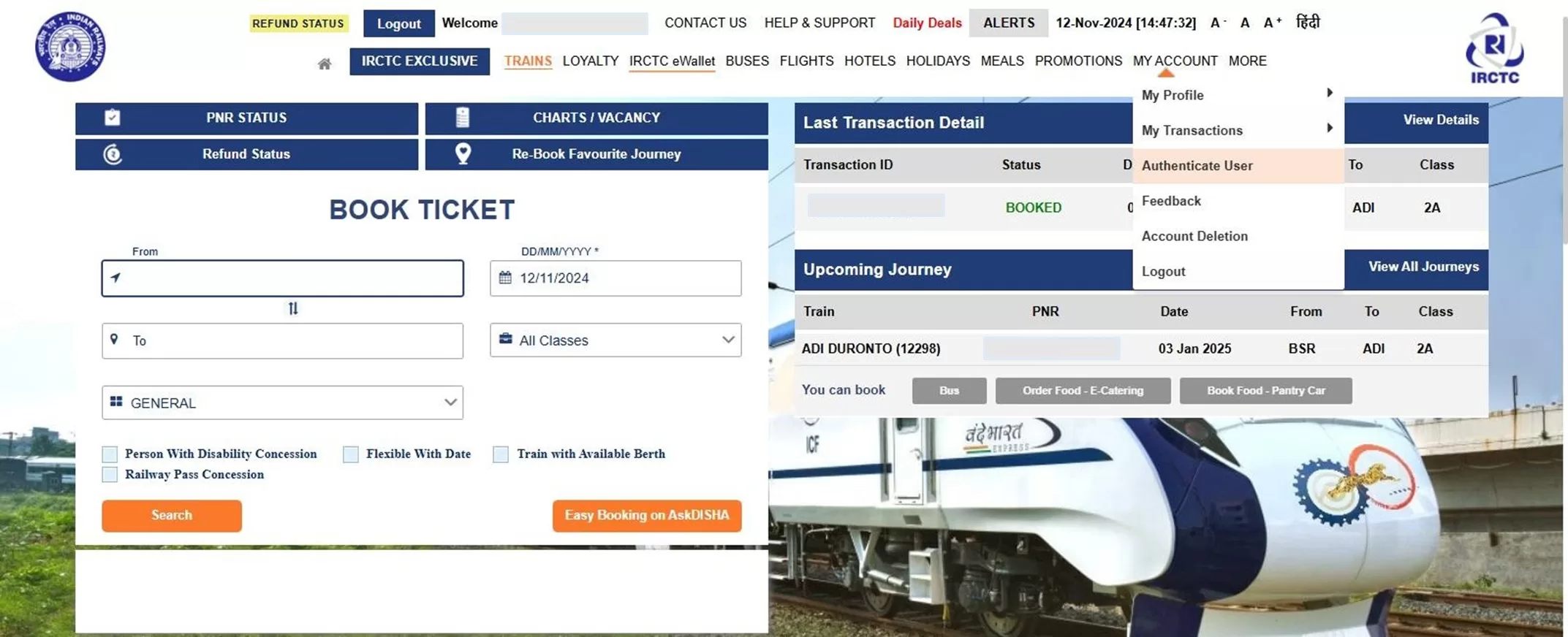
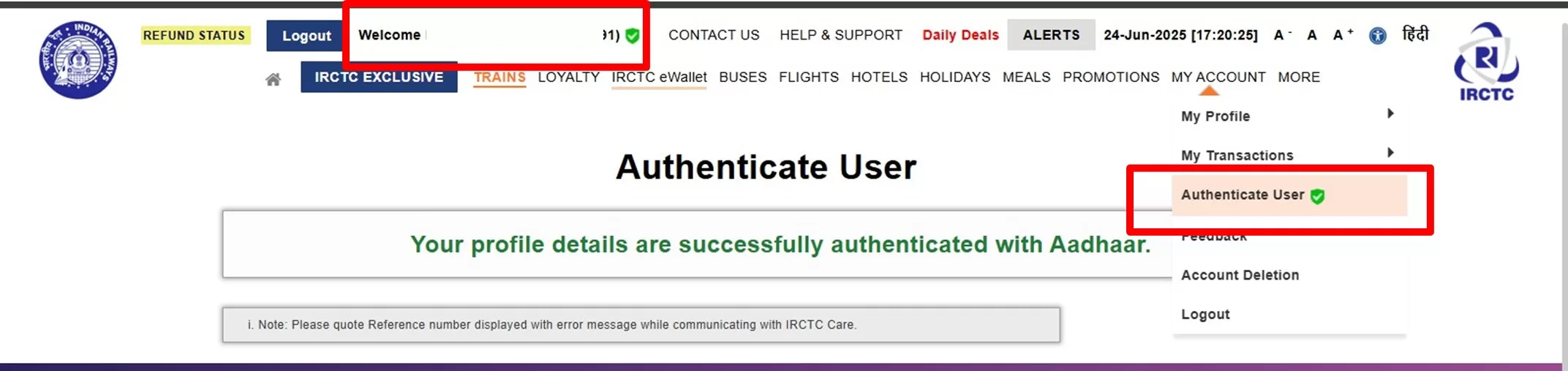
- Go to MY ACCOUNT tab and select Authenticate User.

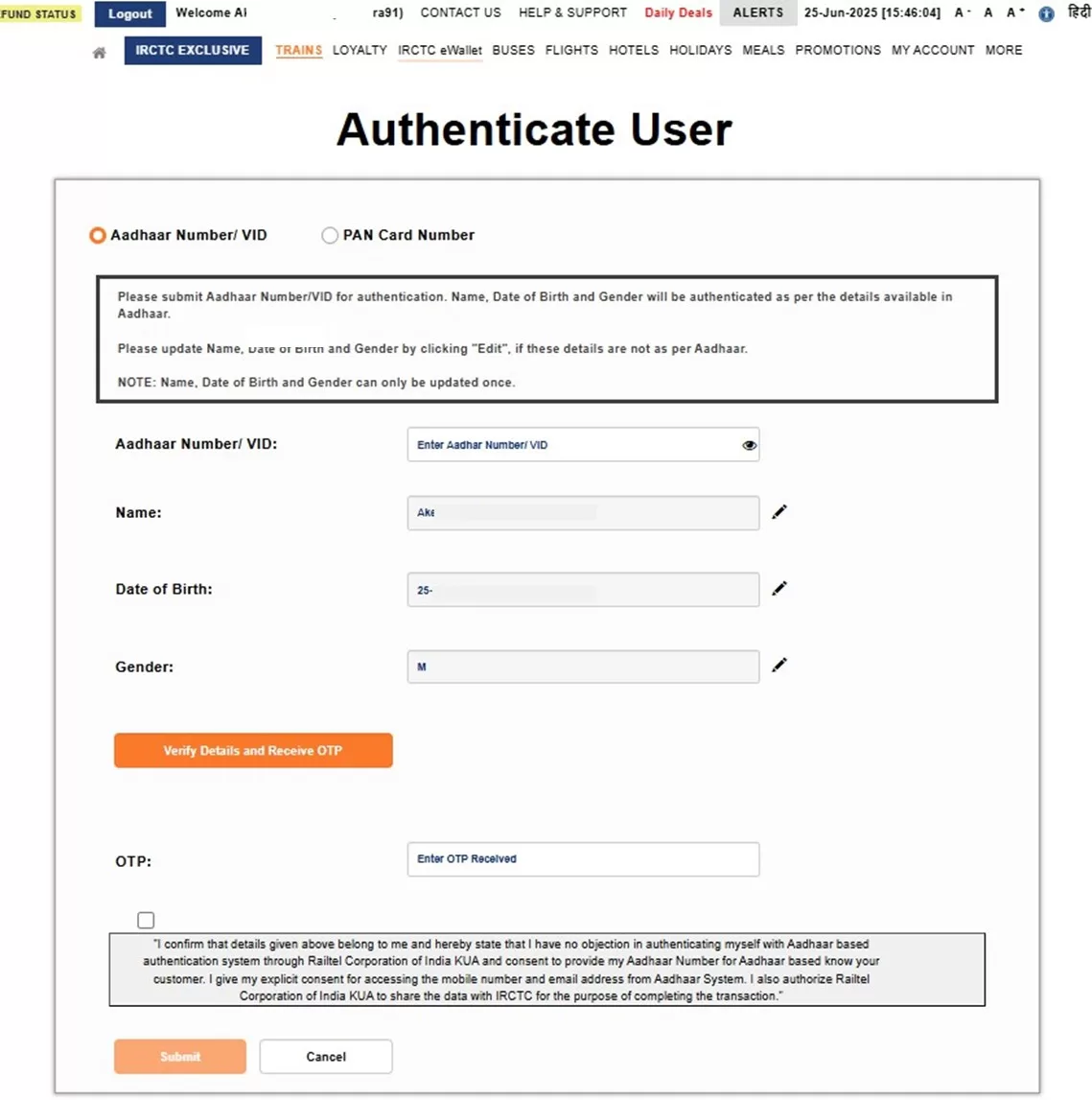
On Authentication page,
- Submit your Aadhaar Number or Virtual ID
- Check Name, Date of Birth and Gender displayed on screen before proceeding with authentication. Name, Date of Birth and Gender must be as per Aadhaar.
In case Name, Date of Birth or Gender displayed on screen do not match with Aadhaar, user may click on Edit option to update the record with correct values.
User guide for updating Name, Date of Birth and Gender
- Click on “Verify details and receive OTP” button. OTP will be sent on the Mobile Number registered with Aadhaar.
- Submit OTP in the OTP field
- Read and agree to the consent displayed in the box.
- Click on Submit button to complete the Aadhaar authentication process.

- After clicking on submit button, below successful authentication page will be displayed.

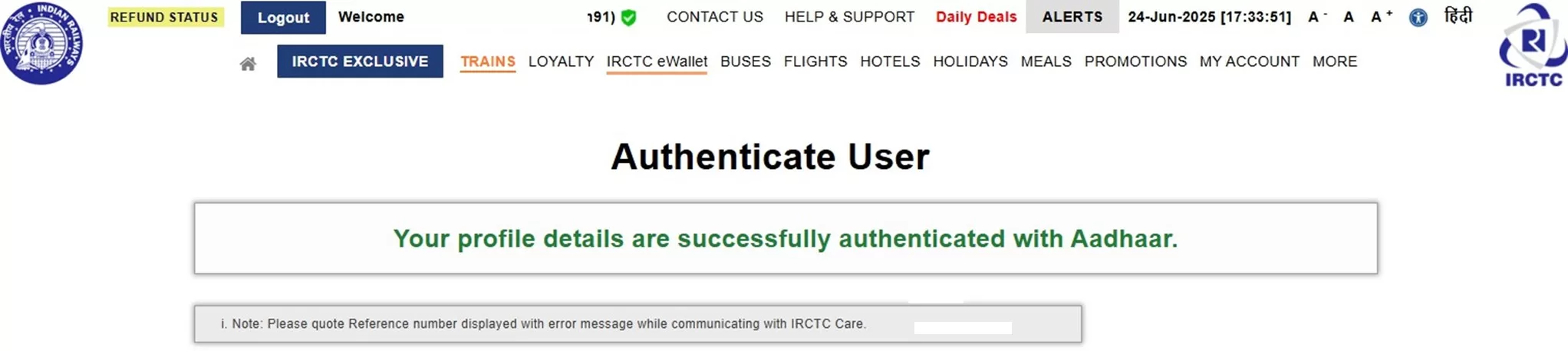
- After that, close the window and log in again at www.irctc.co.in.
- Successful Aadhaar Authentication status can be checked with a green tick at the header page, besides User name and Authenticate User link under MY ACCOUNT tab on top navigation of IRCTC eTicketing website.

How to Authenticate passengers with Aadhaar
- Open www.irctc.co.in in your web browser.
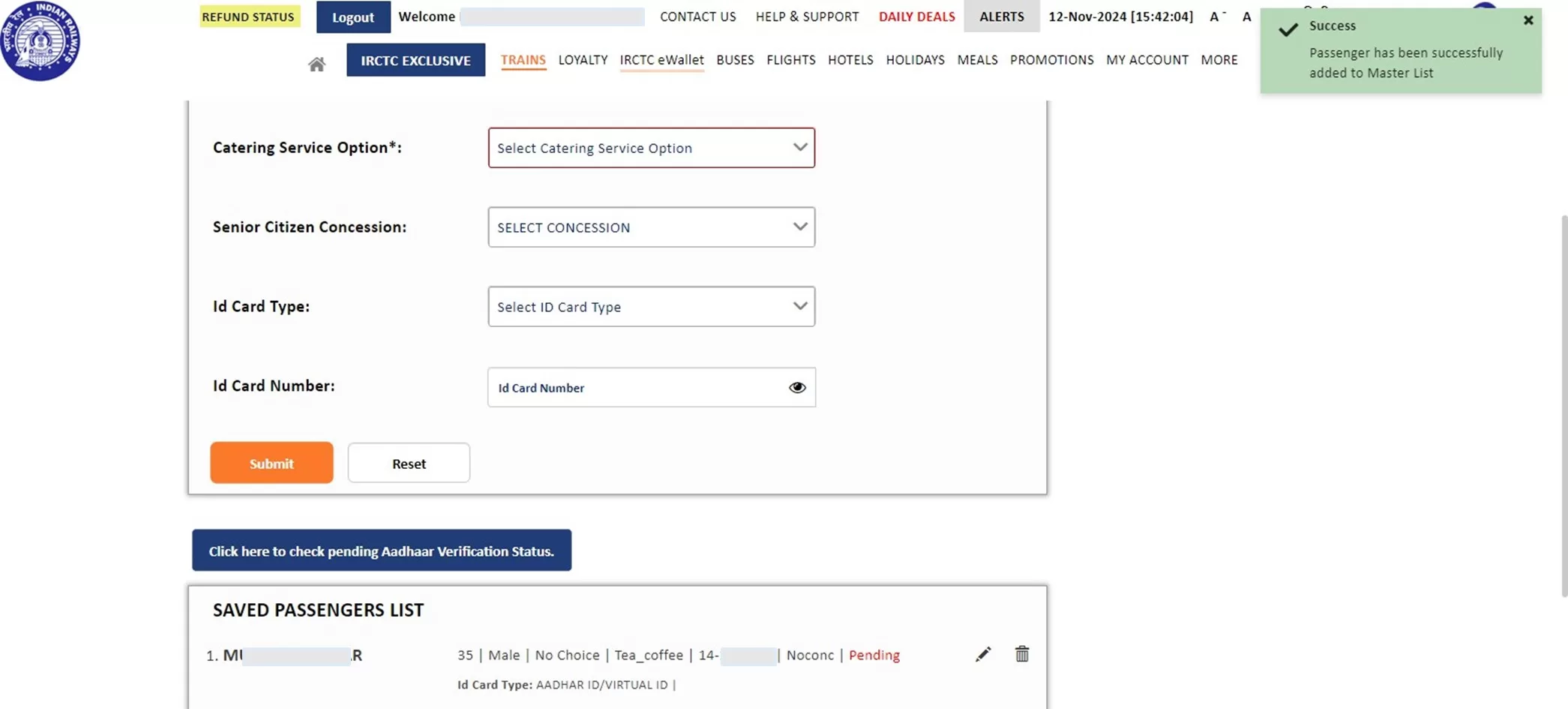
- After logging in, go to the ‘Add/Modify Master List’ link under ‘My Profile’ in the ‘MY ACCOUNT’ tab on the IRCTC homepage. (MY ACCOUNT >> My Profile >> Add/Modify Master List)

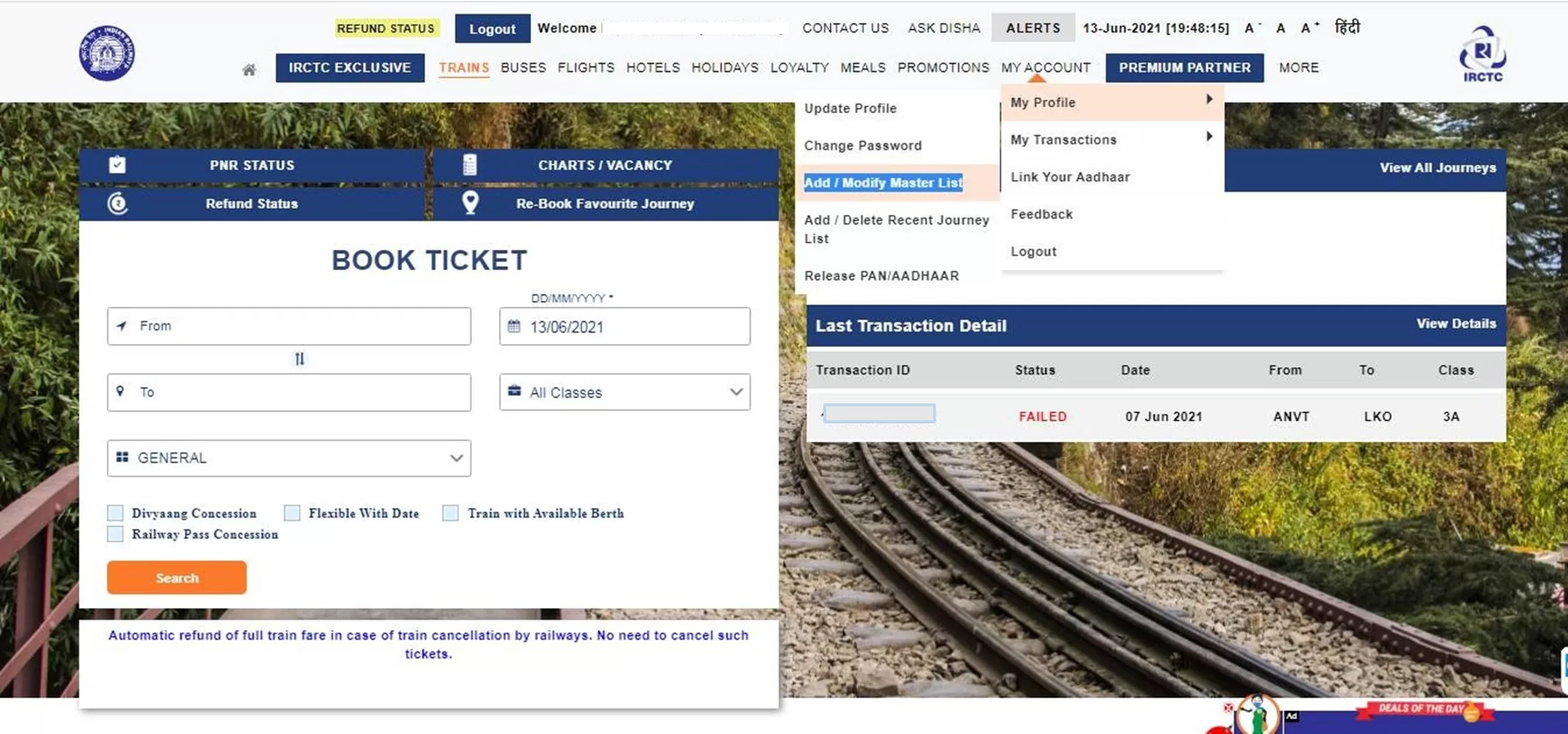
- On the Add/Modify Master List page, provide all the required details, including Name, Date of Birth, Gender, Berth Preference, Catering Service Option, Senior Citizen Concession (if applicable), ID Card Type, and ID Card Number (Aadhaar Number).
(Name, Date of Birth and Gender of passenger must be as per Aadhaar.)
- Click on Submit button to proceed.

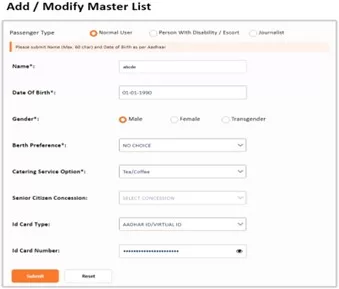
- The passenger with the provided details will be added to the Master List and can be viewed in the Saved Passenger List
- To authenticate the Aadhaar details of a passenger, click on ‘Click here to check pending Aadhaar Verification Status.‘ If the details are correct, the verification status will change to ‘Verified’ and a success alert will be displayed on the screen.”

How to book more than 12 tickets in a month
To book more than 12 tickets:
- The IRCTC user profile must be authenticated with Aadhaar, and at least one of the travelling passengers must also be authenticated with Aadhaar.
- The user can add an Aadhaar authenticated passenger from the saved Master List at the time of booking to be eligible to book up to 24 tickets in a month.
Steps to avail the facility of booking more than 12 tickets and up to 24 tickets in a month:
- After successful login, submit the journey details and proceed with booking.

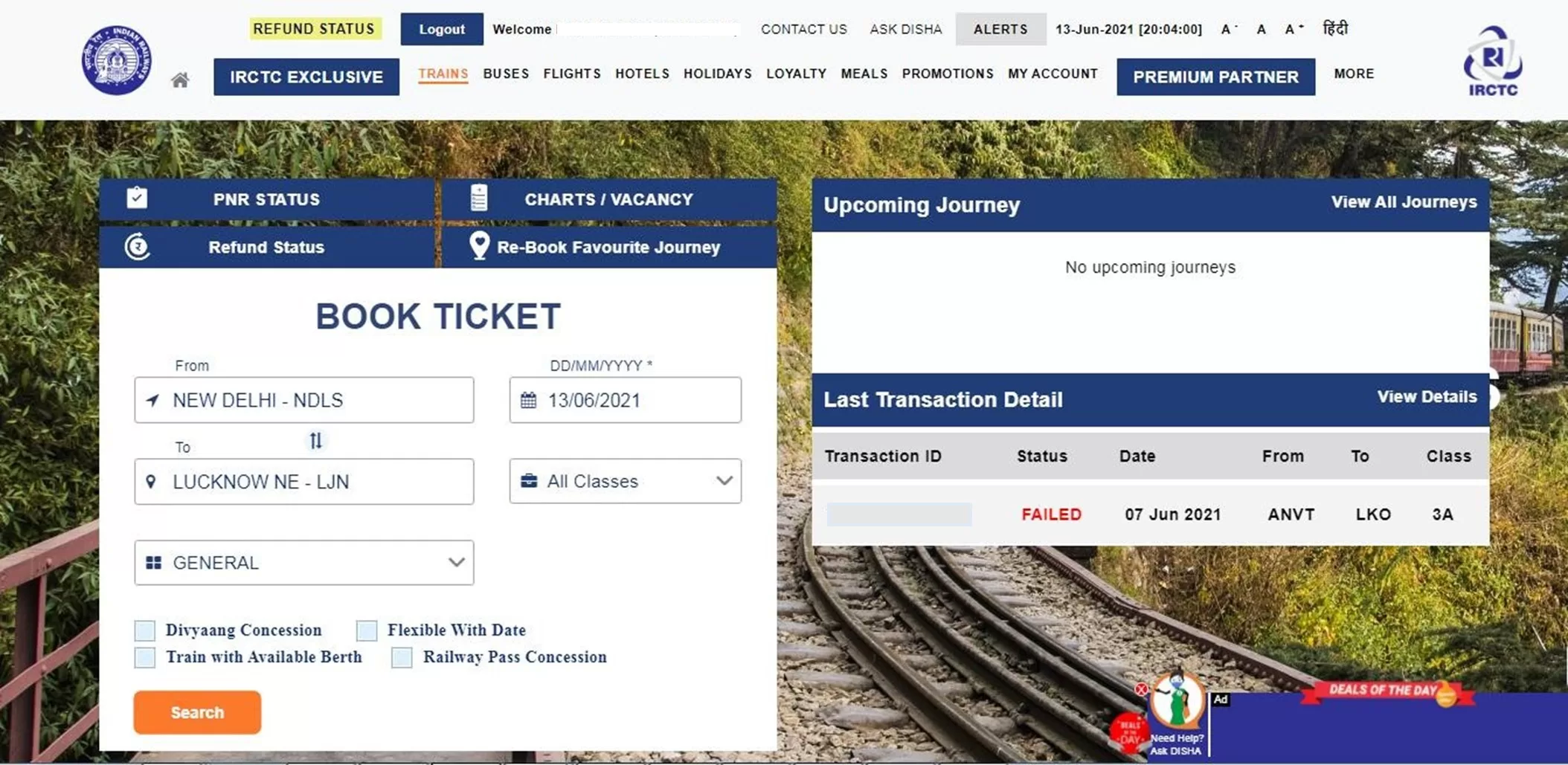
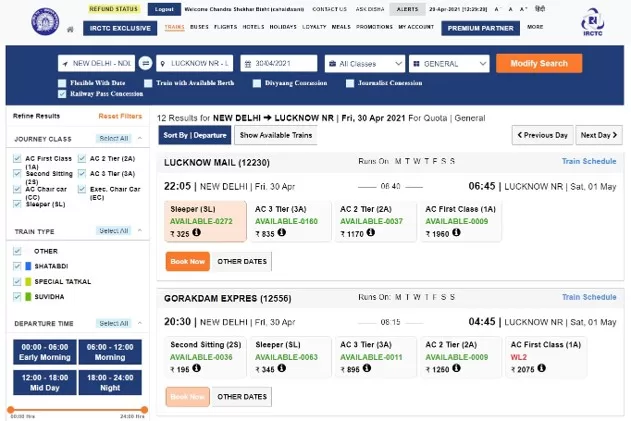
- On the train list page, select the desired train and class, then click the ‘Book Now’ button to continue with the booking.
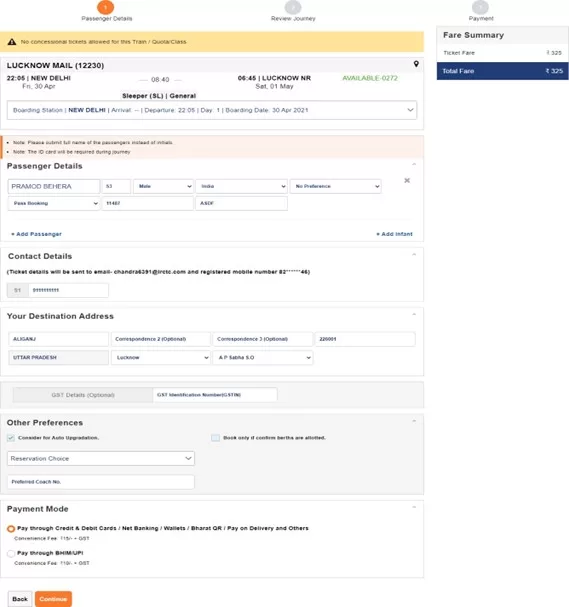
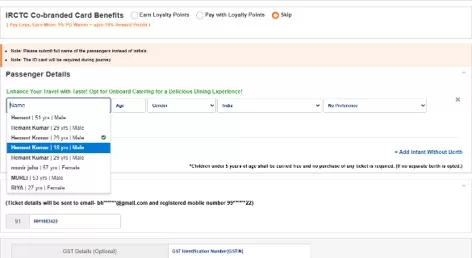
- On the passenger reservation page, click on ‘PASSENGER NAME’ and select an Aadhaar authenticated passenger (Marked with a Green tick) from the dropdown list. This list displays all passengers saved in the Master List.

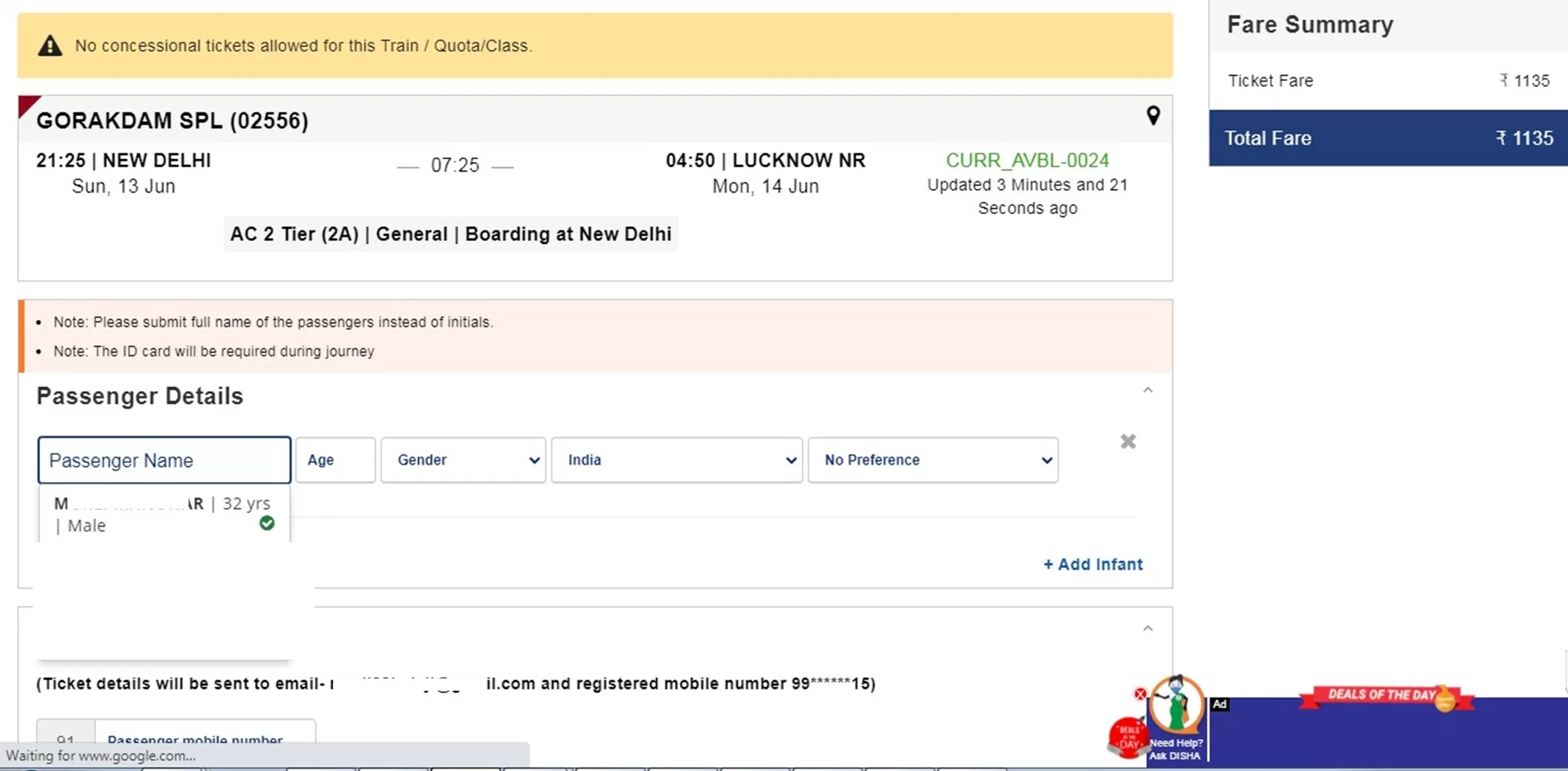
- Aadhaar authenticated Passenger details will be automatically fetched on the Reservation form.
- After the Aadhaar authenticated passenger details are fetched on the reservation form, details of other passengers may be added from the Master List or can be submitted manually by the user.
- Continue Booking process.

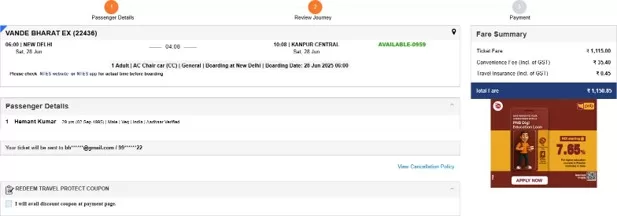
- Review the booking details and check the Aadhaar verified text displayed under Travelling Passengers.

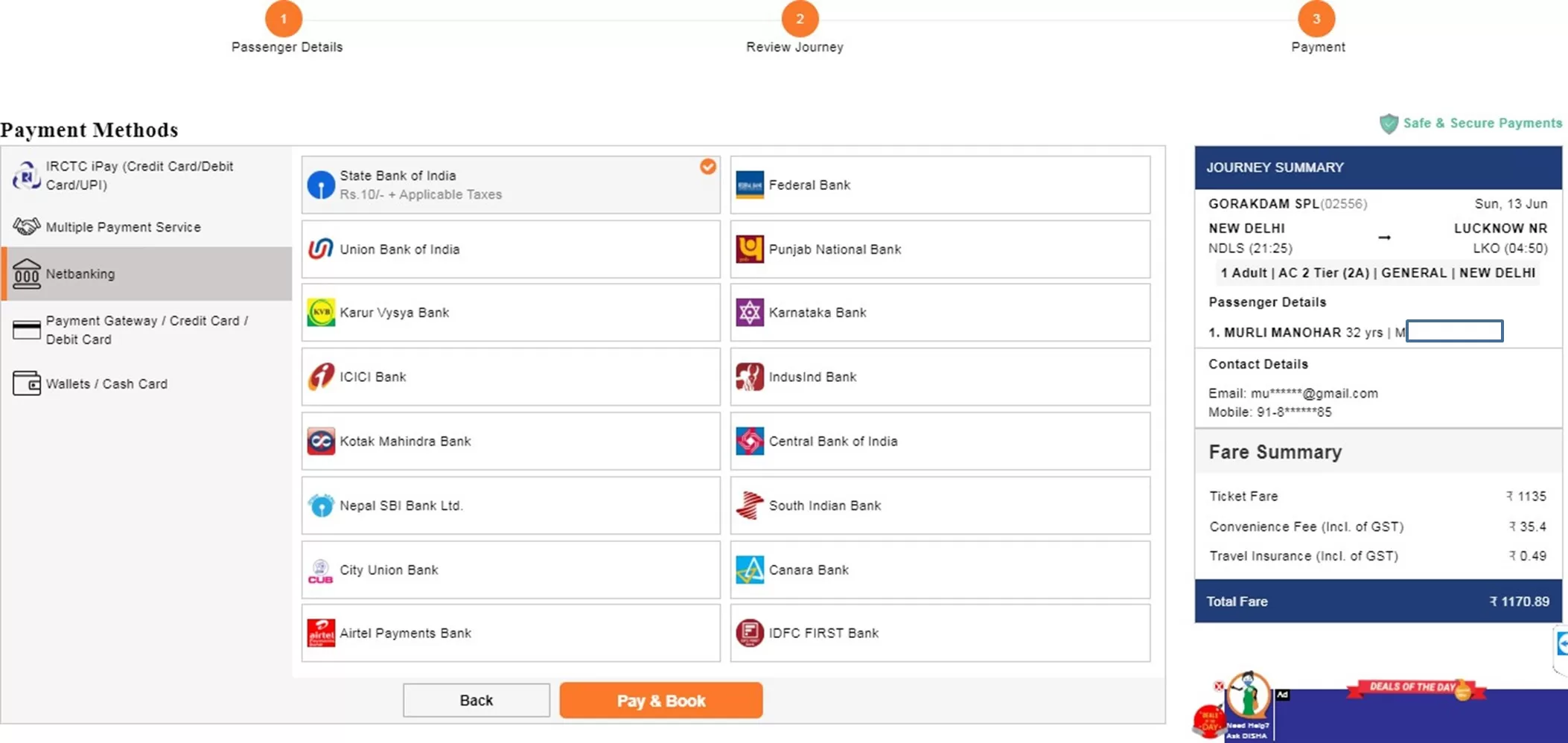
- Select the payment gateway of your choice and continue to payment page.

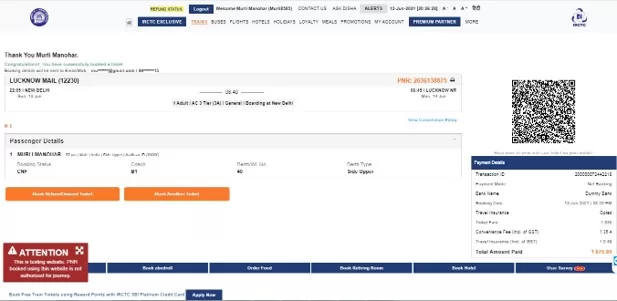
- Upon successful payment, the ticket will be booked and the booking confirmation page will be displayed.

How to update Name, Date of Birth and Gender?
The option to change Name, Date of Birth, or Gender can be accessed from:
- My Account >> Authenticate User page
- My Account >> My Profile >> Update profile page
Please note: Changing the Name, Date of Birth, or Gender is allowed only for users who have not been authenticated through Aadhaar. Once the user is authenticated through Aadhaar, no further changes in Name, Date of Birth, or Gender are allowed.
Users are requested to provide genuine personal details on the IRCTC website for a seamless authentication process.
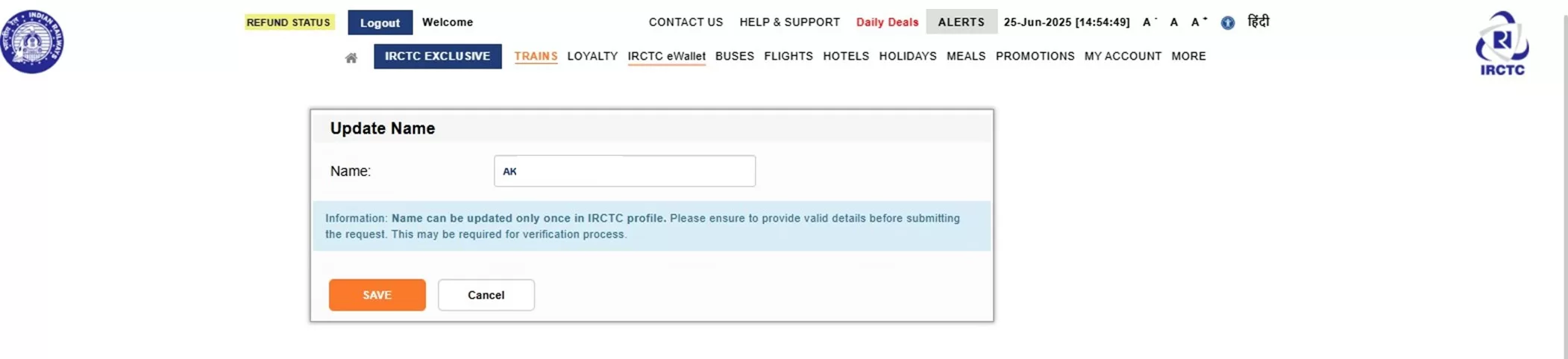
- Click on Edit icon to update your Name.

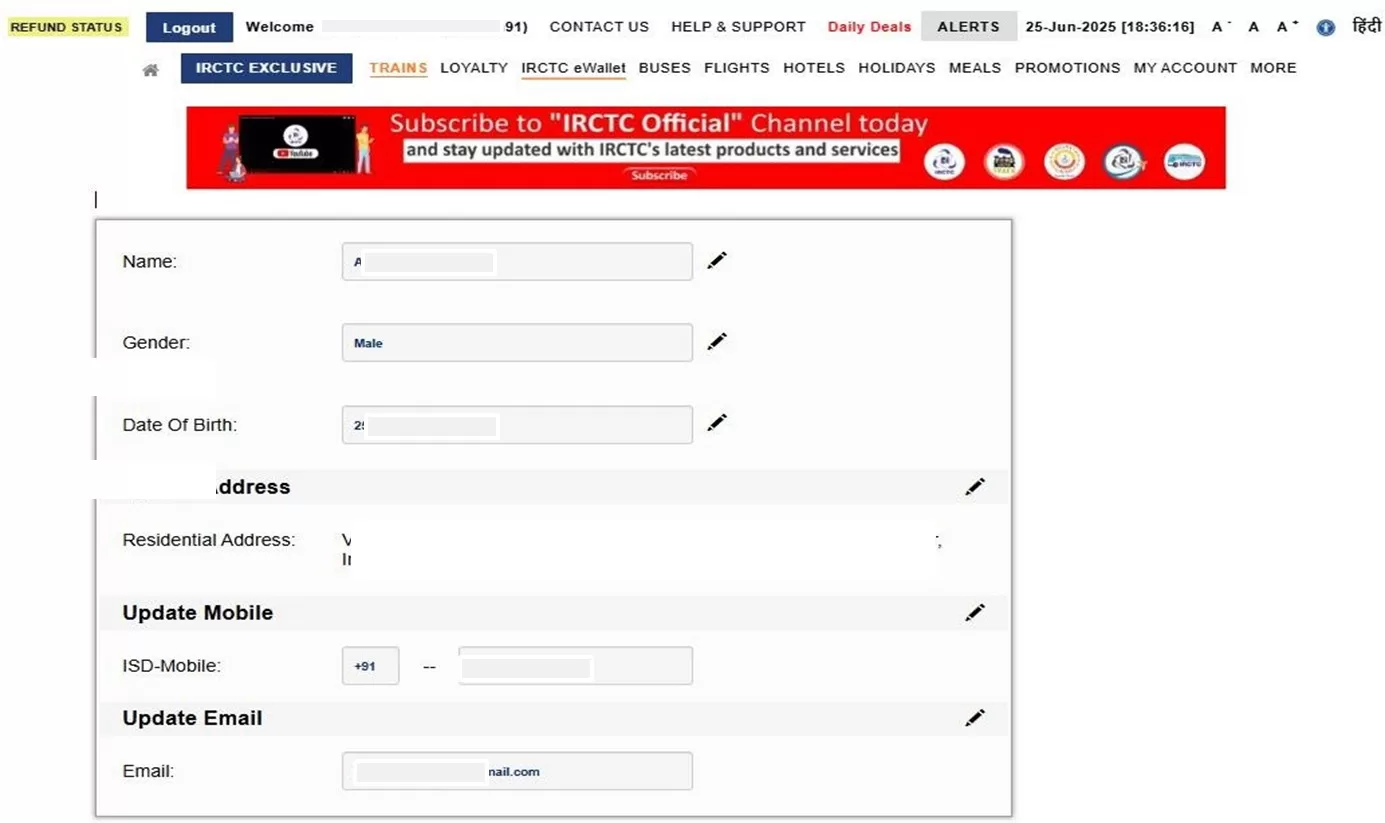
- Submit your Name and click on Save button.

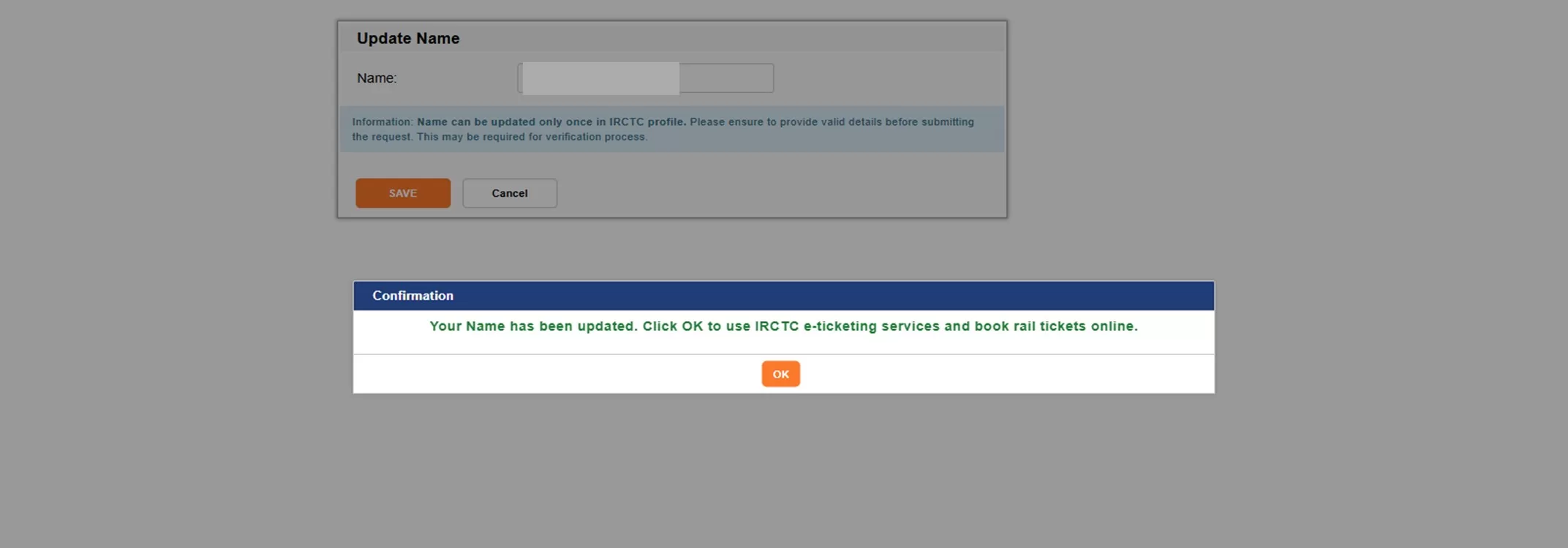
- Successful Name Updation pop-up confirmation will appear.

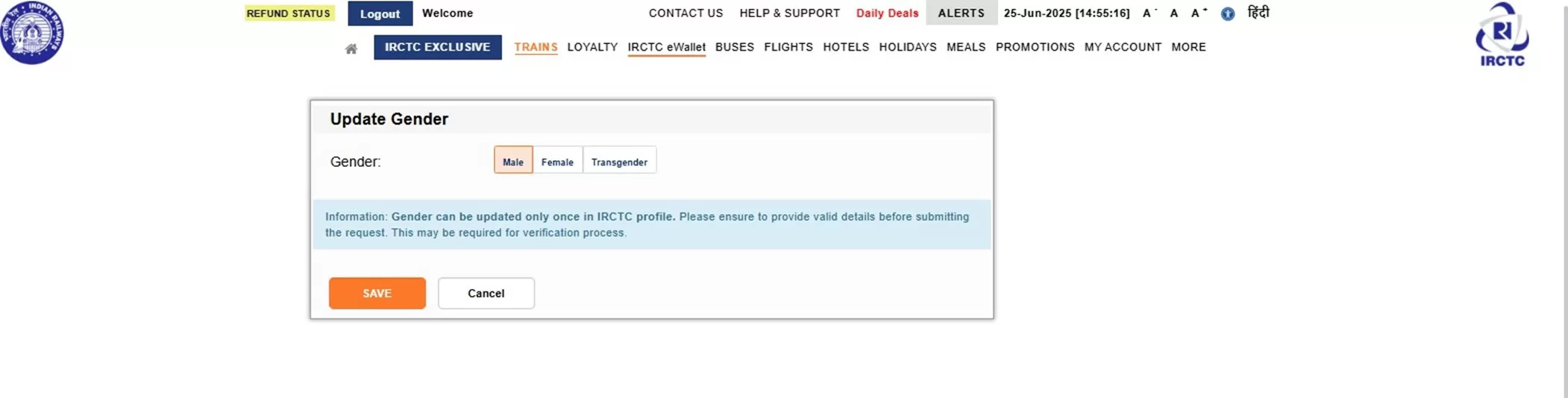
- Click on Gender edit icon to update Gender.

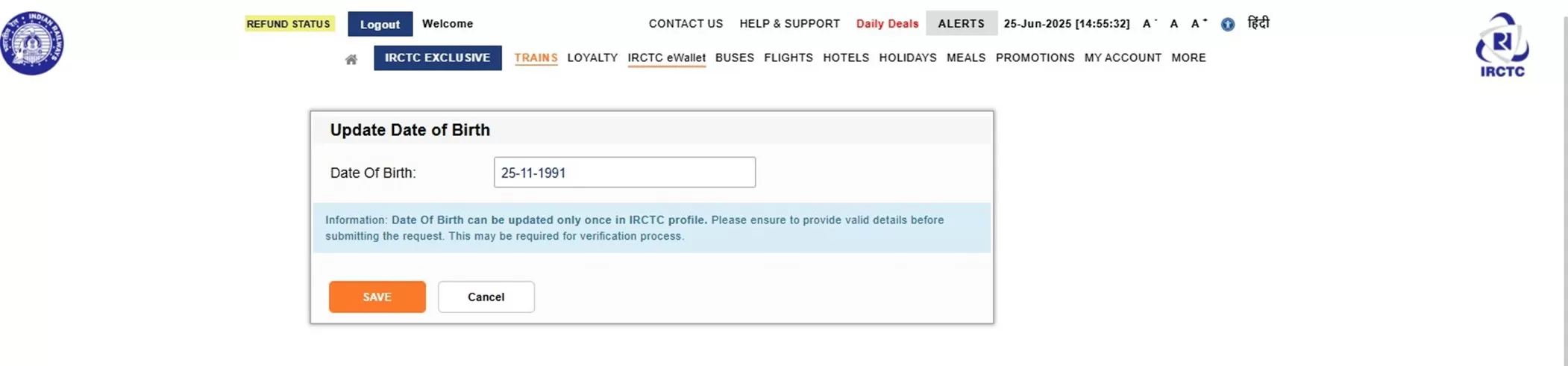
- Click on Date of birth edit icon to update Date of birth.

Users may contact IRCTC Care on https://enquery.irctc.co.in/ for further assistance.