Category Archives: Railway Employees

With more than 12 lakh on roll manpower, Indian Railways is one of the largest public enterprises under single management in the world. Human resource management of such a large manpower, especially deployed in 24×7 operational activities is a challenge in itself.
In the last 10 years, it may be very well observed that on the one hand the overall manpower has a decreasing trend, the productivity of Indian Railways has improved in terms of freight loading and passengers carried. This has been possible due to improved productivity of manpower as a result of extensive training and skilling of manpower. Manpower planning in Indian Railways is a continuous process which involves review of manpower keeping in view upgradation of technology and change of work practices. By this exercise, we do intake of skilled staff reducing unskilled and semi-skilled categories.

RESS- Railway Employee Self Service application for salary slip

Railway Employee Self Service(RESS)

Railway Employee Self Service (RESS) typically refers to an online platform or system that allows railway employees to access and manage their personal information, salary details, and Income tax details through a self-service portal.

As on date RESS is operated mainly for salary purpose.  An Employee gets access to his/her financial and personal data through this portal. Employee must register into this site to view their Personal details, Salary, PF, Loans and Income Tax Projections and to download Pay Slips.

In this post, guide is provided on following points…

  • How to access RESS application / website?
  • How to register new user on RESS application /website?
  • How to View Personal Details?
  • How to check monthly salary slip of the Railway Employee?
  • How to check NPS / PF contribution?
  • How to check LOAN & Advances details of the Employee?
  • How to check income-tax details?
  • How to Update Personal Details?
  • How to Reset Password/what to do in case of forgotten Password?
  • How to use Railway Employee Self Service (RESS) application?

    The application can be accessed using any of the following ways:-

     1. By clicking “Self Service Portal” link on Home Page of AIMS Portal (https://aims.indianrailways.gov.in)

     2. By directly typing following URL in the browser https://aims.indianrailways.gov.in/mAIMS

    3. Downloading RESS app from Play store. RESS – Apps on Google Play

    4. For iOS/Apple based Devices. https://aims.indianrailways.gov.in/Public/Ress a link will be provided after verification.

    A step-by-step instructions for iPhone users are available on this link.

    To use this application, an employee has to register first with the application.

    How to register on Railway Employee Self Service (RESS) application:-

    1. For Registering with Railway Employee Self Service, an employee should ensure the following 2 Points:-

     1.1 Aadhaar Number, Mobile number, Date of Birth is updated in IPAS. Permission to update Aadhaar Number and Mobile No is available with Pay Bill Clerks. Aadhaar Number and Date of Birth are being printed in Pay slip. The same can be verified by the employee.

    1.2 Since initial password is sent on employee’s mobile, consent is required to be sent to SMS Server by sending an SMS to a designated Number. This is mandatory as per TRAI guidelines. This is one time exercise and subscriber has to send an SMS with content as below to 08860622020.

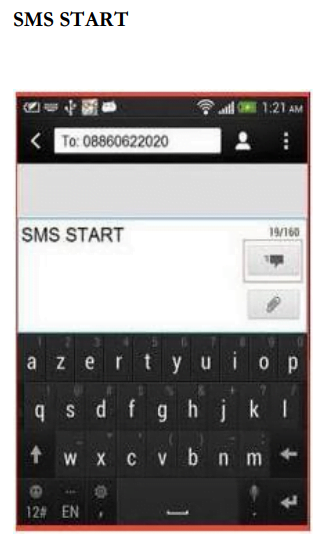
    Please note that without subscribing SMS alert as above, it will not be possible to get initial password on your mobile and mobile application cannot be used.

    2. After registering with SMS alerts as above, please open the following link: https://aims.indianrailways.gov.in/mAIMS.

    3. This link is also provided on home page of AIMS Portal https://aims.indianrailways.gov.in.

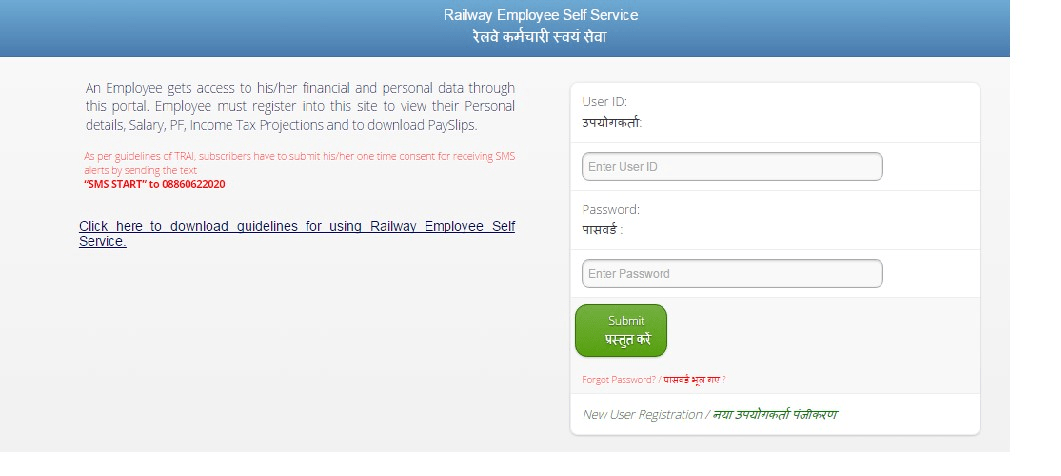
    4. A page will open as below:-

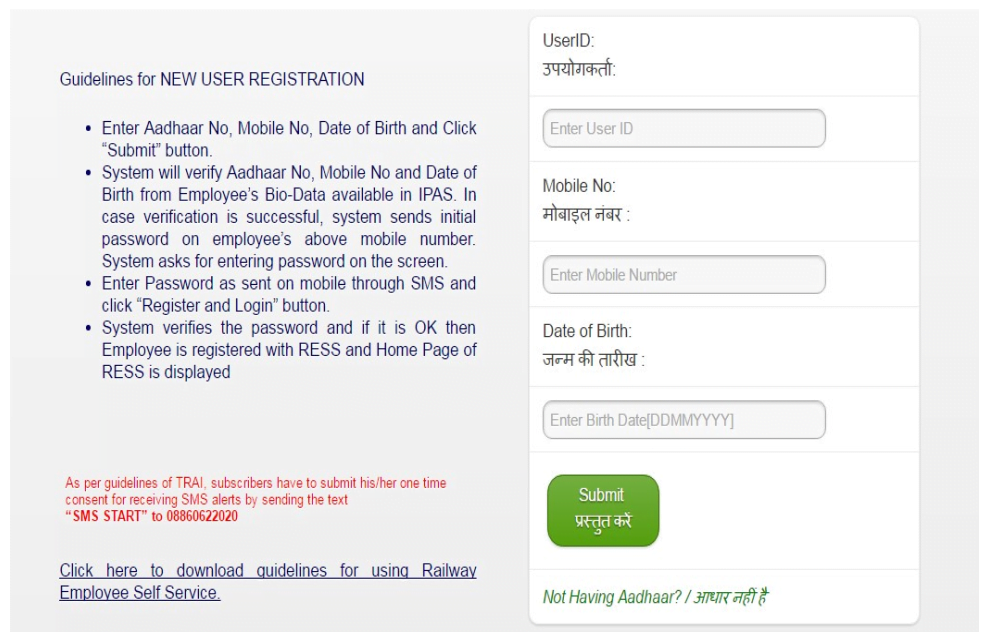
    5. Click on “New User Registration”. A screen (as below) asking for Aadhaar No, Mobile No and Date of Birth will appear.

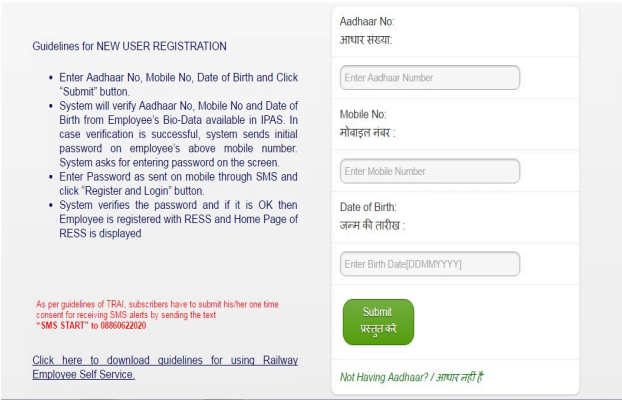
    Here, enter your 12 digits Aadhar Number, valid Mobile Number (valid Aadhaar number & mobile number present with your bio-data) and Birth date, and then Click on Submit button. System will verify Aadhaar no., mobile no., date of birth from Employee’s bio-data available in IPAS. In case verification is successful, following screen will come

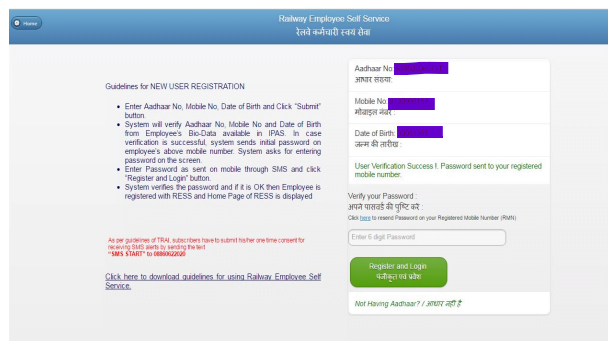
    Now  system sends initial password on employee’s above mobile number. System will ask for entering password on the screen.

    Enter password as sent on mobile number through SMS and click “Register and Login” Button.

    System verifies the password and if it is OK then Employee is registered with RESS and Home page of RESS will be displayed.

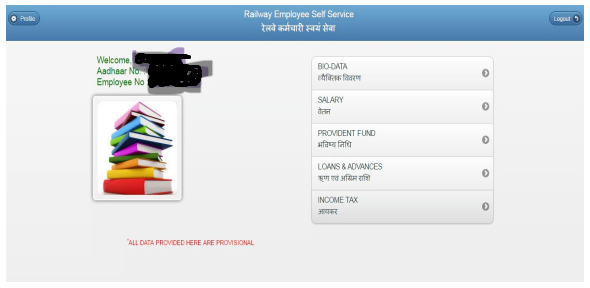
    6. If Aadhaar is not available:- If an employee does not have Aadhaar No updated in Bio-data then Registration will be done based on his/her Employee Number. Click on “Not Having Aadhaar”. A screen will appear like below

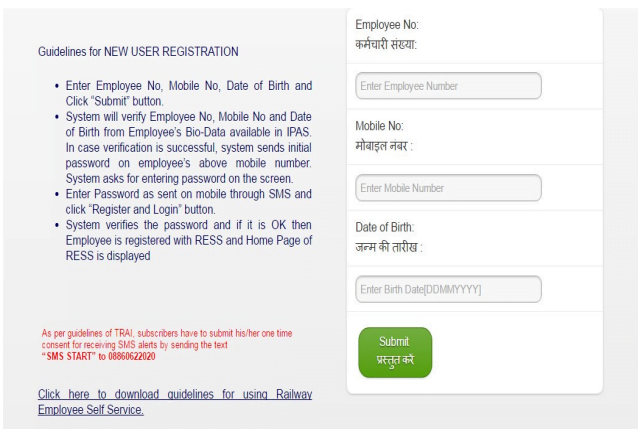
    Here, enter your 11 digit Employee Number, valid Mobile Number (valid mobile number present in your bio-data) and Birth date, and then Click on Submit button. System will verify Employee Number., mobile no., date of birth from Employee’s biodata available in IPAS.

    In case verification is successful, system sends initial password on employee’s above mobile number. System will ask for entering password on the screen. Enter password as sent on mobile number through SMS and click “Register and Login” Button. System verifies the password and if it is OK then Employee is registered with RESS and Home page of RESS will be displayed.

    Already Registered with Railway Employee Self Service (RESS):-

    1. Open RESS by clicking https://aims.indianrailways.gov.in/mAIMS. An Employee can add this link in Bookmark or make it Shortcut so that the same is accessed easily.

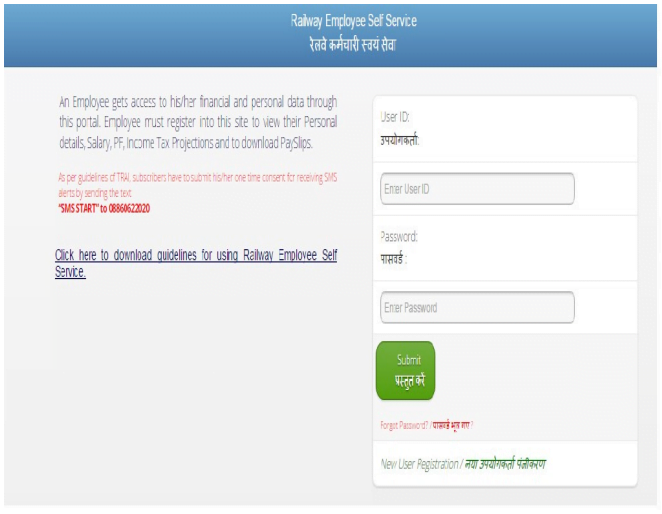
    2. System will ask for User ID and Password as below.

    Enter User-ID, Password and click “Submit” button. System will open Home Page.

    Home Page will show the data of the Employee:-

    i. Bio-Data

    ii. Salary

    iii. Provident Fund,

    iv. Loans &Advances

    v. Income Tax

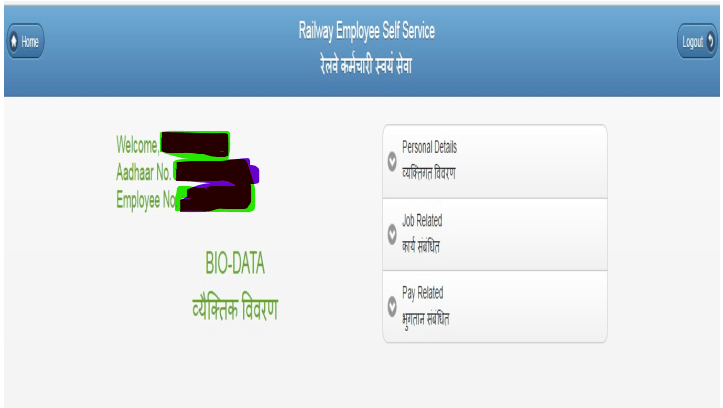
    3.1 Bio-Data:- Click on the Bio Data then showing the page will open as below:-

    1. Personal Details

    2. Job Related

    3. Pay Related

    These are the 3 points of showing after the click on the Bio-Data

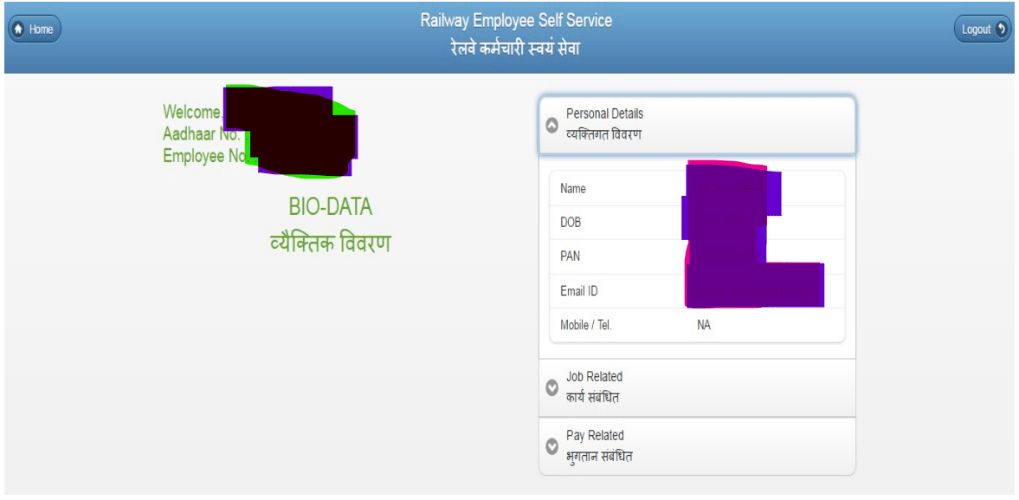
    i. Personal Details:-Click on the Personal Details , which will show personal data of the Employee like Name, Date of Birth, Pan No., Email id, Mobile/Tel.

               A Page will open as below:- 

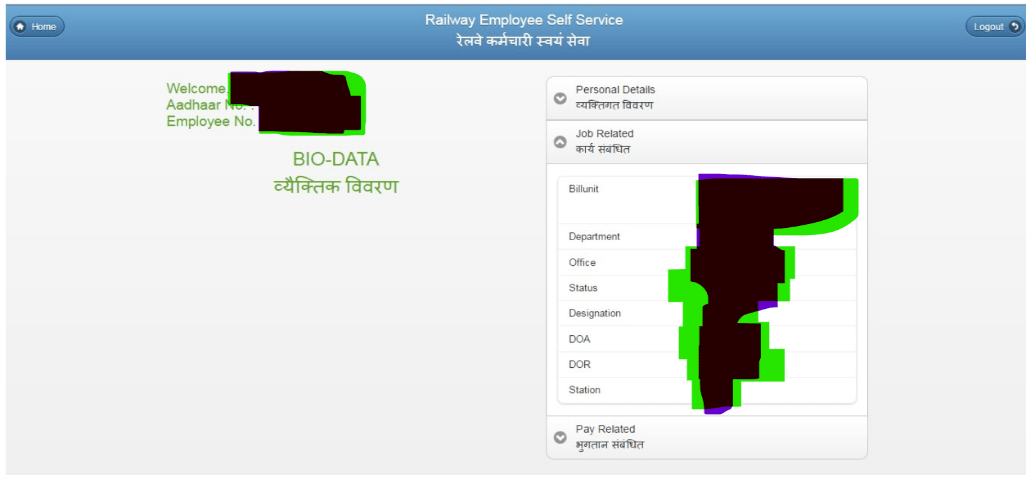
    ii. Job Related:-Click on the Job Related and Job related have the Job related data   of the employee like Bill unit, Department, office, Status, Designation, Date of  Appointment (DOA), Date of Retirement (DOR), Station. 

    A page will open as below:- 

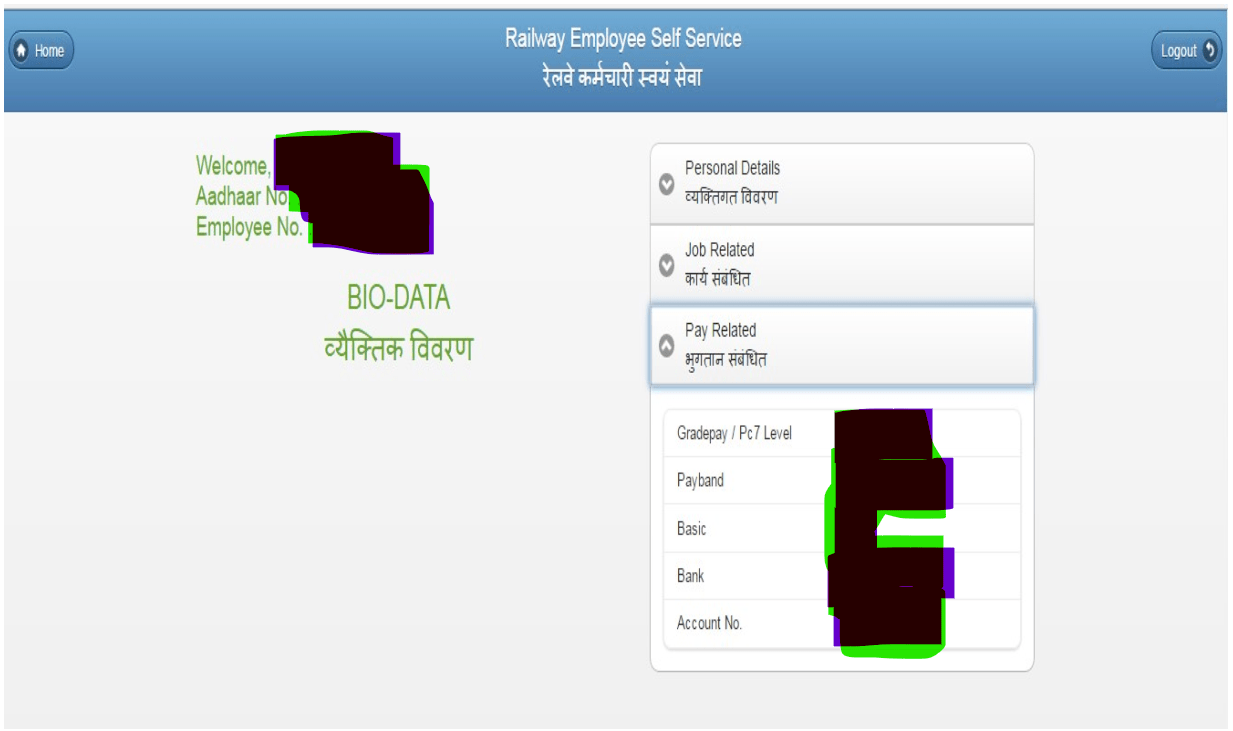
    iii. Pay Related:-Click on the Pay Related and Pay related have the Pay related data  of the employee like Grade pay/Pc 7Level , Pay band, Basic, Bank, Account No. 

    A Page will open as below:- 

    How to check Railway Salary Slip

    Railway employees can check their salaries in two ways : –

    i. Monthly Salary 

    ii. Yearly Summary 

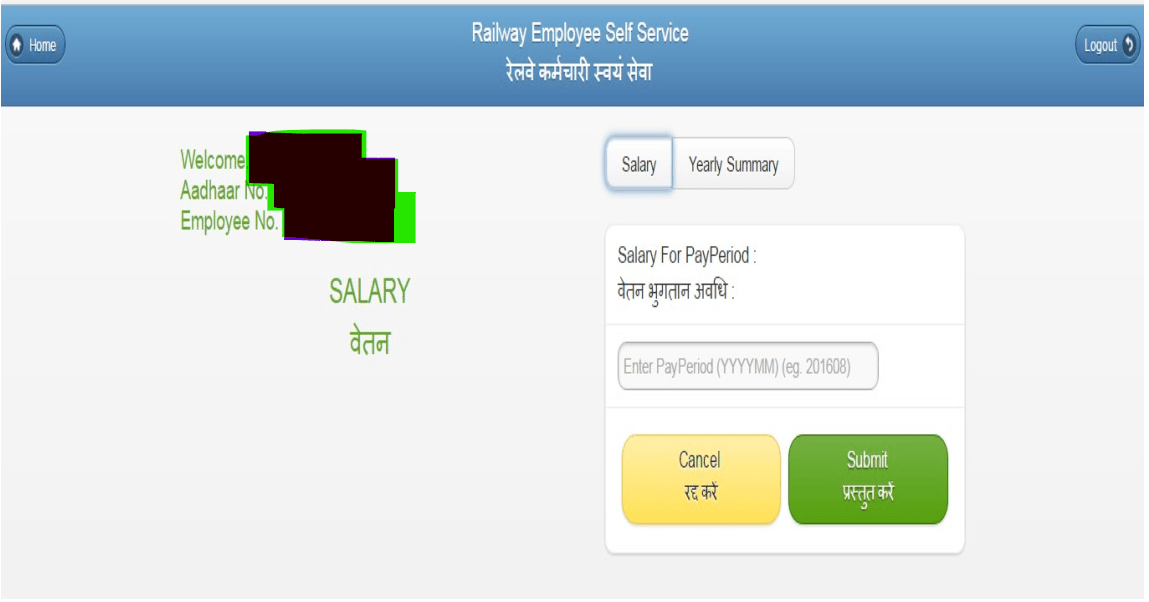
        i.       Salary:- Click on the Salary and enter the salary for pay period. 

                            A Page will open as below:- 

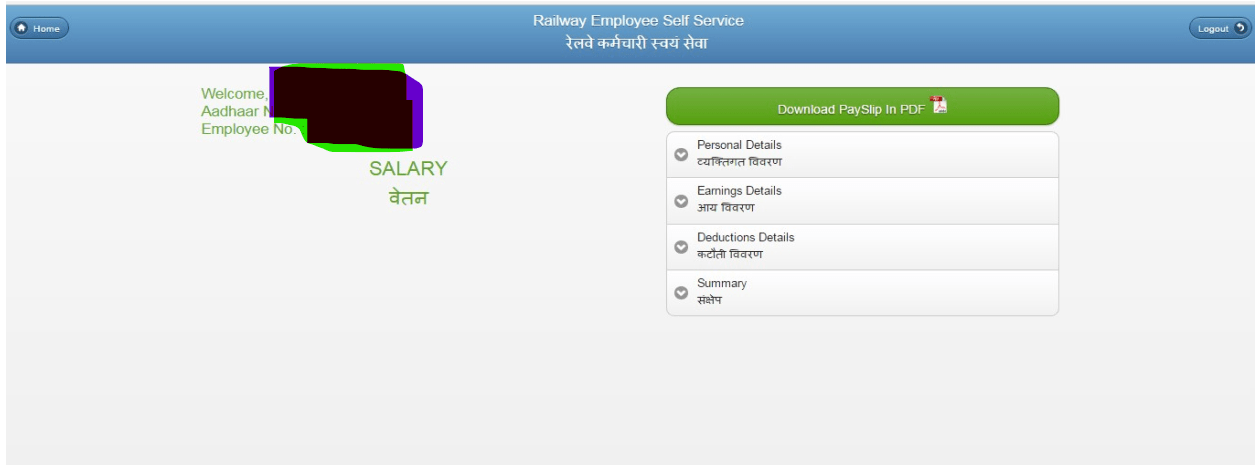
    • Enter the Salary for Pay Period after that click on Submit button and click on the option of download Pay slip in PDF. 
    • User can download their own Pay Slip (Monthly and Yearly) in PDF  Format. 

          A Page will open as below:- 

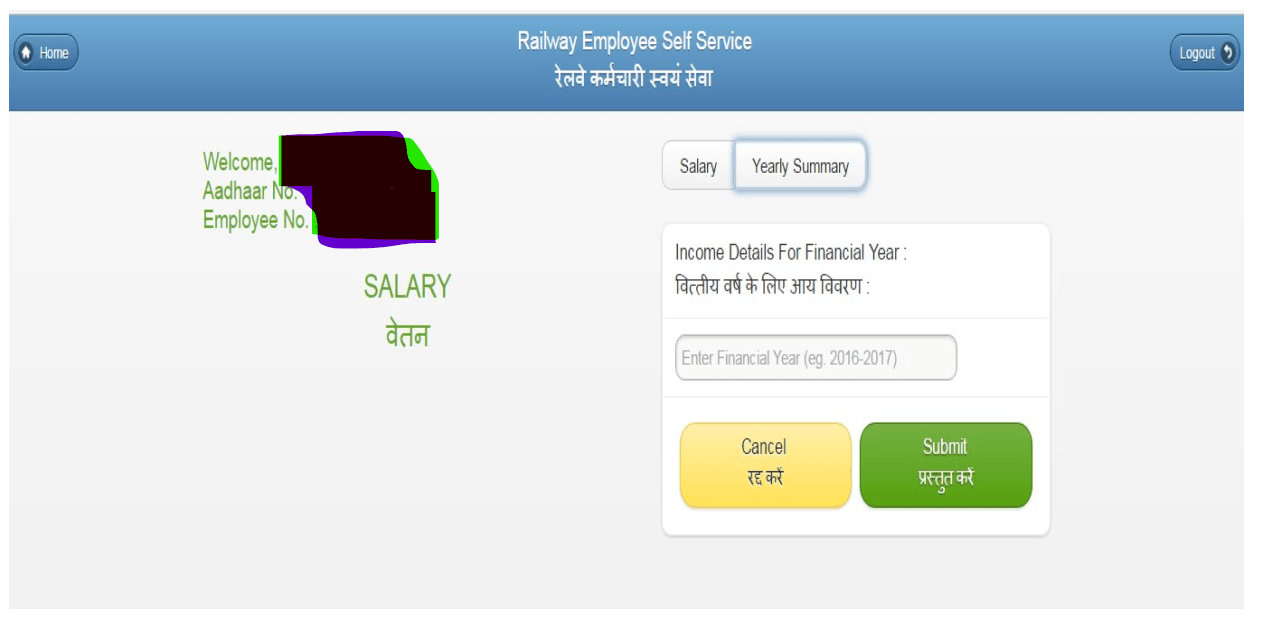
    ii. Yearly Summary:- Click on the Yearly Summary. A Page will open as below:- 

    Enter financial year and  click Submit button . System will show Yearly Summary. 

    How to check NPS / PF

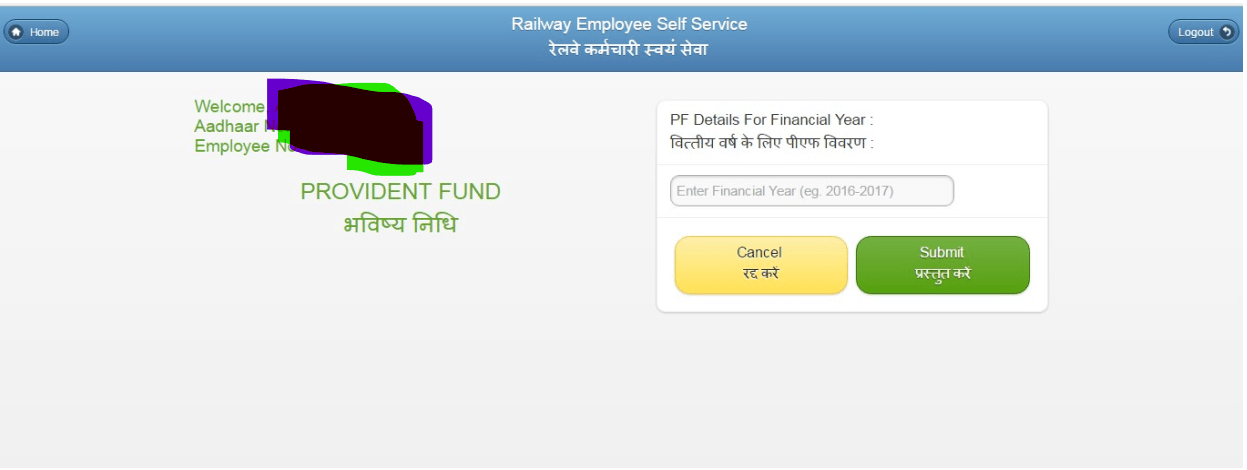
    At home page Click on the Provident Fund. For employee having joining date after 2004 or who opt for NPS during joining or having PRAN number instead of PF number NPS option will be shown at the home page of application/website. A Page will open as below:- 

    Enter financial year and click Submit button. System will show PF Details/ NPS contribution as per their need. 

    How to check LOAN & Advances details of the Employee:-

    A Page will open as below:- 

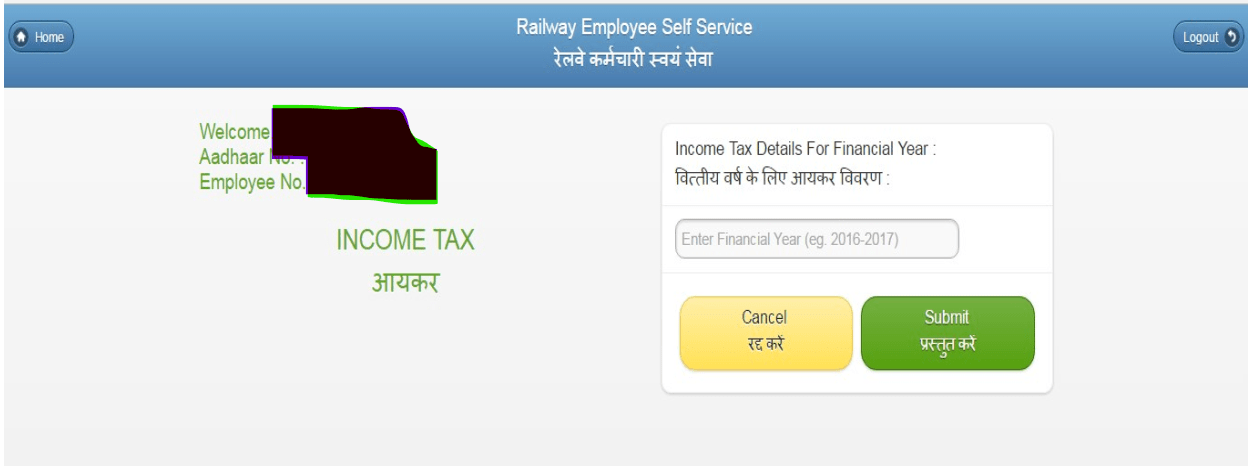
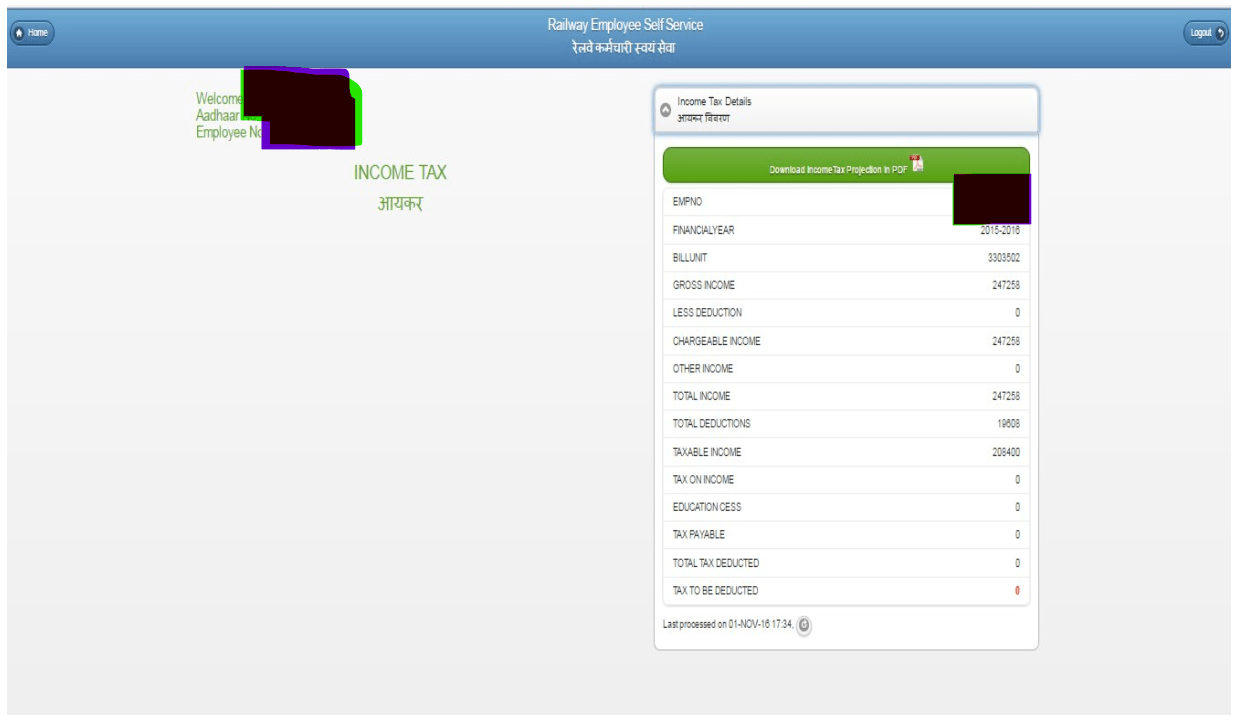
    How to check Income Tax Details for Financial Year
    •  Enter Financial Year and click on submit button.  A Page will Open as below:- 

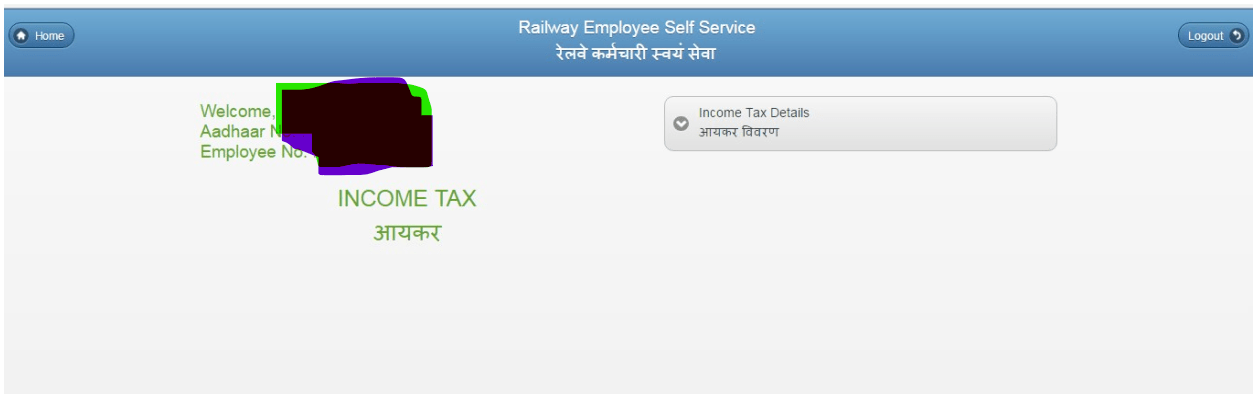
    A page will open as below:- 

        After that click on the option of download Income Tax Projection in PDF. 

    How to Update Personal details/Profile

      At Home page of RESS website/App Application displays Profile Button on the left side. Railway employees need to Click on the button, following which the screen will appear: –  

      Railway employee has three Options to update which will be shown on the Profile Page:- 

         i.   Mobile 

         ii.  Password 

         iii.  Image 

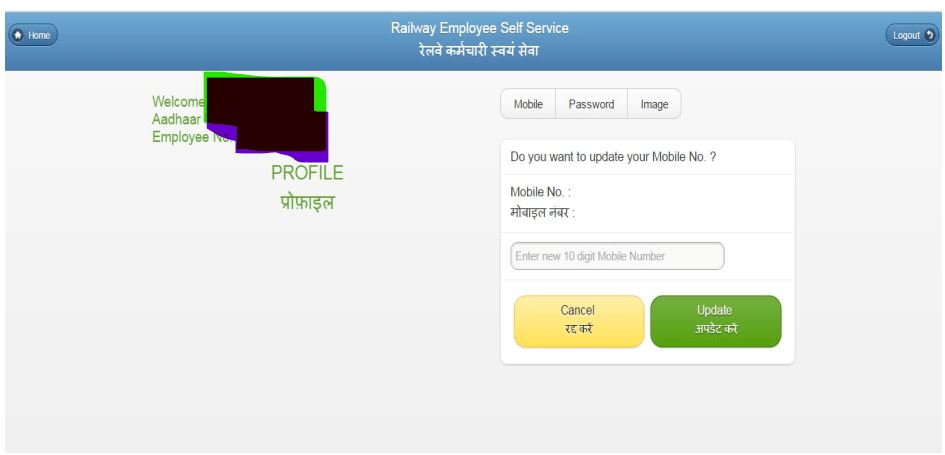
     Mobile:- If you want to update your mobile number then click on the mobile option and enter the new 10 digit mobile number and click on the update button. 

    A page will open as below:- 

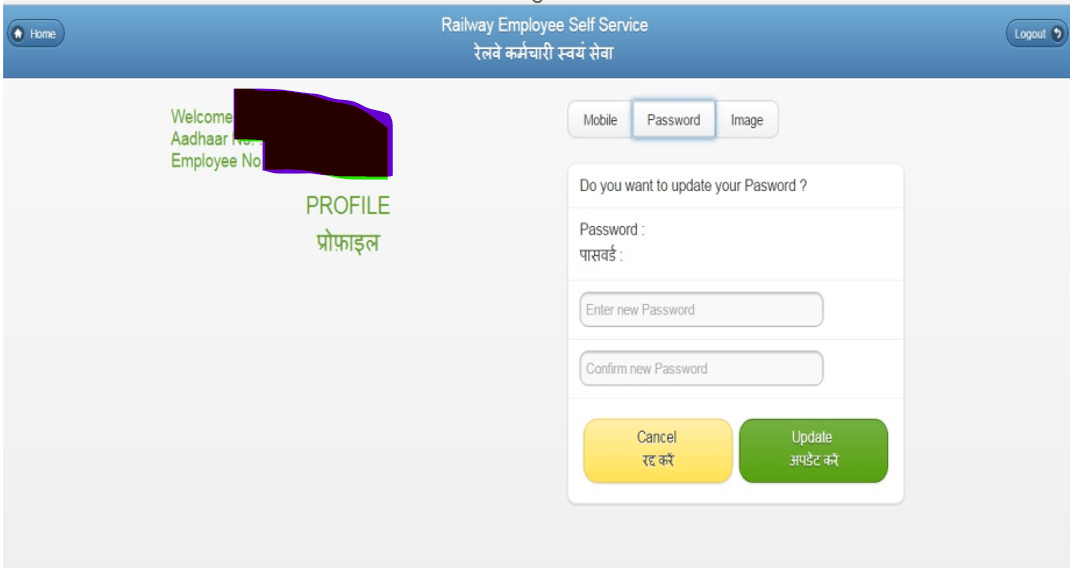
    Password:- If you want to update your password then click on the password option and enter the new password & confirm new password (Minimum 6 character) and click on the update button. 

    A page will open as below:- 
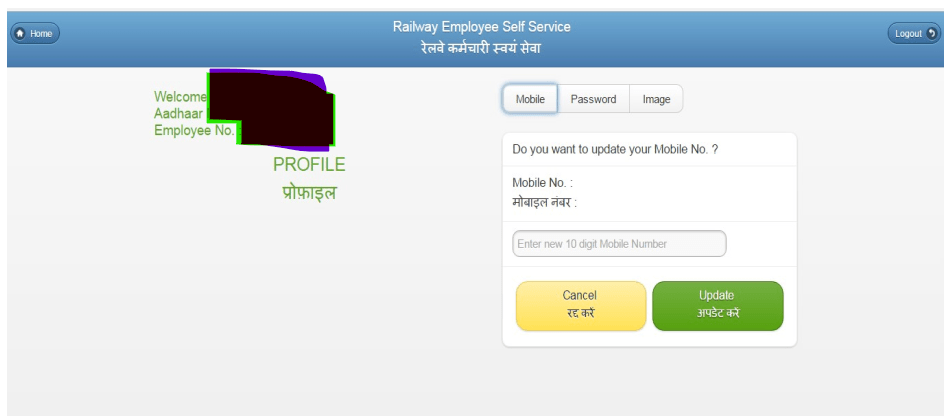
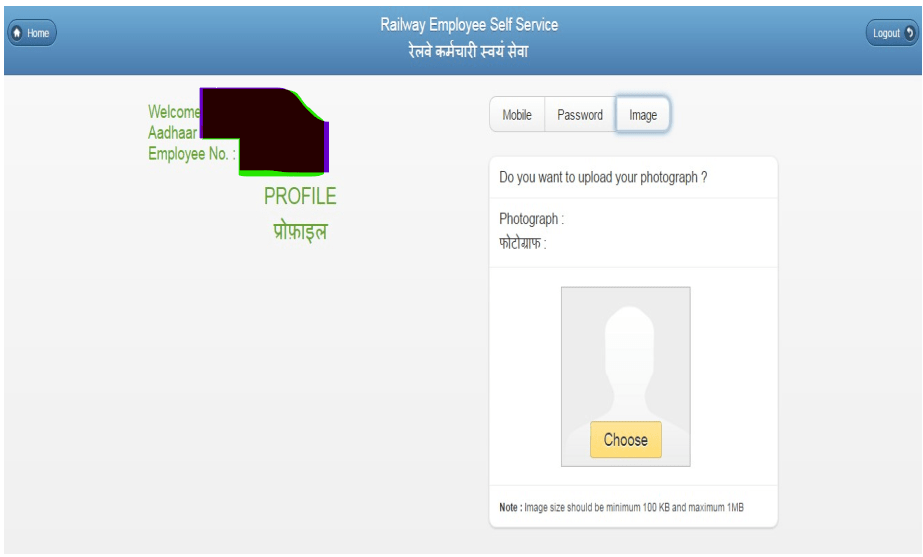
    Image:- If you want to upload your photograph then click on the image and choose the photograph from the System. 

    A page will open as below:- 

    How to Reset Password/what to do in case of forgotten Password

    1. Click on “Forgot Password?” link on Login Page. 

     2. System will ask for User ID, Mobile No and Date of Birth.  

    3. Enter above and click “Submit” button.  

    4. System will verify detail with Already Registered Data, regenerate Password and  send to Registered Mobile No.  

    5. User will be asked to enter password as sent on Mobile No. 

     6. After verification, it will set New Password and Welcome Page of the application will appear. 

    USEFUL LINKS

    1. RESS user manual issued by ER
    2. RESS Manual issued by CR
    3. How to Change Mobile Number on HRMS- Retired Railway Employees?
    4. User Manual for Employee Self Service Module of HRMS – Indian Railway
    5. Air Travel Entitlements of Railway officers on Tour/Duty

    Improvement of Health Delivery System & Emergency Treatment in Railway Empanelled Private Hospitals

    RB Letter No.2018/TransCell/Health/CGHS (eOff.No.3270783), Dt: 28/ 12/2020

    Subject : Improvement of Health Delivery System & Emergency Treatment in Railway Empanelled Private Hospitals

    Several representations have been received from Railway Medical Beneficiaries including retired officials regarding problems being faced during treatment in emergency at empanelled Hospitals. In order to improve the Health Delivery System on Indian Railways and streamline the treatment in emergency at Railway empanelled hospitals, following have been approved:

    1. No requirement of prior referral: Railway medical beneficiaries (serving/ retired) under emergency condition can get admission in any railway empanelled hospital without any prior referral. The empanelled hospital should not insist on referral from railway hospitals or demand advance in emergency conditions and the hospital will provide cashless/ Credit medical facilities to patients.
    2. The emergency conditions are defined in Memorandum of Understanding between CGHS empanelled hospitals and Government of India (CGHS Authorities) (Annexure-I) or as amended by CGHS from time to time and same will be applicable in Indian Railways.
    3. The valid UMID Card/ CTSE Card issued will be treated as identification as Railway Medical Beneficiary. Railways have to make sure that these cards are accepted in the empanelled hospital under the jurisdiction empanelment.
    4. Situation may arise where Railway hospital, after scrutinising admission report submitted by empanelled hospital, finds that the patient is not suffering from an emergency. In such cases the patient can continue to avail treatment at the empanelled hospital, if so desired, by paying CGHS rates or hospital rates, whichever is less on the patient’s cost.
    5. The nature and appropriateness of the emergency is subject to verification, which may be verified, inspected or medically audited by the nominated authority on random basis at its own discretion.
    6. The Hospital will intimate all instances of patients admitted as emergencies (without prior permission) to the Railway authorities, at the earliest and within 24 hours and Railway will revert within next 24 hours, otherwise it will be treated as deemed approval. The empanelled hospital will clearly mention/ certify the emergency condition as per MoU.
    7. Railway Hospital as well as empanelled hospital will share the contact number and email address for communication for this purpose and will ensure to put on the website of Railways as well as of the hospital. The documents and approvals will be shared on the email to save the time and difficulties faced by the patients. The empanelled Hospital will not insist to patients to get the approval of referral/ extension from the Railway Hospital. Same will be coordinated and approved on the contact number and email by the empanelled Hospital and Railway Hospital.
    8. Railway hospitals shall refer to the empanelled hospital for appropriate duration as per the package. In case of additional stay for treatment, same procedure will be followed as per Para 6 & 7 above.
    9. Also, the empanelled hospitals will provide the necessary treatment in OPD or otherwise to valid Railway Medical Beneficiary at the CGHS approved rates or hospital rates, whichever is less for the treatment in non-referral and non-emergency case at Railway Medical Beneficiary’s cost.
    10. Zonal Railways shall include provisions for conditions given from 4.1 to 4.9 above, in their MOU with the referral hospitals and also include that refusal to provide treatment to bonafide railway medical beneficiaries in emergency cases without valid ground would attract disqualification for continuation of empanelment. Also, MoU to be updated including removal of ambiguities accordingly.

    Download official letter for Improvement of Health Delivery System & Emergency Treatment in Railway Empanelled Private Hospitals (in PDF)

    This issues with the approval of Board.

    TREATMENT IN EMERGENCY: Annexure-1

    The following ailments may be treated as emergency which is illustrative only and not exhaustive, depending on the condition of the patient:

    • Acute Coronary Syndromes (Coronary Artery Bye-pass Graft/ Percutaneous, Transluminal Coronary Angioplasty) including Myocardial Infarction, Unstable Angina, Ventricular Arrhythmias, Paroxysmal Supra Ventricular Tachycardia, Cardiac Temponade, Acute Left Ventricular Failure / Severe Congestive Cardiac Failure, Accelerated Hypertension, Complete Heart Block and Stoke Adam attack, Acute Aortic Dissection.
    • Acute Limb Ischemia, Rupture of Aneurysm, Medical and Surgical shock and peripheral circulatory failure.
    • Cerebro-Vascular attack-Stokes, Sudden unconsciousness, Head injury, Respiratory failure, decompensated lung disease, Cerebro-Meningeal Infections, Convulsions, Acute Paralysis, Acute Visual loss.
    •  Acute Abdomen pain.
    •  Road Traffic Accidents / with injuries including fall.
    •  Severe Hemorrhage due to any cause.
    •  Acute poisoning.
    •  Acute Renal Failure.
    •  Acute abdomen pain in female including acute Obstetrical and Gynecological emergencies.  Electric shock.
    •  Any other life threatening condition.

    Also ReadPan India implementation of HMIS over Indian Railways

    DMTR (Daily Material Transaction Report): User Manual for UDM Module

    DMTR (Daily Material Transaction Report): User Depot Module

    DMTR is summary of list of all the finalized transactions on a particular day. Here is the User Manual for viewing/printing DMTR report on UDM Module of Indian Railways.

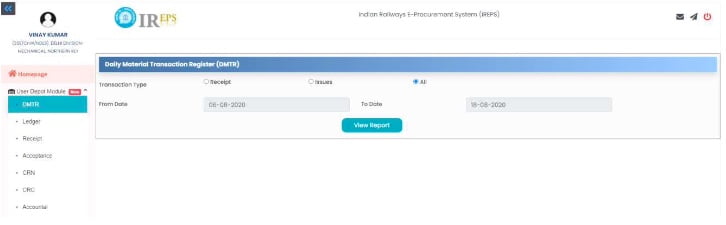
    3.1 Open DMTR Tab

    On clicking DMTR Tab on Left side Panel, following Screen will open:

    3.2 Viewing DMTR reports

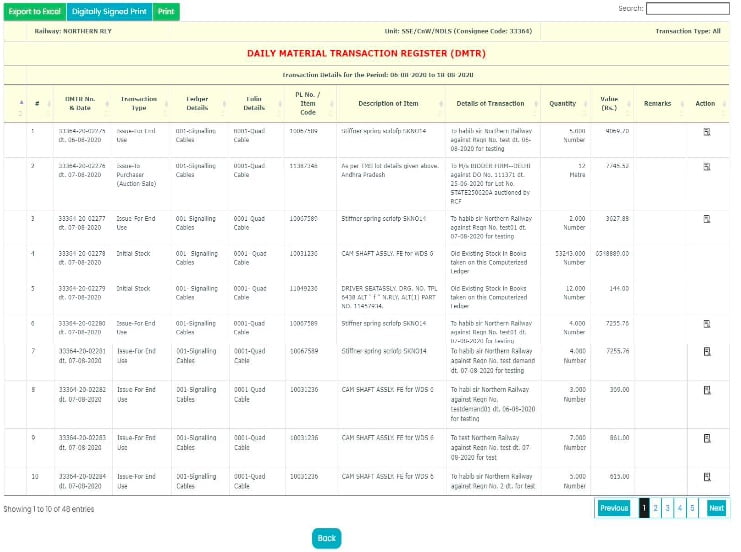
    User may select Transaction Type and the Time Period for which DMTR is required as per his requirement. We have set default Transaction Type as All and the Time Period as last three days from the current date. On clicking View Report, following DMTR will get opened:

    3.3 Search & Print facility of DMTR

    Search facility can be used to search a particular transaction. Hyperlinks have been provided to view various types of documents. Also, by clicking icon available under Action Header, User can view further details / documents. Facility to take Print / Digitally signed Print / Export to Excel the DMTR is also there using the Tabs available at top Left Hand side of Page.

    Also Read

    1. Introduction: User Manual for “User Depot Module” (UDM)
    2. Getting Started: User Manual for User Depot Module (UDM)
    3. DMTR (Daily Material Transaction Report): User Manual for UDM Module

    User Depot Module (UDM): Getting Started User Manual

    Getting Started: User Manual for User Depot Module

    Here is the complete User Manual (Guide) for Getting Started with the User Depot Module of Indian Railways.

    Download Getting Started User Depot Module Guide (in PDF)
    2.1 Login –> NEW IMMS (UDM):

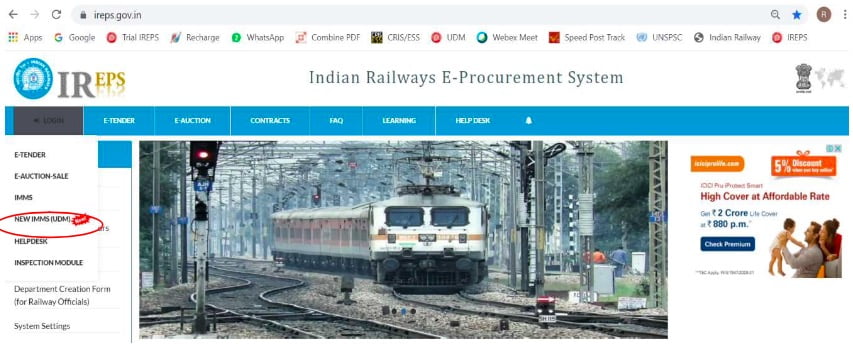
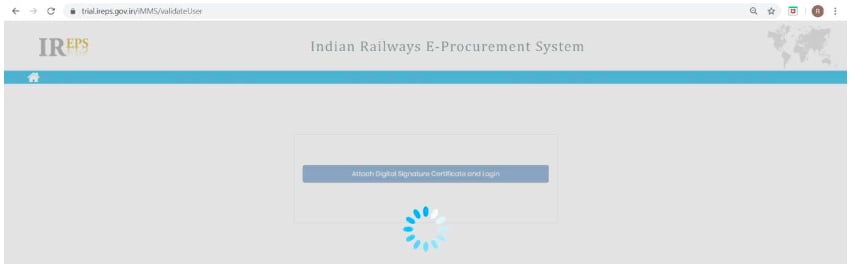
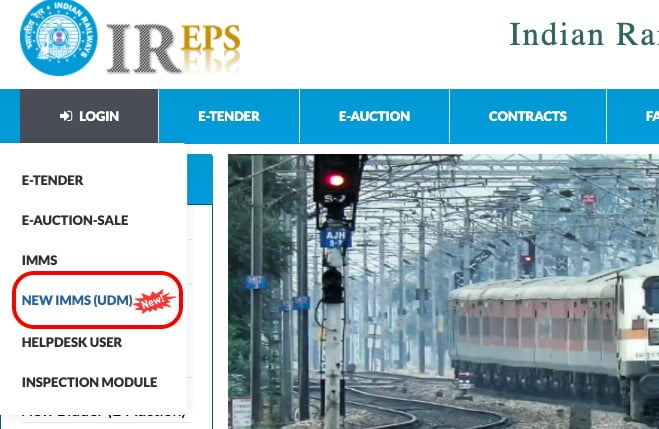
    For using “User Depot Module”(UDM) in actual Production environment, on Home Page of IREPS Portal https://ireps.gov.in, user is required to select Login –> NEW IMMS (UDM):

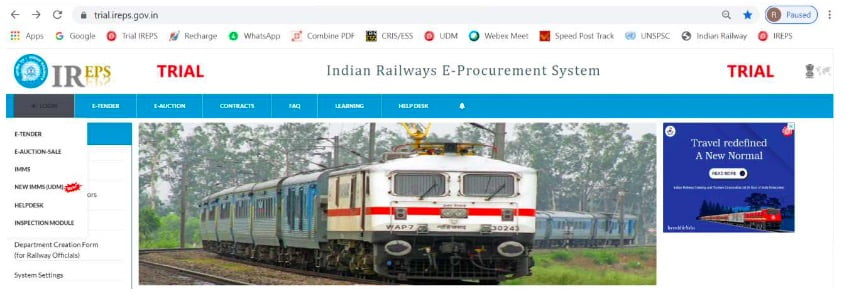
    For Trials / Testing, user is required to select Login –> NEW IMMS (UDM) on Home Page of IREPS Portal https://trial.ireps.gov.in which explicitly mentions TRIAL on top portion as under:

    2.2 Click –> Login:

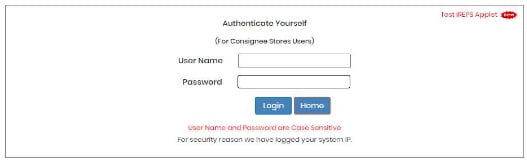
    On the screen shown below, User is required to enter his User Name & Password and Click –> Login:

    For Production site of UDM available on Portal https://ireps.gov.in, all officers of the Railways wherein UDM has been made live, have been given access using their existing User-Name / Password on IREPS (as used by them for Works/Stores Tenders). Such Officers having Admin rights can create new posts / users for using UDM, following the standard procedure of creating Posts / Users in IREPS. After Posts/Users are created, further action for mapping of Consignee Code, IMMS ID & Sub-Consignee is to be done as per Para 19 of this User Manual. It is clarified that UserID/Password currently being used on IMMS cannot be used for this UDM. For Trial site of UDM available on Portal https://trial.ireps.qov.in, users will be created by CRIS after getting user details.

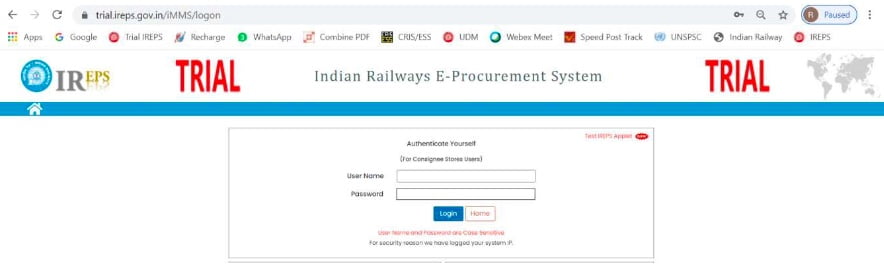
    Login Screen on https://trial.ireps.qov.in explicitly mentions TRIAL on top portion as under:

    2.3 Attach Digital Signature Certificate and Login

    Now click Tab –>Attach Digital Signature Certificate and Login. The following Screen will appear:

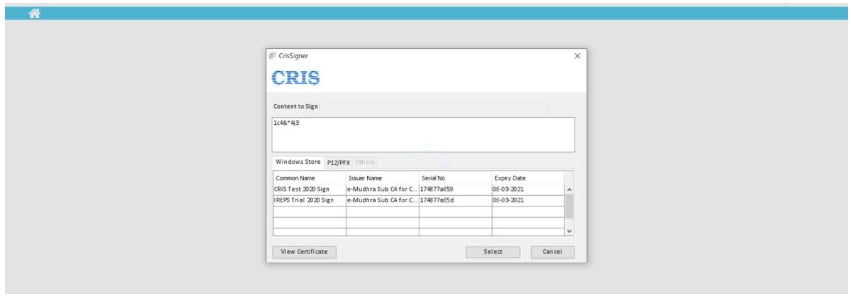
    2.4 Click –> Select

    After waiting for few moments, screen shown below will be available on which User is required to select his DSC and Click –> Select… System may ask for User Name / Password of Digital Token of the User, please provide the same. For Test DSC, User Name / Password of User’s Digital Token will not be asked.

    2.5 Home Page

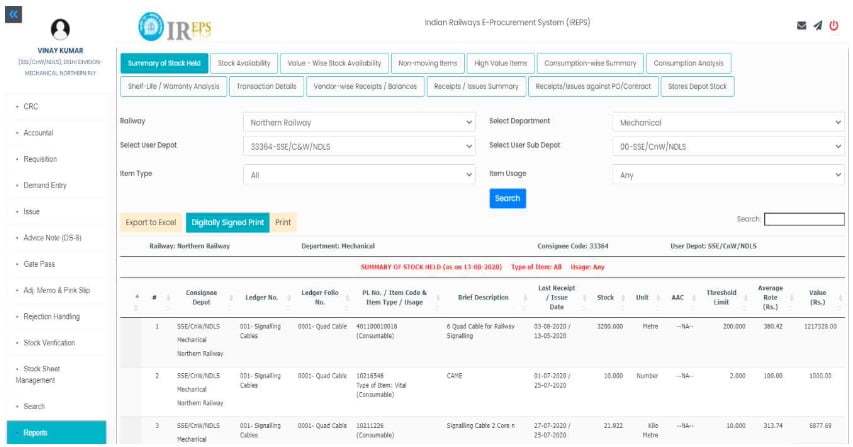
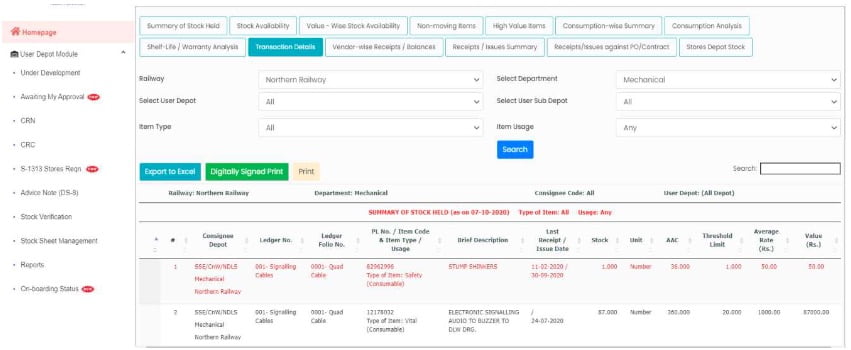
    Now, User is ready to use “User Depot Module” (UDM) and following Home Page will appear for the Transaction Users who have Consignee Codes mapped against their login:

    2.6

    Every User who wishes to make transaction on User Depot Module has to be mapped to a Consignee Code. Each Consignee Code can have as many Transaction Users, as one wishes. One will be the Main Depot User while other Users will be created by Main Depot User (with the approval of Officer) as a Sub-Depot/Sub-Consignee User as per Para 19.2 to 19.8 below. Mapping of Main Depot User to a Consignee Code will be done by the Administrator/Officer concerned as per Para 19.13 below.

    2.7

    Further, in order to be enable receipt & accountal of material from Stores Depot, Users(Main Depot User as well as Sub-Depot/Sub-Consignee User) will have to be a registered user on existing IMMS Application. Mapping of Users (Main Depot User as well as Sub-Depot/Sub-Consignee User) with IMMS User ID will be done by the concerned User himself as per Para 19.9 to 19.11 below.

    2.8

    For other Users who are not Transaction Users i.e. Officers etc., who do not have Consignee Code mapped with them, will see following Home screen:

    Also Read

    1. Introduction: User Manual for “User Depot Module” (UDM)
    2. Getting Started: User Manual for User Depot Module (UDM)
    3. DMTR (Daily Material Transaction Report): User Manual for UDM Module

    Introduction: User Manual for “User Depot Module” (UDM)- Indian Railway

    Introduction: User Depot Module (UDM)

    1. This “User Depot Module” (UDM) intends to computerize various material management activities at the end of User Depots i.e. Consignees. This will enable authorized user for:
      • Creation of Computerized Ledgers & DMTRs (Daily Material Transaction Reports) for recording receipt & issue transactions by authorized Users.
      • Receipt of Stores by User Depots/Consignees against Purchase Orders/GeM Orders/Contracts wherein material to be delivered directly to Consignees, against Cash Purchase/lmprest, from Shops, from Other User Depots/Consignees on Loan/Assistance basis, from other Field Units, against Book Transfer within same User Depot, from Stores Depots against S-1313 (Combined Requisition-cum-lssue Note) / S-1830 (Imprest Issues) / Non-Stock R-Notes/ Sale Issue Notes.
      • Issue of material to End User, to other User Depots/Consignees on Assistance/Loan basis, to Contractors, on Book Transfer within same User Depot, to Stores Depots on Advice Note, to Purchasers for Scrap Deliveries etc.
      • Placing Requisitions on Stores Depots for Stock Items (S-1313 as well as Imprest Demands)
      • Placing Demands on User Depots/Consignees, Issue Note, Gate Pass, Adjustment Memo etc.
      • Transacting with Non-Computerized User Depots/Consignees w.r.t. receipt & issue of material.
      • Integration of payment activities on IPAS with digitally signed Consignee Receipt Note (CRN) / Consignee Receipt Certificate (CRC) being generated in “User Depot Module”, once the Module gets stabilized.
      • Rejection Handling – both Initial Rejection as well as Warranty Rejection
      • Stock Verification (Accounts / Departmental) & Stock Sheet Management.
      • Accessing several MIS/Exception Reports.
      • Real time information exchange among various stake-holders leading to enhanced operational efficiency, economy and transparency.
    1. Any user for this User Depot Module for a particular Railway or Department or Unit can be created by any concerned officer (JAG & above) or by any other concerned officer who has Administrator rights or by Departmental Administrator.
      • As elaborated at Para 19 of this User Manual, every User who wishes to make transaction on User Depot Module has to be mapped to a Consignee Code.
      • Each Consignee Code can have as many Transaction Users, as one wishes. One will be the Main Depot User while other Users will be created by Main Depot User (with the approval of Officer) as a Sub-Depot/Sub-Consignee User.
      • Mapping of Main Depot User to a Consignee Code will be done by the Administrator/Officer concerned.
      • Further, in order to be enable receipt & accountal of material from Stores Depot, Users(Main Depot User as well as Sub-Depot/Sub-Consignee User) will have to be a registered user on existing IMMS Application.
      • Mapping of Users (Main Depot User as well as Sub-Depot/Sub-Consignee User) with IMMS User ID will be done by the concerned User himself.
      • Officers cannot make basic transactions but they will have authority to approve CRN / Advice Note of Users of their Department and they can view various Reports / Transactions etc. of various Users.
      • Officers need not to be linked with Consignee Code.
    1. For using this UDM, user has to possess a valid Class-2 or Class-3 Digital Signature Certificate (DSC) which is being used on IREPS / SPARROW etc.
      • For installation of DSC, standard procedure available in Learning Centre & System Settings options under Learning or Quick Links or Assistance Tab on https://ireps.gov.in or https://trial.ireps.gov.in can be used.
      • Users may seek assistance of existing IREPS Users for assistance regarding DSC.
      • Also, users have to download & install CRIS signer on their PC (available at https://ireps.gov.in/ireps/pki/CrisSigner.msi), if not already installed.
      • For testing purpose, CRIS will be providing Test DSC, but users can change this Test DSC with their own DSC using the standard procedures referred above.

    Download Introduction: User Manual for “User Depot Module” (UDM) (in PDF)

    Also Read:

    1. Introduction: User Manual for “User Depot Module” (UDM)
    2. Getting Started: User Manual for User Depot Module (UDM)
    3. DMTR (Daily Material Transaction Report): User Manual for UDM Module

    User Manual for Employee Self Service Module of HRMS – Indian Railway

    Employee Self Service module of HRMS was launched for use across all offices of Indian railways. Online training for operation of the Employee Self Service Module was also provided by CRIS to all the employees.

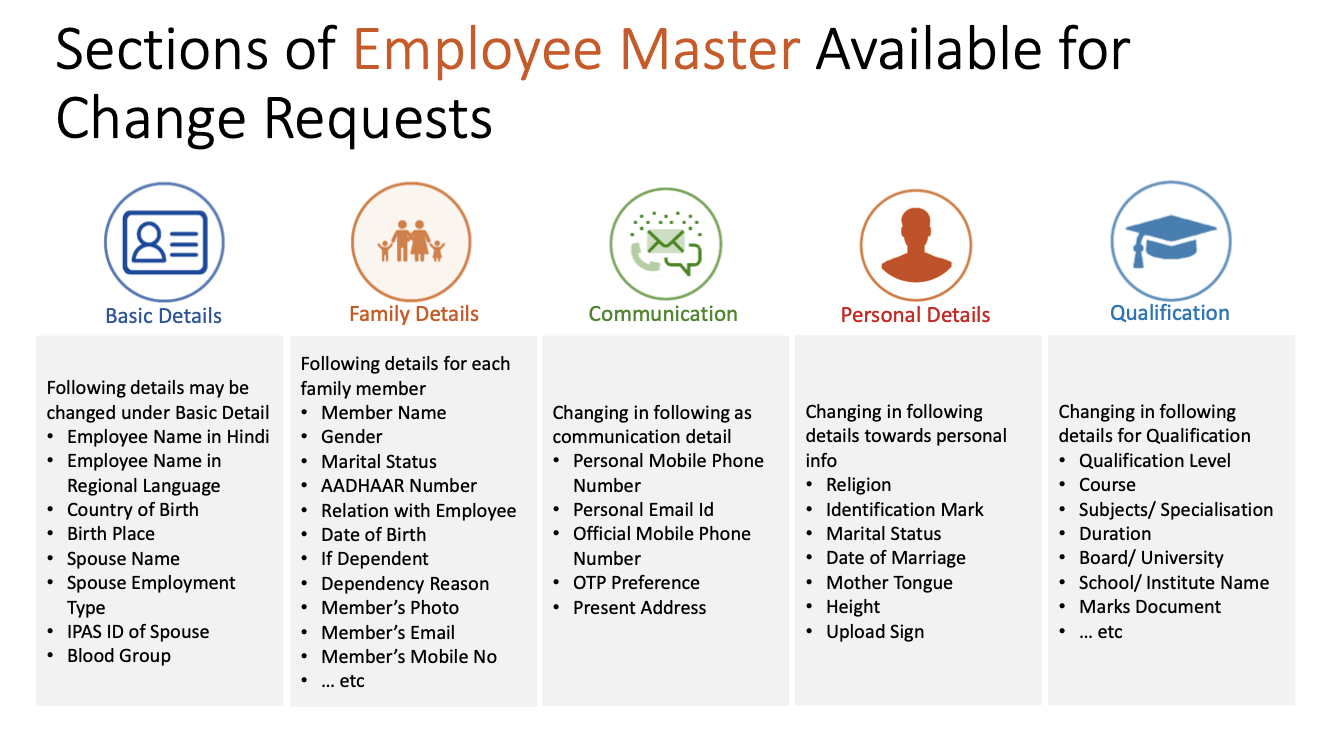
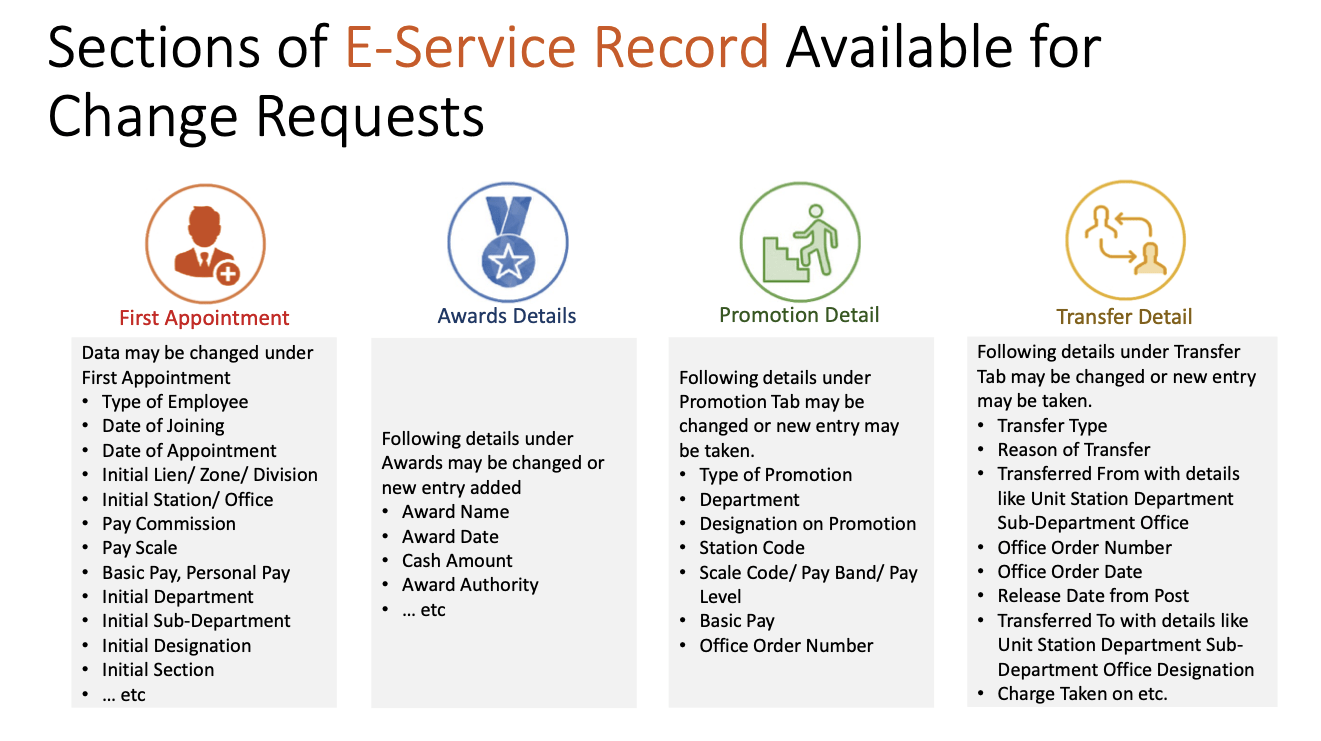
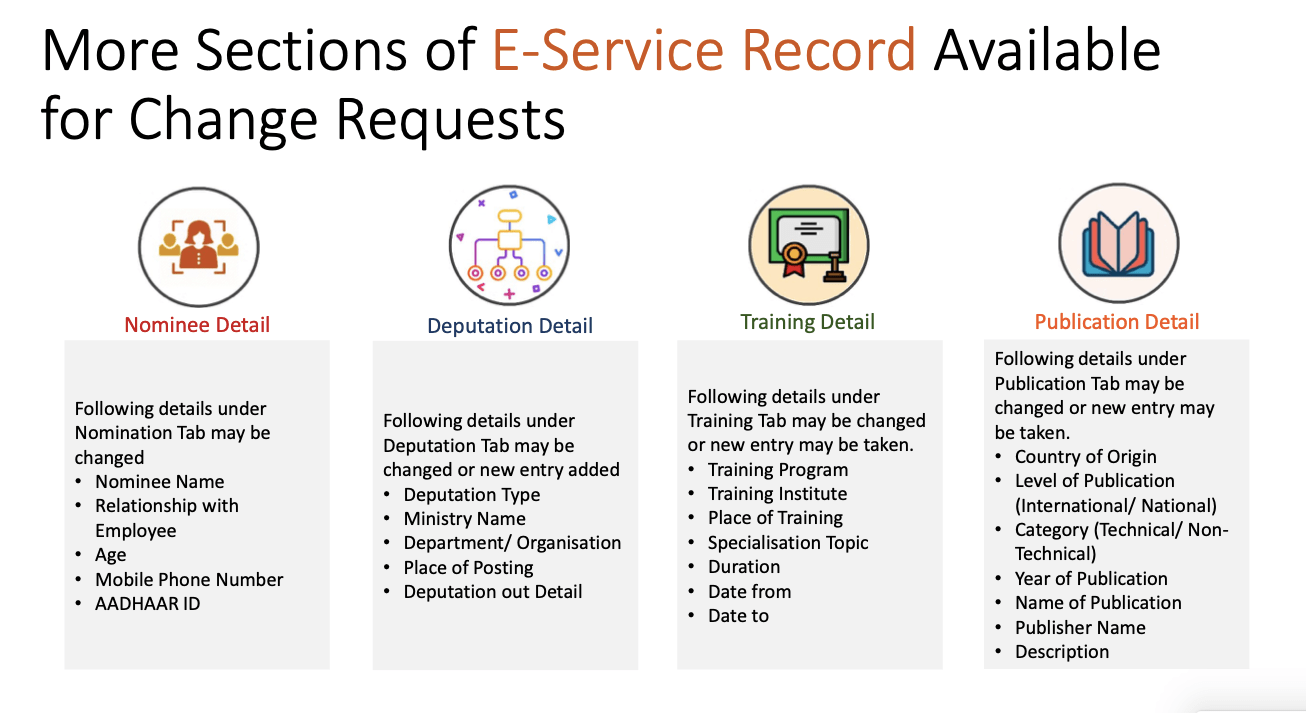
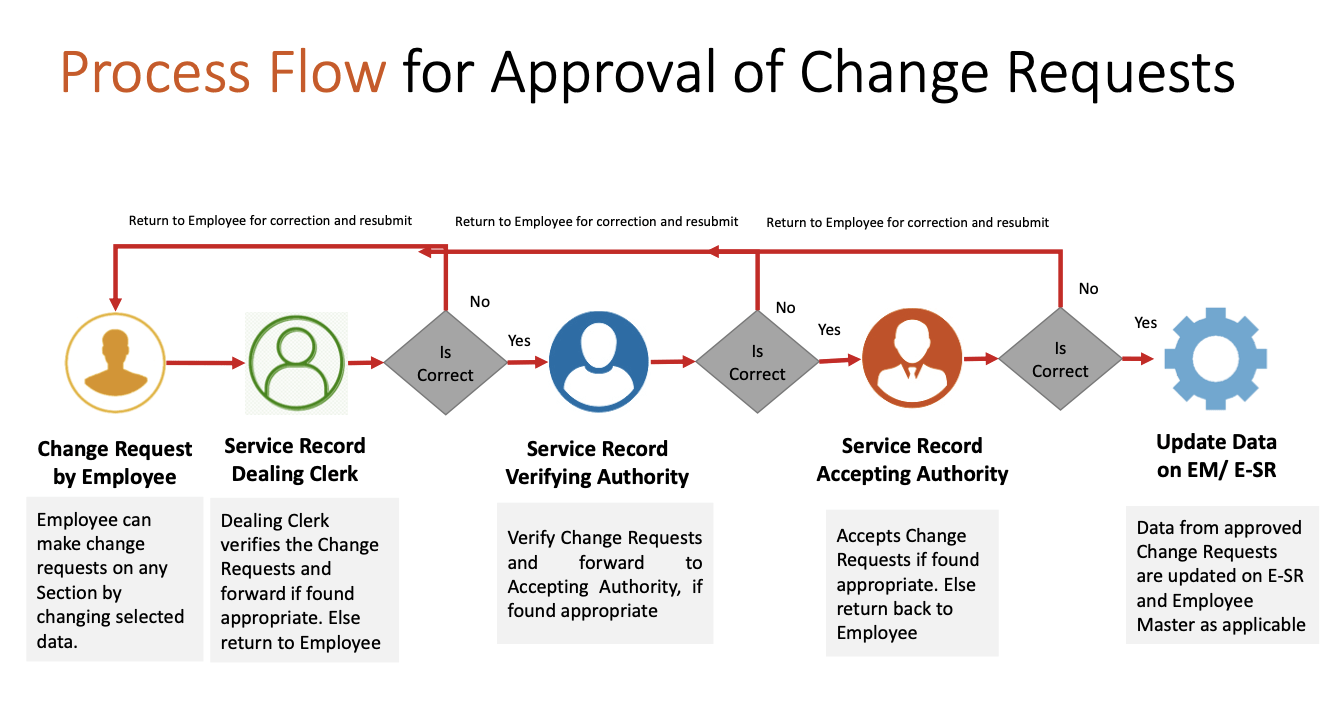
    Employee Self Service (ESS) module enables railway employees to interact with various modules of HRMS including communication regarding change of data.

    Vide Railway Board’s File No. PC-VII/2020/HRMS/25, dated: 14.12.2020, a detailed User Manual for Employee Self Service (ESS) Module of HRMS was circulated.

    HRMS: ESS Tutorial in Hindi
    https://youtu.be/-LSjHHFftN4

    In order to serve as a guide and ready reckoner, a Summary Flow and a detailed User Manual is explained below.

    ESS Flow Summary

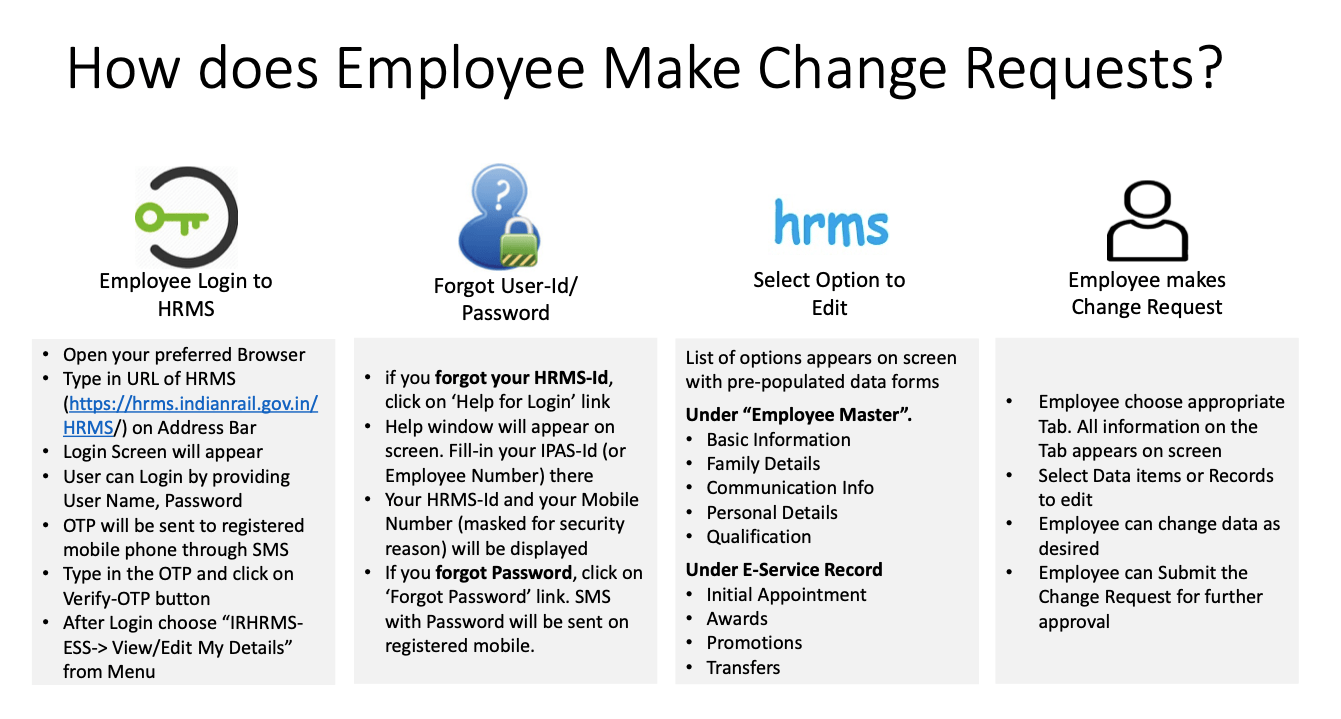
    ESS: Raising a Change Request by Employee
    1. Employee logins to HRMS Application. https://hrms.indianrail.gov.in/HRMS
    2. In the left side panel Right click on the ESS menu and then click on the submenu with name View/Edit My Details.
    3. On next screen employee select respective tab name from drop down that contain list of all allowed tabs for change request.
    4. All information available for that tab will be displayed in read only mode.
    5. To create a change request, employee click on Raise a change request, system ask for reason to edit the data.
    6. There will be an edit button (check box) for each fields in UI, by clicking the button that particular field will editable and user can put his changes.
    7. User need to upload necessary supporting documents for changes they are requesting.
    8. Once all details are done user need to submit thing information to DC by entering Transaction OTP.
    9. Once request is submitted a unique Change Request Id is generated by system for future reference.
    10. Employee can track status of their Change Request Summary Reportunder ESS menu.
    ESS: Verification of Change Request by DC/VA/AA
    1. DC / VA / AA login to HRMS application. https://hrms.indianrail.gov.in/HRMS
    2. In the left side panel Right click on the ESS menu and then click on the submenu as per their role forward change request forDC, Very Change Request forVA and Accept Change Request forAA 
    3. A consolidated Change Request Summary report for pending case with DC/VA/AA is shown.
    4. User click on Process button shown in right most side of each request in report
    5. As user clicks the Process button, details entered by employee are displayed in pop-up window.
    6. Data that are changed by employee are highlighted for ease of identification of users.
    7. User can provide remarks and return change request to employee if change requested is not found OK.
    8. If change request is found OK user can forward/ verify / accept the change request based on their role, with help of Transaction OTP.
    9. Once change request is accepted, original data in Employee Master / eSr will be updated with new data.

    Click image for in-large view…

    Also read

    Compulsory implementation of new Modules of HRMS w.e.f. 01.01.2021

    Rollout of new Modules of HRMS w.e.f. 01.01.2021

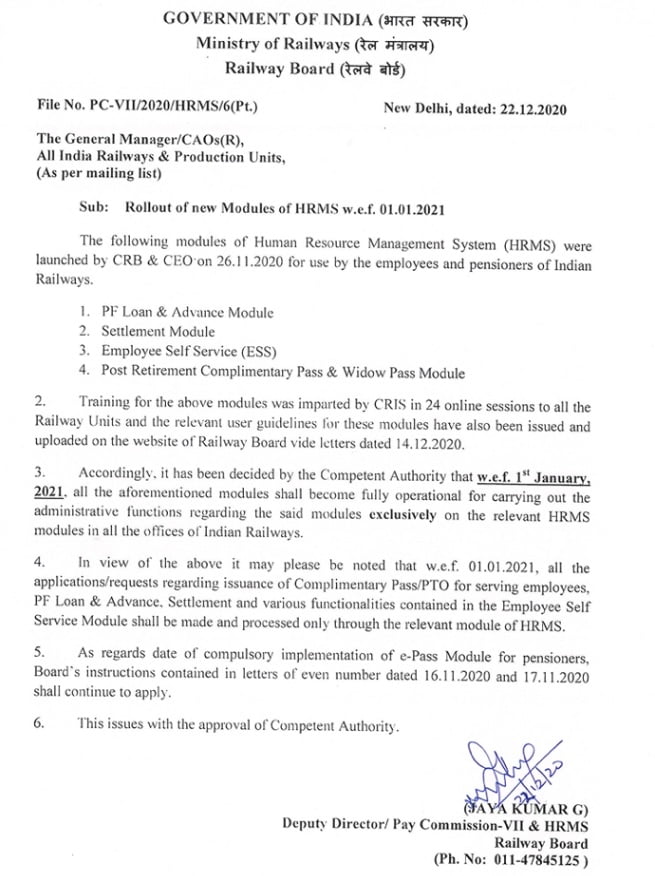
    Vide Railway Board’s File No. PC-VII/2020/HRMS/6(Pt.), dated: 22.12.2020, Railway Board has issued instructions for compulsory use of HRMS modules from 01.01.2021.

    1. The following modules of Human Resource Management System (HRMS) were launched by CRB & CEO Railway Board on 26.11.2020 for use by the employees and pensioners of Indian Railways.

    2. Training for the above modules was imparted by CRIS in 24 online sessions to all the Railway Units and the relevant user guidelines these modules have also been issued and uploaded on the website of Railway Board vide letters dated 14.12.2020.

    3. Accordingly, it has been decided by the Competent Authority that w.e.f. 1st January, 2021, all the aforementioned modules shall become fully operational for carrying out the administrative functions regarding the said modules exclusively on the relevant HRMS modules in all the offices of Indian Railways.

    4. In view of the above it may please be noted that w.e.f. 01.01.2021, all the applications/requests regarding issuance of Complimentary Pass/PTO for serving employees, PF Loan & Advance, Settlement and various functionalities contained in the Employee Self Service Module shall be made and processed only through the relevant module of HRMS.

    5. As regards date of compulsory implementation of e-Pass Module for pensioners, Board’s instructions contained in letters of even number dated 16.11.2020 and 17.11.2020 shall continue to apply.

    6. This issues with the approval of Competent Authority.

    Also read

    User Manual for PF Loan & Advance Module of HRMS Indian Railways

    PF Loan & Advance module of HRMS was launched by CRB & CEO for use across all offices of Indian railways. Online training for operation of the PF Loan & Advance Module was also provided by CRIS to all the employees.

    Vide Railway Board’s letter No. PC-VII/2020/HRMS/16, dated: 14.12.2020, a User Guide and a detailed User Manual for PF Loan & Advance Module of HRMS was circulated.

    PF Loan Application: User Guide

    Employee
    • Go to https://hrms.indianrail.gov.in/HRMS
    • Enter User Id, Password and OTP.
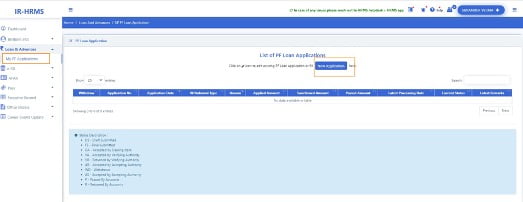
    • Go to Loan and Advances -> My PF Loan Applications menu.
    • Click on “New Application” Button.
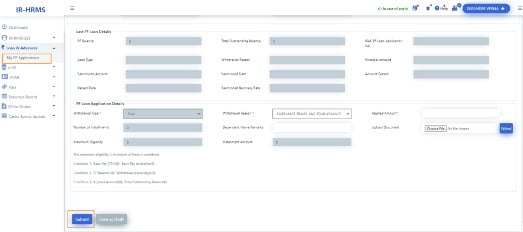
    • Employee’s basic, bank details, last PF loan details and PF balance are shown.
    • Employee selects PF loan type, withdrawal reason, enter amount, remarks and submit.
    PF Loan Dealing Clerk/Verifying Authority/Accepting Authority
    • Click on Loan and Advances ->PF Loan Applications menu
    • List of Applications are shown.
    • Click on Application number.
    • PF loan application details are shown.
    • Enter remarks and press forward/Reject button.
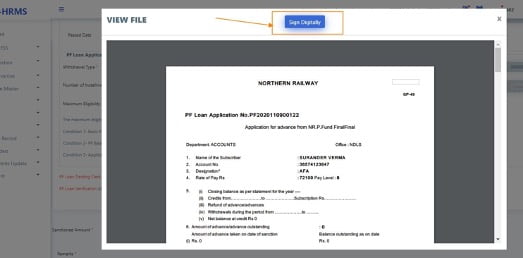
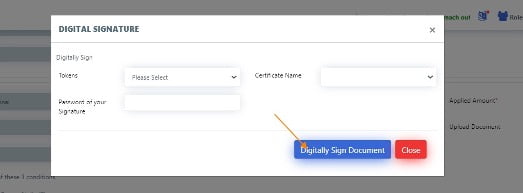
    • Accepting Authority digital sign application and accept. On accepting a PDF file is generated and digitally signed. Same Signed PDF file along with application data is sent to account dept through IPAS system.
    • On every change of status of PF Loan application, a SMS is sent on employee mobile number.
    IPAS system process

    • Whenever application’s status is changes in IPAS system, same is reflected in HRMS application in application list in Loan and Advances -> My PF Loan Applications menu.


    PF Loan and Advances- User Manual 

     For Unit Admin
    1. Go to HRMS application http://10.77.48.16:8080/HRMSDEV/  and login using HRMS ID & Password
    2. Enter OTP as 31120.

    A. PF Loan Dealing Clerk, PF  Loan Verifying and PF Loan Accepting Authority creation

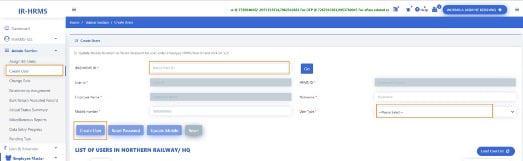
    1. If the user is not already created for HRMS application, go to Admin Section>Create User.
    2. Enter the IPAS ID/ HRMS ID of the user and click on ‘Go’ button
    3. Enter the mobile number of the employee and select user type as ‘LDC’/’LVA’/’LAA’ for PF Loan Dealing Clerk, PF Loan Verifying Authority, PF Loan Accepting Authority respectively  from the dropdown and click on ‘Create User’.
    1. If user already exists in HRMS application, Go to Admin Section >Change Role.
    2. Add role of  ‘LDC’/’LVA’/’LAA’ for PF Loan Dealing Clerk, PF Loan Verifying Authority, PF Loan Accepting Authority respectively  to user.

    B. LDC, LVA, LAA mapping 

    1. Login to HRMS application with Unit Admin’s ID.

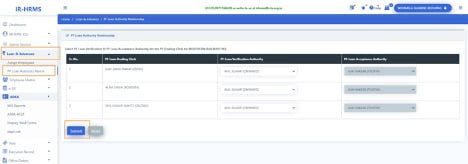
    2. Click on Loan & Advances > PF Loan Authority Matrix

    3. Select Loan Dealing Authority, Loan Verification Authority and Loan Acceptance Authority from the list for the respective unit and click on ‘Submit’ button.

    C. Employee assignment to LDC

    1. Login To HRMS application with Unit Admin’s ID

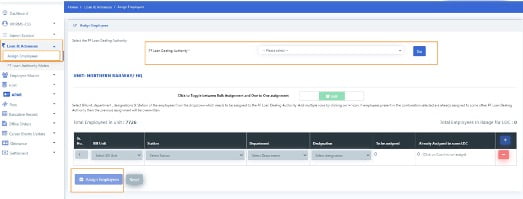
    2. Click on Loan & Advances >Assign Employees

    1. Select PF Loan Dealing Authority from the list to whom Employees needs to be assigned and click on ‘Go’ button.
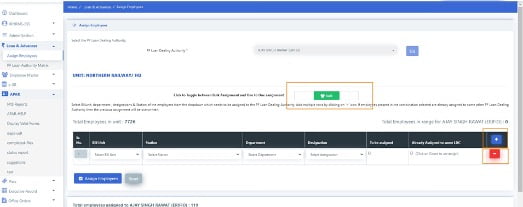
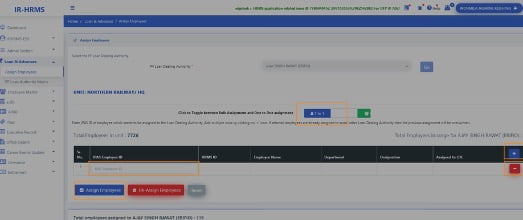
    1. For bulk assignment, select the bill unit, station, department & designation combination. The count of to be assigned employees and those employees which are already assigned to some LDC will be shown. Add more rows by clicking on ‘+’ and remove rows by clicking on ‘-’ icon
    1. Click on ‘Assign Employees’ button to assign selected employees to the LDC.
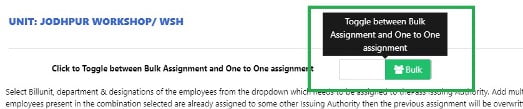
    2. For Assignment based on employee ID, click on the icon shown in below image
    1. Enter the HRMS ID/IPAS Employee ID of the employee and press ‘Tab’ key
    1. Add more rows by clicking on ‘+’ and remove rows by clicking on ‘-’ icon.
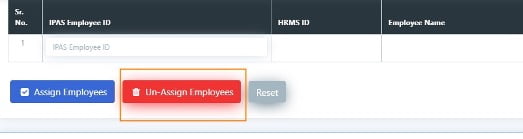
    2. Click on ‘Assign Employees’ button to assign the employees to the selected LDC and ‘Unassign Employees’ button to unassign employees from the LDC( if any assigned to them).

    Note: If employee who is being assigned to a LDC is already assigned to some other LDC, then the previous assignment will be overwritten automatically. There is no need to first unassign the employee from the current LDC and then assign to new LDC.

    1. To see the list of all employees assigned to LDC, click on ‘Load List’ button. List of all assigned employees will be fetched.
    1. To unassign all employees from LDC, click on ‘Unassign All’. All the employees will be removed from selected LDC.
             For PF Applying Employee

    1.         Login To HRMS application with Employee’s ID

    2.         Click on Loan & Advances > My PF Applications

    3.         Click on New Application Button to apply for PF Loan or Click on Status button to update the in Draft or rejected application if any.  

    1. Fill all the mandatory fields and upload the document justifying the PF Loan Withdrawal Reason.
    1. Click on submit Button.  
    2. Enter the OTP as 20131.
    3. Click ok.

    After successful submission the Application Number gets generated.

             For PF Loan Dealing Clerk
    1. Login To HRMS application with PF Loan Dealing Clerk’s ID
    2. Switch user role to LDC, if having multiple roles. 3.          Click on Loan & Advances > PF Loan Applications
    3. Click on the application number to open the applied application details.
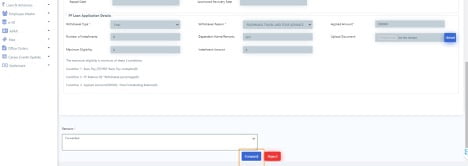
    1. Check for the details filled, accordingly put remarks and forward or reject the application by clicking on the Forward or Reject button respectively.
             For PF Loan Verification Authority
    1. Login to HRMS application with PF Loan Verifying Authority’s ID.
    2. Switch user role to LVA , if having multiple roles.
    3. Click on Loan & Advances > PF Loan Applications
    1. Click on the application number to open the applied application details.
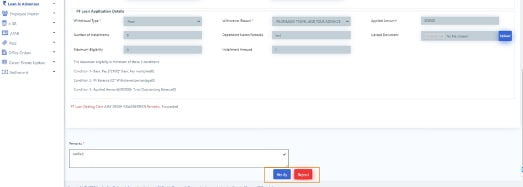
    1. Check for the details filled, accordingly put remarks and verify or reject the application by clicking on the Verify or Reject button respectively.

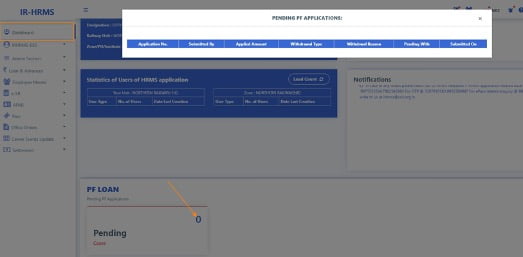
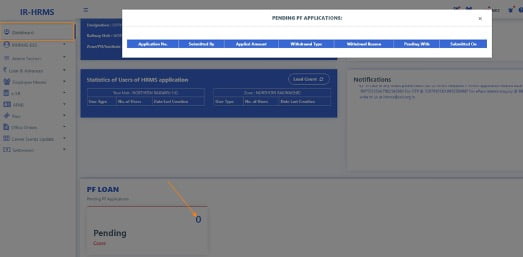
    Note: PF Loan Verifying Authority may check the pending applications with assigned PF Loan Dealing Clerks ,  which have missed processing time by clicking on the pending cases in PF Loan Section on LVA’s Dashboard.

             For PF Loan Accepting Authority
    1. Login To HRMS application with Loan Accepting Authority’s ID.
    2. Switch user role to LAA , if having multiple roles.
    3. Click on Loan & Advances > PF Loan Applications
    1. Click on the application number to open the applied application details.
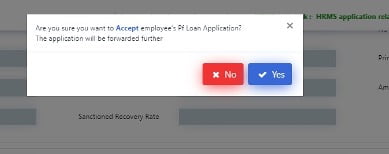
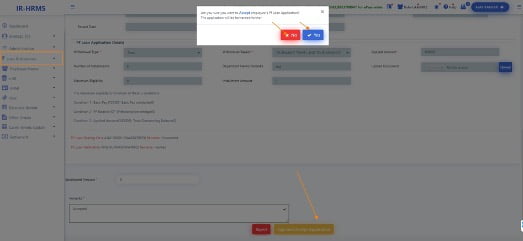
    2. Check for the details filled, accordingly put remarks, sanctioned amount and accept or reject the application by clicking on the Sign and Accept Application or Reject button respectively.
    3. After successful digital signing by PF loan Accepting authority the application moves to accounts.

    Note: PF Loan Accepting Authority may check the pending applications with assigned PF Loan Dealing Verifying  authority , which have missed processing time by clicking on the pending cases in PF Loan Section on LAA’s Dashboard.

    HRMS Helpdesk:

    In case of any issues please reach out to HRMS helpdesk…

    • HRMS application related issue @ 7786940452 ,9971535534,7982542883
    • For OTP @ 7267910583,9953780947
    • For ePass related enquiry @ 9891643886,9069161539,9971168228 or
    • Write to us at irhrms@cris.org.in  

    Also Read…

    User Guide for Post Retirement Complimentary Pass & Widow Pass Module on HRMS

    Post Retirement Complimentary Pass & Widow Pass (PRCP & WP) module of HRMS was launched by CRB & CEO for use across all offices of Indian railways. Online training for operation of the PRCP & WP Module was also provided by CRIS to all the employees.

    Vide Railway Board’s Letter No. PC-VII/2020/HRMS/6, dated 14.12.2020, A User Guide for Post Retirement Complimentary Pass & Widow Pass Module of HRMS was circulated.

    User Guide for PRCP/Widow Pass for Railway Employees

    1. Mobile Change by Retired Railway Employee 

    Retired Railway Employee should follow below steps to change/register mobile number on HRMS.

    • Go to https://hrms.indianrail.gov.in/HRMS
    • Click on link “Retired Employee Mobile Change.
    • Fill PPO number, date of birth and name.
    • Assigned HRMS Id and mobile number in the system shall be displayed.
    • Click on “Change mobile number” link to enter new mobile, select pass issuing railway and upload document and submit.

    For detailed guide Read
    How to Change Mobile Number on HRMS- Retired Railway Employees?

    Pass Clerk should accept the mobile number after verifying the PPO Number

    • Select PPO number
    • Check details and accept mobile number.
    2. Entering Retiree data

    Pass Clerk should enter below information for retired railway employees.

    • Enter PPO number or search employee based on railway, division/workshop, date of birth or name.
    • Enter mandatory information and upload document
    • Submit it.

    Retired Employee should confirm, details submitted by the Pass Clerk.

    • Confirm or return data.

    Pass Issuing Authority (PIA) can accept or reject data submitted by the Pass clerk.

    • Accept or Reject data.
    3. Pass Application

    Also Read….
    1. e-Pass Implementation Process on HRMS: First step to know?
    2. How to apply for Railway Pass online?

    4. Issue Pass
    • Pass Clerk and PIA will check application and issue pass.
    • Pass Details shall be to user’s mobile number as SMS.
    5. Ticket Booking
    • Generate OTP for ticket booking in HRMS we application.
    • Go to PRS ticket count and IRCTC web site.
    • Enter Pass and OTP details for each passenger.

    Also Read… How to book e-Ticket on IRCTC with ePass?

    HRMS Helpdesk:

    In case of any issues please reach out to HRMS helpdesk…

    • HRMS application related issue @ 7786940452 ,9971535534,7982542883
    • For OTP @ 7267910583,9953780947
    • For ePass related enquiry @ 9891643886,9069161539,9971168228 or
    • Write to us at irhrms@cris.org.in  

    e-Pass Implementation Process on HRMS: First step to know

    e-Pass on HRMS

    With a view to promote digital/paperless ticketing, E-Privilege Pass/PTO Module of HRMS has been launched on 10.08.2020 and the same has been operationalised across all Indian Railways. In order to facilitate the same, data entry in two modules of HRMS. Employee Master and E-SR has almost been completed across all Zonal Railways.

    Implementation process for e-Pass on HRMS
    1. Unit Admin ( Sr.DPO in Division and Dy.CPO/ SPO in other units) has to assign roles of Pass Admin (Branch Officers).
    2. Pass Admin has to assign access role of Pass Issuing Authority (PIA) and Pass Clerk to concerned staff. Pass Clerks are then tagged to PIA.
    3. Pass Admin has to assign Employees to PIA . Both group and one to one assignment provisions are available.
    4. Pass Clerk has to enter already availed Manual Pass data of employee.
    5. Availed manual pass data is available to Employee for confirmation Employee can accept/return Manual Pass data to pass clerk for rectification. It needs final acceptance of employee.
    6. Declaration in Family tab of Employee master is available to employee. Taking help of this Employee will submit family declaration for pass.
    7. Pass Clerk may accept/reject family declaration for Pass submitted by employee. It has to be finally accepted by Pass clerk.
    8. Employee can submit his e-Pass application. SMS will be sent to Employee and his/her PIA on submission of application.
    9. Any Pass Clerk under employee’s PIA can process employee’s pass application. If found correct it is forwarded to PIA.
    10. PIA issues the e- Pass. SMS will be sent to employee on pass generation.
    11. Employee gets the generated e-pass and can use it for ticket booking at counter or online. Employee has to generate an OTP which is to be given as input /provided to ticket issuing authority while booking ticket.
    12. For both Reserved/Unreserved journey tickets are to be booked.
    13. At the time of booking ticket by employee, details of pass / earlier bookings are verified from HRMS system and ticket is booked.
    14. Employee can also apply for cancellation of pass/ split pass online.

    Source: Indian Railway

    Also Read:

    Other Important things to know by Railway Pass Users
    • Those employees who have once switched to E-Privilege Pass/PTO module shall not be able to avail physical passes.
    • Rules pertaining to booking of ticket. revalidation, usage. charging etc regarding privilege pass/PTOs in case of physical passes/PTOs shall remain same n e-privilege passes/PTO. with minor operational amendments. where ever required.
    • No convenience fee shall be levied by IRCTC in case of online booking of tickets using E-Privilege Pass/PTO.