User Depot Module (UDM): Getting Started User Manual

Getting Started: User Manual for User Depot Module

Here is the complete User Manual (Guide) for Getting Started with the User Depot Module of Indian Railways.

Download Getting Started User Depot Module Guide (in PDF)
2.1 Login –> NEW IMMS (UDM):

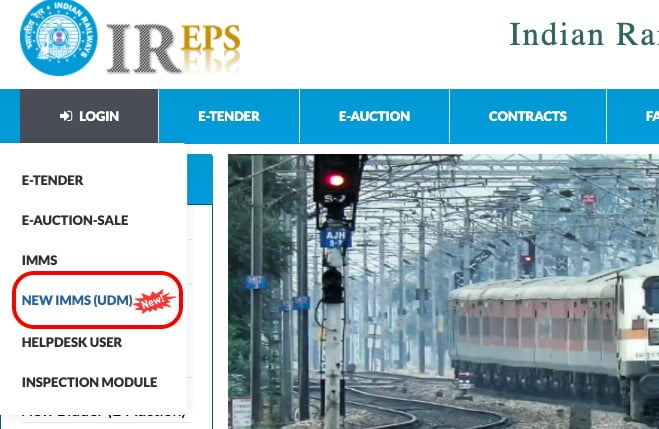
For using “User Depot Module”(UDM) in actual Production environment, on Home Page of IREPS Portal https://ireps.gov.in, user is required to select Login –> NEW IMMS (UDM):

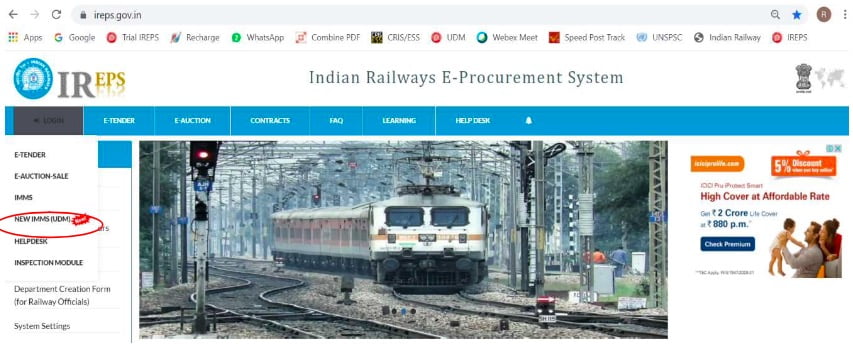
For Trials / Testing, user is required to select Login –> NEW IMMS (UDM) on Home Page of IREPS Portal https://trial.ireps.gov.in which explicitly mentions TRIAL on top portion as under:

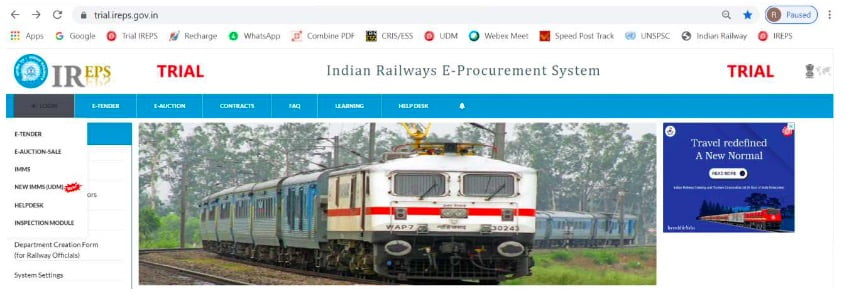
2.2 Click –> Login:

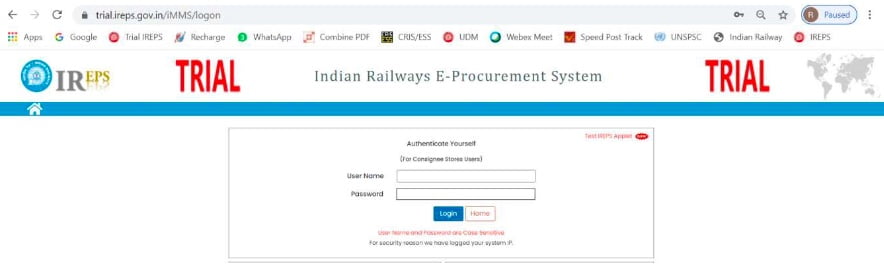
On the screen shown below, User is required to enter his User Name & Password and Click –> Login:

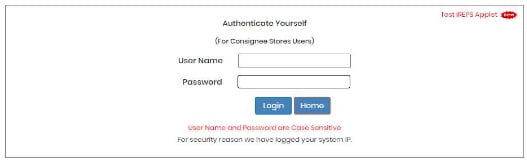
For Production site of UDM available on Portal https://ireps.gov.in, all officers of the Railways wherein UDM has been made live, have been given access using their existing User-Name / Password on IREPS (as used by them for Works/Stores Tenders). Such Officers having Admin rights can create new posts / users for using UDM, following the standard procedure of creating Posts / Users in IREPS. After Posts/Users are created, further action for mapping of Consignee Code, IMMS ID & Sub-Consignee is to be done as per Para 19 of this User Manual. It is clarified that UserID/Password currently being used on IMMS cannot be used for this UDM. For Trial site of UDM available on Portal https://trial.ireps.qov.in, users will be created by CRIS after getting user details.

Login Screen on https://trial.ireps.qov.in explicitly mentions TRIAL on top portion as under:

2.3 Attach Digital Signature Certificate and Login

Now click Tab –>Attach Digital Signature Certificate and Login. The following Screen will appear:

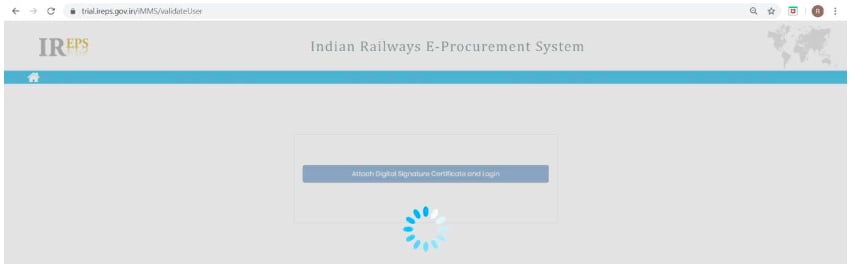
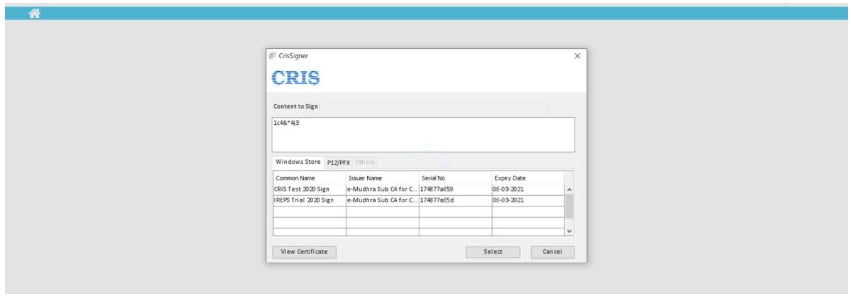
2.4 Click –> Select

After waiting for few moments, screen shown below will be available on which User is required to select his DSC and Click –> Select… System may ask for User Name / Password of Digital Token of the User, please provide the same. For Test DSC, User Name / Password of User’s Digital Token will not be asked.

2.5 Home Page

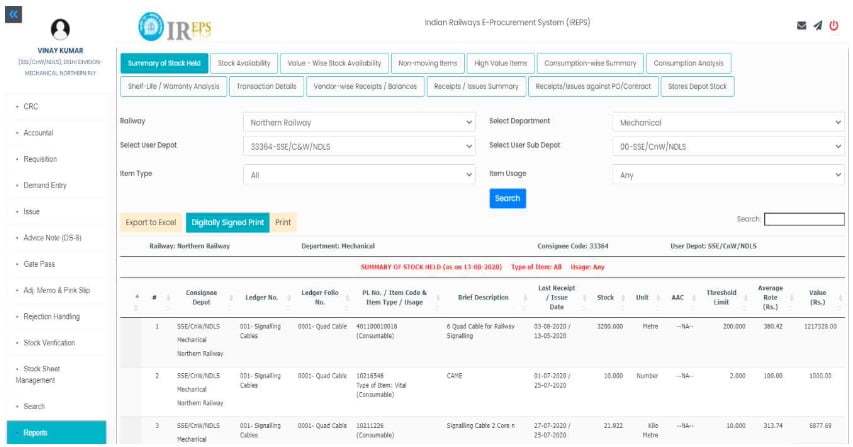
Now, User is ready to use “User Depot Module” (UDM) and following Home Page will appear for the Transaction Users who have Consignee Codes mapped against their login:

2.6

Every User who wishes to make transaction on User Depot Module has to be mapped to a Consignee Code. Each Consignee Code can have as many Transaction Users, as one wishes. One will be the Main Depot User while other Users will be created by Main Depot User (with the approval of Officer) as a Sub-Depot/Sub-Consignee User as per Para 19.2 to 19.8 below. Mapping of Main Depot User to a Consignee Code will be done by the Administrator/Officer concerned as per Para 19.13 below.

2.7

Further, in order to be enable receipt & accountal of material from Stores Depot, Users(Main Depot User as well as Sub-Depot/Sub-Consignee User) will have to be a registered user on existing IMMS Application. Mapping of Users (Main Depot User as well as Sub-Depot/Sub-Consignee User) with IMMS User ID will be done by the concerned User himself as per Para 19.9 to 19.11 below.

2.8

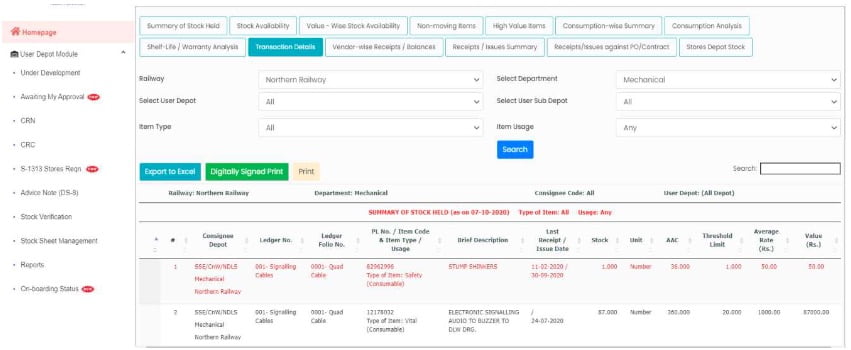
For other Users who are not Transaction Users i.e. Officers etc., who do not have Consignee Code mapped with them, will see following Home screen:

Also Read

  1. Introduction: User Manual for “User Depot Module” (UDM)
  2. Getting Started: User Manual for User Depot Module (UDM)
  3. DMTR (Daily Material Transaction Report): User Manual for UDM Module

Introduction: User Manual for “User Depot Module” (UDM)- Indian Railway

Introduction: User Depot Module (UDM)

  1. This “User Depot Module” (UDM) intends to computerize various material management activities at the end of User Depots i.e. Consignees. This will enable authorized user for:
    • Creation of Computerized Ledgers & DMTRs (Daily Material Transaction Reports) for recording receipt & issue transactions by authorized Users.
    • Receipt of Stores by User Depots/Consignees against Purchase Orders/GeM Orders/Contracts wherein material to be delivered directly to Consignees, against Cash Purchase/lmprest, from Shops, from Other User Depots/Consignees on Loan/Assistance basis, from other Field Units, against Book Transfer within same User Depot, from Stores Depots against S-1313 (Combined Requisition-cum-lssue Note) / S-1830 (Imprest Issues) / Non-Stock R-Notes/ Sale Issue Notes.
    • Issue of material to End User, to other User Depots/Consignees on Assistance/Loan basis, to Contractors, on Book Transfer within same User Depot, to Stores Depots on Advice Note, to Purchasers for Scrap Deliveries etc.
    • Placing Requisitions on Stores Depots for Stock Items (S-1313 as well as Imprest Demands)
    • Placing Demands on User Depots/Consignees, Issue Note, Gate Pass, Adjustment Memo etc.
    • Transacting with Non-Computerized User Depots/Consignees w.r.t. receipt & issue of material.
    • Integration of payment activities on IPAS with digitally signed Consignee Receipt Note (CRN) / Consignee Receipt Certificate (CRC) being generated in “User Depot Module”, once the Module gets stabilized.
    • Rejection Handling – both Initial Rejection as well as Warranty Rejection
    • Stock Verification (Accounts / Departmental) & Stock Sheet Management.
    • Accessing several MIS/Exception Reports.
    • Real time information exchange among various stake-holders leading to enhanced operational efficiency, economy and transparency.
  1. Any user for this User Depot Module for a particular Railway or Department or Unit can be created by any concerned officer (JAG & above) or by any other concerned officer who has Administrator rights or by Departmental Administrator.
    • As elaborated at Para 19 of this User Manual, every User who wishes to make transaction on User Depot Module has to be mapped to a Consignee Code.
    • Each Consignee Code can have as many Transaction Users, as one wishes. One will be the Main Depot User while other Users will be created by Main Depot User (with the approval of Officer) as a Sub-Depot/Sub-Consignee User.
    • Mapping of Main Depot User to a Consignee Code will be done by the Administrator/Officer concerned.
    • Further, in order to be enable receipt & accountal of material from Stores Depot, Users(Main Depot User as well as Sub-Depot/Sub-Consignee User) will have to be a registered user on existing IMMS Application.
    • Mapping of Users (Main Depot User as well as Sub-Depot/Sub-Consignee User) with IMMS User ID will be done by the concerned User himself.
    • Officers cannot make basic transactions but they will have authority to approve CRN / Advice Note of Users of their Department and they can view various Reports / Transactions etc. of various Users.
    • Officers need not to be linked with Consignee Code.
  1. For using this UDM, user has to possess a valid Class-2 or Class-3 Digital Signature Certificate (DSC) which is being used on IREPS / SPARROW etc.
    • For installation of DSC, standard procedure available in Learning Centre & System Settings options under Learning or Quick Links or Assistance Tab on https://ireps.gov.in or https://trial.ireps.gov.in can be used.
    • Users may seek assistance of existing IREPS Users for assistance regarding DSC.
    • Also, users have to download & install CRIS signer on their PC (available at https://ireps.gov.in/ireps/pki/CrisSigner.msi), if not already installed.
    • For testing purpose, CRIS will be providing Test DSC, but users can change this Test DSC with their own DSC using the standard procedures referred above.

Download Introduction: User Manual for “User Depot Module” (UDM) (in PDF)

Also Read:

  1. Introduction: User Manual for “User Depot Module” (UDM)
  2. Getting Started: User Manual for User Depot Module (UDM)
  3. DMTR (Daily Material Transaction Report): User Manual for UDM Module

User Manual for Employee Self Service Module of HRMS – Indian Railway

Employee Self Service module of HRMS was launched for use across all offices of Indian railways. Online training for operation of the Employee Self Service Module was also provided by CRIS to all the employees.

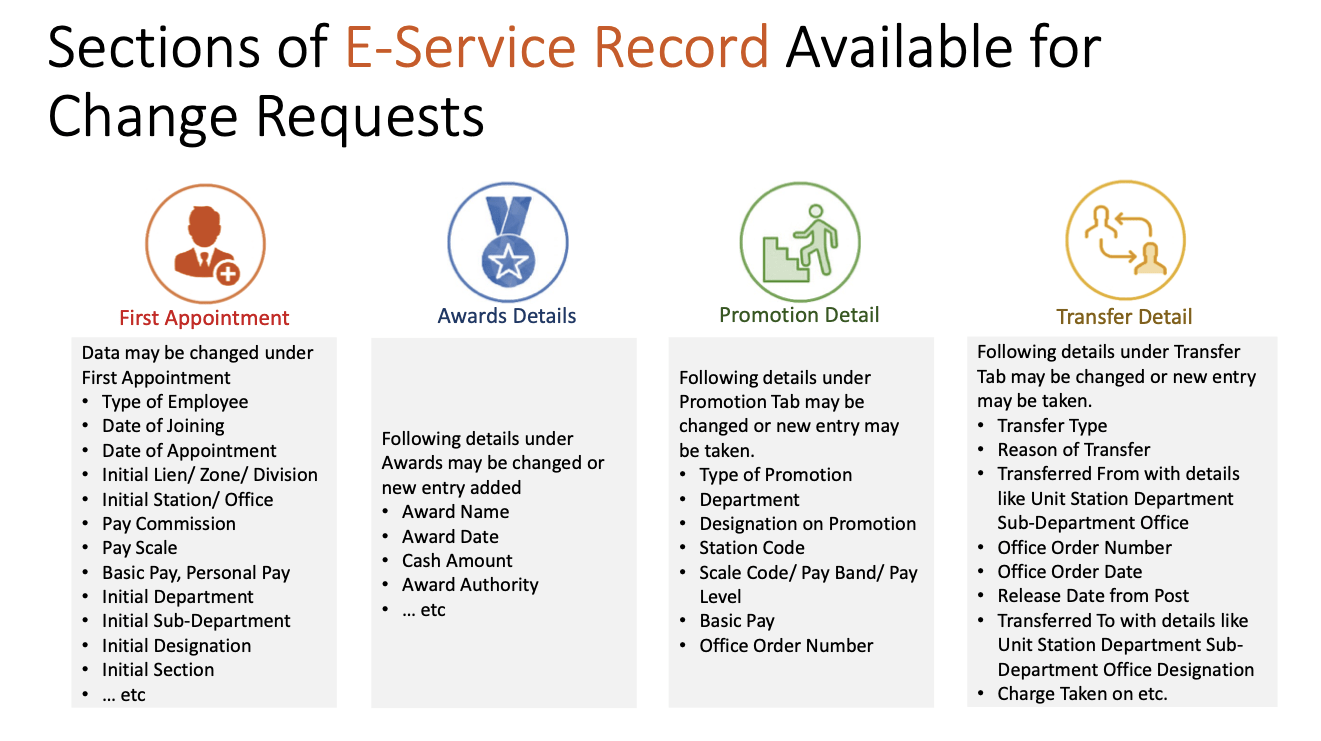
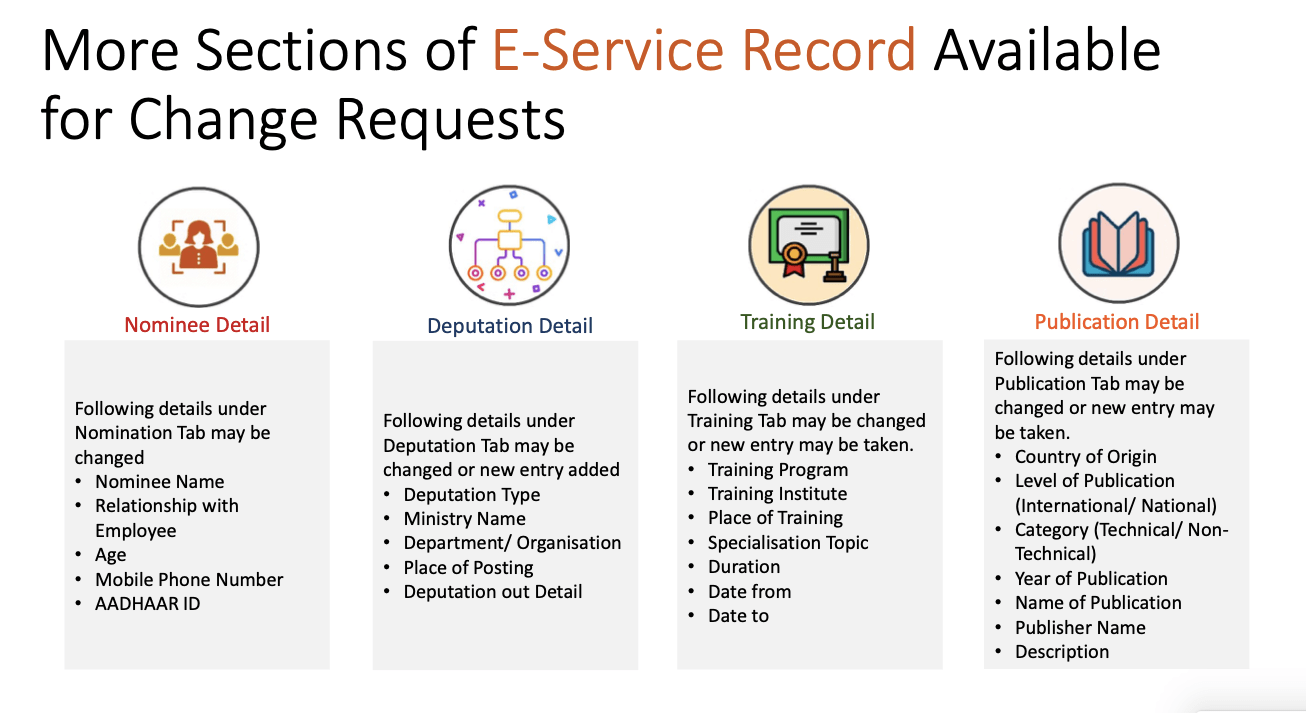
Employee Self Service (ESS) module enables railway employees to interact with various modules of HRMS including communication regarding change of data.

Vide Railway Board’s File No. PC-VII/2020/HRMS/25, dated: 14.12.2020, a detailed User Manual for Employee Self Service (ESS) Module of HRMS was circulated.

HRMS: ESS Tutorial in Hindi
https://youtu.be/-LSjHHFftN4

In order to serve as a guide and ready reckoner, a Summary Flow and a detailed User Manual is explained below.

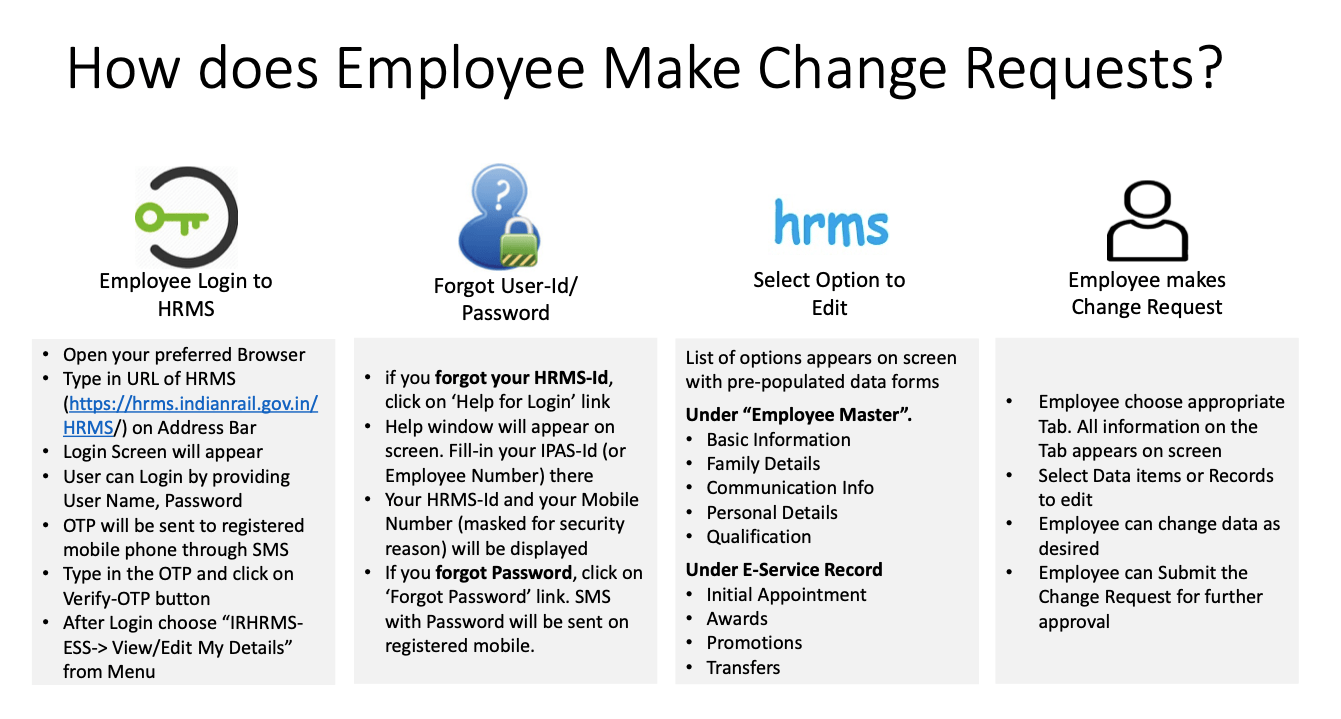
ESS Flow Summary

ESS: Raising a Change Request by Employee
  1. Employee logins to HRMS Application. https://hrms.indianrail.gov.in/HRMS
  2. In the left side panel Right click on the ESS menu and then click on the submenu with name View/Edit My Details.
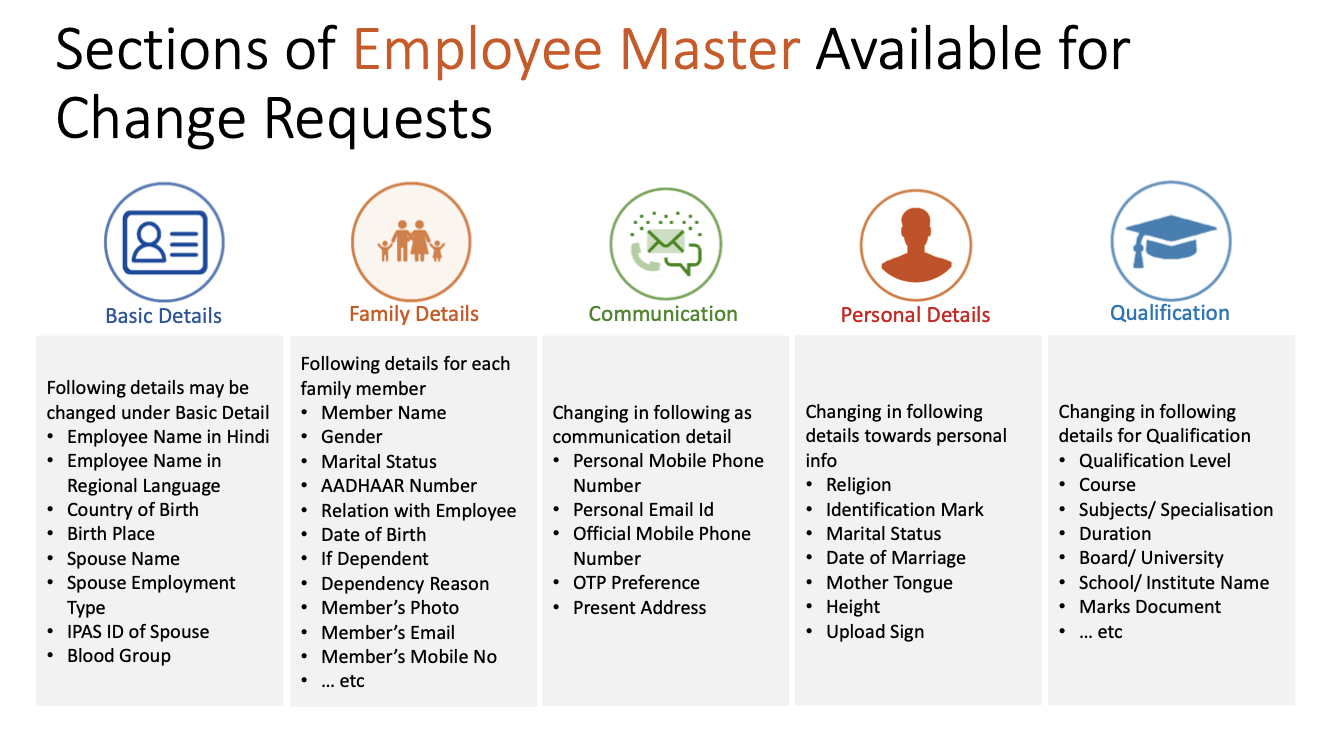
  3. On next screen employee select respective tab name from drop down that contain list of all allowed tabs for change request.
  4. All information available for that tab will be displayed in read only mode.
  5. To create a change request, employee click on Raise a change request, system ask for reason to edit the data.
  6. There will be an edit button (check box) for each fields in UI, by clicking the button that particular field will editable and user can put his changes.
  7. User need to upload necessary supporting documents for changes they are requesting.
  8. Once all details are done user need to submit thing information to DC by entering Transaction OTP.
  9. Once request is submitted a unique Change Request Id is generated by system for future reference.
  10. Employee can track status of their Change Request Summary Reportunder ESS menu.
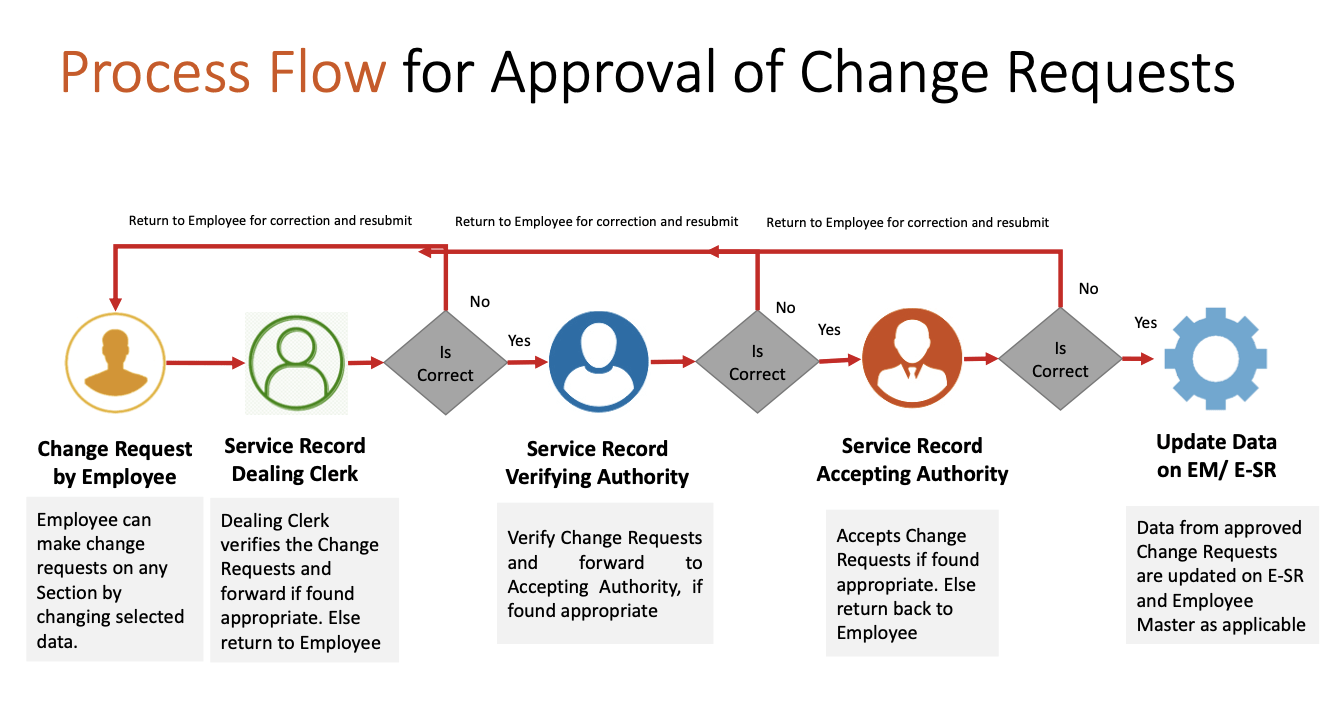
ESS: Verification of Change Request by DC/VA/AA
  1. DC / VA / AA login to HRMS application. https://hrms.indianrail.gov.in/HRMS
  2. In the left side panel Right click on the ESS menu and then click on the submenu as per their role forward change request forDC, Very Change Request forVA and Accept Change Request forAA 
  3. A consolidated Change Request Summary report for pending case with DC/VA/AA is shown.
  4. User click on Process button shown in right most side of each request in report
  5. As user clicks the Process button, details entered by employee are displayed in pop-up window.
  6. Data that are changed by employee are highlighted for ease of identification of users.
  7. User can provide remarks and return change request to employee if change requested is not found OK.
  8. If change request is found OK user can forward/ verify / accept the change request based on their role, with help of Transaction OTP.
  9. Once change request is accepted, original data in Employee Master / eSr will be updated with new data.

Click image for in-large view…

Also read

Compulsory implementation of new Modules of HRMS w.e.f. 01.01.2021

Rollout of new Modules of HRMS w.e.f. 01.01.2021

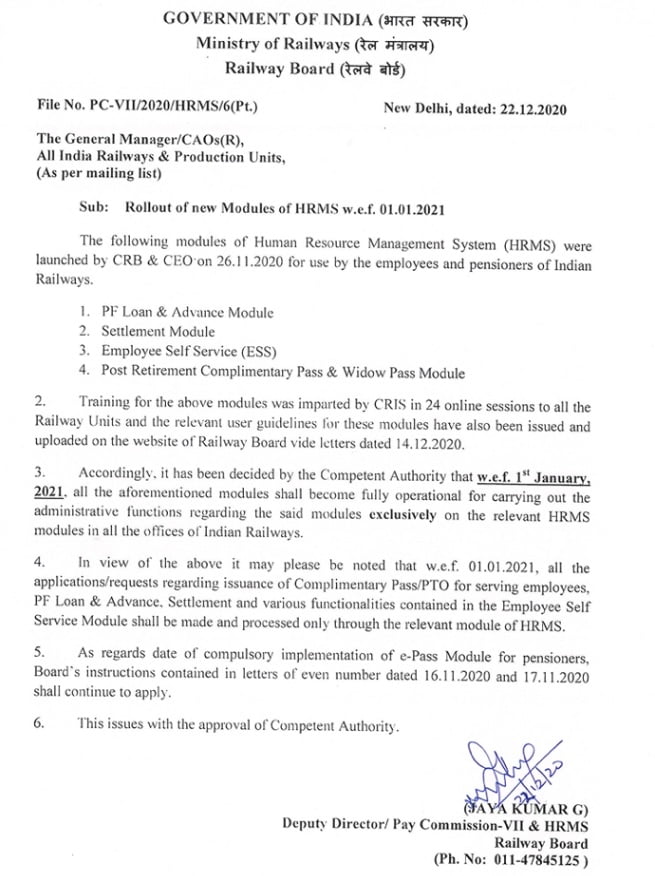
Vide Railway Board’s File No. PC-VII/2020/HRMS/6(Pt.), dated: 22.12.2020, Railway Board has issued instructions for compulsory use of HRMS modules from 01.01.2021.

  1. The following modules of Human Resource Management System (HRMS) were launched by CRB & CEO Railway Board on 26.11.2020 for use by the employees and pensioners of Indian Railways.

2. Training for the above modules was imparted by CRIS in 24 online sessions to all the Railway Units and the relevant user guidelines these modules have also been issued and uploaded on the website of Railway Board vide letters dated 14.12.2020.

3. Accordingly, it has been decided by the Competent Authority that w.e.f. 1st January, 2021, all the aforementioned modules shall become fully operational for carrying out the administrative functions regarding the said modules exclusively on the relevant HRMS modules in all the offices of Indian Railways.

4. In view of the above it may please be noted that w.e.f. 01.01.2021, all the applications/requests regarding issuance of Complimentary Pass/PTO for serving employees, PF Loan & Advance, Settlement and various functionalities contained in the Employee Self Service Module shall be made and processed only through the relevant module of HRMS.

5. As regards date of compulsory implementation of e-Pass Module for pensioners, Board’s instructions contained in letters of even number dated 16.11.2020 and 17.11.2020 shall continue to apply.

6. This issues with the approval of Competent Authority.

Also read

User Manual for PF Loan & Advance Module of HRMS Indian Railways

PF Loan & Advance module of HRMS was launched by CRB & CEO for use across all offices of Indian railways. Online training for operation of the PF Loan & Advance Module was also provided by CRIS to all the employees.

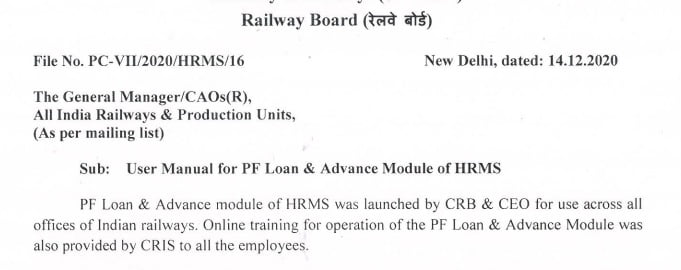
Vide Railway Board’s letter No. PC-VII/2020/HRMS/16, dated: 14.12.2020, a User Guide and a detailed User Manual for PF Loan & Advance Module of HRMS was circulated.

PF Loan Application: User Guide

Employee
  • Go to https://hrms.indianrail.gov.in/HRMS
  • Enter User Id, Password and OTP.
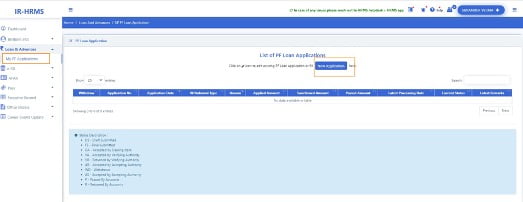
  • Go to Loan and Advances -> My PF Loan Applications menu.
  • Click on “New Application” Button.
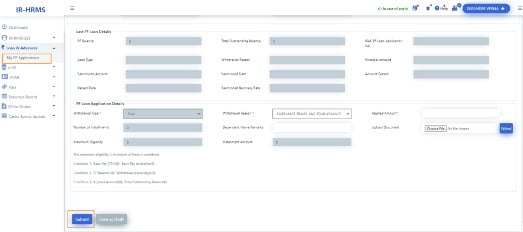
  • Employee’s basic, bank details, last PF loan details and PF balance are shown.
  • Employee selects PF loan type, withdrawal reason, enter amount, remarks and submit.
PF Loan Dealing Clerk/Verifying Authority/Accepting Authority
  • Click on Loan and Advances ->PF Loan Applications menu
  • List of Applications are shown.
  • Click on Application number.
  • PF loan application details are shown.
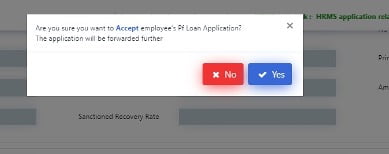
  • Enter remarks and press forward/Reject button.
  • Accepting Authority digital sign application and accept. On accepting a PDF file is generated and digitally signed. Same Signed PDF file along with application data is sent to account dept through IPAS system.
  • On every change of status of PF Loan application, a SMS is sent on employee mobile number.
IPAS system process

• Whenever application’s status is changes in IPAS system, same is reflected in HRMS application in application list in Loan and Advances -> My PF Loan Applications menu.


PF Loan and Advances- User Manual 

 For Unit Admin
  1. Go to HRMS application http://10.77.48.16:8080/HRMSDEV/  and login using HRMS ID & Password
  2. Enter OTP as 31120.

A. PF Loan Dealing Clerk, PF  Loan Verifying and PF Loan Accepting Authority creation

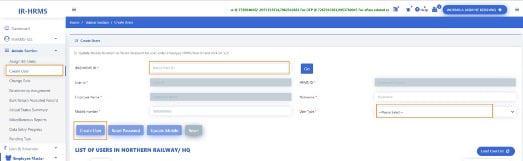
  1. If the user is not already created for HRMS application, go to Admin Section>Create User.
  2. Enter the IPAS ID/ HRMS ID of the user and click on ‘Go’ button
  3. Enter the mobile number of the employee and select user type as ‘LDC’/’LVA’/’LAA’ for PF Loan Dealing Clerk, PF Loan Verifying Authority, PF Loan Accepting Authority respectively  from the dropdown and click on ‘Create User’.
  1. If user already exists in HRMS application, Go to Admin Section >Change Role.
  2. Add role of  ‘LDC’/’LVA’/’LAA’ for PF Loan Dealing Clerk, PF Loan Verifying Authority, PF Loan Accepting Authority respectively  to user.

B. LDC, LVA, LAA mapping 

1. Login to HRMS application with Unit Admin’s ID.

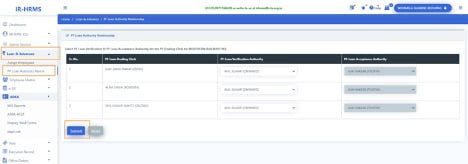
2. Click on Loan & Advances > PF Loan Authority Matrix

3. Select Loan Dealing Authority, Loan Verification Authority and Loan Acceptance Authority from the list for the respective unit and click on ‘Submit’ button.

C. Employee assignment to LDC

1. Login To HRMS application with Unit Admin’s ID

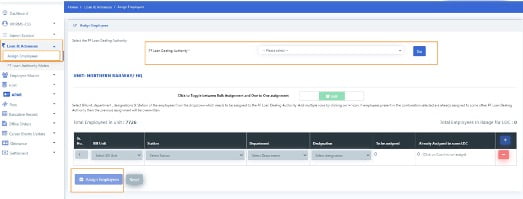
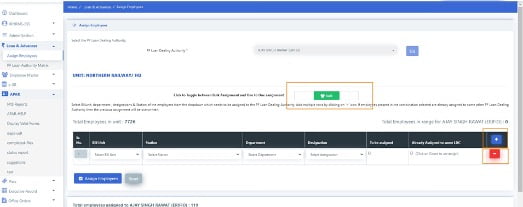
2. Click on Loan & Advances >Assign Employees

  1. Select PF Loan Dealing Authority from the list to whom Employees needs to be assigned and click on ‘Go’ button.
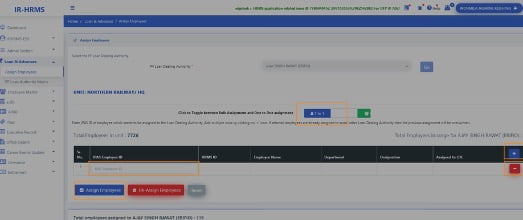
  1. For bulk assignment, select the bill unit, station, department & designation combination. The count of to be assigned employees and those employees which are already assigned to some LDC will be shown. Add more rows by clicking on ‘+’ and remove rows by clicking on ‘-’ icon
  1. Click on ‘Assign Employees’ button to assign selected employees to the LDC.
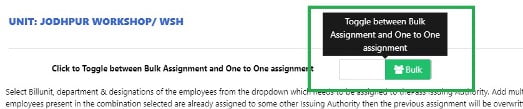
  2. For Assignment based on employee ID, click on the icon shown in below image
  1. Enter the HRMS ID/IPAS Employee ID of the employee and press ‘Tab’ key
  1. Add more rows by clicking on ‘+’ and remove rows by clicking on ‘-’ icon.
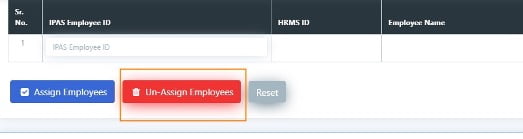
  2. Click on ‘Assign Employees’ button to assign the employees to the selected LDC and ‘Unassign Employees’ button to unassign employees from the LDC( if any assigned to them).

Note: If employee who is being assigned to a LDC is already assigned to some other LDC, then the previous assignment will be overwritten automatically. There is no need to first unassign the employee from the current LDC and then assign to new LDC.

  1. To see the list of all employees assigned to LDC, click on ‘Load List’ button. List of all assigned employees will be fetched.
  1. To unassign all employees from LDC, click on ‘Unassign All’. All the employees will be removed from selected LDC.
         For PF Applying Employee

1.         Login To HRMS application with Employee’s ID

2.         Click on Loan & Advances > My PF Applications

3.         Click on New Application Button to apply for PF Loan or Click on Status button to update the in Draft or rejected application if any.  

  1. Fill all the mandatory fields and upload the document justifying the PF Loan Withdrawal Reason.
  1. Click on submit Button.  
  2. Enter the OTP as 20131.
  3. Click ok.

After successful submission the Application Number gets generated.

         For PF Loan Dealing Clerk
  1. Login To HRMS application with PF Loan Dealing Clerk’s ID
  2. Switch user role to LDC, if having multiple roles. 3.          Click on Loan & Advances > PF Loan Applications
  3. Click on the application number to open the applied application details.
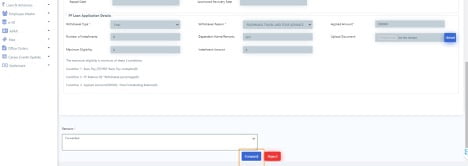
  1. Check for the details filled, accordingly put remarks and forward or reject the application by clicking on the Forward or Reject button respectively.
         For PF Loan Verification Authority
  1. Login to HRMS application with PF Loan Verifying Authority’s ID.
  2. Switch user role to LVA , if having multiple roles.
  3. Click on Loan & Advances > PF Loan Applications
  1. Click on the application number to open the applied application details.
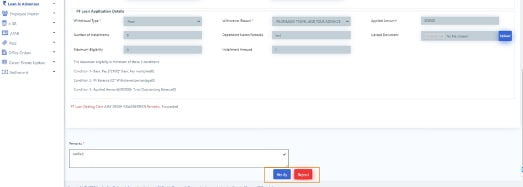
  1. Check for the details filled, accordingly put remarks and verify or reject the application by clicking on the Verify or Reject button respectively.

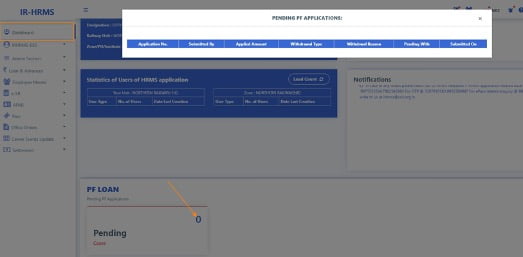
Note: PF Loan Verifying Authority may check the pending applications with assigned PF Loan Dealing Clerks ,  which have missed processing time by clicking on the pending cases in PF Loan Section on LVA’s Dashboard.

         For PF Loan Accepting Authority
  1. Login To HRMS application with Loan Accepting Authority’s ID.
  2. Switch user role to LAA , if having multiple roles.
  3. Click on Loan & Advances > PF Loan Applications
  1. Click on the application number to open the applied application details.
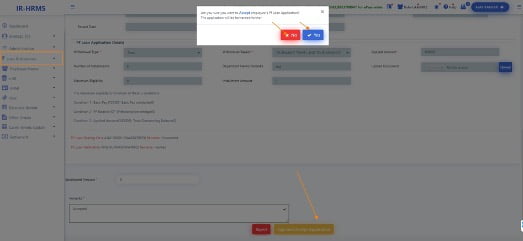
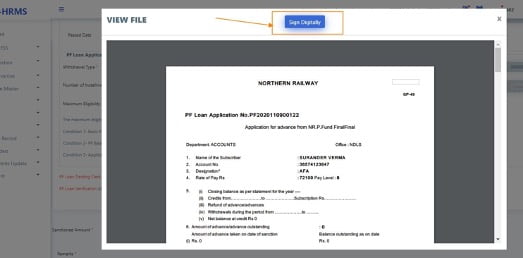
  2. Check for the details filled, accordingly put remarks, sanctioned amount and accept or reject the application by clicking on the Sign and Accept Application or Reject button respectively.
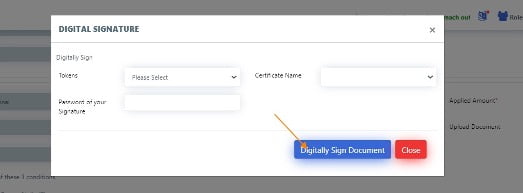
  3. After successful digital signing by PF loan Accepting authority the application moves to accounts.

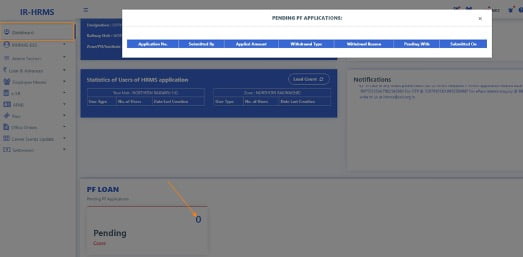
Note: PF Loan Accepting Authority may check the pending applications with assigned PF Loan Dealing Verifying  authority , which have missed processing time by clicking on the pending cases in PF Loan Section on LAA’s Dashboard.

HRMS Helpdesk:

In case of any issues please reach out to HRMS helpdesk…

  • HRMS application related issue @ 7786940452 ,9971535534,7982542883
  • For OTP @ 7267910583,9953780947
  • For ePass related enquiry @ 9891643886,9069161539,9971168228 or
  • Write to us at irhrms@cris.org.in  

Also Read…

User Guide for Post Retirement Complimentary Pass & Widow Pass Module on HRMS

Post Retirement Complimentary Pass & Widow Pass (PRCP & WP) module of HRMS was launched by CRB & CEO for use across all offices of Indian railways. Online training for operation of the PRCP & WP Module was also provided by CRIS to all the employees.

Vide Railway Board’s Letter No. PC-VII/2020/HRMS/6, dated 14.12.2020, A User Guide for Post Retirement Complimentary Pass & Widow Pass Module of HRMS was circulated.

User Guide for PRCP/Widow Pass for Railway Employees

1. Mobile Change by Retired Railway Employee 

Retired Railway Employee should follow below steps to change/register mobile number on HRMS.

  • Go to https://hrms.indianrail.gov.in/HRMS
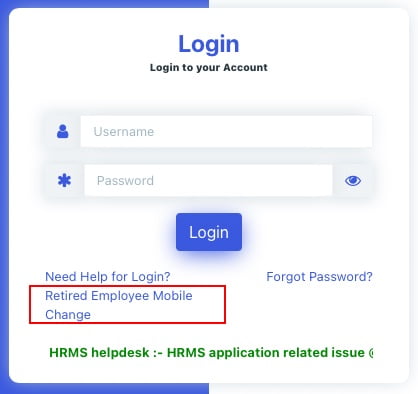
  • Click on link “Retired Employee Mobile Change.
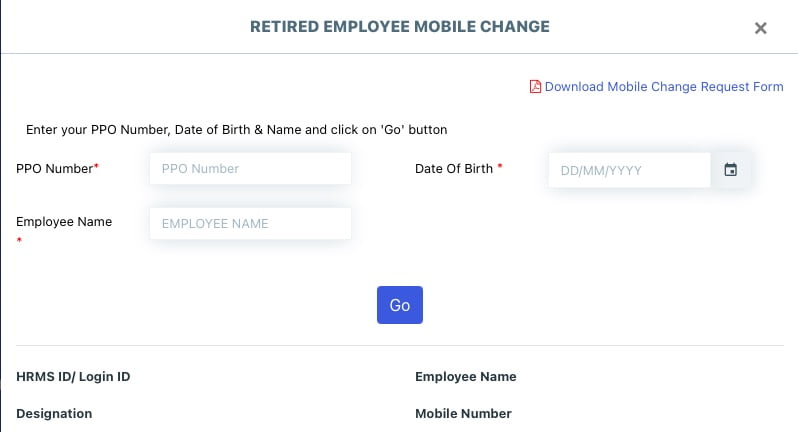
  • Fill PPO number, date of birth and name.
  • Assigned HRMS Id and mobile number in the system shall be displayed.
  • Click on “Change mobile number” link to enter new mobile, select pass issuing railway and upload document and submit.

For detailed guide Read
How to Change Mobile Number on HRMS- Retired Railway Employees?

Pass Clerk should accept the mobile number after verifying the PPO Number

  • Select PPO number
  • Check details and accept mobile number.
2. Entering Retiree data

Pass Clerk should enter below information for retired railway employees.

  • Enter PPO number or search employee based on railway, division/workshop, date of birth or name.
  • Enter mandatory information and upload document
  • Submit it.

Retired Employee should confirm, details submitted by the Pass Clerk.

  • Confirm or return data.

Pass Issuing Authority (PIA) can accept or reject data submitted by the Pass clerk.

  • Accept or Reject data.
3. Pass Application

Also Read….
1. e-Pass Implementation Process on HRMS: First step to know?
2. How to apply for Railway Pass online?

4. Issue Pass
  • Pass Clerk and PIA will check application and issue pass.
  • Pass Details shall be to user’s mobile number as SMS.
5. Ticket Booking
  • Generate OTP for ticket booking in HRMS we application.
  • Go to PRS ticket count and IRCTC web site.
  • Enter Pass and OTP details for each passenger.

Also Read… How to book e-Ticket on IRCTC with ePass?
HRMS Helpdesk:

In case of any issues please reach out to HRMS helpdesk…

  • HRMS application related issue @ 7786940452 ,9971535534,7982542883
  • For OTP @ 7267910583,9953780947
  • For ePass related enquiry @ 9891643886,9069161539,9971168228 or
  • Write to us at irhrms@cris.org.in  

e-Pass Implementation Process on HRMS: First step to know

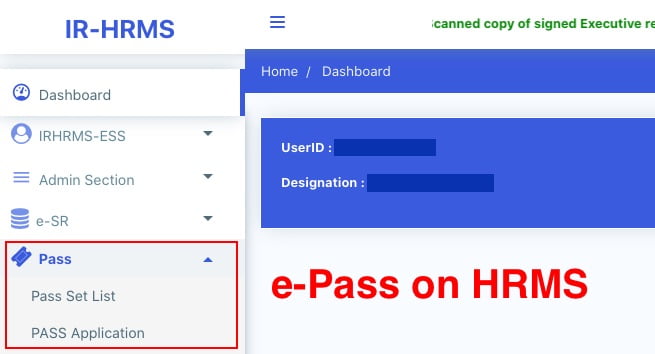
e-Pass on HRMS

With a view to promote digital/paperless ticketing, E-Privilege Pass/PTO Module of HRMS has been launched on 10.08.2020 and the same has been operationalised across all Indian Railways. In order to facilitate the same, data entry in two modules of HRMS. Employee Master and E-SR has almost been completed across all Zonal Railways.

Implementation process for e-Pass on HRMS
  1. Unit Admin ( Sr.DPO in Division and Dy.CPO/ SPO in other units) has to assign roles of Pass Admin (Branch Officers).
  2. Pass Admin has to assign access role of Pass Issuing Authority (PIA) and Pass Clerk to concerned staff. Pass Clerks are then tagged to PIA.
  3. Pass Admin has to assign Employees to PIA . Both group and one to one assignment provisions are available.
  4. Pass Clerk has to enter already availed Manual Pass data of employee.
  5. Availed manual pass data is available to Employee for confirmation Employee can accept/return Manual Pass data to pass clerk for rectification. It needs final acceptance of employee.
  6. Declaration in Family tab of Employee master is available to employee. Taking help of this Employee will submit family declaration for pass.
  7. Pass Clerk may accept/reject family declaration for Pass submitted by employee. It has to be finally accepted by Pass clerk.
  8. Employee can submit his e-Pass application. SMS will be sent to Employee and his/her PIA on submission of application.
  9. Any Pass Clerk under employee’s PIA can process employee’s pass application. If found correct it is forwarded to PIA.
  10. PIA issues the e- Pass. SMS will be sent to employee on pass generation.
  11. Employee gets the generated e-pass and can use it for ticket booking at counter or online. Employee has to generate an OTP which is to be given as input /provided to ticket issuing authority while booking ticket.
  12. For both Reserved/Unreserved journey tickets are to be booked.
  13. At the time of booking ticket by employee, details of pass / earlier bookings are verified from HRMS system and ticket is booked.
  14. Employee can also apply for cancellation of pass/ split pass online.

Source: Indian Railway

Also Read:

Other Important things to know by Railway Pass Users
  • Those employees who have once switched to E-Privilege Pass/PTO module shall not be able to avail physical passes.
  • Rules pertaining to booking of ticket. revalidation, usage. charging etc regarding privilege pass/PTOs in case of physical passes/PTOs shall remain same n e-privilege passes/PTO. with minor operational amendments. where ever required.
  • No convenience fee shall be levied by IRCTC in case of online booking of tickets using E-Privilege Pass/PTO.

How to Change Mobile Number on HRMS- Retired Railway Employees?

HRMS for Retired Railway Employees

Retired Railway Employees can register on HRMS portal of Indian Railway and can take advantage of online modules of HRMS. For registration on HRMS, retired Railway Employees to know their HRMS ID first.

Step:1- Open the HRMS webpage in any web browser and then Click on the link “Retired Employee Mobile Change”.

Step:2- Enter your PPO Number, Date of Birth & Name and click on ‘Go’ button to check your details

Step:3- If mobile number is not correct, click on ‘Change Mobile’.

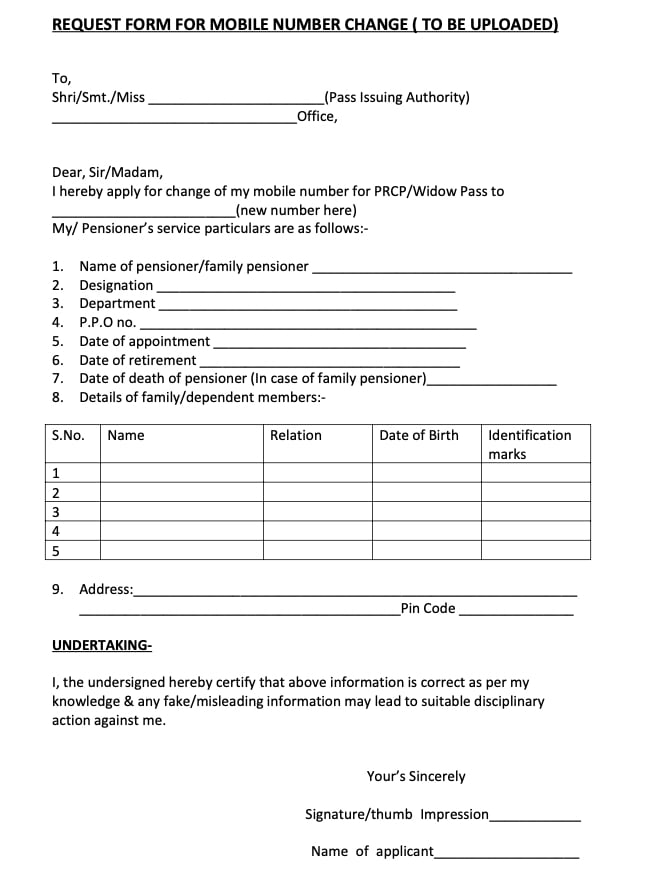
Step:4- Download the Mobile Change Request from below link, fill it and upload its image to submit your request

Note: Any one of these photo identity cards may be uploaded: Pensioner photo ID card, Aadhar card, Driving license, Voter ID card, Passport, Umid card, PAN card.

Once your mobile number is updated on HRMS portal, and you know your HRMS ID, you will be able to take advantages of HRMS portal.

HRMS application will be single window communication system between Railway employees and Administration.

From ‘January 1st, 2021’ retired railway employees will also be able to use e-Pass module.

Why HRMS for Retired Railway Employees?

Human Resource Management System (HRMS) will allow Railway employees to view their details related to their Increments, Promotions, Awards, Transfers, Postings, Leave, Training, and composition of Family as per records and Nominations for retirement benefits. This information is not readily available to employee at present. It brings transparency to administration.

HRMS Manuals and Guidelines are very helpful in understanding the use of HRMS portal.

Master Circulars Issued by Railway Board

Railway Board’s Master Circulars

Master Circulars are consolidated instructions of Railway Board on the subject matters.

The instructions issued by the Railway Board from time to time on the various subject matters are consolidated from the several Railway Board letters.

Railway Board issues these consolidated instructions as Master Circular for information and guidance of all concerned.

Here is the updated list of Railway Board Master Circulars.

No.Railway Board Master Circulars
Master Circular No. 1Master Circulars “Scout Activities On The Indian Railways” MC No.1 (Updated)
Master Circular No. 2Master Circulars “Holiday Homes” SC 01 & list of Holiday Homes (1) , (2) , (3)
Master Circular No. 3Master Circulars “Railway Institutes / Clubs” (Updated 08/2019)
Master Circular No. 4Master Circulars “Staff Benefit Fund (SBF)” SC 02
Master Circular No. 5Master Circulars “Service Book / Records
Master Circular No. 6Master Circulars “Joining Time
Master Circular No. 7Recruitment Against Cultural/Scouts And Guides Quota
Master Circular No. 8Apprentices Act, 1961 – Training Of Apprentices In Railway Establishments
Master Circular No. 9Irregular Retention In Service Beyond The Age Of Superannuation
Master Circular No. 10Master Circulars “Special Casual Leave
Master Circular No. 11Master Circulars “Grant Of Honorarium
Master Circular No. 12Procedure For Recording Date Of Birth On Entering Railway Service And Its Alteration
Master Circular No. 13Reservation Of Jobs And Recruitment There To For Physically Handicapped Persons In Group ‘C’ & ‘D’ Posts On Railways
Master Circular No. 14Master Circulars “Recruitment Of Sports Persons Under Sports Quota
Master Circular No. 15Casual Leave
Master Circular No. 16Master Circulars “Appointment On Compassionate Grounds” (SC 14) (SC 39), (SC 45) , (SC 49) , (SC 51) , (SC 57)
Master Circular No. 17Assistance To Railway Employees For Education Of Their Children, Other important Provisions on Education
Master Circular No. 18Provision Of Schools In Railway Colonies For The Children Of Railway Employees
Master Circular No. 19Confirmation of Non-Gazetted Railway Servants
Master Circular No. 20Master Circulars “Substitutes
Master Circular No. 21Resignation From Railway Service
Master Circular No. 22Absorption And Utilization Of Surplus Staff On The Railways
Master Circular No. 23Factories Act, 1948
Master Circular No. 24Transfer Of Non-Gazetted Railway Servants
Master Circular No. 25Absorption Of Medically De-Categorised Non-Gazetted Staff In Alternative Jobs (SC 6)
Master Circular No. 26Contract Labour Under Contract Labour (Regulation & Abolition) Act, 1970
Master Circular No. 27Legal And Financial Assistance To Railway Servants Involved In Legal Proceedings
Master Circular No. 28Confidential Reports On Non-Gazetted Railway Servants
Master Circular No. 29Training Of Non-Gazetted Direct Recruits
Master Circular No. 30Forwarding Of Application For Posts Outside Railways
Master Circular No. 31Promotion Of Non-Gazetted (Group ‘C’) Staff To Selection Posts – Policy And Procedure
Master Circular No. 32Recruitment Rules And Recruitment Of Non-Gazetted Staff
Master Circular No. 33Extension In Service / Re-Employment Of Railway Servants After Superannuation
Master Circular No. 34Seniority Of Non-Gazetted Staff
Master Circular No. 35Retirement
Master Circular No. 36Arrear Claims And Investigation Thereof
Master Circular No. 37Promotion Of Non-Gazetted (Group ‘C’) Staff To Non-Selection Posts – Policy And Procedures
Master Circular No. 38Master Circulars “Canteens On Indian Railways
Master Circular No. 39Master Circulars “Advances And Their Recovery
Master Circular No. 40Deputation / Secondment Of Non-Gazetted Railway Employees Outside The Railways – Consolidation Of Instructions
Master Circular No. 41Leave Reserve – Provision Of In Non-Gazetted Categories
Master Circular No. 42Cultural Activities On Railways
Master Circular No. 43Trade Test For Promotion In Artisan Categories
Master Circular No. 44In-service Training To Non-Gazetted Railway Staff
Master Circular No. 45Indigenous System Of Medicine – Homeopathic / Ayurvedic Dispensaries
Master Circular No. 46Drawal Of Increments Of Non-Gazetted Staff – Consolidation Of Instructions
Master Circular No. 47Holidays
Master Circular No. 48Casual Labour
Master Circular No. 49Allotment Of Quarters And Retention Thereof On Transfer etc
Master Circular No. 50Master Circulars “House Building Advance”
Master Circular No. 51Reservation For Scheduled Castes /  Scheduled Tribes In Railway Services
Master Circular No. 52Re-employment Including Employment of Consultants
Master Circular No. 53Pension Scheme On Railways And Retirement Benefits On Absorption In Public Sector Undertakings / Autonomous Bodies
Master Circular No. 54Qualifying Service For Pensionary Purposes
Master Circular No. 55Emoluments / Average Emolument For Pensionary Benefits
Master Circular No. 56Fixation Of Pay – Consolidation Of Instructions
Master Circular No. 57Master Circulars “Deputation
Master Circular No. 58Increments – Consolidation of Orders
Master Circular No. 59Payment Of Wages Act, 1936
Master Circular No. 60Pension And Retirement / Death Gratuity
Master Circular No. 61Commutation Of Pension
Master Circular No. 62State Railway Provident Fund Rules For Railway Servants
Master Circular No. 63Master Circulars “Conduct Of Pension Adalats On Railways (1) , (2)
Master Circular No. 64Master Circulars “Suspension Of Railway Employees
Master Circular No.65Facilities Granted To All India SC / ST Railway Employees Association
Master Circular No. 66Master Circulars “Penalties And Disciplinary Authorities” (Latest)
Master Circular No. 67Important Points To Be Kept In View By The Disciplinary/ Appellate/ Revisionary / Reviewing Authorities And Inquiry Officers While Handling Disciplinary Case (Latest)
Master Circular No. 68Consolidated Instructions Governing Promotion From Group ‘C’ To Group ‘B’ Posts

All Railway Board Master Circulars can be downloaded in PDF format.

RATES MASTER CIRCULARS

RATES MASTER CIRCULARS – Issued by Railway Board

SNoSUBJECT
1.Demurrage, Stabling, Wharfage, Stacking, Waiver and Write-off.
2.Guidelines regarding provision, installation and functioning of weighbridges.
3.Weighment of wagons / rake, exemption from weighment, procedure to deal with overloaded wagon(s) and levy of Detention Charge etc.
4.System of charging freight on Through distance basis in case of sidings.
5.Guidelines for Electronic Payment System, Freight Advance Scheme etc.
6.Permissible Carrying Capacity.
7.Registration of Demand for wagons electronically (e-RD) through FOIS web portal.
8.Freight Incentive Schemes
9.Guide lines regarding Container Rail Terminal (CRT), Container Class Rate (CCR) and Hub & Spoke system of charging.
10.Policy Guidelines-Transportation Products: Block Rakes / Mini Rakes / Two Point Combinations  etc.
11.Dynamic Pricing Policy – Levy of Busy Season Charge, Development Surcharge and Congestion Charge.
12Electronic Transmission of Railway Receipt (eT-RR)

Also Read…

Policy of Appointment of TADK on the Railways: 01/12/2020,RBE 102/2020

RBE No. 102/2020

GOVERNMENT OF INDIA

MINISTRY OF RAILWAYS (RAILWAY BOARD

No. E(NG)II/2020/SB/5, dated 01.12.2020,    New Delhi, Dated 01.12.2020

The General Manager (P),
All Zonal Raitways/Production Units,

Sub: Policy of Appointment of TADK on the Railways.

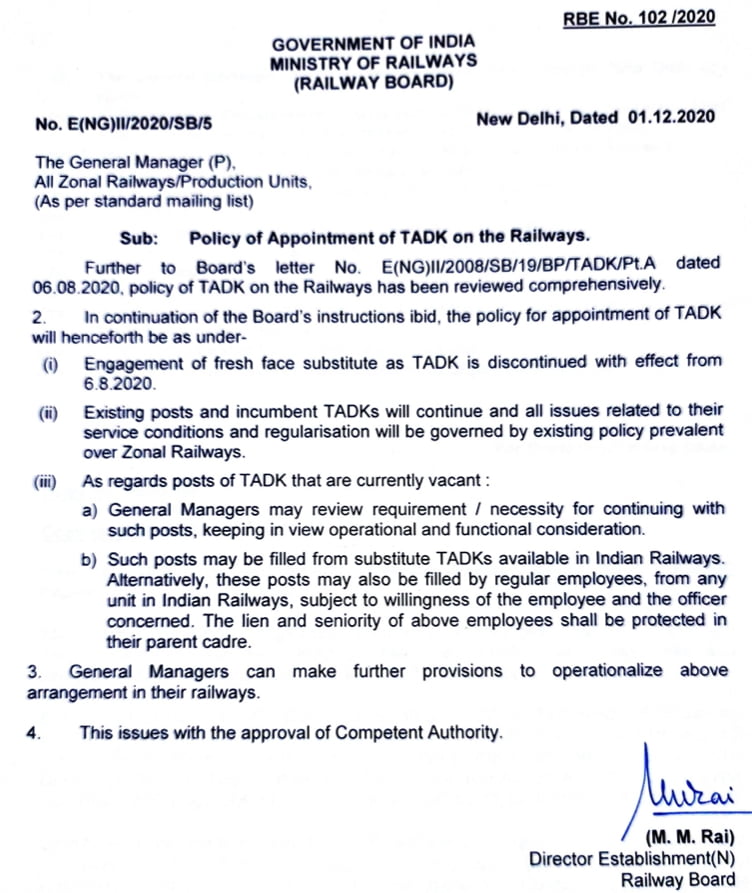
Further to Board’s letter No. E(NG)II/2008/SB/19/BP/TADK/Pt.A dated 06 08.2020, policy of TADK on the Railways has been reviewed comprehensively.

2. In continuation of the Board’s instructions ibid, the policy for appointment of TADK will henceforth be as under-

  1. Engagement of fresh face substitute as TADK is discontinued with effect from 6 8.2020.
  1. Existing posts and incumbent TADKs will continue and all issues related to their service conditions and regularisation will be governed by existing policy prevalent over Zonal Railways.
  1. As regards posts of TADK that are currently vacant:
    1. General Managers may review requirement / necessity for continuing with such posts, keeping in view operational and functional consideration.
    2. Such posts may be filled from substitute TADKs available in Indian Railways. Alternatively, these posts may also be filled by regular employees, from any unit in Indian Railways, subject to willingness of the employee and the officer concerned. The lien and seniority of above employees shall be protected in their parent cadre.

3. General Managers can make further provisions to operationalize above arrangement in their railways.

Original Railway Board Letter…

Latest Policy on TADK issued on 01/12/2020 vide RBE 102/2020

4. This issues with the approval of Competent Authority.

Director Establishment(N)
Railway Board

Also Read…
UNOFFICIAL Information center for Indian Railways

Exit mobile version